Showing posts with label Tech Tools. Show all posts

Monday, October 2, 2017

Mystery Doug

Transitions and breaks can "make or break" any classroom, especially an elementary classroom. They can set the stage for your whole day. These moments of movement and change can be smooth purposeful, or chaotic and crazy. Sometimes, you just need a break. There are all kinds of great tools out there to allow teachers a moment of sanity. One that I just ran across is Mystery Doug. This is a great thinker break that will allow students to discuss, think, and question an idea in a fun way!


Need a quick 5-minute filler activity? Here is a great way to get kiddos thinking, questioning, and discussing.
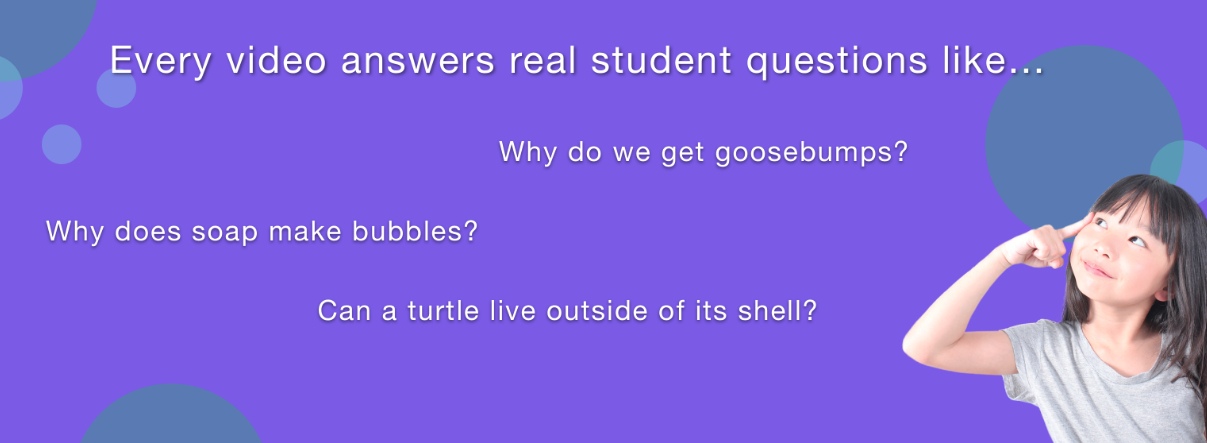


Sign up for "Mystery Doug". He posts weekly 5-minute video question with prompts to spark classroom discussion. All for FREE!
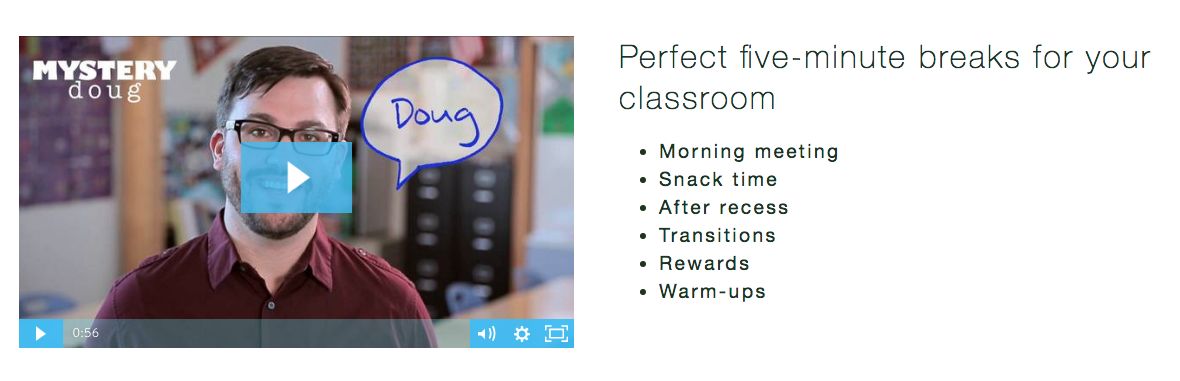


You can even submit questions he will answer on the next video.
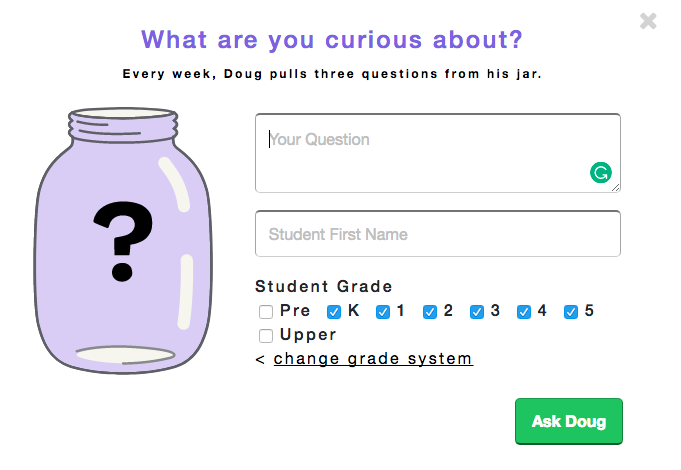


...or have your class vote for what the next week's video will be about!
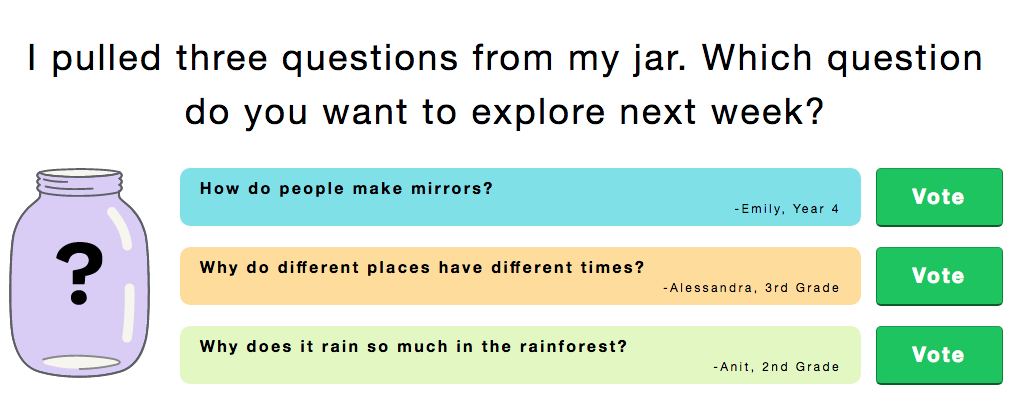


Sign up and give it a try. What do you have to lose? Your kiddos will love it!


Leave feedback in the comments on how your students feel about the Mystery Doug videos.

Sunday, March 30, 2014

ClassDojo: New Messaging Feature

The geniuses at ClassDojo are at it again! ClassDojo has another update to its already awesome tool. They have added a messaging feature that will allow you to send direct messages to parents, and allow them to message you back. This works much like text messaging on your phone. There are a couple of things that have to be set up first, but it is easy and painless, and will be a great addition to your behavior tracking & parent communication in your classroom!

Set Up:
First, you must have your parents "join". You can print out sign in codes to send home (this is really important at the student level as they should be able to track their own behavior). Once parents get the code and they set up their account you can begin. You will see which parents have set up accounts in your dashboard (see the first image below). From there you can start to send out messages when needed. It works well, but does require the teacher to use the iOS or Android app in order to do (can't do it form the web interface); however, the parent can access messages from the web.


Below are a couple screen shots of it in action.

Invite parents with a code


Open "Messaging" on app start


Communicate Away! (Teacher iPad app)


Parents get an email notification

This is what the parent web interface looks like 


If you have not tried this, give it a shot. It is a great way to keep your parents informed of great achievements or issues that arise during the day.

Saturday, February 15, 2014

Class Badges: Online Rewards for Students


Admit it. We all like them. Badges! They are everywhere: on papers, shirts, folders, cars, and even online. Class Badges let you make student account to store earned badges for any teacher created even, assignment, action. Best of all, it costs nothing to create and send these inspiring trinkets to your students. Creating an awesome multi-paragraph writing sample and need to encourage them as they work? Create a badge for each paragraph rewarding success in that paragraph's purpose. When a student achieves the expected outcome, reward them the badge! Kids love it (and admit it, so do adults...I can't tell you how gratifying it is seeing all the badges I earn in a Moodle course...).   

So...what type of Class Badges could you use?
  • Completing a task 
  • Reaching a goal 
  • Reward for achievement 
  • Reward for behavior 
  • The possibilities are endless! 


The best part (aside from being free) is that once a badge is created, you can keep them for later. Each year you add your new class into your roster and start rewarding. All they have to do is log into their account and view earned badges. 

Class Badges is easy to use, and everyone loves getting rewards. These are like “virtual” stickers (and the sticky part never loses tack)!


Here is a sample of some class badges I made:


Log into www.classbadges.com and start rewarding!

Friday, January 31, 2014

Air Sketch: Wirelessly Display iPad on Computer

I usually don't share paid apps on my blog, but Air Sketch is one that I can make the exception for. This is a great tool that will allow a teacher to be mobile in the classroom. It is easy to use, and stable. Air Sketch is a wireless whiteboard that allows may key elements that a teacher uses. Projecting to your computer is easy, stable, and real time.

Here is a list of what Air Sketch can do from the vender's site:

Features:

  • Wirelessly project PDF documents, images and live drawings over WiFi (3G is not supported).
  • Fast and fluid sketching on the iPad using your finger or 3rd party stylus (such as the Pogo Sketch).
  • Open PDF documents from Mail or other Apps in Air Sketch to wirelessly annotate and project them. Email the full annotated versions afterwards.
  • Real-time sketching to your browser: Strokes show up as you draw, network speeds permitting.
  • You can record them using any desktop recording tool, such as QuickTime's Screen Recording feature.
  • Or share your sketches with remote colleagues using any desktop sharing app such as iChat.
  • 5 drawing tools: Pencil, pen, marker, brush, and highligher.
  • A fully customizable color palette (tap on the selected color to edit it).
  • Fluidly zoom and pan using 2 fingers to edit your sketches in minute detail.
  • Instantly save and restore snapshots of your sketches using the camera tool.
  • Multi-step undo and redo.
  • Secure your web connection with a username and password.
  • You can even use Air Sketch peer-to-peer with a computer via an ad-hoc network when a WiFi hotspot is unavailable.
  • Air Sketch supports any HTML5-capable browser, which include the latest versions of:
    [Safari] [Firefox] [Google Chrome]
  • Note: Internet Explorer versions 8 and earlier do not support HTML-5, but Internet Explorer 9 will.


Like I said, Air Sketch is not free, but is well worth the $9.99. It allows teachers to step away form their desk and pass around an iPad for students to share their work with the class. Student can write on PDF documents and save screen shots for later use. It is like a mobile document camera!


Go to http://www.qrayon.com/home/airsketch and take a look.  

Thursday, December 5, 2013

Wordle: More than Just a Pretty Word Cloud

Screen Shot 2013-11-23 at 9.55.30 AM
Word Clouds are fun tools. There are a few out there (Wordle and Tagxedo are my 2 of choice). This post will focus on Wordle. I use it every 2 weeks in my classroom when we change seats. New groups make a Wordle to show what they like and have in common and these hang above their group of desks. Another great use is writing. Before a student can submit a final draft of a writing to me, they must copy and paste it into Wordle. Then they can make sure that they have not over used any words. Wordle will make the word font larger depending on its frequency. If they have very large words in their Wordle, they go back into their document and choose better words. This is an very easy visual check to see that they have varied word choice in writing.


Check out the fun at www.wordle.net

Saturday, October 19, 2013

Quizlet: A Great Student and Teacher Vocabulary Tool

Quizlet is an online tool designed to study key vocabulary terms and other concepts. It allows teachers to create flash cards and have students practice online. Teachers can make their own, or choose from millions of flash cards sets created by others. But that's just the beginning - once you've got flashcards, you can use several study modes including multiple choice tests and study games. You can add images and listen to audio, and even study on the go with Quizlet mobile apps. This is a great tool for classroom quiz/test preparation.


What are the benefits of Quizlet?

For Teachers: This is a very easy site to upload terms and create study tools. It is free and offers many great tools to make studying vocabulary fun. There are millions of already made vocabulary flash card decks already made and ready to share. Often times the perfect card deck is already created and ready to go! All a teacher needs to do is create a list of terms and definitions. If these are already created in Excel they can be copied right into the web site and auto-create study cards. Each term card can be individually created as well. After the terms are entered they can be shared by a web link with students to study.

For Students:  This is an easy tool to use. Quizlet will help students study terms with a few entertaining methods to help vocabulary retention. Best of all, no student account is needed. All a student needs is a link from the teacher and a computer with Internet access. Perhaps the best part of Quizlet, and what sets it above many others, is the options offered for studying. There are 5 different study formats to work with (Cards, Learn, Test, Speller, Scatter, and Space Race). These offer different ways to practice and learn the same terms, and best of all the teacher doesn’t need to set them up. They are part of Quizlet...all for FREE!


Here are of some of the Quizlet activities.

Types of Activities


Flash Cards


Scatter 


Spelling


Space Race


Visit http://www.quizlet.com to get started!

Monday, October 14, 2013

Tech Chat Episode 2: Kidblog


Here is the second episode of "Tech Chat". This will be a series of short videos showcasing Gull Lake Community Schools teachers showing how they use technology with students in their classrooms. This one is about a third grade teacher, Mr. English, discussing how he uses Kidblog to encourage writing and peer comments.


Thursday, September 26, 2013

Adding Audio and QR Codes to Projects using Google Drive

They are everywhere. They're on purchased products, magazine ads, posters, store signs, and even your morning cereal box. Those pesky black speckled squares! Those mysterious QR codes! But what are they really used for? What do you do with them and why are they so important? They are an easy and quick way to access a web link, file, document, or a million other things online. Wouldn't it be great if you could have your smartphone or tablet scan a QR Code and play your students' voice describing a project? You can! Here is an easy way to have students create an audio file and attach it to a project. This can be a writing sample they made, an art project they created, or a poster they designed. Putting a student's voice on their work helps explain details and gives even more ownership to their work...and it is really easy! Here are 7 easy steps to do this. All you need is an audio recording, Google account, and internet access!


7 steps to Adding Audio to Student Projects

  • Step 1: You will need to get an audio recording of the student describing, reading, or retelling their story/project. This can be done with apps for tablets or a computer program like Audacity or Garage Band. Best output is WAV file (plays better with Google Drive).
  • Step 2: Once you have the recording on a computer, the student will need to upload this audio file to their Google Drive. I suggest creating a folder for Audio Files. 
  • Step 3: Share the audio file. I recommend making the file viewable to anyone with the link.
  • Step 4: Copy the link and paste it into a QR code making site. I use http://qrcode.kaywa.com because it is easy and free. This will generate the QR code image. Save this to your desktop.
  • Step 5: Attach this image to your project. You may have to print this out or insert it as an image in your document.
  • Step 7: Sit back and look like a Tech Ninja!


Here is a screencast showing how to do all 7 steps. Watch it and get QR'ing!


Thursday, September 19, 2013

Twitter Hashtags Every Teacher Should Know About


Twitter chats are a great way to stay informed of current educational trends. By following the right people and hashtags you can learn great teaching methods, techniques, resources, tools, programs, and almost anything else that relates to the classroom. Most Twitter chats are held weekly at a set time.  They are a good opportunity to chat online with like-minded educators, sharing ideas that work for you, and continue to add/gain from an endless PLC community.  Below is a collection of Twitter chats that are great for all kinds of educators.

These Twitter chats cover anything and everything in education, and represent a great jumping off point for those just getting started in Twitter education chats.

  • #edchat – Talk to a variety of educators around the world through #edchat, Tuesdays at noon and 7 p.m. EST.
  • #lrnchat – Every Thursday night from 8:30-10 p.m. EST, you can connect with other educators and discuss learning.
  • #edbkchat – On Wednesdays at 4 p.m. EST, you can discuss educational books and topics in learning and pedagogy.
  • #spnchat – Find out about successful practices in education and education reform through #spnchat Tuesdays at 9 p.m.
  • #ptchat – Wednesdays at 9 p.m. EST, parents and educators around the world can open the lines of communication on #ptchat.
  • #urbaned – This Twitter chat for educators discusses topics relevant to urban education and beyond, every first and third Sunday of the month at 9 p.m. EST.
  • #teachchat – Connect with other teachers and find out what they’re doing in their classrooms on #teachchat Wednesdays at 9 p.m. EST.
  • #teaching2030 – Discuss big picture education issues, strategies, and reform through the #teaching2030 chat, every third Thursday at 8:30 p.m.
  • #smedu – Wednesdays at noon and 9 p.m. EST social media professionals, students, educators, and more can discuss using social media in education in this chat.
  • #ntchat – New teachers can learn more about their profession with ideas, collaboration, and more for getting starting through #ntchat on Wednesdays at 8 p.m. EST.
  • #educoach – Wednesdays at 10 p.m. EST, you can find instructional coaching for improving education.
  • #gtchat – Fridays at noon and 7 p.m. EST, gifted and talented educators, administrators, parents, and students can discuss new developments in developing gifted and talented programs around the world.
  • #spedchat – Follow this weekly discussion on issues for students and teachers in special education Tuesdays at 8:30 p.m. EST.

Saturday, September 14, 2013

Google Voice: An Alternative Number

I am a HUGE fan of Google Voice. I use it in my personal life as well as my teaching life. For those who do not know that this fantastic Google goodie is, let me enlighten you. Google Voice is an add-on already in your Google account that allows you to give out a local phone number that will connect to any existing number you already have. Let's put it this way. You know you have to call parents after school hours or on the weekend. You can call from your home or cell phone, but how many of you think before you dial, "Do I really want this parent to have my home/cell number?" In most cases, this is never an issue, but there is that one time you may regret having given out your personal number. This is where Google Voice is the answer. Once you set up your Google Voice number you have the choice to connect it to any phone you have access to (you can have it associated with multiple numbers). I use my cell number. Then you give this new number out to parents. When they call you have the option in the settings to have it ring to the cell, or just go right to voicemail (this is what I do). But this is even better than just a voicemail. If you the IOS/Android app installed, you get a notification you have voicemail, and you get the voicemail transcribed and played though audio. This is a perfect record of any call from a parent. You can then choose to call the parent back (using the Google Voice number so they still do not have your cell number) and life is good. Personal life separated from work life with the use of a new cell number. Also, if things were to ever get "difficult" you can record and transcribe the actual phone call. I use Google Chrome and there is an extension that lets me know when I have new voicemails and an easy link to view pone call transcripts and texts.


Things you can do with Google Voice:
  • Make calls and not give out personal numbers
  • Text others without giving out personal numbers
  • Record phone calls
  • Have parent voicemail transcribed (keep for records)
  • Download parent voicemails (MP3) if needed
  • Free long distance calling nationwide
  • and MUCH more...


There is so much to Google Voice. I use it daily and have come to rely heavily on it. Give it a shot! Below are some get resources to check out how to set up and use Google Voice!


Here are some links to learn more:


Thursday, September 12, 2013

StrataLogica: A Classroom Map App

I love Google Earth. I really do! I use it so much in my personal life as well as within the classroom. It is a great tool, but it lacks some educational "kick". This is where StrataLogica comes in! It does all the cool things Google Earth does (spin, zoom, etc...), but it does even more. This app goes where Google Maps leaves off. You can tap on locations and get data. You can create points of interetst (like Gogle Earth). You can create maps, access shared maps, and more. Download it and check out what you can do! 


iTunes Description:
Introducing StrataLogica® for the iPad, where the learning is in the layers. Known to countless teachers and students for providing a revolutionary educational experience, StrataLogica comes to life in an exciting new way in version 2.0 of our app. Learning about our world with a tap or pinch of your fingers has never been more engaging and fun! 

The new version brings powerful features for creating content, collaborating and sharing from the desktop experience to the iPad. 
• Use our new tools—marker, symbols, text labels and pushpins—to add your own content onto geography, history and earth science layers. 
• Logged-in users can save and share custom views or presentations with school or district students or colleagues. 
• Logged-in users can share content with anyone in the world via Twitter, Facebook or e-mail. 
• Logged-in teachers can initiate dynamic collaborative projects with students. 
• Licensed users can now access e-book atlases and related student activities. 

More than just a geography reference tool, StrataLogica delivers a one-of-a-kind educational experience. Even if you don’t have a school account for StrataLogica, you can experience a sampling of our interactive layers for free. And coming soon—downloadable content packs. 

Don’t forget to share what you create to the StrataLogica Community! You just might share with someone halfway around the world. 

Bring interactive learning about our world to your iPad—try StrataLogica today. 


Tuesday, September 10, 2013

Poll Everywhere: A Great Way to Quickly Survey Students and Staff

So you are right in the middle of a fantastic lesson. You really want to know where to go next. What do they "want" to learn about? What interests them? How can I get this info and keep them engaged? Pull out a quick Poll Everywhere survey and you are all set! This web site tool allows you to display real time results form your class. All they need is a mobile device (phone, tablet, or computer) and a link form you. They can answer multiple choice or open ended questions. You can even display the results in many ways. This is a fantastic tool to get quick feedback on any type of question you may have for students. There are different levels of accounts from free to paid. For most teachers  the free account is all that is needed. Check out the video below to get a general overview.


Go to PollEverywhere.com and get started! 

Sunday, September 1, 2013

Google Chrome: Pin Most Used Tabs

Ok. I'll say it. I'm addicted to Chrome! Not the color, the browser. Whew...I'm feeling much better now! But really, who doesn't like Google Chrome? It's fast. It syncs better than any other browser out there. It allows multiple log ins. The list continues. In this post I will show something that I just learned (thank you @GoogleChrome). My newest love is pinning my favorite tabs. I know, this does not sound too amazingly new, but there is a bonus to this. When you pin a tab in Google Chrome it not only locks it in so every time you turn on the browser it is there, but it also makes it WAY thinner so it takes less room. By pinning the tab, the text next to the icon is removed. Now I can have even MORE tabs open! Google never seems to stop amazing me! 

So...How does one do this amazing feat?

  1. Open Google Chrome and open the pages you want to pin.
  2. Right click on the tab you want pinned.
  3. Click "Pin Tab".
  4. Done!


Below is an image of what pinned tabs look like:


Get more tips from Google Chrome here: 
https://support.google.com/chrome/answer/95622?hl=en 

Friday, August 30, 2013

Remind101: A Great Tool to Reach Out to Students

Cell phones are everywhere. We are all connected in ways we never were before, as are our students. Many school fight with phones during class time, but that does not mean you shouldn't take advantage of them outside of school hours! Send text reminders, positive notes, and other messages right to your whole class, individual students, or parents with an easy web tool. The best part, they get a text from a web based program, and not your personal cell. Your number is never used as you use the site to generate messages. This is a great way to remind students and parents of upcoming events, tests, urgent messages, or anything else you may want to tell them. Watch the clips below to learn more and sign up!

Remind101 Presentation Deck from Remind101


A Remind101 Overview


Go to https://www.remind101.com/ and get started!

Monday, August 19, 2013

Planbook.com: How to add "I Can Statements" to Lessons

We are using Planbook.com as our lesson plan book in our K-5 classrooms. Overall, the teaching staff seems very pleased with this decision (especially with changes that are required with transparency of CCSS within all lesson plans in Michigan. Planbook.com has many advantages over a paper plan book. 

  • It is accessible anywhere there is internet connection
  • Administrators have direct access to plans (no emailing to find good observation times)
  • No need to print sub plans as there is a link for subs to view
  • Common Core State Standards are easily attached to every lesson
  • and...adding "I Can Statements" is pretty easy

Below is a quick video of how to create (yep, you do need to type them all in once) a list of your I Can Statements aligned with the CCSS.


Saturday, August 17, 2013

YouBlisher: An Interactive PDF Viewer

We are all using PDF files to share documents as it is the best format to share and view on any device. There is nothing special about PDF files in general. It is a great tool for sharing information with everyone, but let's face it....PDF files are still pretty dull. I ran across a great spin to the standard PDF. Youblisher allows teachers to upload, store, and share PDF files for FREE!  Youblisher is a site that you can upload any PDF to and it becomes a "live" file that is accessible online. It adds page turning animations and sounds for all those paper "purists" out there. I attached one below to show how it looks. Click on the image and it will take you to the "live" document.


My collection of Tech Tips from 2012-2013

Tech Tips 1-24 

Youblisher is a great PDF storage spot and allows easy sharing of PDF files. Check it out and set up a free account today!


Wednesday, August 14, 2013

Exit Slips: Quickly Assess Student Understanding


Exit slips are a great way to assess student understanding of a lesson taught. Teachers use these as informal assessments to adjust the next days lesson and get quick "Did They Get It?" data. There are many ways to do this. Below is a starter list of great exit slip tools. 


    • Google Forms
    • Classroom Clicker Systems
    • "Old school" paper slip


There is a great blog on Exit Slips written by:   

Saturday, August 3, 2013

Google Forms: A Few Ways to Use

There are a lot of online survey tools out there, and many of them are free. They are used to collect information (data) from others and consolidate it in one place for ease of use. They can be delivered on web sites, links, and even QR codes. The most beneficial way to use a survey tool in your classroom might be to use it for a quick survey or an assessment, but there are many other uses for Google Forms. Below are just a few ways I have used Goggle Forms.

Pre/Post-Test

Survey your students before you start teaching a topic, and you can easily find out what they already know. Then survey them after the unit is finished and compare the data. With the pressure put on teachers to show growth, this is a great way to have your own personal set of data to show student growth.


Self Grading with Flubaroo
Using Google Forms is a great way to assess, but do we really want to spend all that time assessing AND grading? This is when a script add on called Flubaroo comes in. By adding this script to a Google Form, the students' responses are self graded. Now students can take a quiz and teachers get the scored quiz with very little work! 


Exit Ticket
A quick Google Form can be used after a lesson to see what the students got from that days' work. The teacher can quickly look at the data and know where to begin the next day. 


End of Year/Semester Feedback
I always do teacher evaluations with my students. The great thing about using Google Forms is that you get the information stored right in your Drive. No more paper evaluations to lose.


Keep Students Involved/Interested
Surveys can be used to help keep students involved and interested in class. try using Google Forms for class voting, quick tallies, or just for fun data. Although our days are busy enough, allowing a little fun data collecting can help keep students involved and participation in class.


Classroom Information
Learn more about your students by generating surveys to collect data on "Get to Know You", "What You Like", "Favorite This or That", and more. I create a form for "Meet Your Teacher" day and have the students fill it out. This data can then be used to create a class roster in a spreadsheet with names spelled correctly and important information I will need for the year (birthday, address, previous teacher, and any other information you may need throughout the year.


Google Forms Tutorial (created by Bob Deneau):


However you choose to use Google Forms in your classroom, you will find it addictive. It will become so easy to collect information and have it stored in one place that you will wonder how you functioned without them. With how easy and they are to create/administer and how well they work, Google Forms will be an essential tool in your teacher toolbox.
