Showing posts with label iPad. Show all posts

Sunday, May 1, 2016

Restrict Adult Content on the iPad

We know this is an issue: the freedom children have on mobile devices to do, go, and see what they want (or accidently stumble on). Many talk about setting up parental controls but get lost in the steps trying to set them up. Here are the steps to restricting adult content from being displayed on the iPad within the browser. Please keep in mind that this is not a 100% blocking technique. New sites are created all the time that are not set in the Apple filter as of yet. Parents always need to be present with younger children and monitor all web activity as well as discuss proper browsing etiquette. To get started and filter out most adult content, follow the steps below:


Restrict Adult Content on the iPad


  1. Open the “Settings” app.


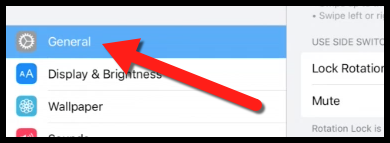
  1. Tap on the “General” section (left side).


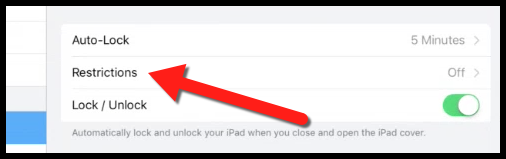
  1. Navigate to “Restrictions” (right side).


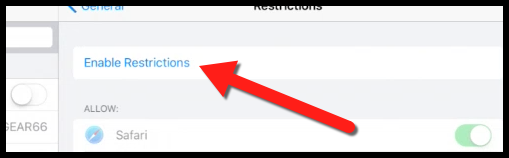
  1. Select "Enable Restrictions".


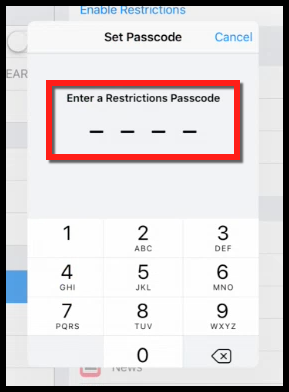
  1. Enter a passcode that you will remember. You will need to do this twice. Also, you will need this passcode to enable and restrict any settings in the future. It is very important you remember this passcode.


  1. Once your passcode is selected scroll down and tap "Websites".
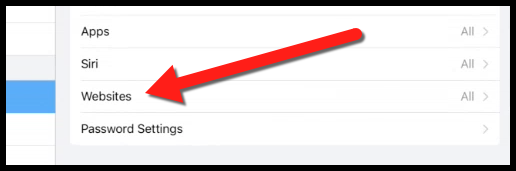


  1. This will open a screen where you can choose to block "All Websites", "Limit Adult Content" or block "Specific Websites Only". Tap "Limit Adult Content".
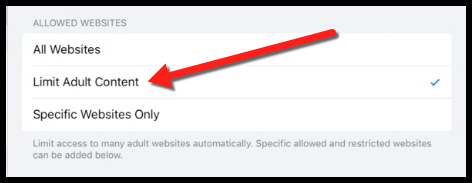


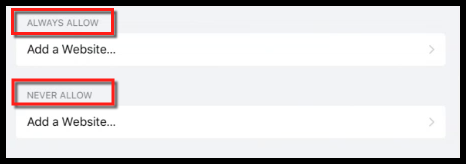
  1. The "Limit Adult Content" option will automatically block most adult websites, but you can also add more by using the "Specific Websites Only" tab. Additionally, you can manually add more websites by selecting the "Add a Website" option.


  1. Once you're finished, just close the “Settings” app and all your changes will be saved.


Here are these directions shown in a YouTube video to help:


To view these directions in a document, click Here!


Sunday, January 4, 2015

Sync Google Calendars to Your iPad Calendar App


I don't know what I would do without access to my Google Calendars 24 hours a day/7 days a week. They all sync to my Android phone, my laptops, and even my iPad. There is a little trick that you have to do in order for your Google Calendars to sync with the stock iPad app, though. Follow these simple steps to get syncing. One warning, events edited (not created) from the iPad have been known to not sync well at times (very inconsistent).


How to Sync Google Calendars to Your iPad Calendar App


Allow Apple to See Google Accounts:
  1. Log into your Google account(s) on a computer in a browser.
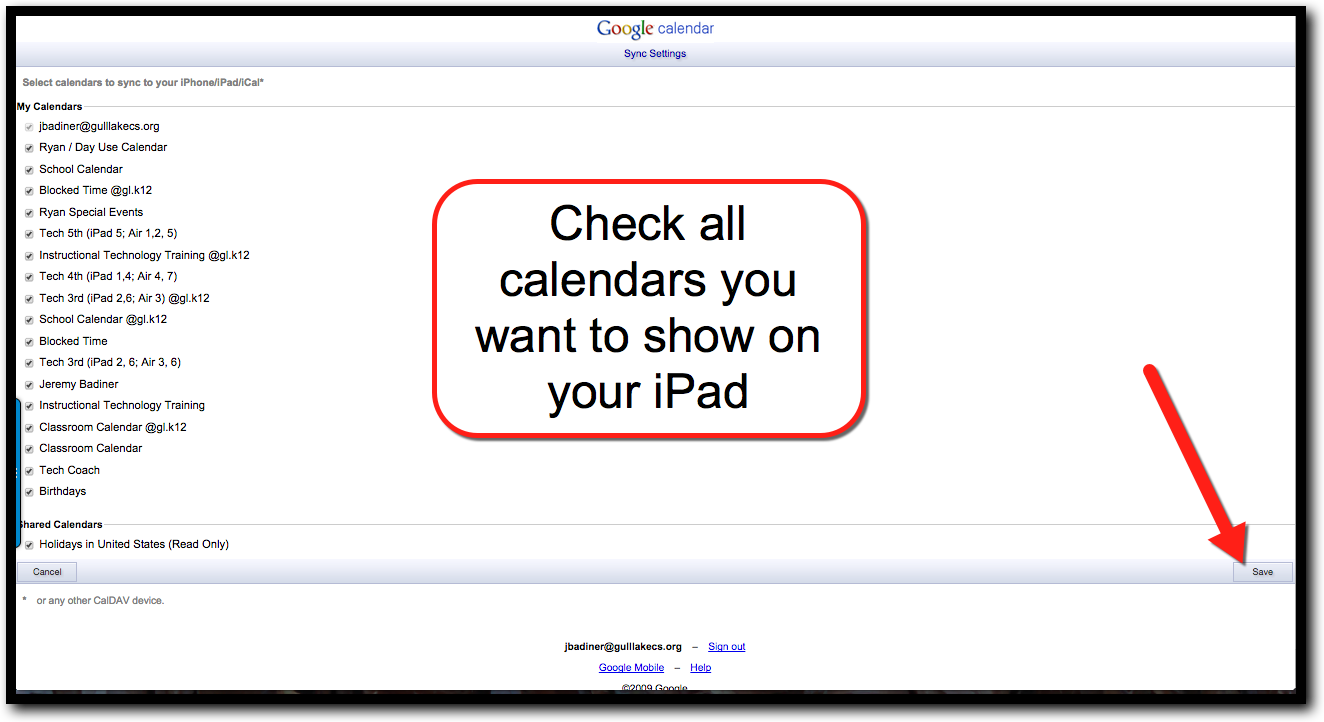
  2. Go to the following address: https://www.google.com/calendar/iphoneselect
  3. Check all calendars you want to sync to your iPad.


  1. Click “Save”.


Setup Google Account on your iPad:
  1. Open the “Settings” app on your iPad.
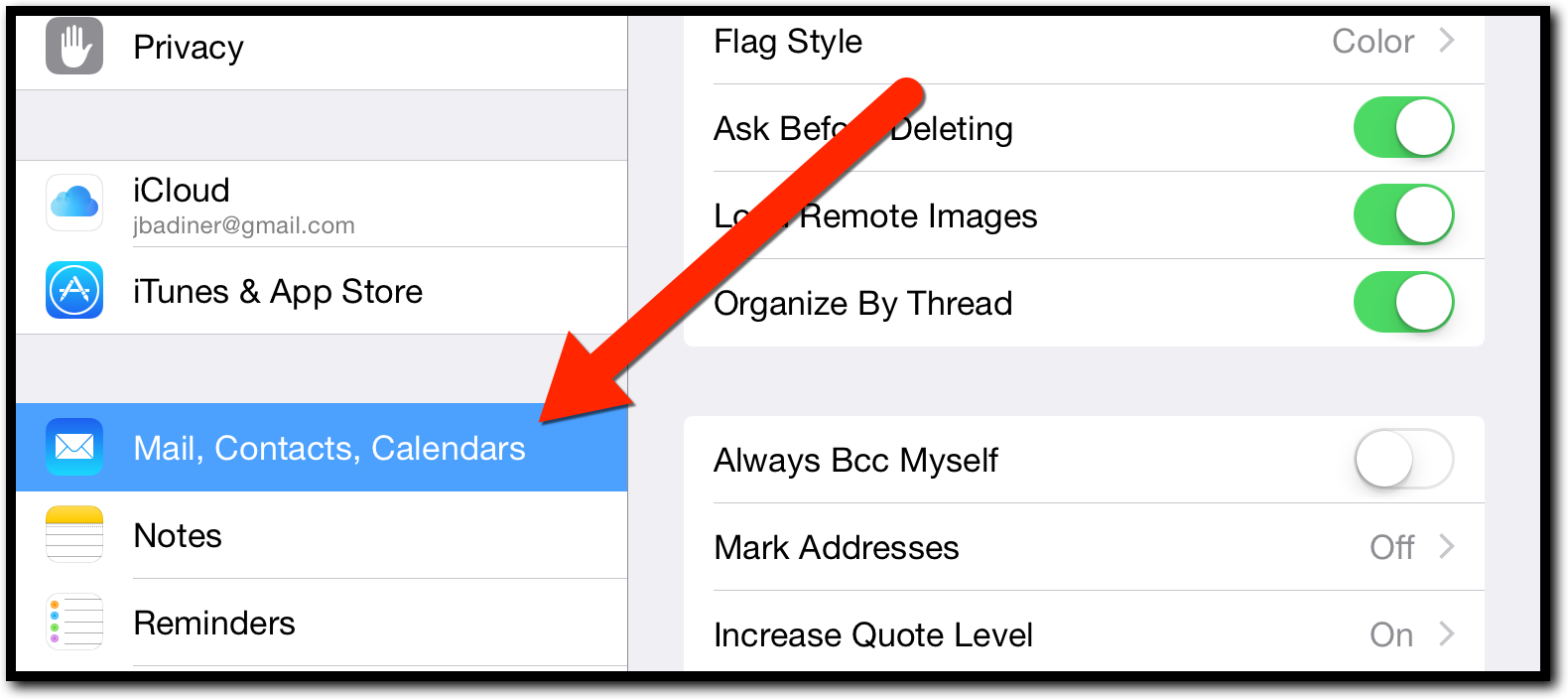
  2. Tap on “Mail, Contacts, Calendars”.


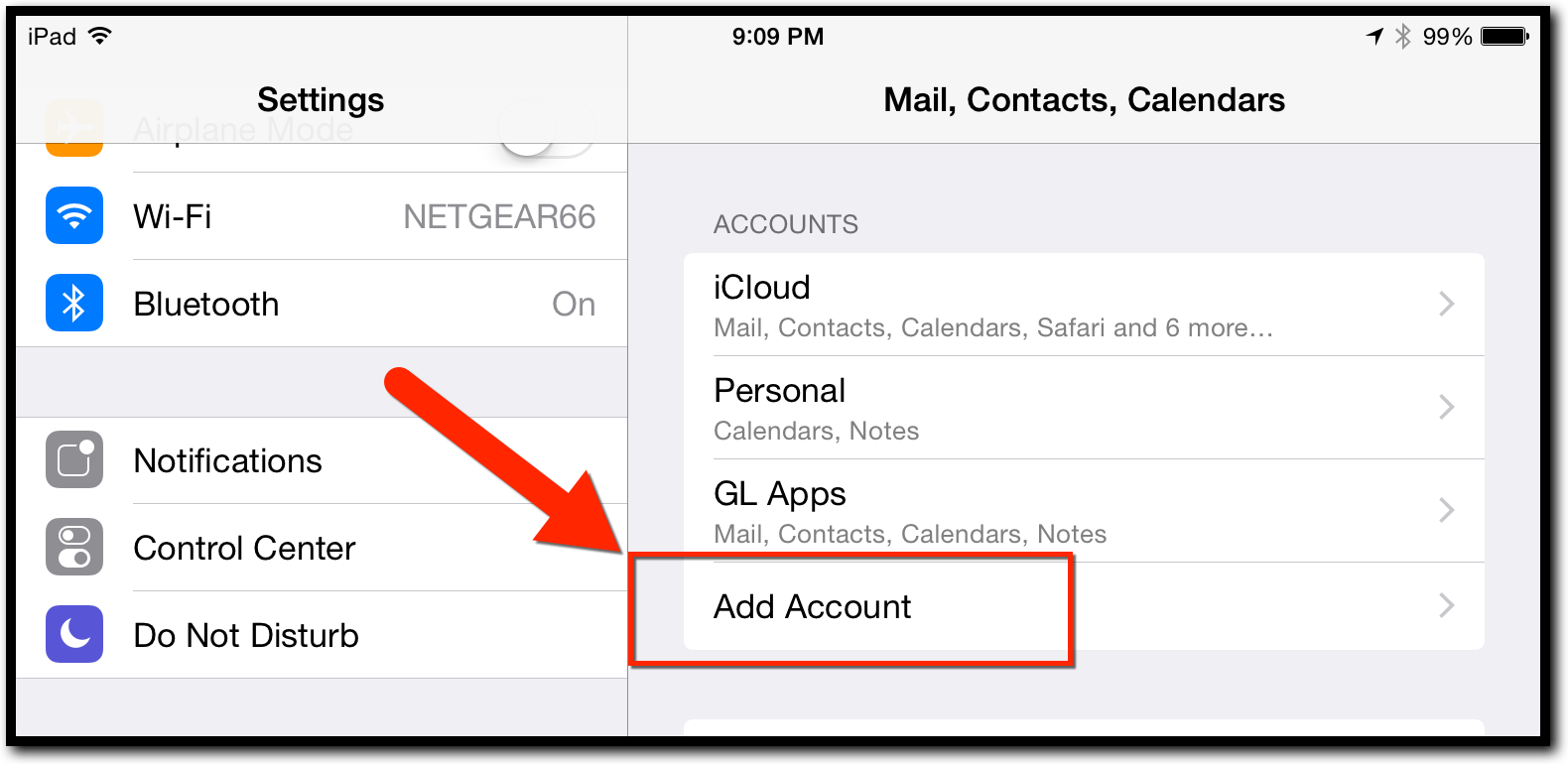
  1. Tap “Add Account”.


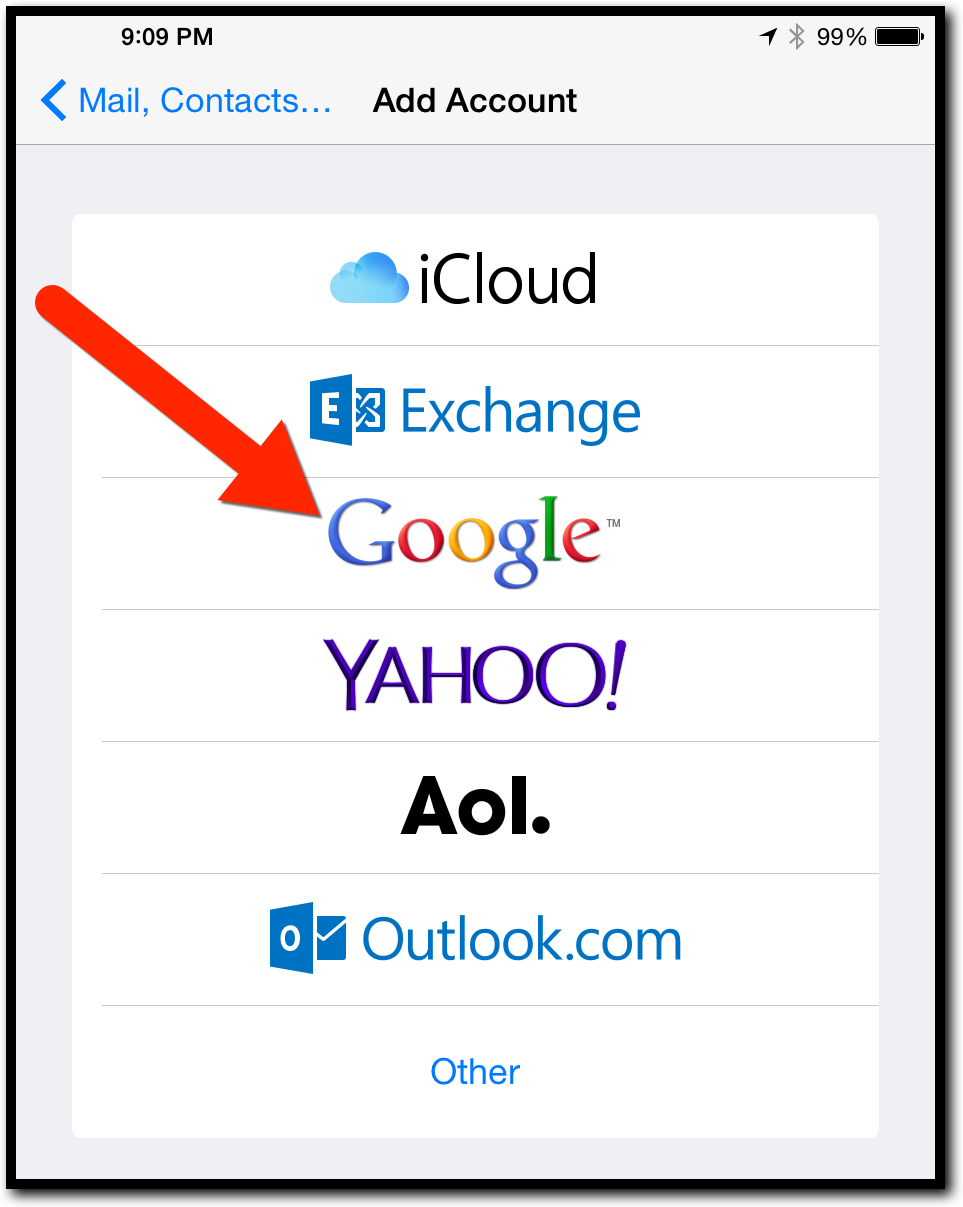
  1. Tap “Google”.


  1. Follow the onscreen steps to setup your Google account on your iPad. Make sure to tap “Save”.


Sync Calendars with Your Stock iPad Calendar App:
  1. Open the stock Calendar App on your iPad.
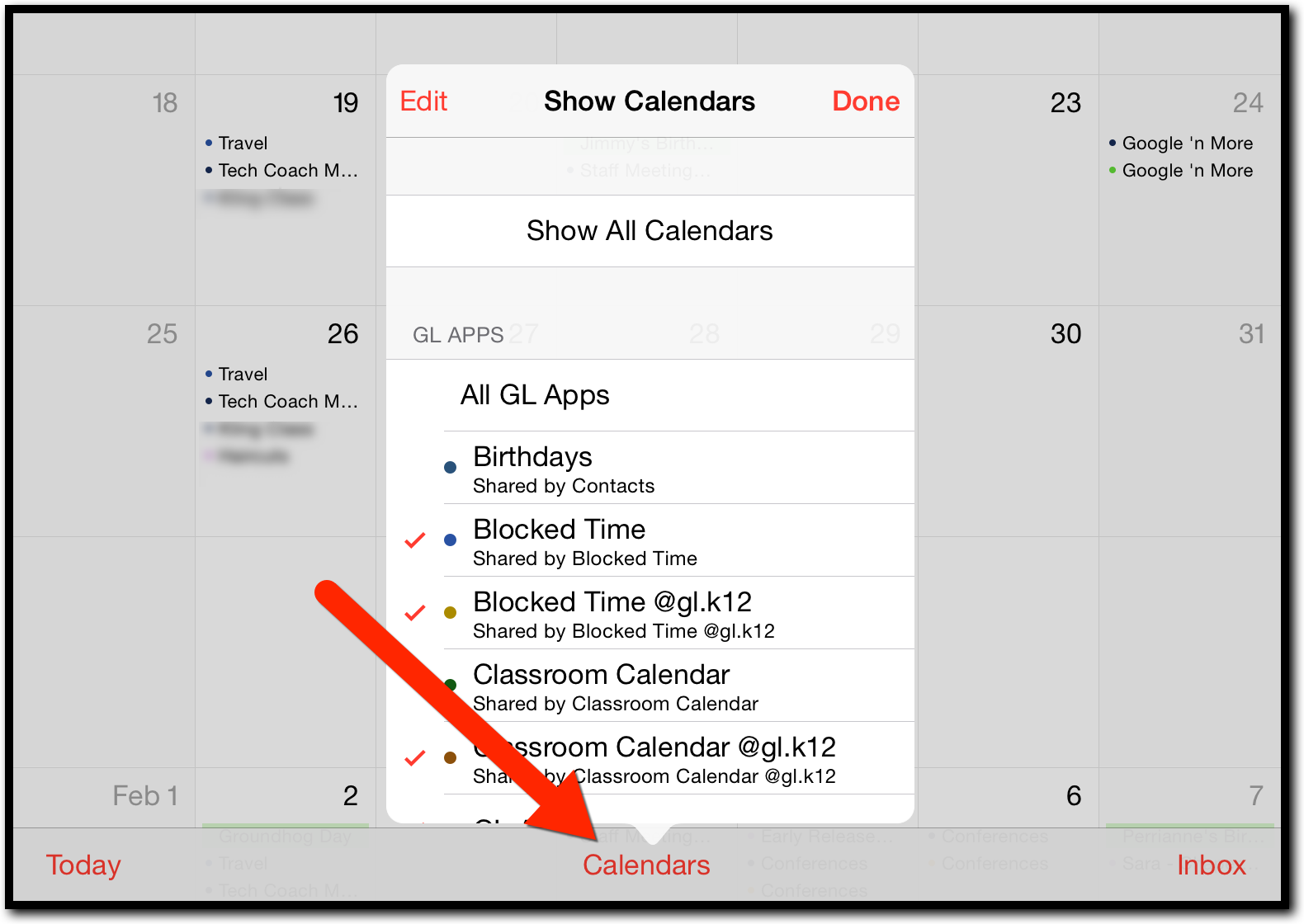
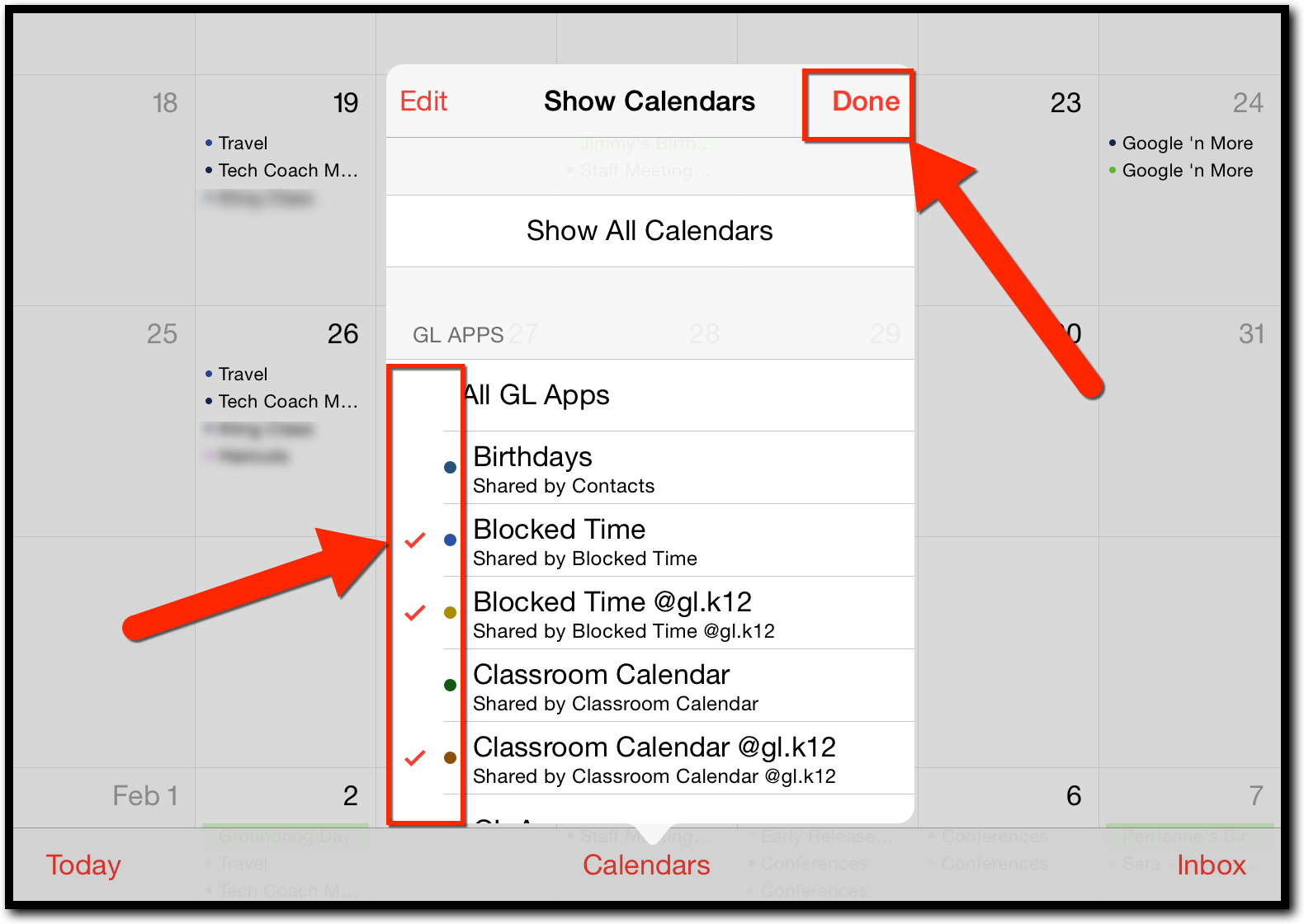
  2. Tap “Calendars” at the bottom of the screen.


  1. Tap on all calendars you wish to sync. You may have to pull the screen down (swipe down on the pop-up) to refresh the synced calendars.


  1. Tap “Done”.


If you would like these directions in a document Click Here.

Wednesday, August 14, 2013

Exit Slips: Quickly Assess Student Understanding


Exit slips are a great way to assess student understanding of a lesson taught. Teachers use these as informal assessments to adjust the next days lesson and get quick "Did They Get It?" data. There are many ways to do this. Below is a starter list of great exit slip tools. 


    • Google Forms
    • Classroom Clicker Systems
    • "Old school" paper slip


There is a great blog on Exit Slips written by:   

Monday, August 12, 2013

Google Drive: Comments on the iPad


Let's face it, the IOS version of Google Drive has not been the Holy Grail of Google Greatness. In addition, it has not been nearly as user-friendly as it is on the Android system. It has been lacking for some time, but there have been some great improvements over the past year (we finally got collaboration on Documents and Spreadsheets). Overall, function has been quite limited but is getting better. Thank goodness Google keeps updating the IOS Drive app. In the latest update, it now supports commenting. Now, you can comment on documents on your iPad just like in your browser on your computer. All the steps are the same (highlight text, create comments). We are getting closer to the web based version. My fingers are crossed that soon the mobile version is as great as the desktop web version.


Tuesday, July 30, 2013

Bill Nye iPad App

Who doesn't love learning about science from Bill Nye The Science Guy? His videos were a huge part of my classroom instruction when I taught 3rd, 4th, and 5th grade for years. Bill Nye's videos were entertaining and factual and students love them. He now has an iPad app that can access some of these videos as well as activities to reinforce science concepts. Students can "sit" at Bill Nye’s desk and choose what they want to learn about. There is some in app purchase material, but much can be done with no cost.

Below are some screen shots of the app in use. It is a great app to have students learn about science.

Tuesday, July 23, 2013

Animoto: Easy Video Creation

Animoto is a video publishing tool that I’ve used with students over the last 3 years. It is easy to use and videos can be created very quickly.  The easiest way to create is by using the web based program.  There is also an app (both iPad and Android). I have used it with students as a presentation tool, and students love it. Students can create short videos using images/video, text, and build in music.  Students can create their own accounts for free, but are limited to 30 second videos.  If the teacher creates an Educational Account the length limit is eliminated.  Teachers then give a classroom code to the students to have an Educational Account as well. Videos can be shared by a web-link, YouTube, Twitter, embedding into a web page, and other services.  Below is an quick video I created to show what a finished video look like.


Head to www.animoto.com to get started! 

A note to educators...Create an Education Account and you get more themes and longer videos, as well as the option to create student accounts.  

Monday, June 10, 2013

Quizlet


This is a fantastic site to make, share, and study flash cards.  There is so much that this site offers.  The only way to see it all is to set up a free account and try it out.   


What is Quizlet?
Quizlet is an online tool designed to study key vocabulary terms and other concepts.  It allows teachers to create flash cards and have students practice online.  Teachers can make their own, or choose from millions of flash cards sets created by others.  But that's just the beginning - once you've got flashcards, you can use several study modes including multiple choice tests and study games. You can add images and listen to audio, and even study on the go with Quizlet-compatible mobile apps.  This is a great tool for classroom quiz/test preparation.

What Are the Benefits of Quizlet?

For Teachers: This is a very easy site to upload terms and create study tools.  It is free and offers many great tools to make studying vocabulary fun.  There are millions of already made vocabulary flash card decks already made and ready to share.  Often times the perfect card deck is already created and ready to go!  All a teacher needs to do is create a list of terms and definitions.  If these are already created in Excel they can be copied right into the web site and auto-create study cards.  Each term card can be individually created as well.  After the terms are entered they can be shared by a web link with students to study.

For Students:  This is an easy tool to use.  Quizlet will help students study terms with a few entertaining methods to help vocabulary retention.  Best of all, no student account is needed.  All a student needs is a link from the teacher and a computer with Internet access.  Perhaps the best part of Quizlet, and what sets it above many others, is the options offered for studying.  There are 5 different study formats to work with (Speller, Learn, Test, Scatter, and Space Race).  These offer different ways to practice and learn the same terms, and best of all the teacher doesn’t need to set them up.  They are part of Quizlet!

Visit http://www.quizlet.com to get started!

Saturday, June 1, 2013

Apps Gone Free


This is an app that is worth much more than it costs (FREE).  Find great high quality paid apps for free each day. Go to the App store on your iPad to download.


iTunes Store Description:
Find great apps without spending a dime! Get high quality paid apps for free each day. Unlike other apps, we offer no paid listings - these are expert-picked top-ranked apps, for FREE! 

Every day hundreds of apps reduce their price to free for a limited time to try to stimulate excitement. AppsGoneFree finds ONLY the apps worth owning:

* Our AppAdvice.com app experts personally handpick ONLY the best apps. If it's on the list, it's worth owning. 

* These same experts write a quick summary to tell you about the app, and why you need it (or if you don't).  Not PR, honest personal advice.

* We filter out the junk. Don't waste your time looking at all the free apps generated by robots, scouring through them to find something worth downloading, let us do the work for you. 
* It's an honest to goodness human-curated list of the best free apps each day (about 5-10 each day). 

There are dozens of apps that provide long tedious lists of every single app that ever goes free or short lists of apps that paid a lot of money to be included.  But only AppsGoneFree gives you authored, handpicked recommendations from an AppAdvice.com app expert of apps that belong on your device.
**INTRODUCING APP BUMP**
Being part of the very large AppsGoneFeee community has its perks.  Collectively, you have the power to convince apps to go free.  With AppBump, simply nominate great apps that are not getting the attention they deserve because the price tag is standing in the way.
We'll approach the developers of these apps, and let them know we have a community of users who will all try their app if they go free for just a single day.  So it's your way to give back to the community, by sharing great paid apps with each other and getting them free.  Remember to nominate every paid app you love, and when you see a bumped app, give it a shot!  Our community vouched for it, and the developer did it just for us! =)
Visit the App Store to get started: http://tinyurl.com/czglld8

Friday, May 31, 2013

WeWantApps: The Free-Be App List


WeWantApps is an iPad app available for download from the Apple App Store. This is a great tool for easily filtering through the App Store to find the perfect app for what you need. First, go to the App Store on your teacher iPad. Search for WeWantApps! in the store. It will look like the image below. Install the app. When you open it, you will need to create an account. I have never been asked to log back in again, but you need an account to run the app.


Once it opens you can begin your search.


Category:  choose the type of app you are seeking.

Age:  select the age (or more than one age) that you are searching to use an app with. 

Language:  choose the language you want the app to be written in.

Platform:  you can use both iPad and iPhone.

Price:  select free.
When you do the search, on the right you will see all the apps that fall under your filtering.  At the bottom there will often be “More…” to tap on.  This will load more found apps.

Download WeWantApps! from the App Store to get started.

Monday, May 27, 2013

Tech Tip: Educreations

Tech Tips
Issue 23


This Tech Tip will look into a great record-able white board tool.  Educreationsis a great way to record lessons, re-teach concepts, and have students create student-made assessments.


What is Educreations?
Educreations is an iPad app that turns your iPad into a record-able whiteboard. This app allows for whiteboard drawing with recorded audio to help explain concepts and ideas. You (or students) can easily create a tutorial video to explain a math concept, a science term, an artistic movement, or anything you can draw and talk about. It is easy to use and a great re-teaching tool for both teachers and students. 


What can Educreations Do?
·      Help students with homework by working through example problems.
·      Record and replay your voice, writing, and drawings.
·      Add text and photos from the iPad camera, Photo Albums, Dropbox or the Web.
·      Share your lessons with teachers, students, and parents.
·      View already created Educreations content from others.
·      Embed your video lessons on your blog or website.
·      Allow students to create videos explaining concepts to be used as assessments.
·      Collect student sample work in your teacher course.


As a teacher, this is a great re-teaching tool as well as a student assessment tool. Teachers can have students log into their Educreations account and create a short video of them solving a math problem.  Teachers can then see student actions on the screen and hear them talk the problem out. When teachers have students enroll in a "course" all their videos are available to the teacher to view from any computer for review or assessment. Educreations is Free and a great classroom tool. Download it from the iTunes App Store and get "Edu-"creating!

Create an account and get started:  http://www.educreations.com