Showing posts with label Apps. Show all posts

Friday, February 13, 2015

Chrome Apps and Extensions

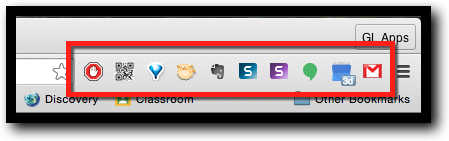
Google Chrome is the only browser I use. It does it all: fast browsing, saves passwords, syncs data (bookmarks, passwords, history, and more across devices), and it just runs well. Another great feature is the ability to customize with Extensions and Apps. Extensions and Apps allow you to do more with your browser. I have my favorite Extensions (AdBlock, QR Codify, OneTab, Bit.ly, Evernote Web Clipper, Snagit for Chrome, Hangouts, Google Calendar, and Google Email Checker). I use these Extensions all the time, and they live in the top right corner of Chrome ready to go. Take a look in the Chrome Web Store and see what Extensions and Apps can help you. Follow the steps below to get started.


Chrome Extensions and Apps


  1. Open Chrome. I suggest you log into Chrome to allow syncing (directions here).
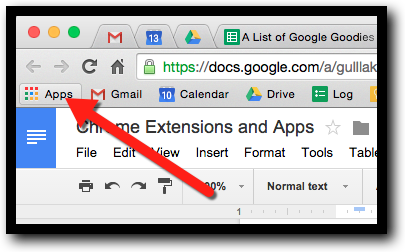
  2. Click the “Apps” button on the far left side of your browser.


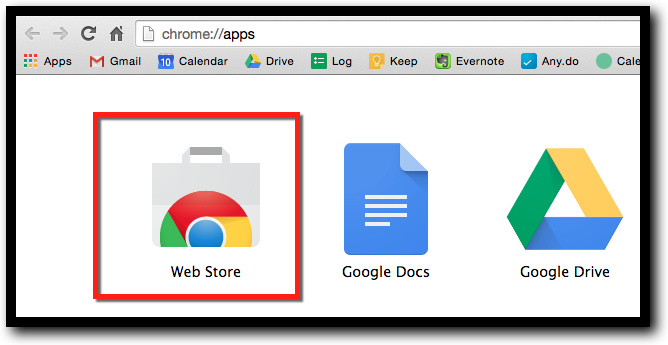
  1. Click on “Web Store”.


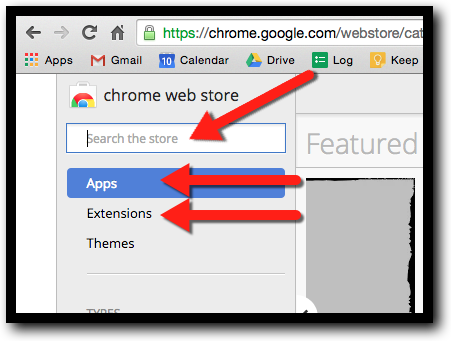
  1. Search for an Extension or App. You can filter by clicking which type you are looking for (App/Extension).


  1. Click on the item you want and read the description and reviews.
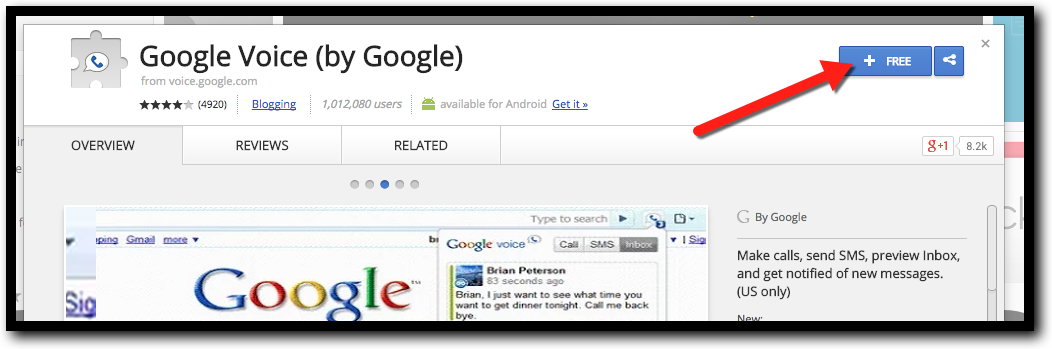
  2. Click “Free” to install.


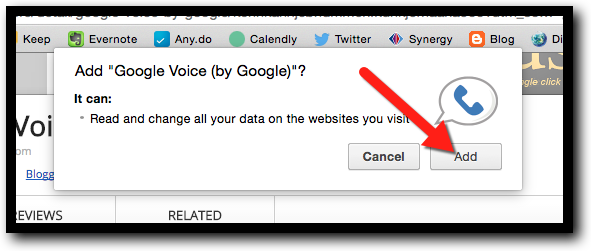
  1. Click “Add” to give Chrome the permission to connect to your browser.


Extensions live in the top right of your browser. Extensions affect the way that the browser works and allow stand-alone actions (scrolling boxes, note taking, sending data to personal accounts, accessing other programs) all with the action of clicking the button and not always needing the browser’s full window.


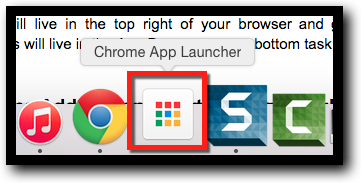
Apps live in the App Drawer on your bottom dock. Apps are basically websites. They run within Chrome's browser. Sometimes they may need to install a small component on your computer, but that will only make a difference when you're using that particular Web app.


Get some Apps and Extensions and start making Google Chrome work for you!


Alice Keeler’s Awesome List Here!
EdTech Nut’s Awesome List Here!
Eric Lawson’s Awesome List Here!


If you want these directions in a Document click here!


Thursday, April 17, 2014

My 10 Essential Classroom Apps

We all use them all the time. Apps! Whether it is on an iPad, Android Tablet, or mobile phone we use them every day. We all have our favorites depending on what we need to do. I organized my personal and teaching life with apps. I set reminders, make lists, manage documents, scan prices, upload/view images, and connect with friends/family/educators. We all have our favorites and I was recently asked what my top 5 apps were. It was much more difficult than I thought to make a list! I decided to see if I could narrow it down to 10 and share my "Top 10 Must Have Apps" for the classroom. So...here is what I came up with (in no particular order)!


What in the world did I do before Google Drive? Seriously? How could I have taught at all before? I use this for both personal and professional writing, statistics, storing, and sharing. The collaboration is insane in Drive. This would have to be my #1 pick if I could only have 1 app for the rest of my life (just don't ask me to do that!). Being a Google Apps District is a blessing!


ClassDojo was a saving grace for me! It is the perfect classroom behavior tool. I can reward for positive and negative behaviors. The students (and parents) can access their accounts and track behaviors. This was a great tool for IEP, CAT, and other meetings to have real accurate data on a student's behavior. If you have not tried this, it is a classroom app I won't teach without! 


I don't know about you, but my online/digital life can become quite a mess. Where do I store all those great ideas, links, sites, info, and things I want to look at later? Before Evernote, they were everywhere (which really meant lost). Now, they are all in 1 site. I log in, go to a notebook, and Ta-Da! There it is. The Web Clipper tool is my favorite part of Evernote. I can clip for later viewing any web site and it saves links, images, and everything. This is great for organizing personal and professional lives!.


Educreations is fantastic in the classroom on 2 levels. Most teachers use it to make record-able white boards. This is great for the flipped classroom. It allows students to go back and see a lesson again. My favorite part is the student side. Once you set up a class, your students enroll. Then, every whiteboard they make ends up in the class under the student's name. The teacher then can assess, review, and re-watch the student explain something. This is fantastic for assessing student understanding, right from your couch!


What can I say about Twitter...? It IS my PLN. I have learned more from the educators I follow on Twitter than anywhere else. It is connecting, learning, collaborating, and helping all in 140 characters. If you follow the correct people, the sky is the limit for what you can gain/learn. Don't forget about all those Twitter Chats to participate in! 


Flickr is a great site to store images. Most people know that. But, as a teacher you can take it a step further. Flickr allows tagging of images and sets. First, put images into sets (groups of images such as Science, Math, etc). Then, tag individual images with CCSS or content. Then, allow parents, community, the world to see how your classroom is learning the CCSS! Search for a standard and see it being taught in your room! 


The invention of the phone is great, but what teacher can actually answer one? You can not stop teaching to return a call during the day, and when you get home you often don't want your personal cell or home number being seen by all parents. Here is where Google Voice comes in. Create a Voice number and give it to your parents. They call it. The message goes into your Google Account (you can have it forwarded to any number, email a transcript to you, or use the app on your phone to manage messages). Then, you can call parents back from your cell phone (or any line set up) and the parents only see the "Voice" number! No late night weekend calls from parents on private lines! J...U...S...T......A...W...E...S...O...M...E!. 


My days of flash drives and emailing myself files have been gone for years! Dropbox is absolutely a Must-Have!. Any files in Dropbox (like your Documents folder on you PC/Mac) are synced to the cloud, and then to any device you have connected. What does this mean? If you have 5 computers/tablets, and create a newsletter on 1 of them, within seconds that file is synced, updated, and available on all devices. Wow! I mean...really...WOW! No more forgetting a file at home/school. Everything you create is where ever you need it. Even on a friends computer you can log into the web version and retrieve a file to share (not to mention just making folder/files shared with multiple Dropbox and non-Dropbox users!). 


This is one of the easiest assessment/Exit Ticket apps out there. Simply create a quiz (multiple choice or short answer) and turn on the Teacher app. Give students a web based device (computer, tablet, phone) and go to the app or web site. Give them your classroom number, and take a quiz. Done! Socrative grades the assessment for you and gives the results back to you in an easy to use Excel spreadsheet! What could be easier or quicker? Give it a shot! 


They are everywhere! QR codes. Sure, they are great ways to get people to web sites. But...what about even better uses? Create audio or video files in your Google Drive and share the link that way! Then, the QR code opens streaming Audio! Put this code on a student's writing project having them reading it to the reader/listener! Attach the code to an art piece with the artist's explanation of their technique! Millions of uses beyond just a shortcut to a site! 


Well...there you go. As difficult as it was (and believe me the list changed many times before I clicked "Publish") there is my list of "My 10 Essential Classroom Apps"! Whew...maybe I should have made it 20? That would have been easier!

Saturday, December 7, 2013

Graphic Organizers: Where Your Writing Starts


Graphic Organizers are important tools for writing. They help students plan out their writing and give direction and planning. There are many apps and web sites out there to use. Below are just 2 that I was looking at while doing the 21 Things 4 Teachers course. Check them out for yourself!


Popplet:

Popplet is a great graphic organizer for story development and other writing. It is easy to use (and has an iPad app). This is a tool to help plan paragraph writing or make any graphic organizer you may need. It offers many options to make it fun and is "kid friendly" for elementary teachers/students.
Screen Shot 2013-11-23 at 9.26.48 AM


Gliffy:

Gliffy is another graphic organizer. I don't like this a much as Popplet, but it is another option. It is easier to make things in specific location with the grid lines in the background.
Screen Shot 2013-11-23 at 9.31.13 AM

Saturday, October 19, 2013

Quizlet: A Great Student and Teacher Vocabulary Tool

Quizlet is an online tool designed to study key vocabulary terms and other concepts. It allows teachers to create flash cards and have students practice online. Teachers can make their own, or choose from millions of flash cards sets created by others. But that's just the beginning - once you've got flashcards, you can use several study modes including multiple choice tests and study games. You can add images and listen to audio, and even study on the go with Quizlet mobile apps. This is a great tool for classroom quiz/test preparation.


What are the benefits of Quizlet?

For Teachers: This is a very easy site to upload terms and create study tools. It is free and offers many great tools to make studying vocabulary fun. There are millions of already made vocabulary flash card decks already made and ready to share. Often times the perfect card deck is already created and ready to go! All a teacher needs to do is create a list of terms and definitions. If these are already created in Excel they can be copied right into the web site and auto-create study cards. Each term card can be individually created as well. After the terms are entered they can be shared by a web link with students to study.

For Students:  This is an easy tool to use. Quizlet will help students study terms with a few entertaining methods to help vocabulary retention. Best of all, no student account is needed. All a student needs is a link from the teacher and a computer with Internet access. Perhaps the best part of Quizlet, and what sets it above many others, is the options offered for studying. There are 5 different study formats to work with (Cards, Learn, Test, Speller, Scatter, and Space Race). These offer different ways to practice and learn the same terms, and best of all the teacher doesn’t need to set them up. They are part of Quizlet...all for FREE!


Here are of some of the Quizlet activities.

Types of Activities


Flash Cards


Scatter 


Spelling


Space Race


Visit http://www.quizlet.com to get started!

Thursday, September 12, 2013

StrataLogica: A Classroom Map App

I love Google Earth. I really do! I use it so much in my personal life as well as within the classroom. It is a great tool, but it lacks some educational "kick". This is where StrataLogica comes in! It does all the cool things Google Earth does (spin, zoom, etc...), but it does even more. This app goes where Google Maps leaves off. You can tap on locations and get data. You can create points of interetst (like Gogle Earth). You can create maps, access shared maps, and more. Download it and check out what you can do! 


iTunes Description:
Introducing StrataLogica® for the iPad, where the learning is in the layers. Known to countless teachers and students for providing a revolutionary educational experience, StrataLogica comes to life in an exciting new way in version 2.0 of our app. Learning about our world with a tap or pinch of your fingers has never been more engaging and fun! 

The new version brings powerful features for creating content, collaborating and sharing from the desktop experience to the iPad. 
• Use our new tools—marker, symbols, text labels and pushpins—to add your own content onto geography, history and earth science layers. 
• Logged-in users can save and share custom views or presentations with school or district students or colleagues. 
• Logged-in users can share content with anyone in the world via Twitter, Facebook or e-mail. 
• Logged-in teachers can initiate dynamic collaborative projects with students. 
• Licensed users can now access e-book atlases and related student activities. 

More than just a geography reference tool, StrataLogica delivers a one-of-a-kind educational experience. Even if you don’t have a school account for StrataLogica, you can experience a sampling of our interactive layers for free. And coming soon—downloadable content packs. 

Don’t forget to share what you create to the StrataLogica Community! You just might share with someone halfway around the world. 

Bring interactive learning about our world to your iPad—try StrataLogica today. 


Tuesday, August 20, 2013

ClassDojo: Classroom Decorations Pack


The following post is from ClassDojo about their Classroom Decorations Pack. Download it now and get Dojo-ing!


ClassDojo

Beautiful decorations for your classroom

...and a chance to win a ClassDojo t-shirt!


Please allow images for this email

We know how time-consuming and expensive decorating your classroom for the new year can be, so we thought we'd help out - in two ways:

1. We've made you a special gift to decorate your classroom with: the ClassDojo Classroom Decoration Pack! It's full of beautiful free posters, room signs, images, and banners for your classroom - we even threw in a bathroom pass and hall pass! Get it here now →


2. We're running a classroom decoration contest to give you a chance to win a beautiful ClassDojo t-shirt! All you have to do is send a picture of your decorated classroom to contest@classdojo.com by September 13th. Bonus points for creativity - we're excited to see what you come up with!

As always, if there's anything we can do to help, just let one of us know :)

Cheers,
The ClassDojo team

p.s. reminder: it's your last week to get your #ClassDojoLove entries in :)