Showing posts with label Classroom Tools. Show all posts

Monday, March 20, 2023

AI Tools for Education

It is more than just the newest buzzword. AI (Artificial Intelligence) is something that has been improving for years. It is just now becoming so powerful that it is coming to the attention of so many. With the new advancements in machine learning, we are now able to do more than ever before. These programs can “create” in ways never possible. ChatGPT (one of the newest creations) can actually write poetry with rhyme, rhythm, and content if given a topic and type of pattern desired. It really is amazing! These tools may help educators and students, and at the same time force change in how we assess. Some of the writing created in these AI programs are no different than what your students create. This will cause us to rethink how we assign and assess writing projects! Check out some of the AI tools below. There are many many more available. These are just some of the quick and easy tools to explore.


Text Tools:

  1. ChatGPT 

    • This writing tool is amazing and can create essays, poetry, songs, stories, lesson plans, summaries, and almost anything you ask it to create. You will need an email and cell phone to create the required account. If you want a great list of educational uses for ChatGPT, check out this site!

  2. TinyWow 

    • Create short or long writing samples with this tool. Easy to use and no login is required. (My How-To Here)

  3. ChatPDF 

  4. Perplexity 

    • Ask any question and get a short answer, with included citations!


Image Tools:

  1. AutoDraw 

    • Anyone can be an artist with this tool. It turns your rough sketches into clipart-style images! (My How-To Here)

  2. Canva (Text to Image )

    • Enter in text and have Canva create an image for you! (My How-To Here)

  3. Scroobly 

    • Turn a blob into a moving creature using your webcam as the control.

  4. Scribble Diffusion 

  5. Magic Sketchpad 

    • Start a sketch and have the AI finish it depending on the item you choose from a dropdown list.

  6. Animated Drawings 

    • Take a paper drawing and make it animated with this tool. (My How-To here)

  7. DALL-E 2 

    • An AI system that can create realistic images and art from a description in natural language.
  8. Deep Nostalgia 

    • Bring photos of people to life. (A few are free, but then paid)


Games and Other Fun:

  1. Semantris 

    • Play a word game by making the AI guess a keyword from your description.

  2. Quick Draw 

    • You get a topic to draw and have the AI guess what you drew. FUN!

  3. Experiments with Google

    •  Here are Google’s experiments with AI tools. Take a look and see what cool things there are to explore!


This is just a partial list. There are many other AI tools out there to explore!


If you want these directions in a Document click HERE!

Tuesday, October 22, 2019

Wheel of Names Selector

Every teacher needs a way to select names from a list that is fair for everyone. We have all used popsicle sticks, name cards, and other tools. The Wheel of Names web tool is easy, free, and FUN! Head to the site and create your own. The best part, you can save your lists and use them any time you want! 


Create a List:
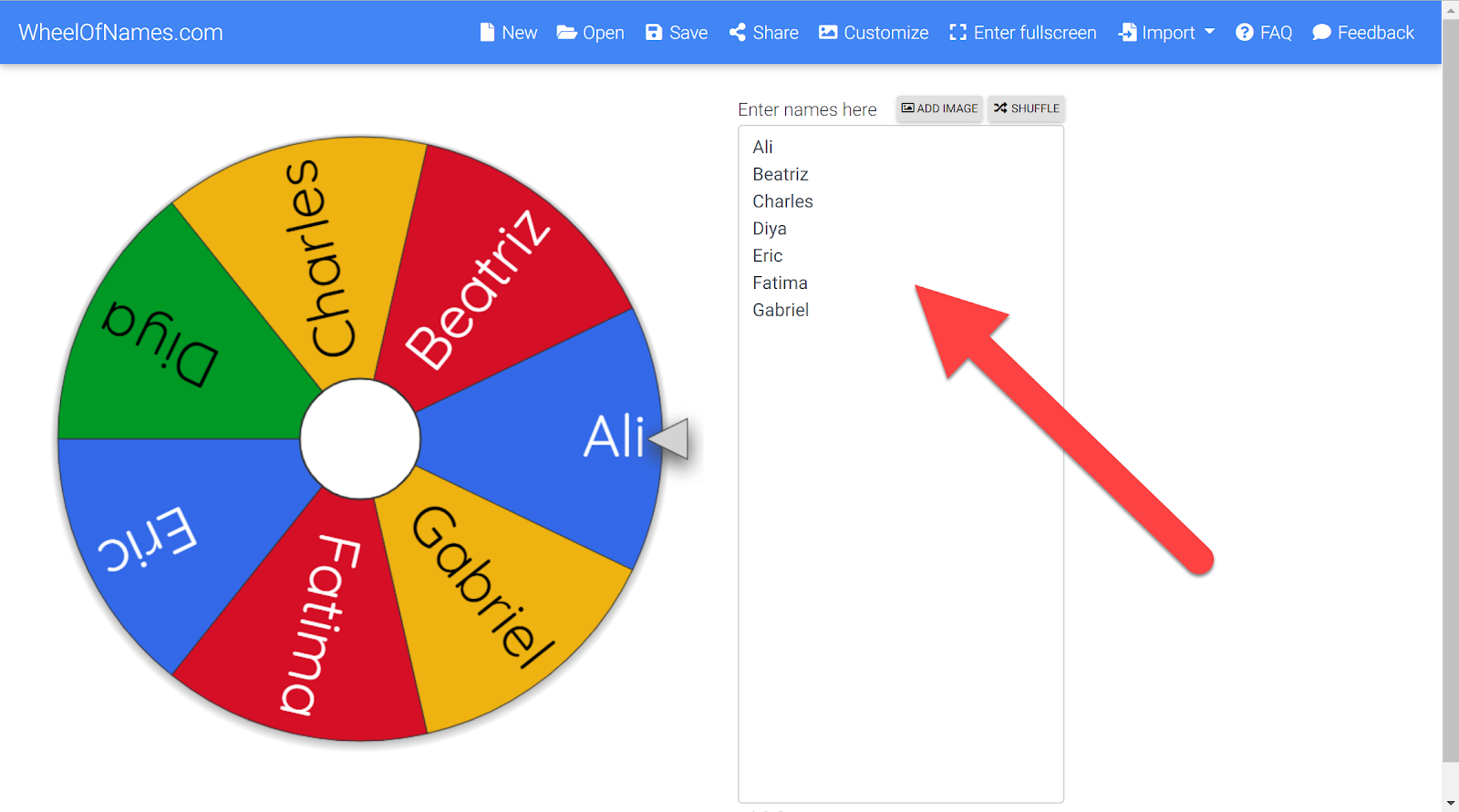
  1. Copy from a list and paste (or enter in) your students’ name in the box on the right. 

  1. When you enter them in you will see they are automatically added to the wheel. (You can also select the image option to insert images instead of on text for our littles.)

  1. Click the “Save” button. 

  1. Type in a name to save the list. These are saved in your Google Drive (you will be asked to give the site permission to save this list in Drive). Click “Save”.

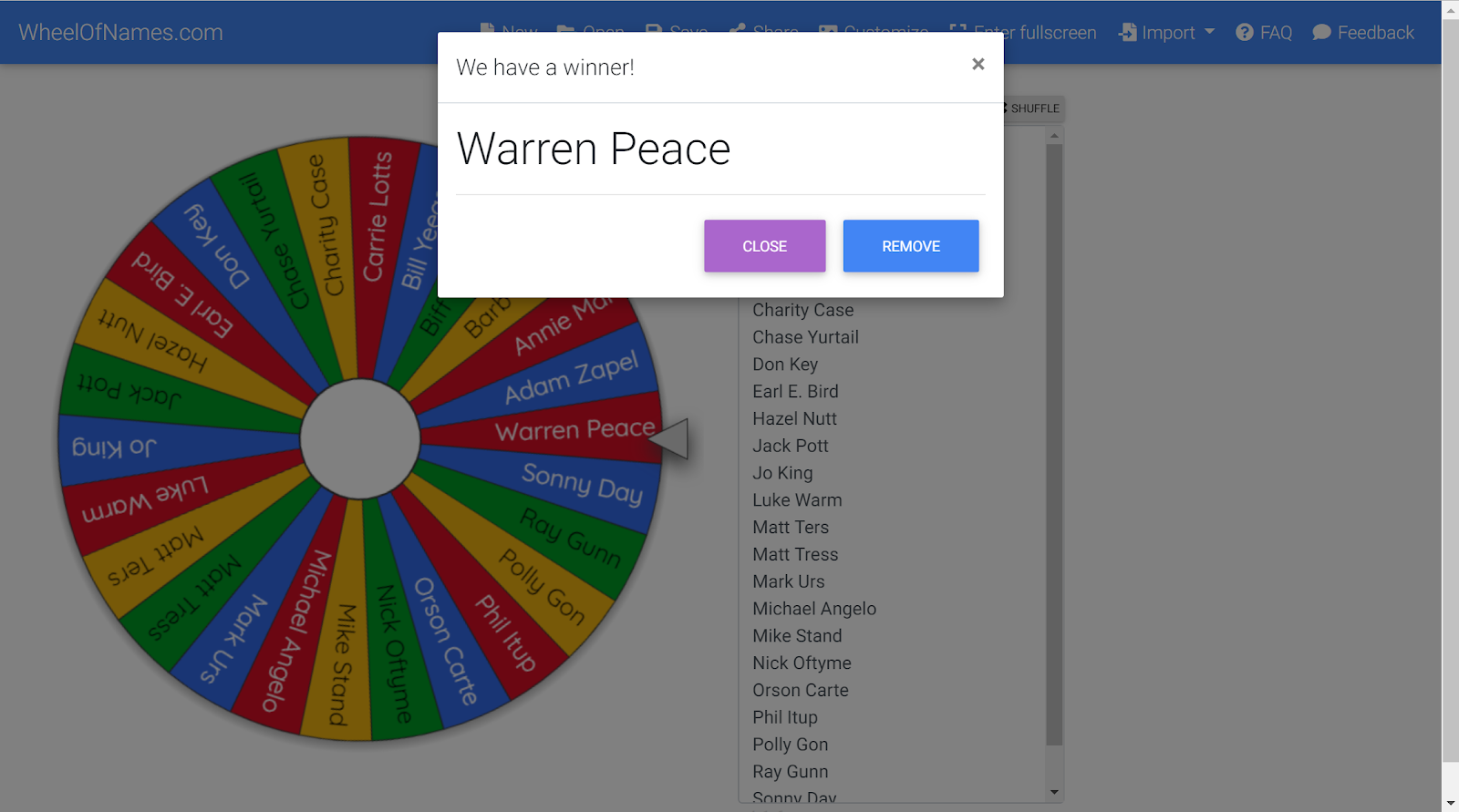
  1. Click on the wheel to spin! The winner will be displayed for all to see! You will also have the option to remove this name from the list so they can not be chosen again.


Bring up an Already Created List:
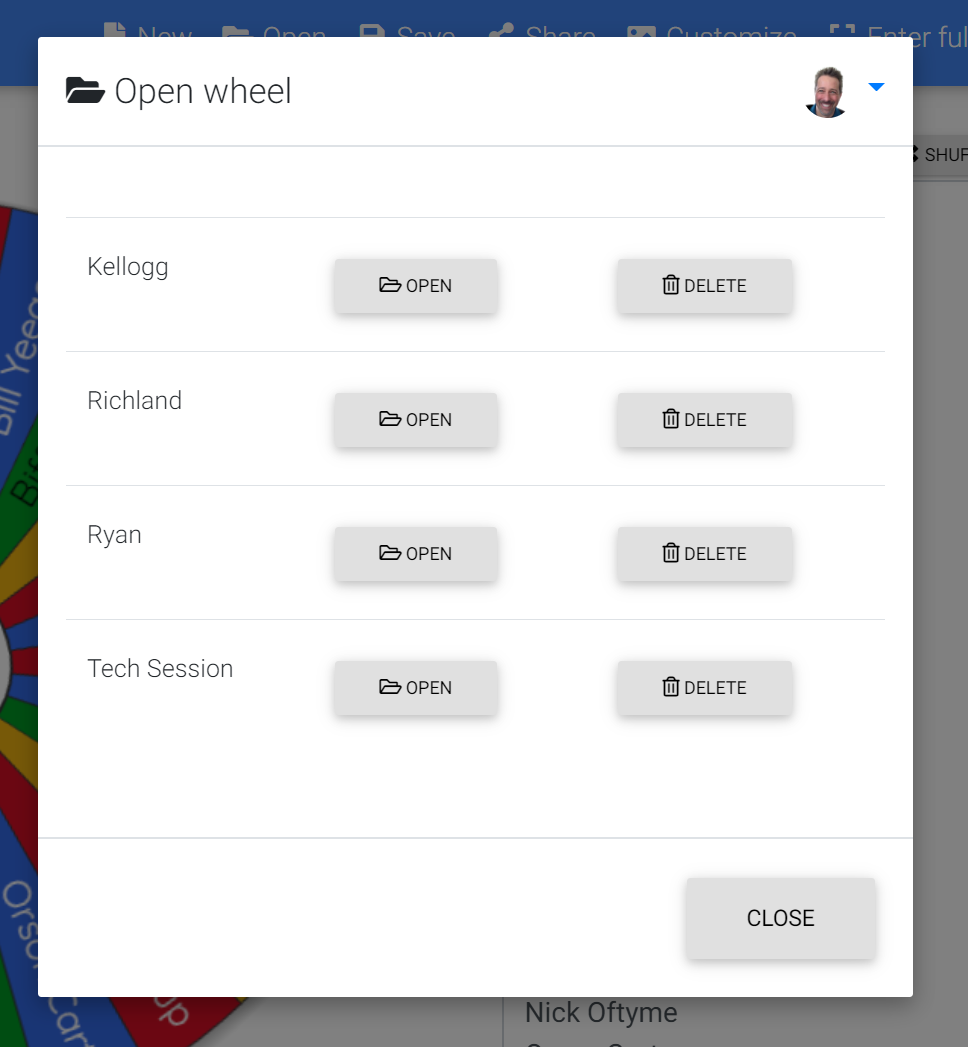
  1. Click on “Open” at the top.

  1. Choose the list from the ones you have created (or delete any you no longer need).

  1. Spin to win!


If you want these steps in a document click HERE!


Saturday, December 30, 2017

Classroom Tools Using ClassroomScreen


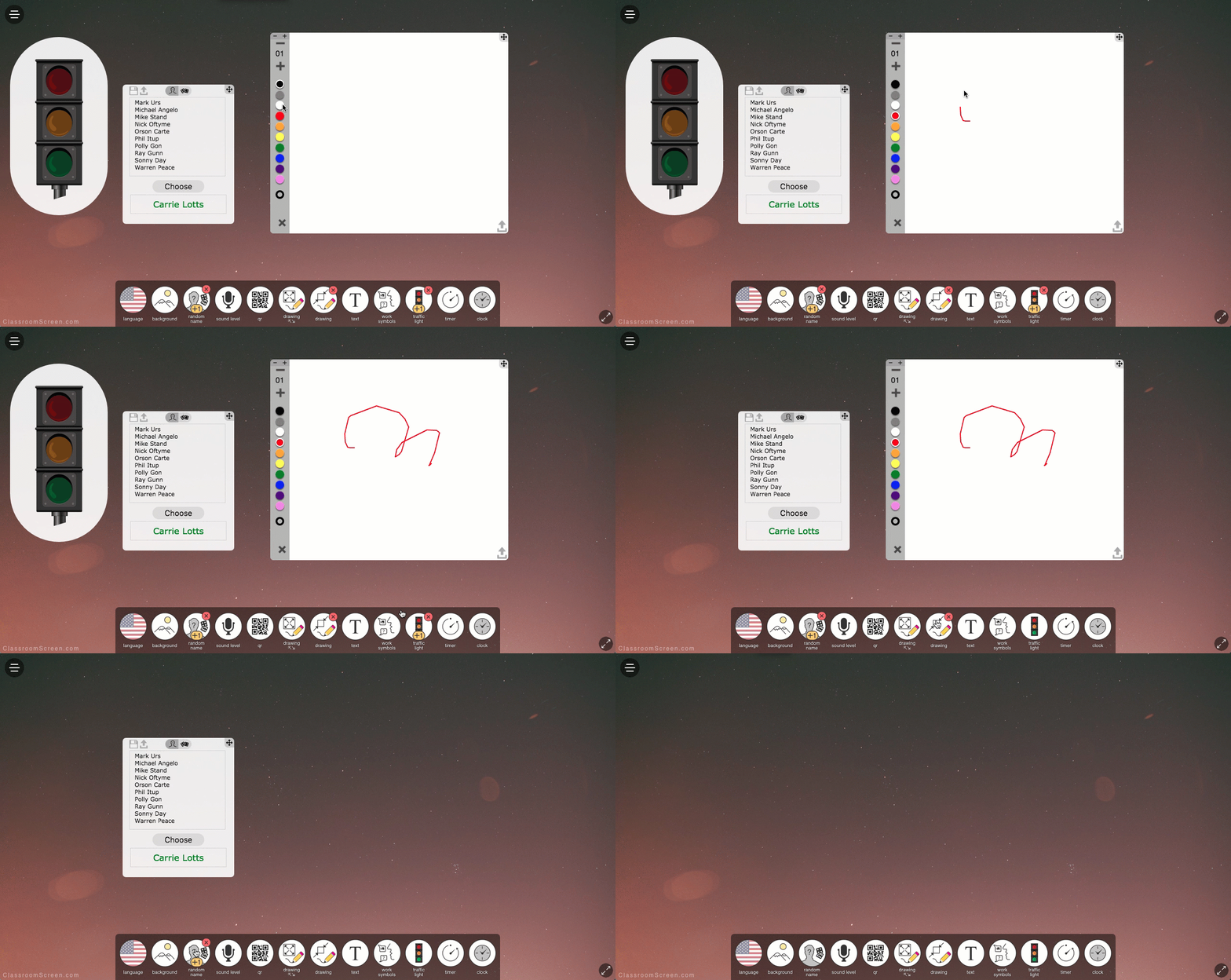
There are all kinds of websites that offer great classroom tools for teachers. They all have great things to offer, but if you are like you hate to have so many tabs open with one tool on each tab. ClassroomScreen to the rescue! This site has them all in one tab, easy to use, turn on/off, and interactive. Go to classroomscreen.com and take a look! All for FREE!


Get Started:
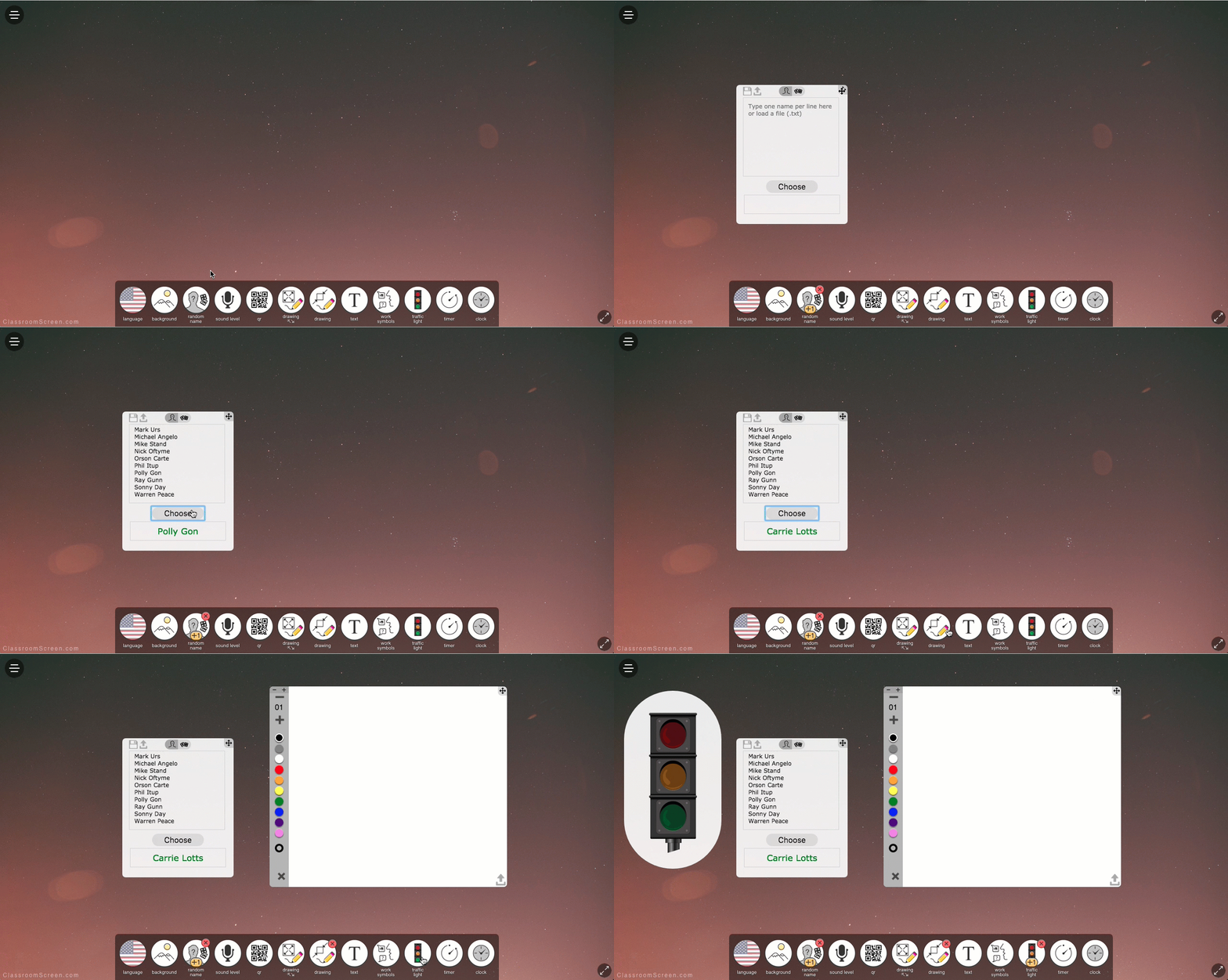
  1. This is SO easy. Just go to classroomscreen.com.
  2. Take a look at the bottom of the screen.
  3. Click on the tool you want to use. It will be added to your screen (you can have many running at the same time).

  1. To remove the tool form the screen, click the icon on the dock again and it will disappear.


Classroom Tools:
There are many tools to select from. They are all on the dock at the bottom. Clik on a tool and give it a try.

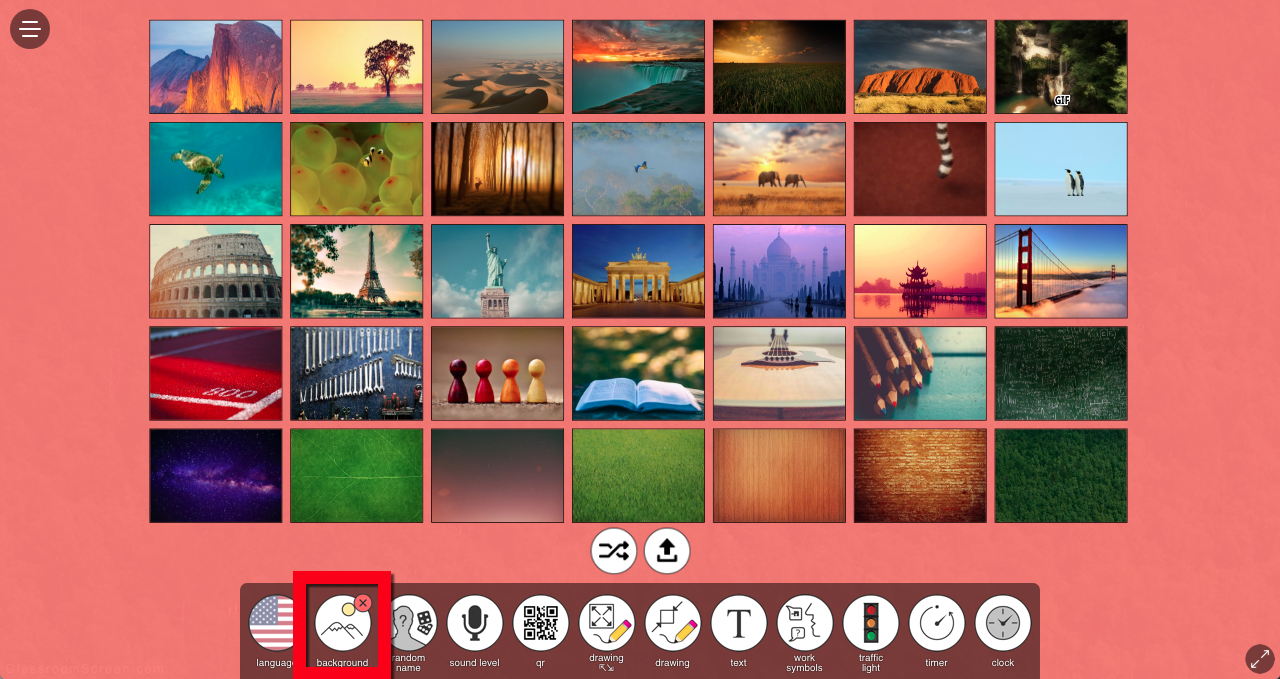
  • Set a cool Background
    • You can select a background from the ones in the site (and even click to just randomly select one) or upload your own!

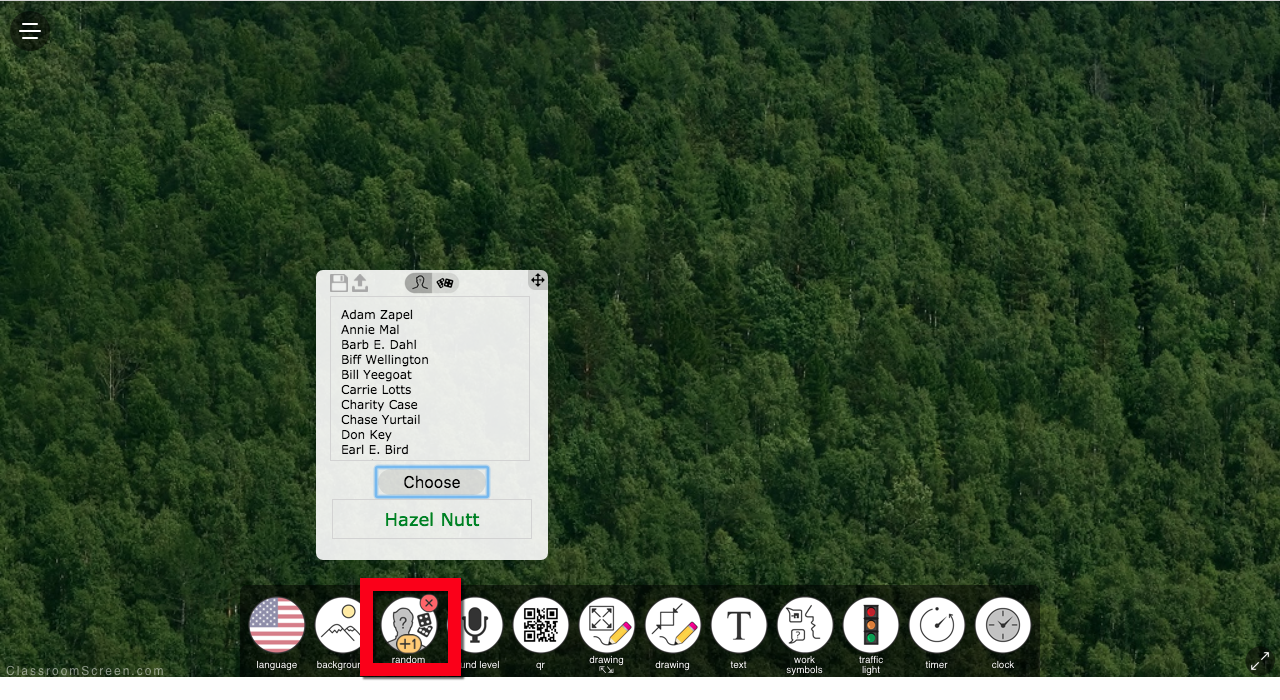
  • Random Name Selector
    • Copy/Paste your class list into the box and click ”Choose”. A random name will be selected!

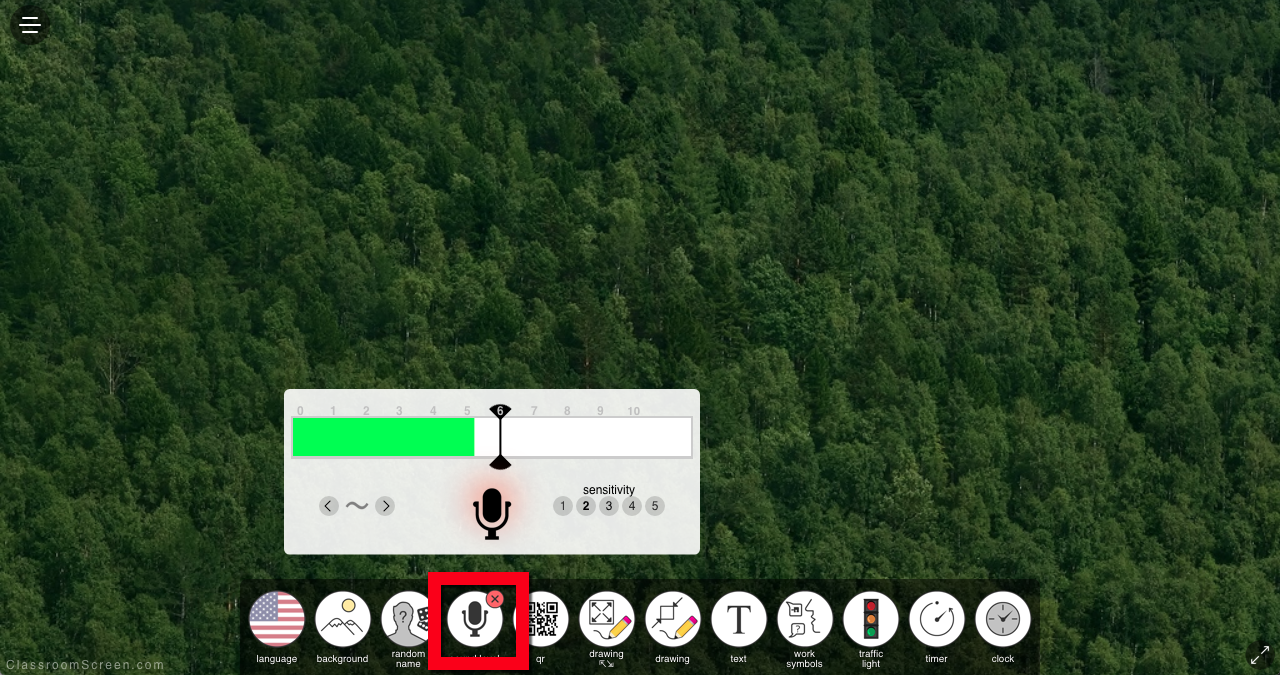
  • Sound Level
    • Monitor the sound level in your classroom with this live sound tool!

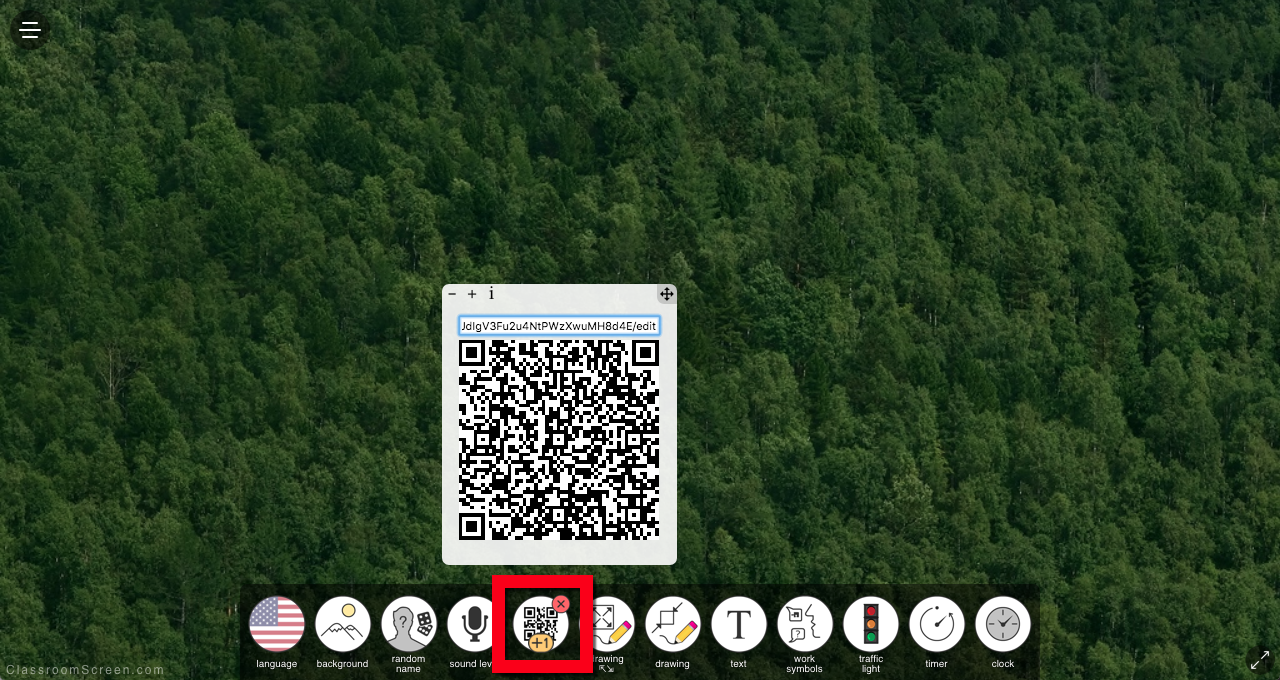
  • QR Code Generator
    • Paste in your URL and hit “Enter”. A QR Code is now generated for you to share with your students right on your screen!

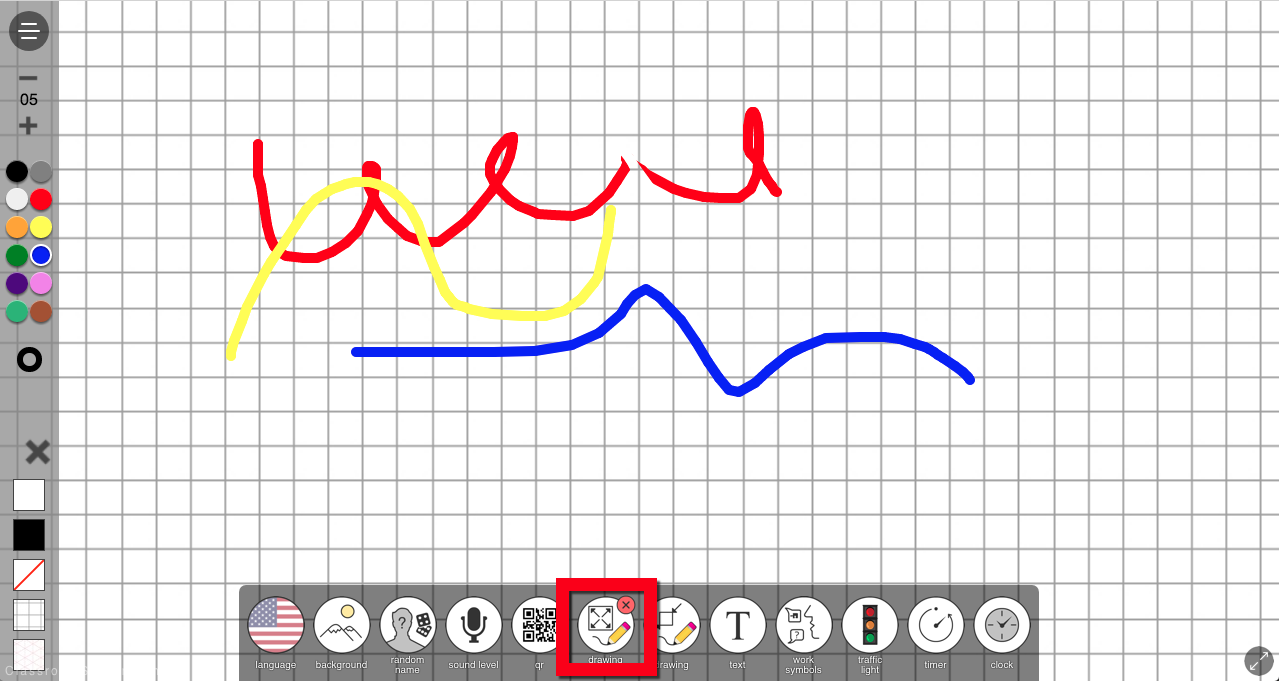
  • Full-Screen Drawing
    • Need to draw something for a quick demo? This is the tool for you!

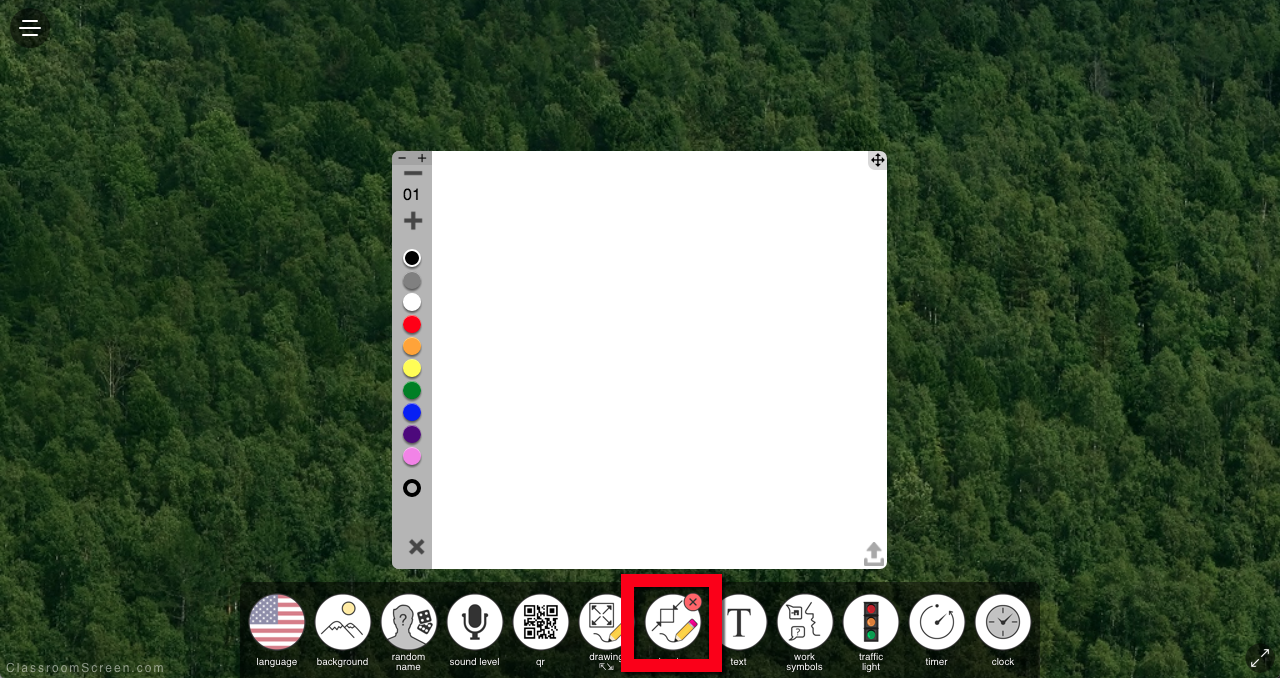
  • Small Drawing
    • This is like the drawing above, but small and can stay on your screen with all the other tools as well!

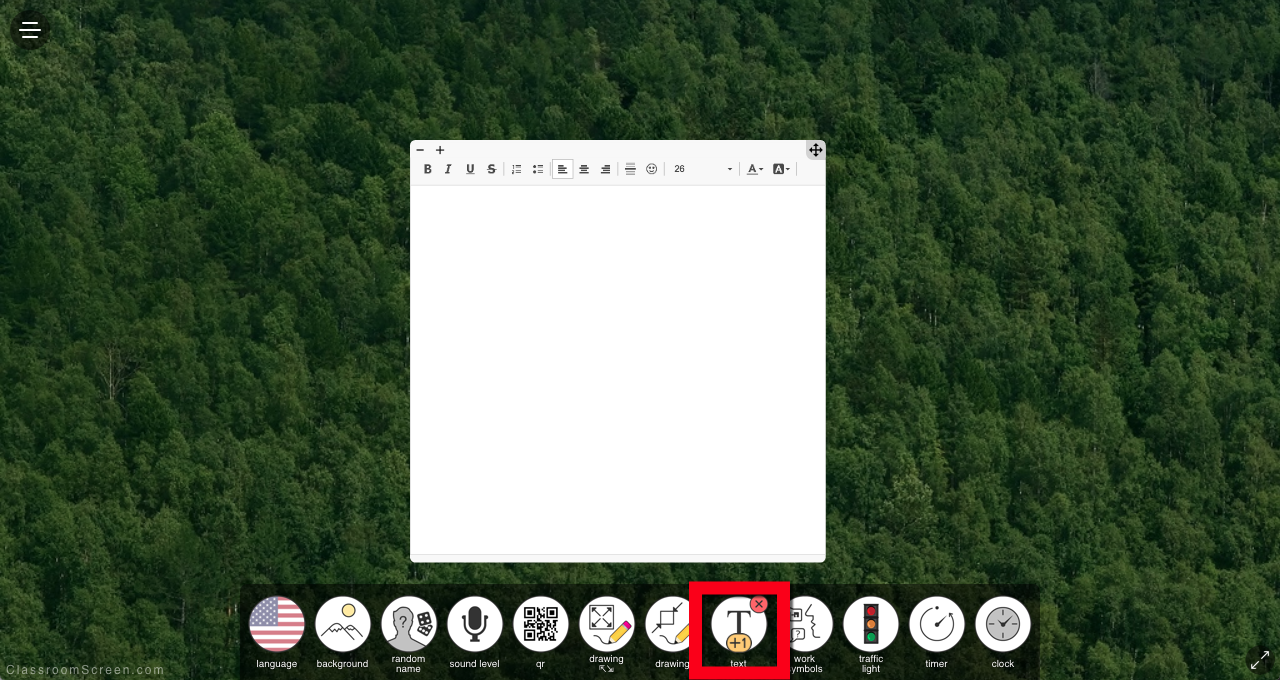
  • Text
    • Need to share some text (class directions or info to share)? Type it in this box and leave it up for students to see.

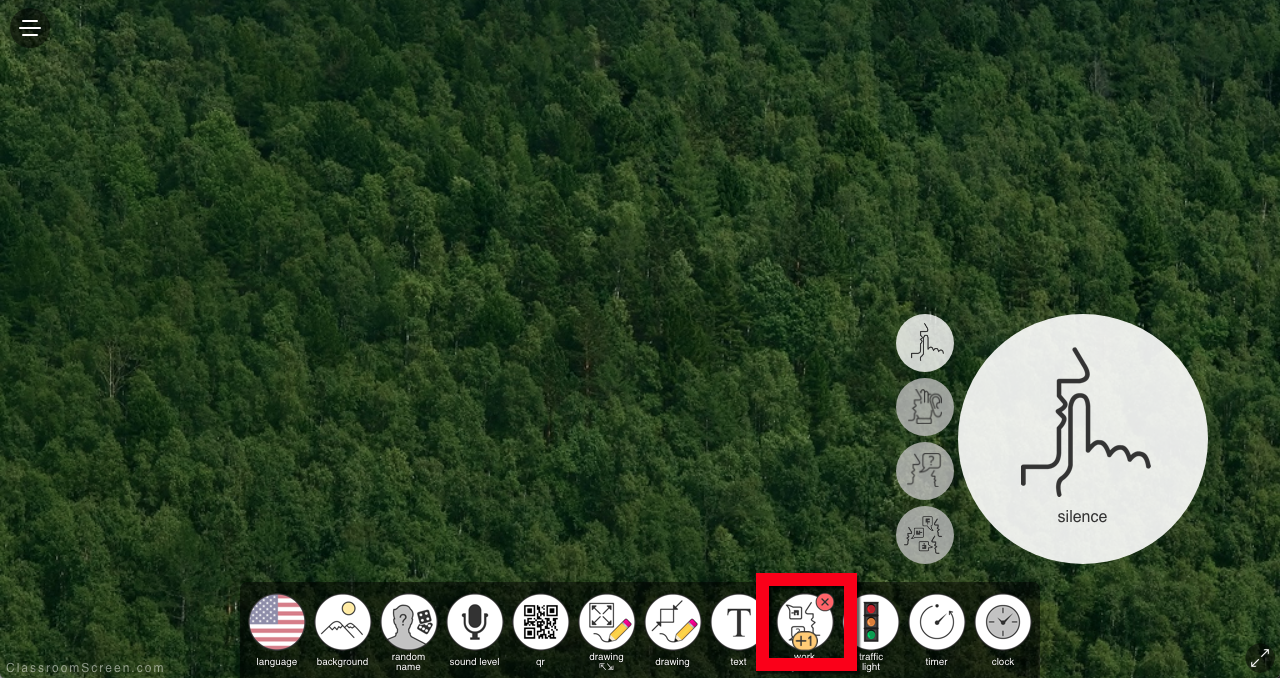
  • Work Symbols
    • Choose from the list to have students know what is expected for work time. Choose from "Silence", "Whisper", "Ask a Neighbor", or "Work Together".

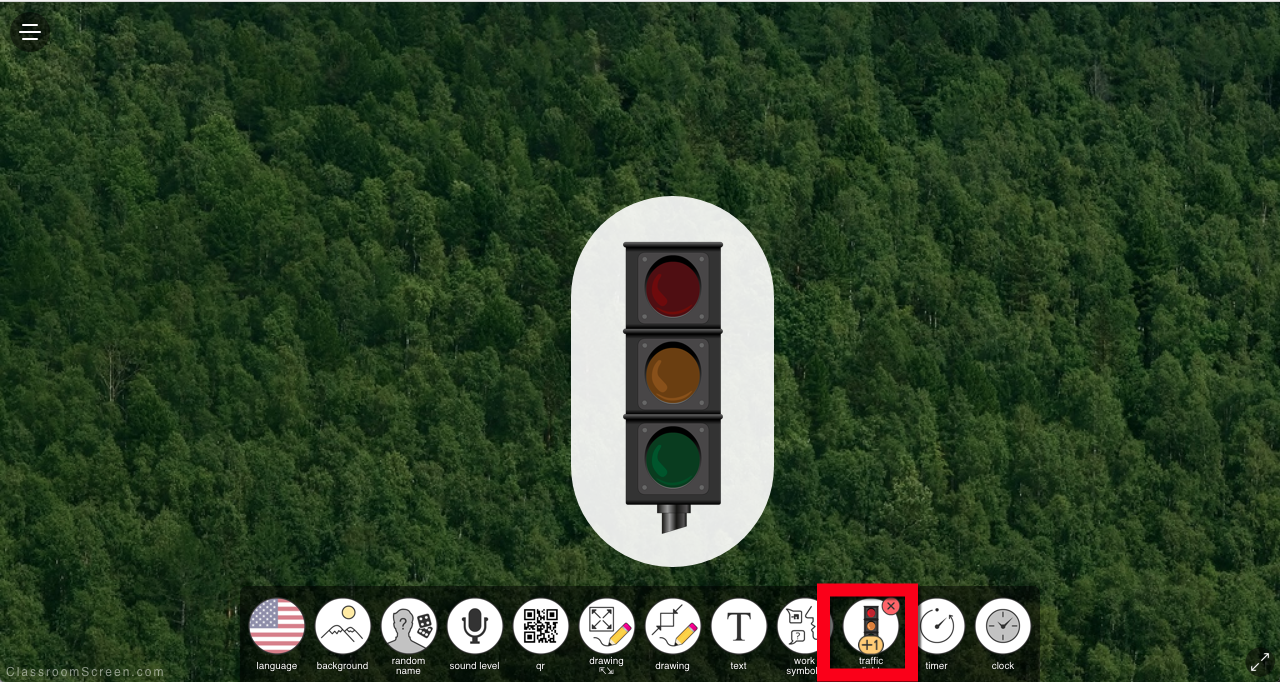
  • Traffic Light
    • Do you use a Traffic Symbol for work sound or other class activities? Now you can leave it on the screen and select which color that moment requires.

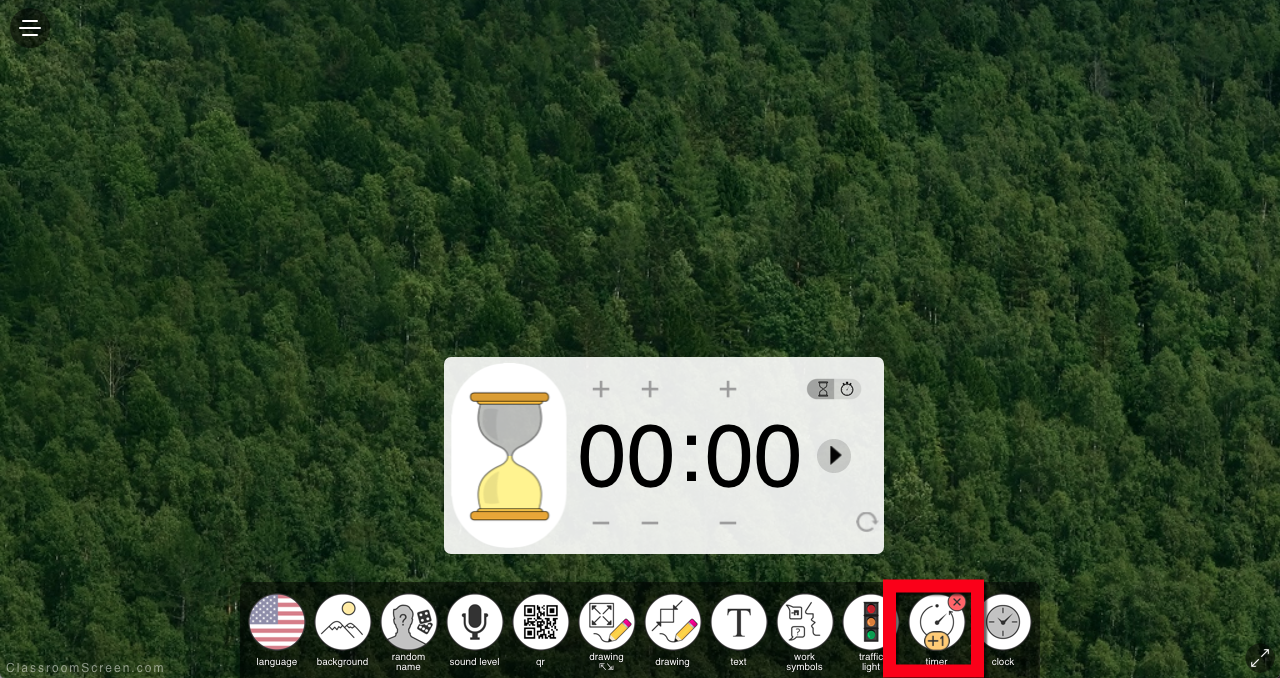
  • Timer
    • Set a timer for work time easily!

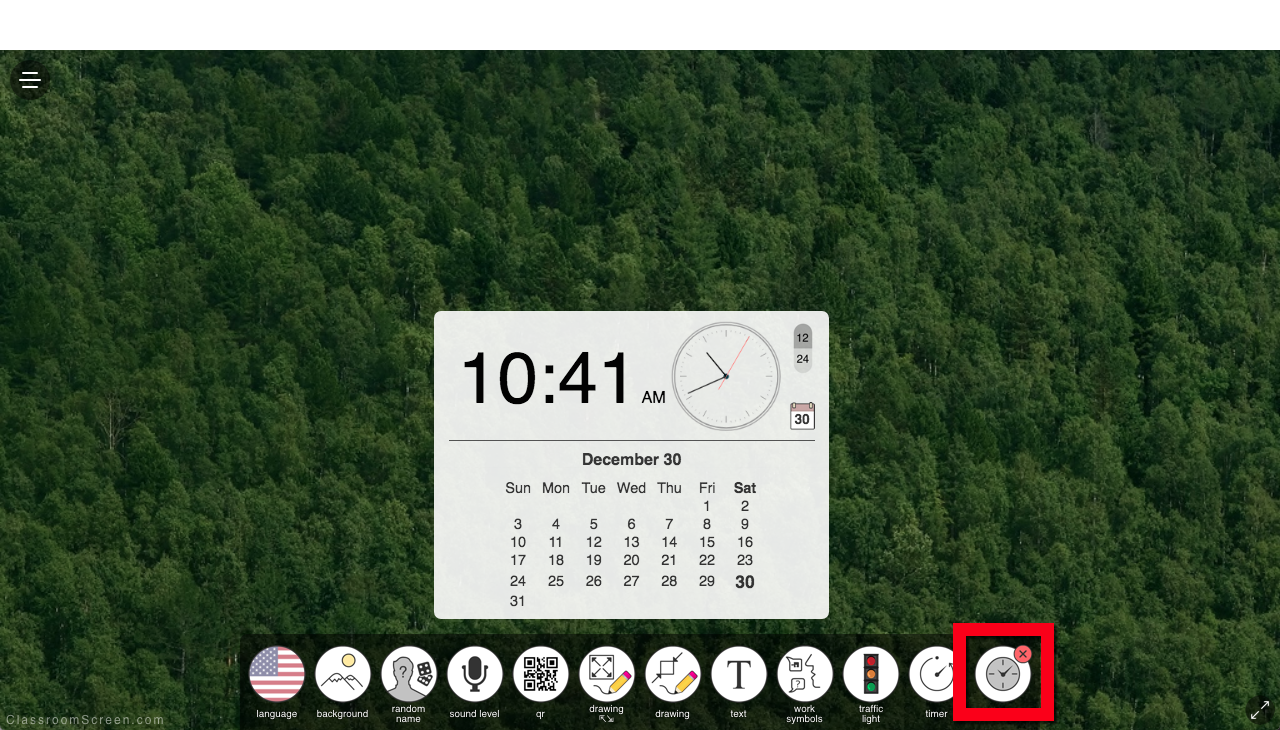
  • Clock (and Calendar Option)
    • Need the clock or calendar visible? This tool does that!


This is an easy and helpful site. Give it a shot in your classroom!


If you want these directions in a Document click HERE!

Thursday, April 17, 2014

My 10 Essential Classroom Apps

We all use them all the time. Apps! Whether it is on an iPad, Android Tablet, or mobile phone we use them every day. We all have our favorites depending on what we need to do. I organized my personal and teaching life with apps. I set reminders, make lists, manage documents, scan prices, upload/view images, and connect with friends/family/educators. We all have our favorites and I was recently asked what my top 5 apps were. It was much more difficult than I thought to make a list! I decided to see if I could narrow it down to 10 and share my "Top 10 Must Have Apps" for the classroom. So...here is what I came up with (in no particular order)!


What in the world did I do before Google Drive? Seriously? How could I have taught at all before? I use this for both personal and professional writing, statistics, storing, and sharing. The collaboration is insane in Drive. This would have to be my #1 pick if I could only have 1 app for the rest of my life (just don't ask me to do that!). Being a Google Apps District is a blessing!


ClassDojo was a saving grace for me! It is the perfect classroom behavior tool. I can reward for positive and negative behaviors. The students (and parents) can access their accounts and track behaviors. This was a great tool for IEP, CAT, and other meetings to have real accurate data on a student's behavior. If you have not tried this, it is a classroom app I won't teach without! 


I don't know about you, but my online/digital life can become quite a mess. Where do I store all those great ideas, links, sites, info, and things I want to look at later? Before Evernote, they were everywhere (which really meant lost). Now, they are all in 1 site. I log in, go to a notebook, and Ta-Da! There it is. The Web Clipper tool is my favorite part of Evernote. I can clip for later viewing any web site and it saves links, images, and everything. This is great for organizing personal and professional lives!.


Educreations is fantastic in the classroom on 2 levels. Most teachers use it to make record-able white boards. This is great for the flipped classroom. It allows students to go back and see a lesson again. My favorite part is the student side. Once you set up a class, your students enroll. Then, every whiteboard they make ends up in the class under the student's name. The teacher then can assess, review, and re-watch the student explain something. This is fantastic for assessing student understanding, right from your couch!


What can I say about Twitter...? It IS my PLN. I have learned more from the educators I follow on Twitter than anywhere else. It is connecting, learning, collaborating, and helping all in 140 characters. If you follow the correct people, the sky is the limit for what you can gain/learn. Don't forget about all those Twitter Chats to participate in! 


Flickr is a great site to store images. Most people know that. But, as a teacher you can take it a step further. Flickr allows tagging of images and sets. First, put images into sets (groups of images such as Science, Math, etc). Then, tag individual images with CCSS or content. Then, allow parents, community, the world to see how your classroom is learning the CCSS! Search for a standard and see it being taught in your room! 


The invention of the phone is great, but what teacher can actually answer one? You can not stop teaching to return a call during the day, and when you get home you often don't want your personal cell or home number being seen by all parents. Here is where Google Voice comes in. Create a Voice number and give it to your parents. They call it. The message goes into your Google Account (you can have it forwarded to any number, email a transcript to you, or use the app on your phone to manage messages). Then, you can call parents back from your cell phone (or any line set up) and the parents only see the "Voice" number! No late night weekend calls from parents on private lines! J...U...S...T......A...W...E...S...O...M...E!. 


My days of flash drives and emailing myself files have been gone for years! Dropbox is absolutely a Must-Have!. Any files in Dropbox (like your Documents folder on you PC/Mac) are synced to the cloud, and then to any device you have connected. What does this mean? If you have 5 computers/tablets, and create a newsletter on 1 of them, within seconds that file is synced, updated, and available on all devices. Wow! I mean...really...WOW! No more forgetting a file at home/school. Everything you create is where ever you need it. Even on a friends computer you can log into the web version and retrieve a file to share (not to mention just making folder/files shared with multiple Dropbox and non-Dropbox users!). 


This is one of the easiest assessment/Exit Ticket apps out there. Simply create a quiz (multiple choice or short answer) and turn on the Teacher app. Give students a web based device (computer, tablet, phone) and go to the app or web site. Give them your classroom number, and take a quiz. Done! Socrative grades the assessment for you and gives the results back to you in an easy to use Excel spreadsheet! What could be easier or quicker? Give it a shot! 


They are everywhere! QR codes. Sure, they are great ways to get people to web sites. But...what about even better uses? Create audio or video files in your Google Drive and share the link that way! Then, the QR code opens streaming Audio! Put this code on a student's writing project having them reading it to the reader/listener! Attach the code to an art piece with the artist's explanation of their technique! Millions of uses beyond just a shortcut to a site! 


Well...there you go. As difficult as it was (and believe me the list changed many times before I clicked "Publish") there is my list of "My 10 Essential Classroom Apps"! Whew...maybe I should have made it 20? That would have been easier!