Showing posts with label Share. Show all posts

Tuesday, December 14, 2021

Send a Chrome Tab to Another Device

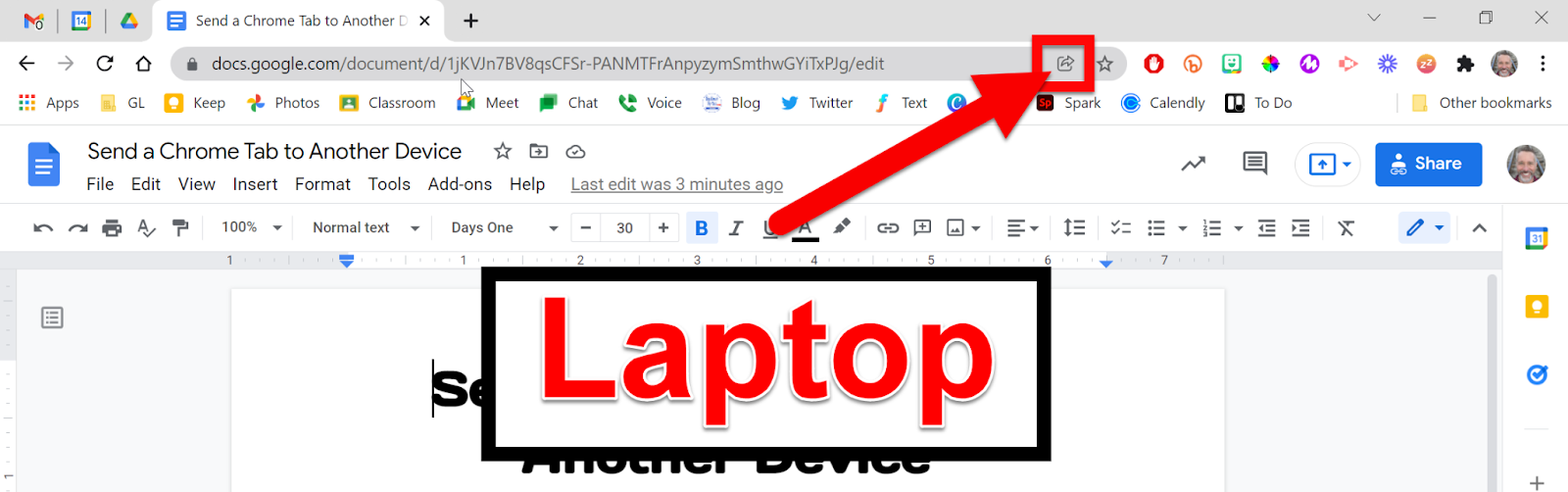
Have you ever wanted to send the Chrome tab you are currently using on one device (Chromebook/laptop) and send it to another device (Chromebook/laptop)? If you are signed in to the same Google account in Chrome you can! It is very easy and very useful. Follow the steps below to do this!

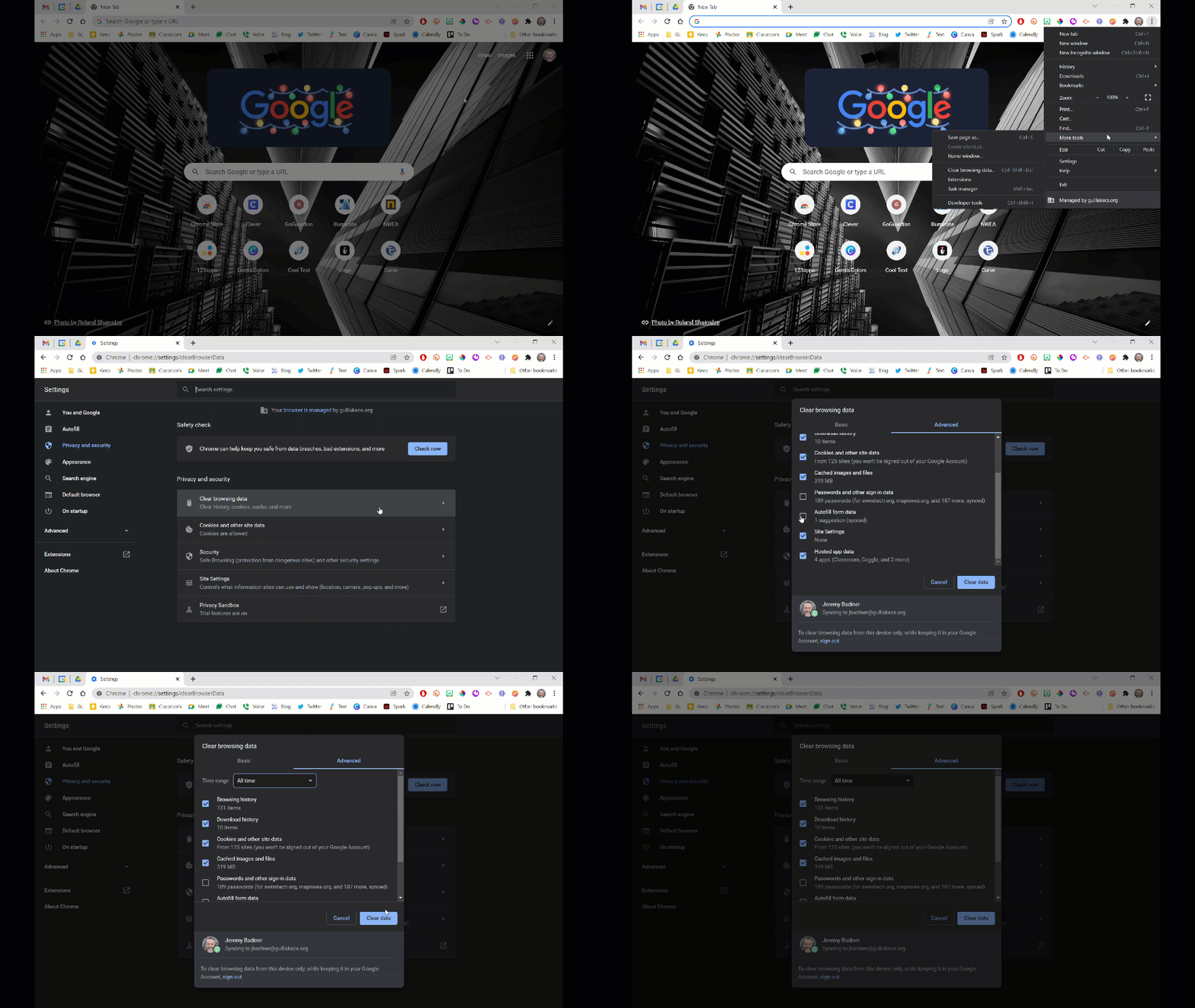
Just a heads-up: You will want to Clear your Cache and reboot each device before trying this for the first time.


Send a Tab:

  1. Make sure Chrome is open and signed into the same account on each device.

  2. Open the site you want on one device.

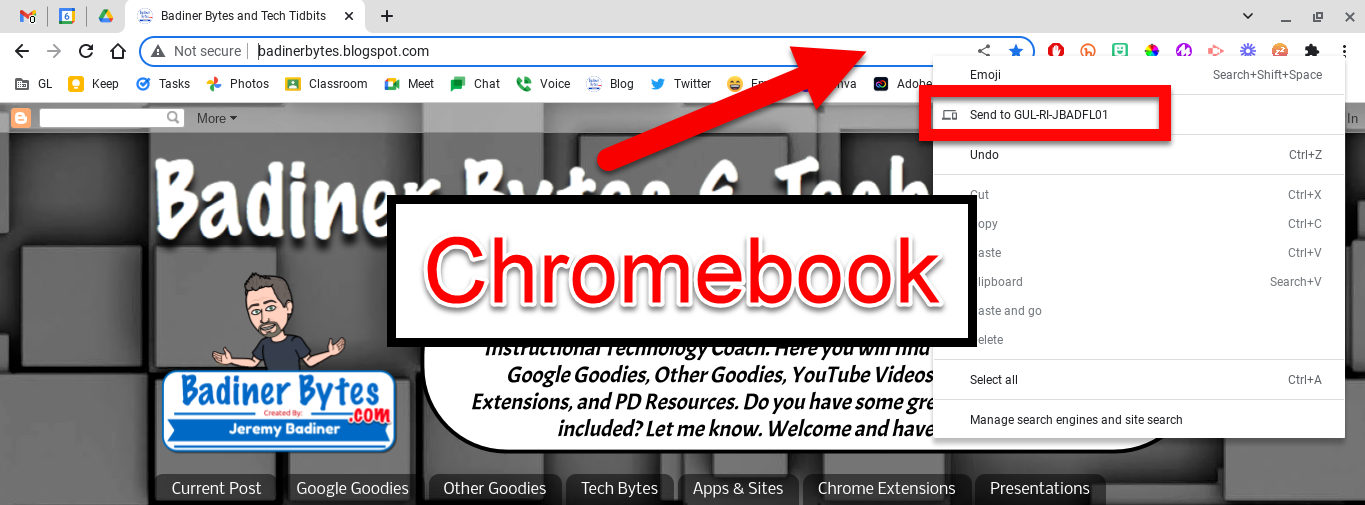
  3. Right-click in the Address Bar at the top and click on the “Send to ‘device name’” button.


  1. Choose the device to send to from the popup list. 
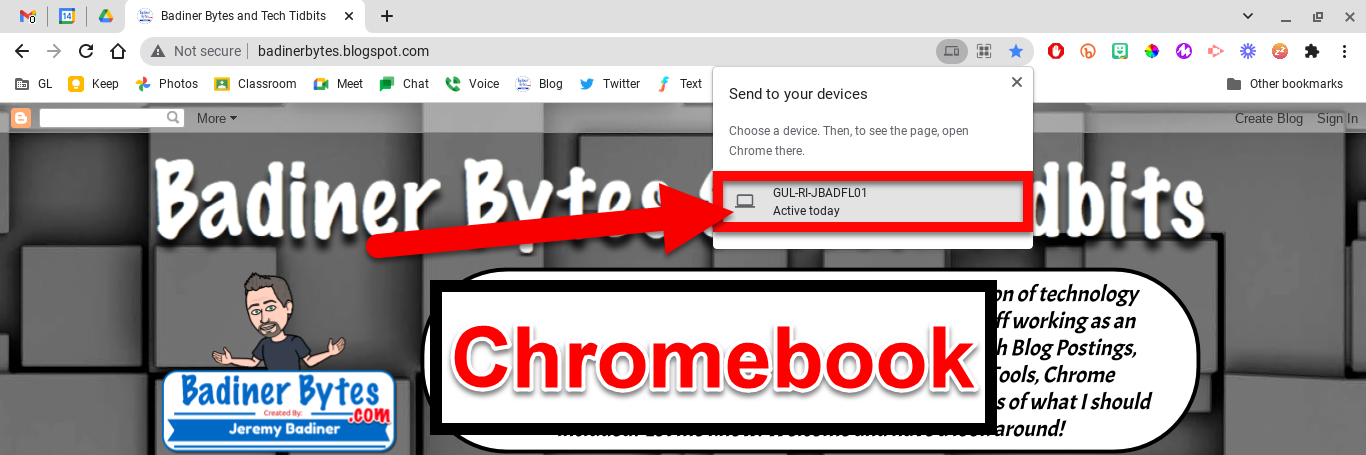

  1. You will see “Sending” in the address bar).
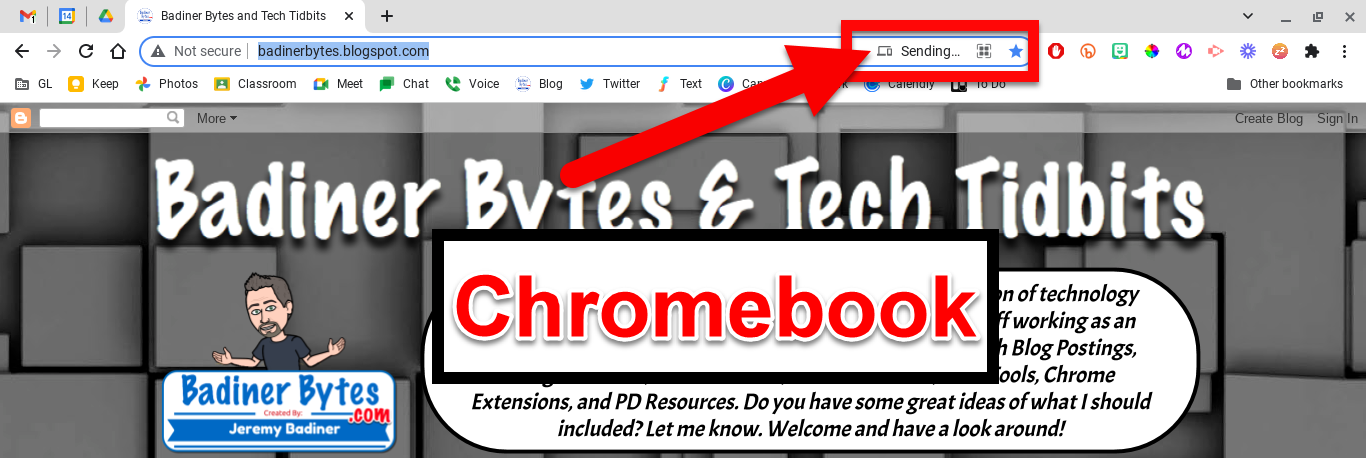

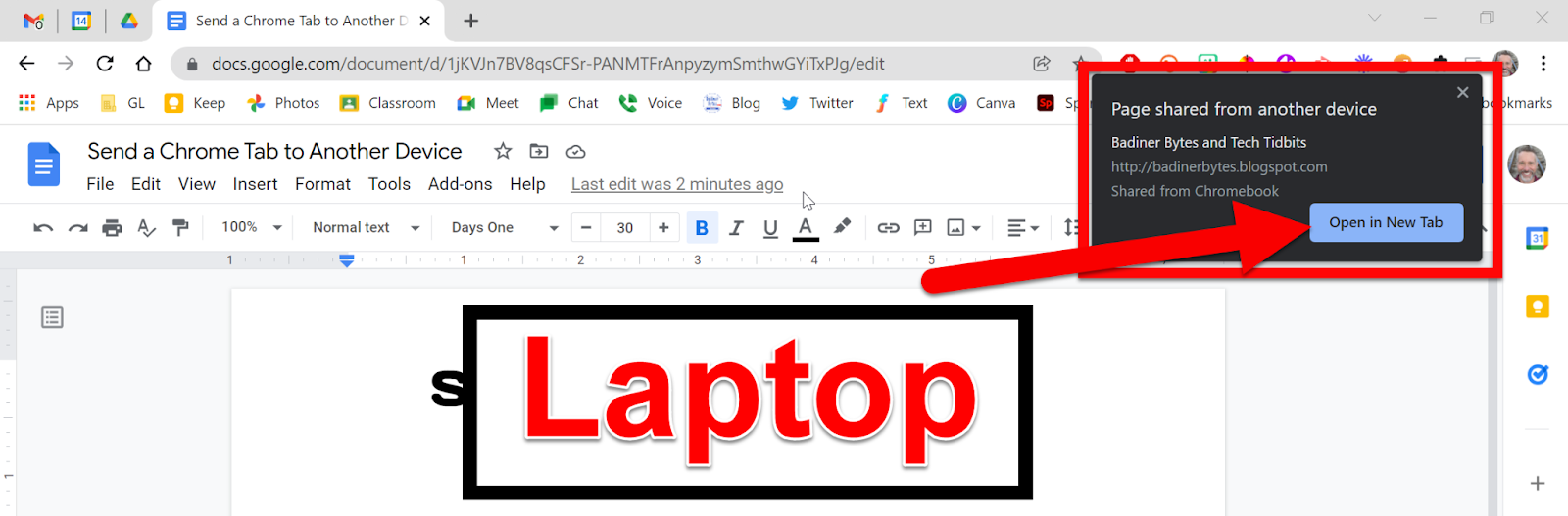
  1. Go to the other device and click “Open in a new tab” in the pop-up.


If these steps do not work, you may need to clear your Cache.


Click HERE to see a video walkthrough of these steps.


If you want these directions in a Document click HERE!


Friday, January 2, 2015

Create and Share a Google Calendar


Let’s face it, if you use Google tools, one of the best features is Google Calendar. You can create as many calendars as you wish for yourself or to share with others. They can even be public and embedded on websites for others to see and follow. You can give others access to view or edit, or just keep them to yourself. And the best, if you are like me, color code them for your own organizational purposes. Here are the easy steps to creating and sharing a Google Calendar.


Create and Share a Calendar

How to Create a New Calendar:
  1. Open the Calendar in the account you want to create a new calendar in with your browser.
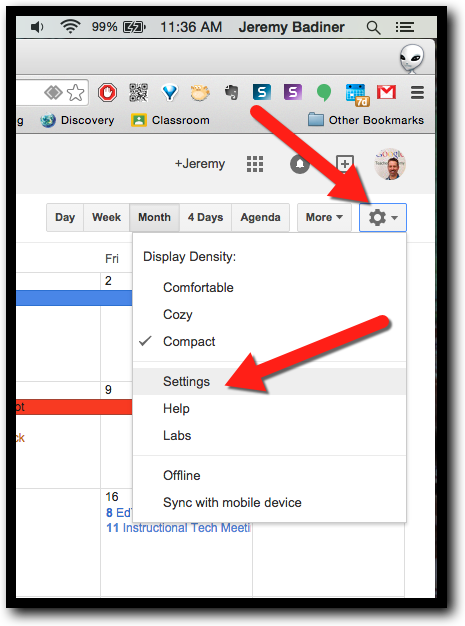
  2. Click on the gear and then “Settings”.


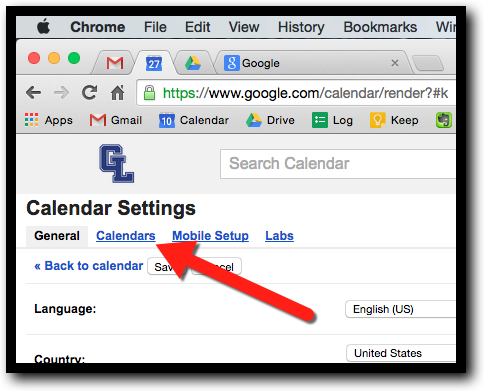
  1. Click on “Calendars”.


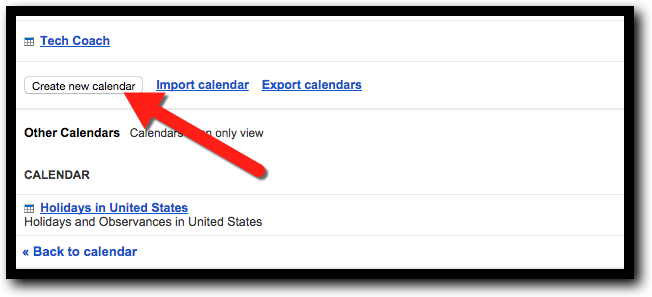
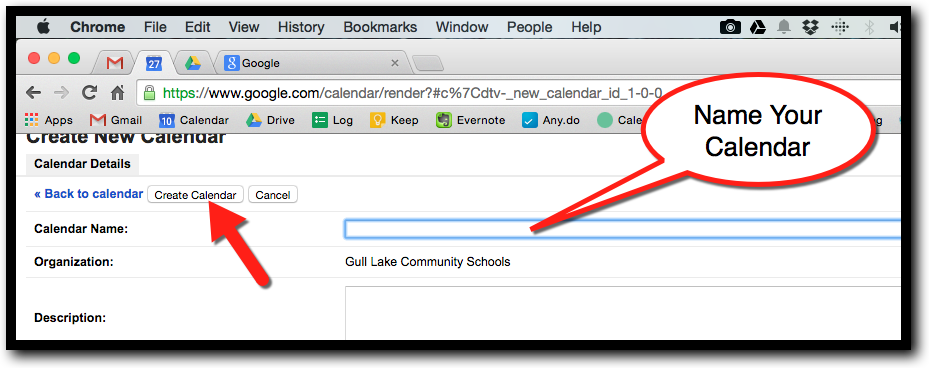
  1. Scroll down and click on “Create New Calendar”.


  1. Name your calendar and click “Create Calendar”.


How to Share a Calendar:
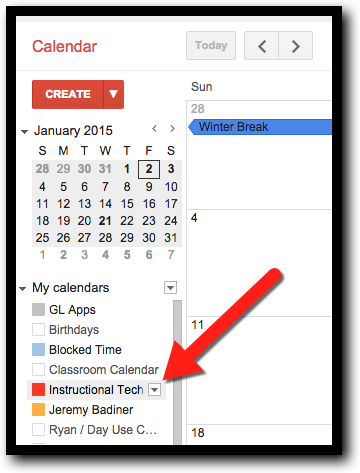
  1. Hover over the calendar on the left side that you want to share.
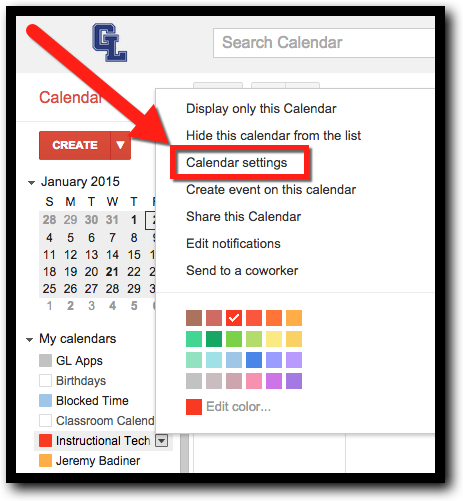
  2. Click the little dropdown arrow to the right of the calendar name.


  1. Click “Calendar Settings”.


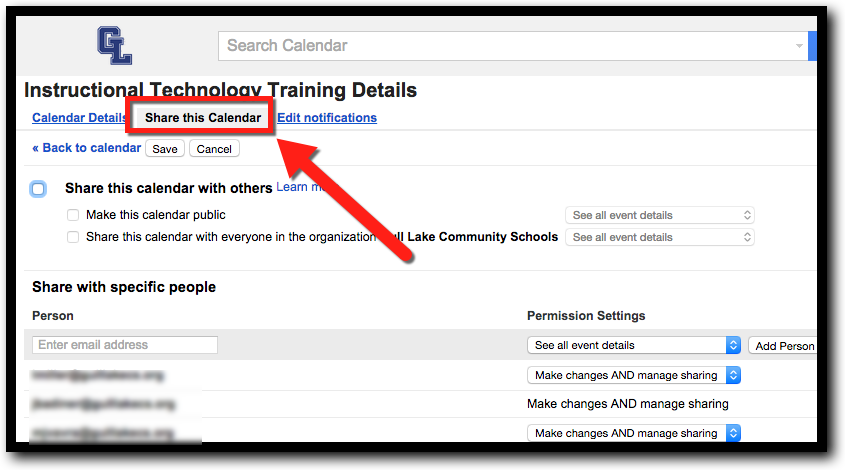
  1. Click “Share this calendar” at the top left.


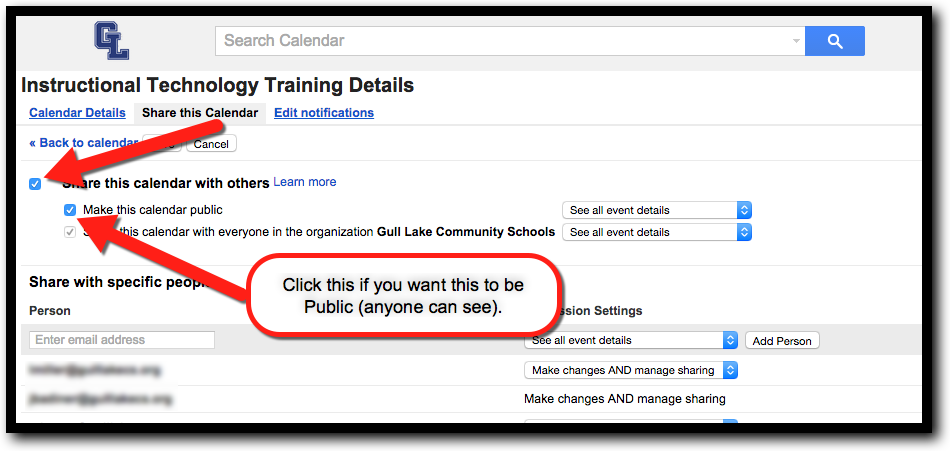
  1. If you want to make this a public calendar (anyone in the world can see), click the checkbox for “Share this calendar with others” and “Make this calendar public”.


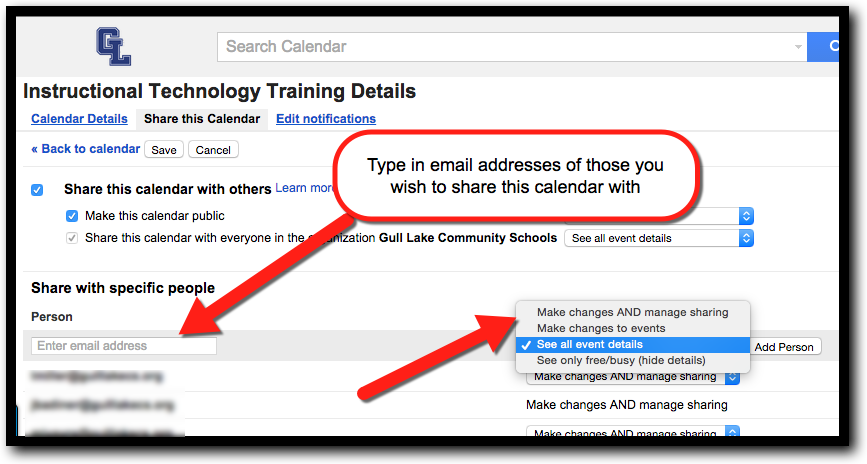
  1. If you want to share with just a select group of people go down to “Share with specific people”. (If you are only sharing with specific people, do not do the previous step if it is not shared publicly as well.)


  1. After entering in the email address of the select people you want to see/edit calendar, choose from the drop down what rights you want to give them (above).
  2. Click “Save”.
  3. You are all set!


If you want these steps in a Document Click Here!

Sunday, April 27, 2014

Spotlight Classroom Learning with Images: MACUL Mobile Learning Presentation

Here is my MACUL Mobile Learning Conference Presentation. It was Spotlight Your Classroom Learning with Images and Videos. Let's face it, teachers do wonderful things in their classrooms. It is time we show these off...not only to our students and parents, but the world. And as the saying goes, "A picture is worth a thousand words!" Take images, post them to an online photo sharing site, and share away! Tag them with CCSS, subject, and lessons and let the world know what you are doing!


Feel free to share the presentation below or contact me if you have questions! Happy Sharing!