Showing posts with label Chrome. Show all posts

Wednesday, March 18, 2026

Cute Desk App

Are you looking for a way to spruce up your computer screen? Do you want some cool widgets on a tab to show the weather, your To-Do list, a calculator, timer, photos, or more? Check out cutedesk.app. It is free and easy to use, and it might be just what you are looking for.


Set Up Your Desktop:

  1. Head over to cutedesk.app.


  1. Click through the first couple of screens and then click the “Don’t show this again” and click “Start”.


  1. The basic widgets are at the bottom. You can click to add or remove them from the screen. You can also click the app logo and see all the available widgets. 


  1. Explore the tools and set up the ones you want.


  1. You can bookmark this page, or set it as your “Start Page” in Chrome to come up when you open a new tab.

    • Open Chrome Settings. Click the three-dot menu in the top-right corner of Chrome, then select Settings.

    • Click "On startup".


  • Select "Open a specific page or set of pages" and click "Add a new page".


  • Enter https://cutedesk.app and click “Add”. 


If you want these directions in a document, click HERE. 

Monday, January 6, 2025

New Chrome Tool Shortcuts


Chrome has added some cool shortcuts to the Extension Bar. These are tools, not websites, that you may often use. You should add some so it is easier to access these tools. My favorites are the QR Code maker and Copy Link. Check them out!


Add Tool Shortcuts:

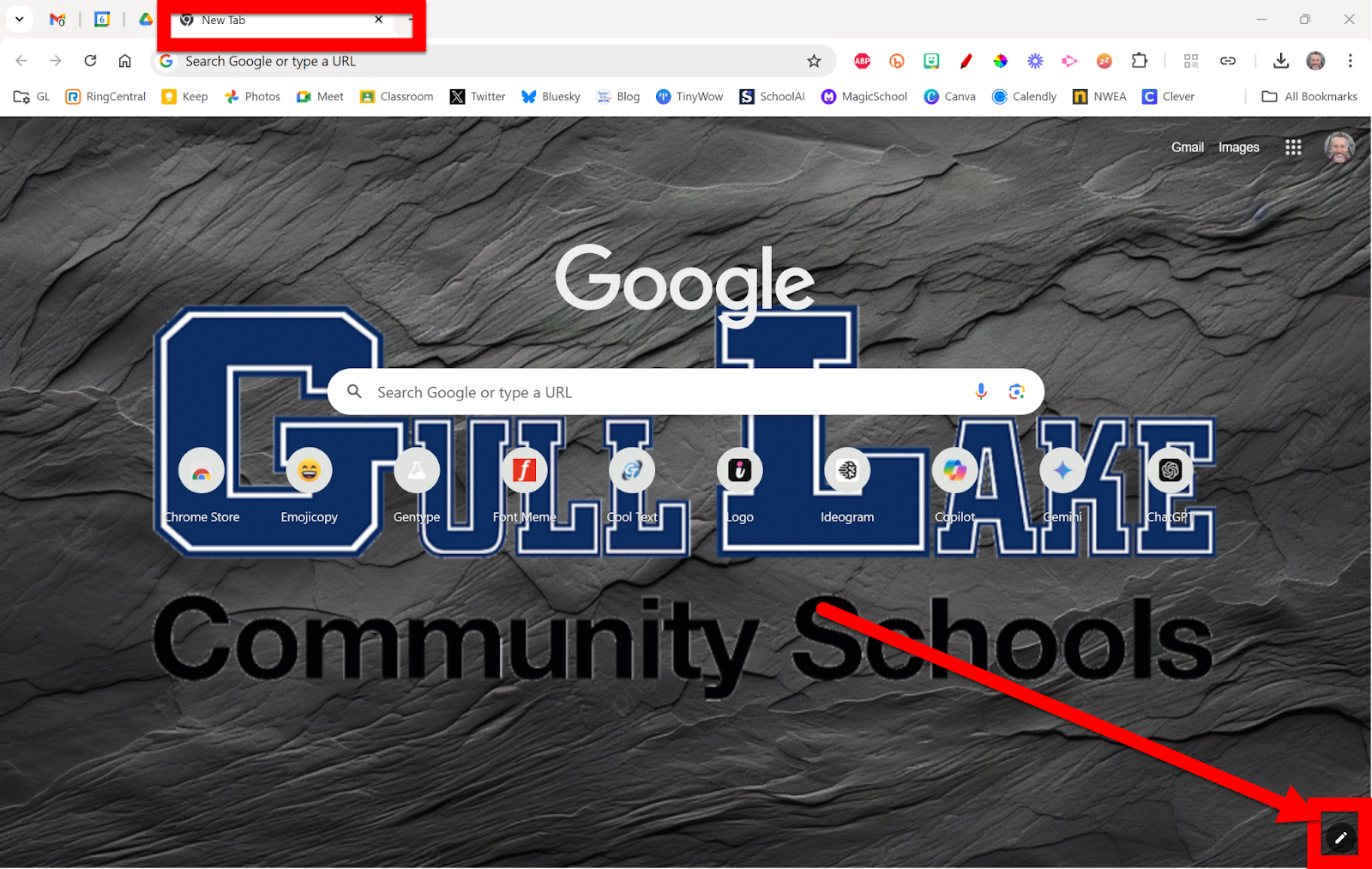
  1. Open Chrome and open a new tab.

  2. Click the pencil icon in the bottom right corner.


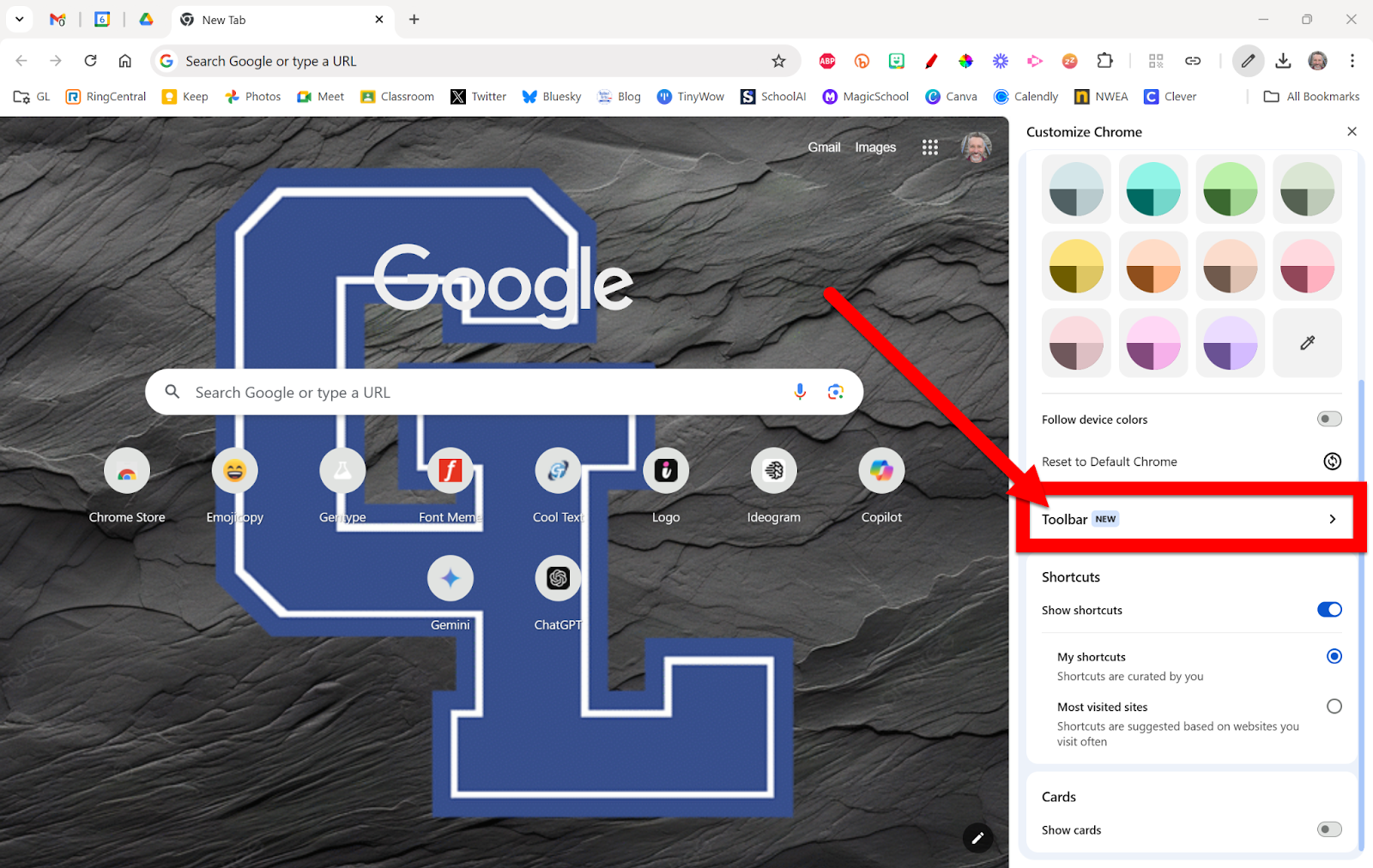
  1. Click on “Toolbar”.


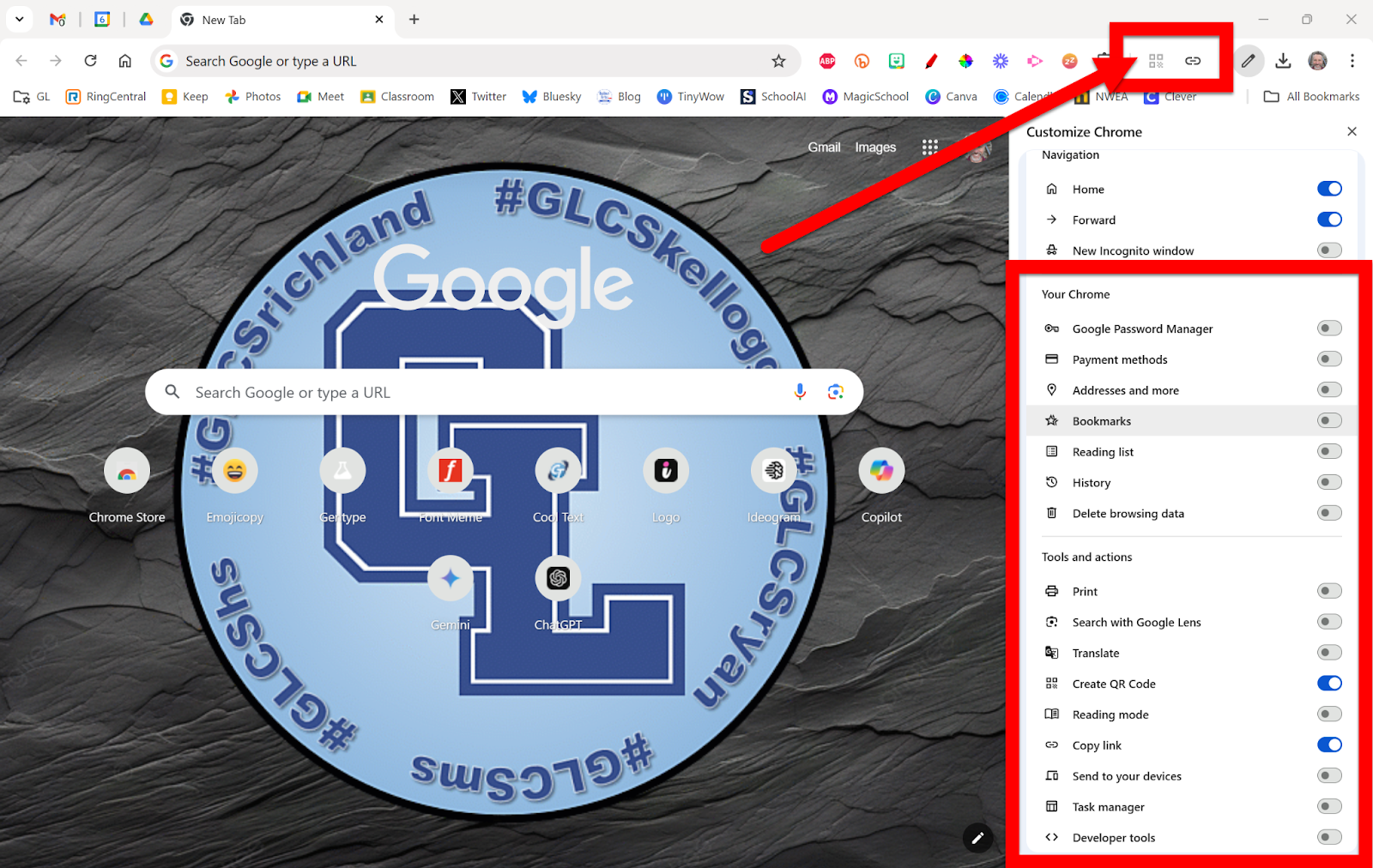
  1. Choose what tool you want a shortcut added.


You can now use these icons next to your Extensions to access these tools quickly!


If you want these directions in a Document click HERE!

Monday, March 11, 2024

Annotate Chrome Tabs

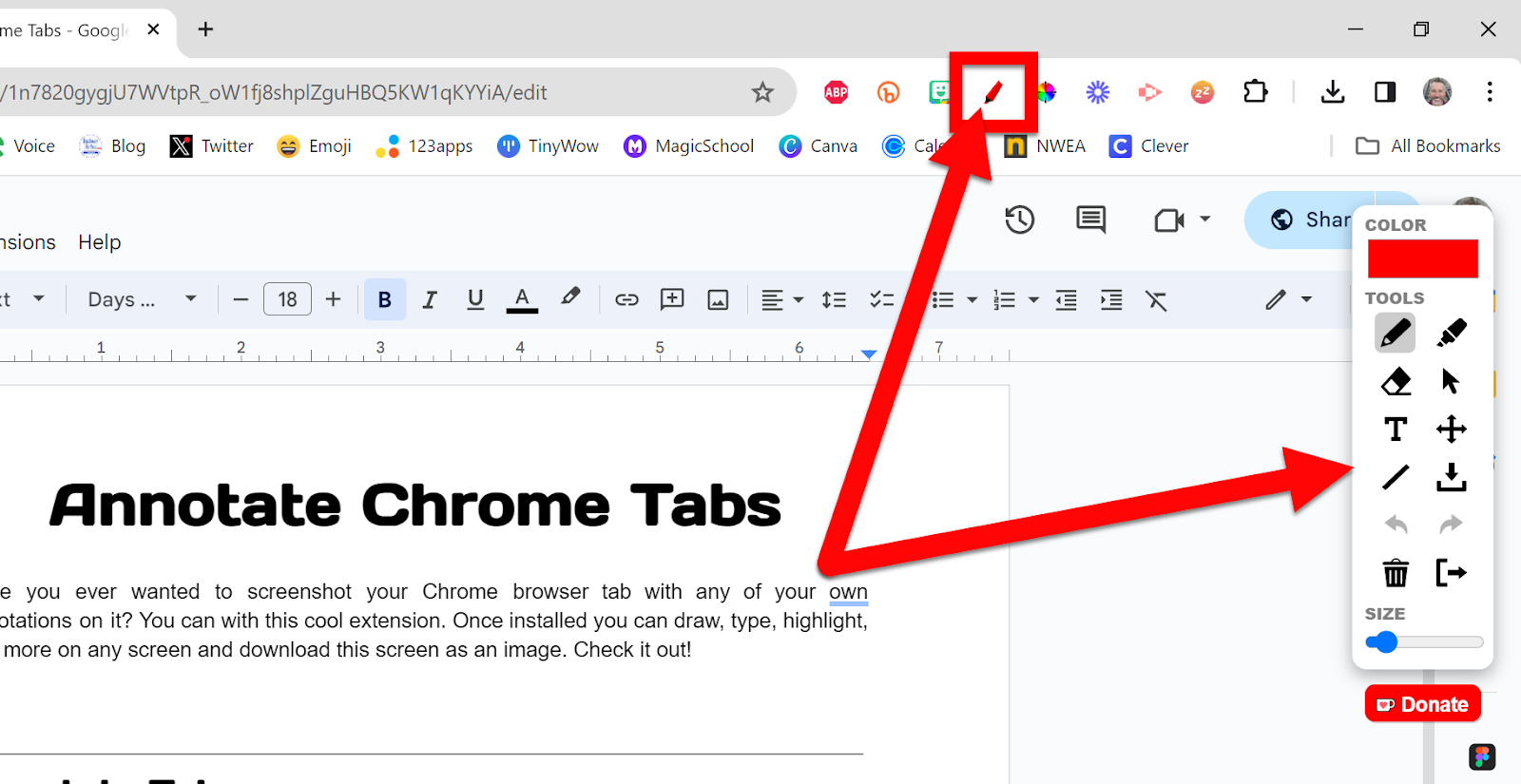
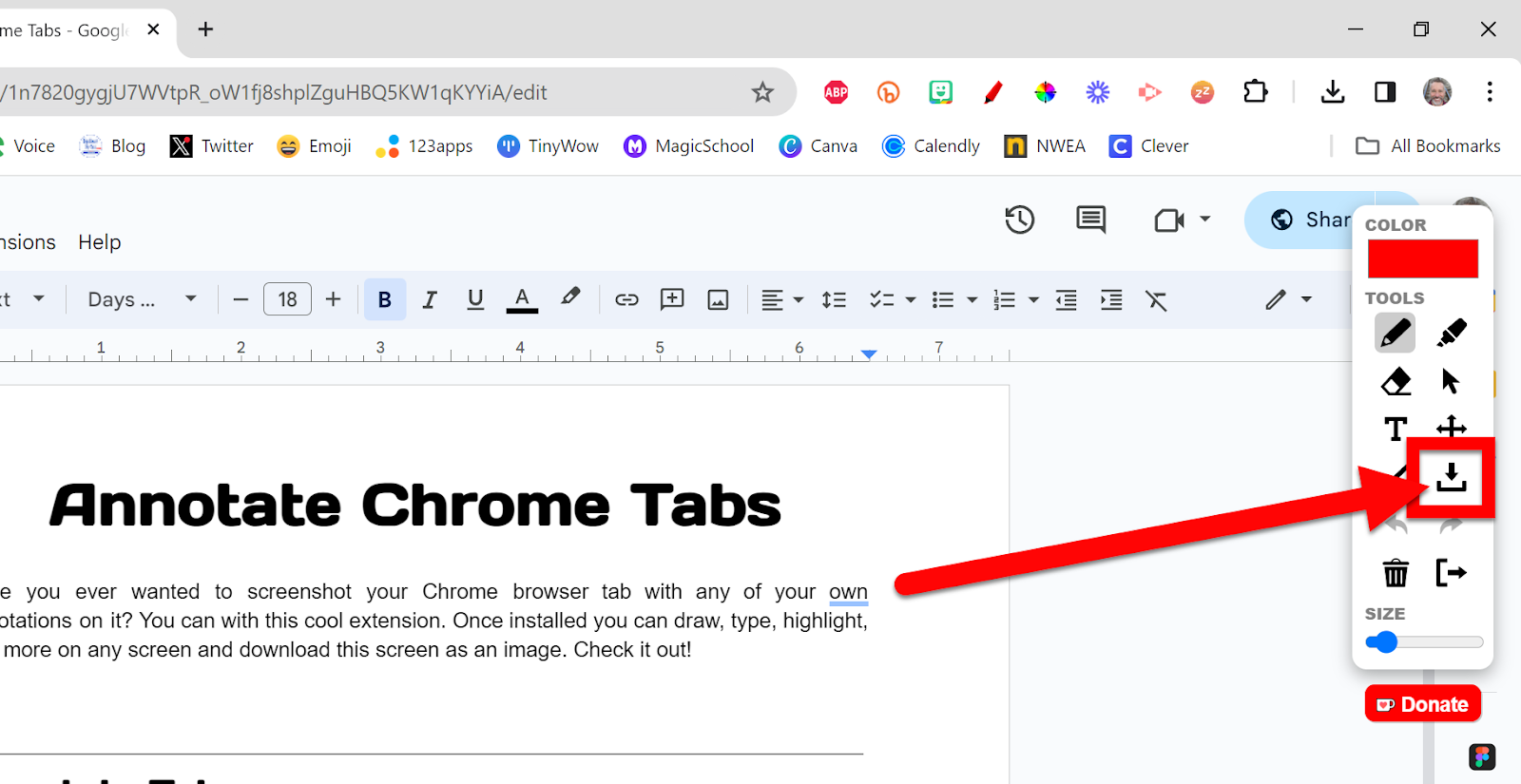
Have you ever wanted a screenshot of your Chrome browser tab with any of your annotations on it? You can with this cool extension. Once installed you can draw, type, highlight, and more on any screen and download this screen as an image. Check it out!


Annotate Tabs:

  1. Install this Chrome Extension: Page Marker 

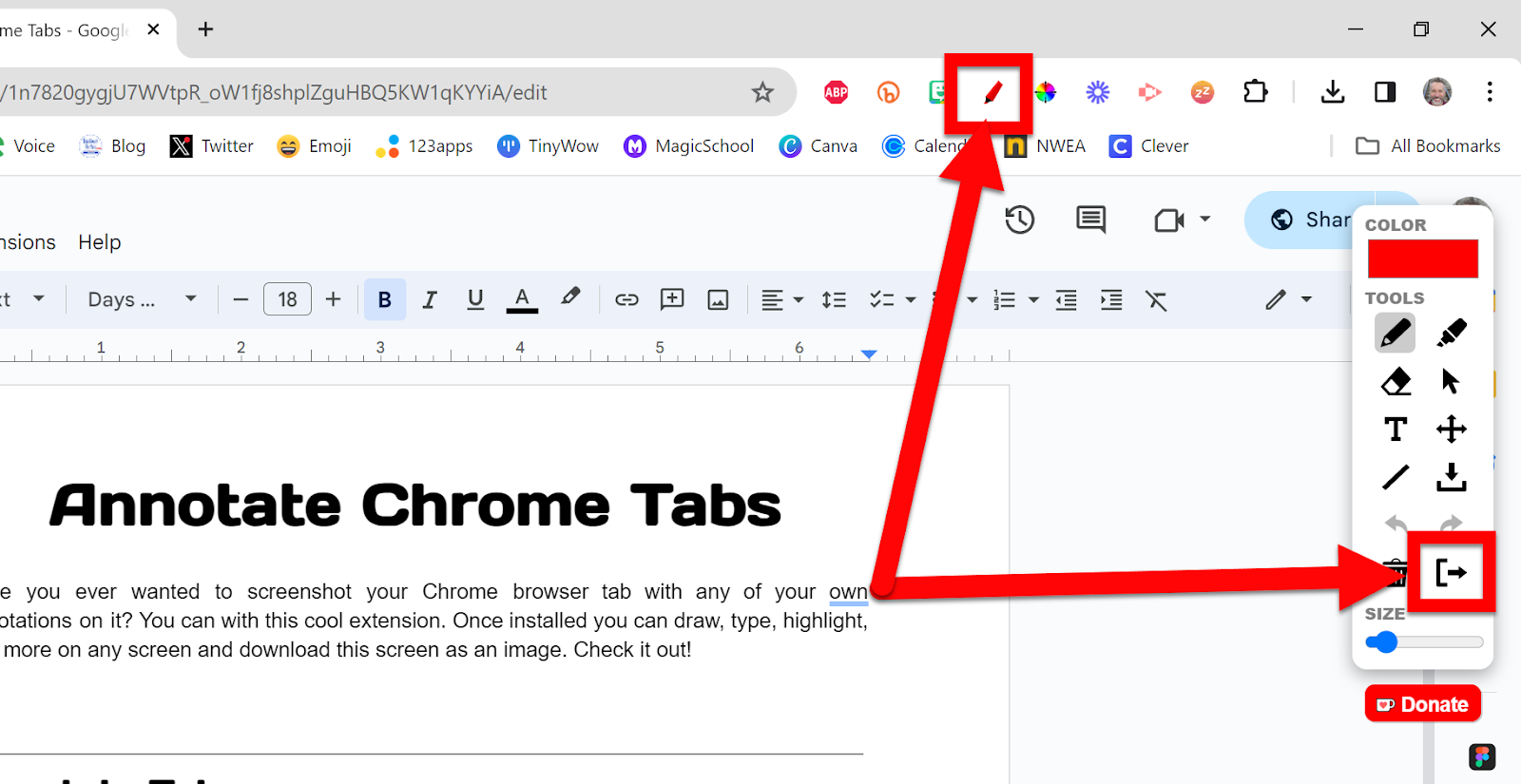
  2. Once installed click on the extension. The box that pops up will show all your options.


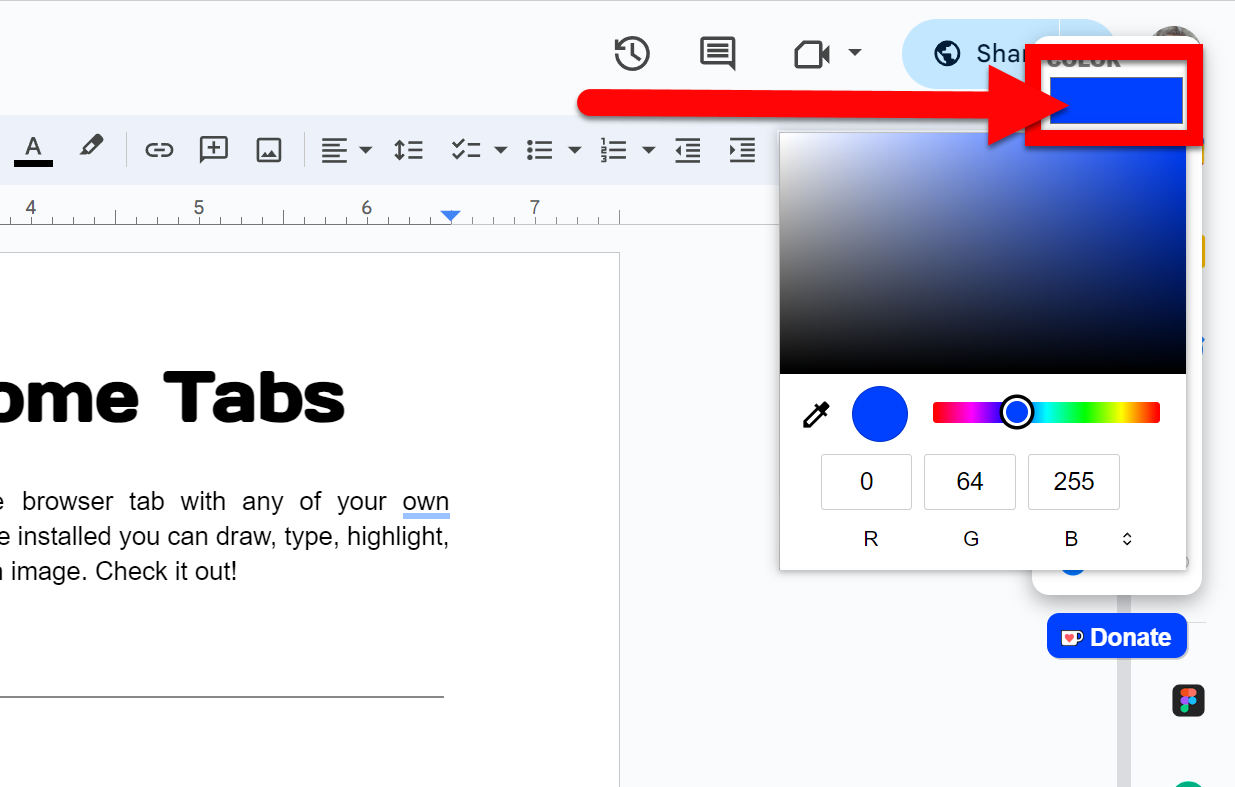
  1. Choose a color.


  1. The icons/tools are as follows:

  Set the color for annotation


  Pen to draw


  Highlighter


  Eraser


  Curser to go back to regular tap and not annotation mode


  Text to create a textbox


  Move items you have annotated


  Draw a line


  Download as an image


  Trash/delete all annotations


  Exit tool


  Change the size of the annotations you are adding


  1. To download click the download icon.


  1. To exit at any time (your creation is not saved) click the Exit symbol or click the extension icon again.


If you want these directions in a Document click HERE!


Thursday, February 22, 2024

QR Maker Built into Chrome


For those of us who share QR codes, they are a lifesaver. A quick scan gets anyone to the site you want them. In the past, we had to use a website or an extension to create QR codes. No Longer! Creating QR Codes is now built into Chrome! Check out how easy it is to share a QR Code to any site!


Create QR Code (Chromebook):

  1. Head to the site you want to create the code for easy access.

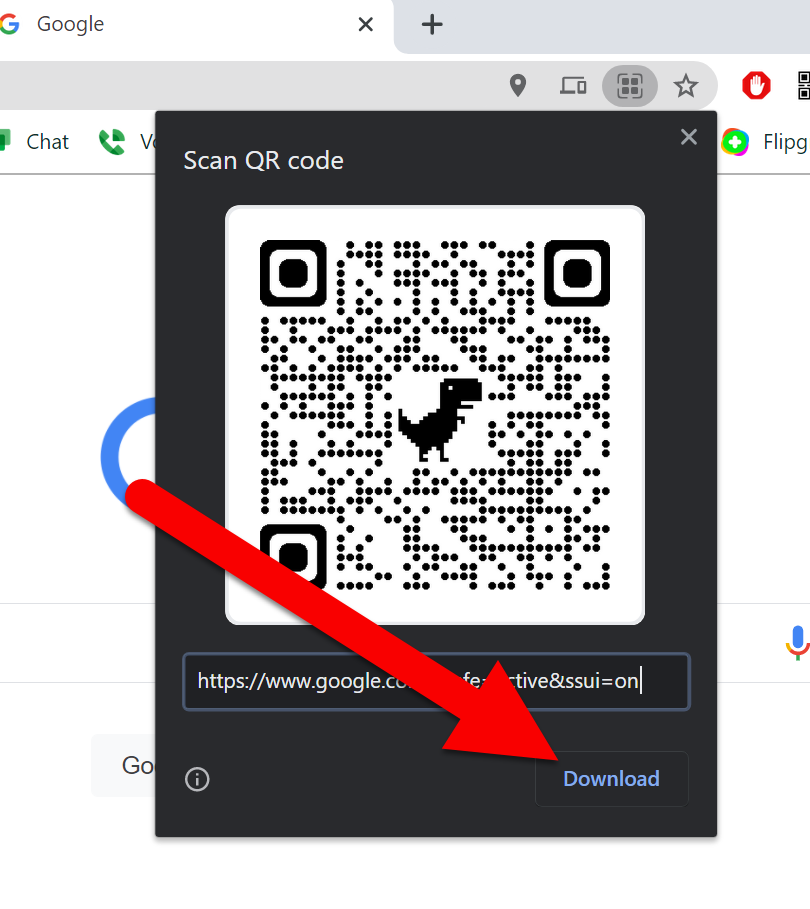
  2. Click in the address bar and find the QR Code icon. Click it.


  1. Click Download (or display this for others to scan from the screen)!


Create QR Code (Windows/Mac/Chromebook):

  1. Go to the page you want to share.

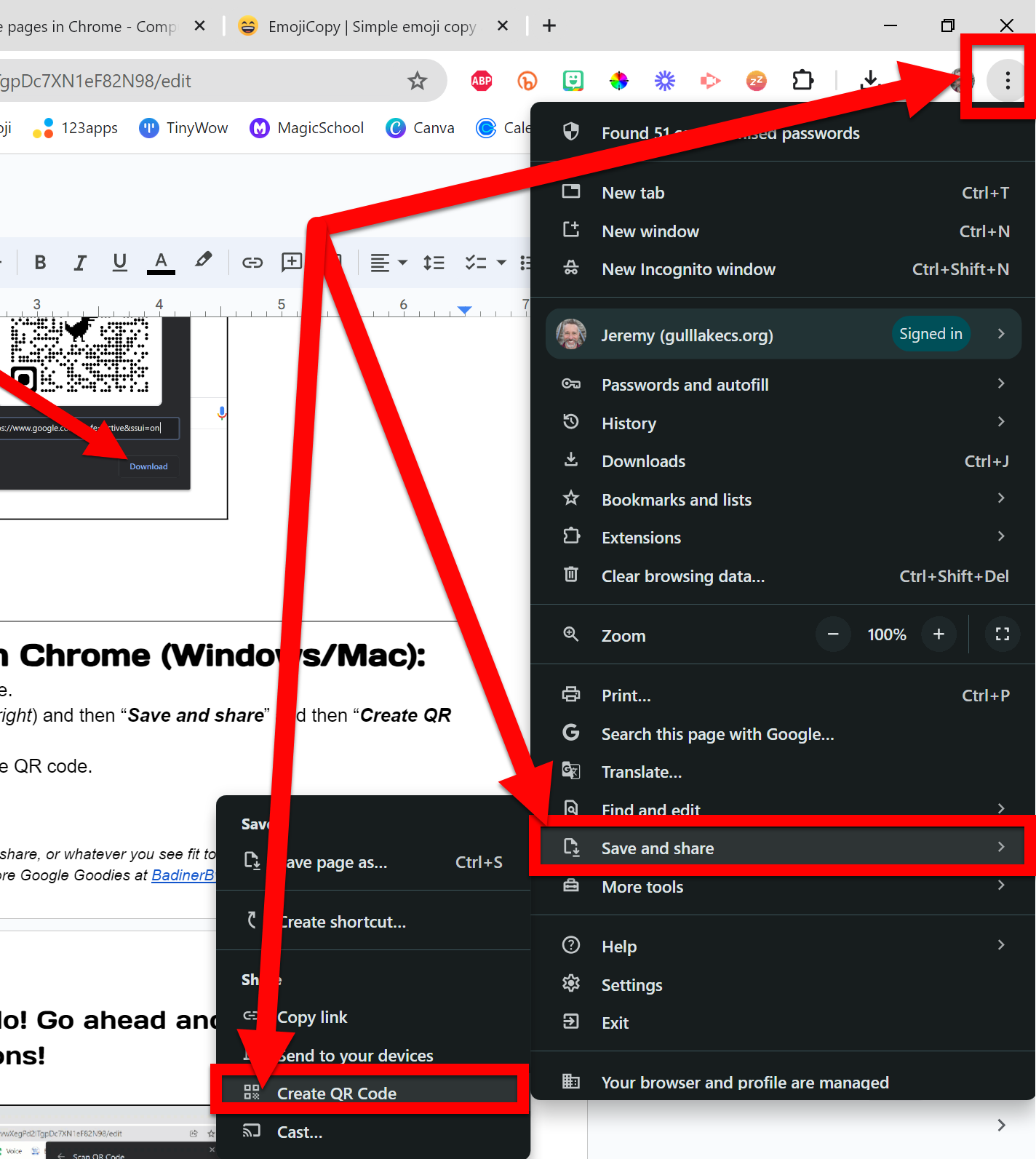
  2. Select “More” (3 dots in the top right) and then “Save and share” and then “Create QR code”.


  1. Select Download to download the QR code.


That is all you need to do! Go ahead and uninstall all those QR Code Extensions!


If you want these directions in a Document click HERE!

Thursday, December 14, 2023

Pop-Out Chrome Timers


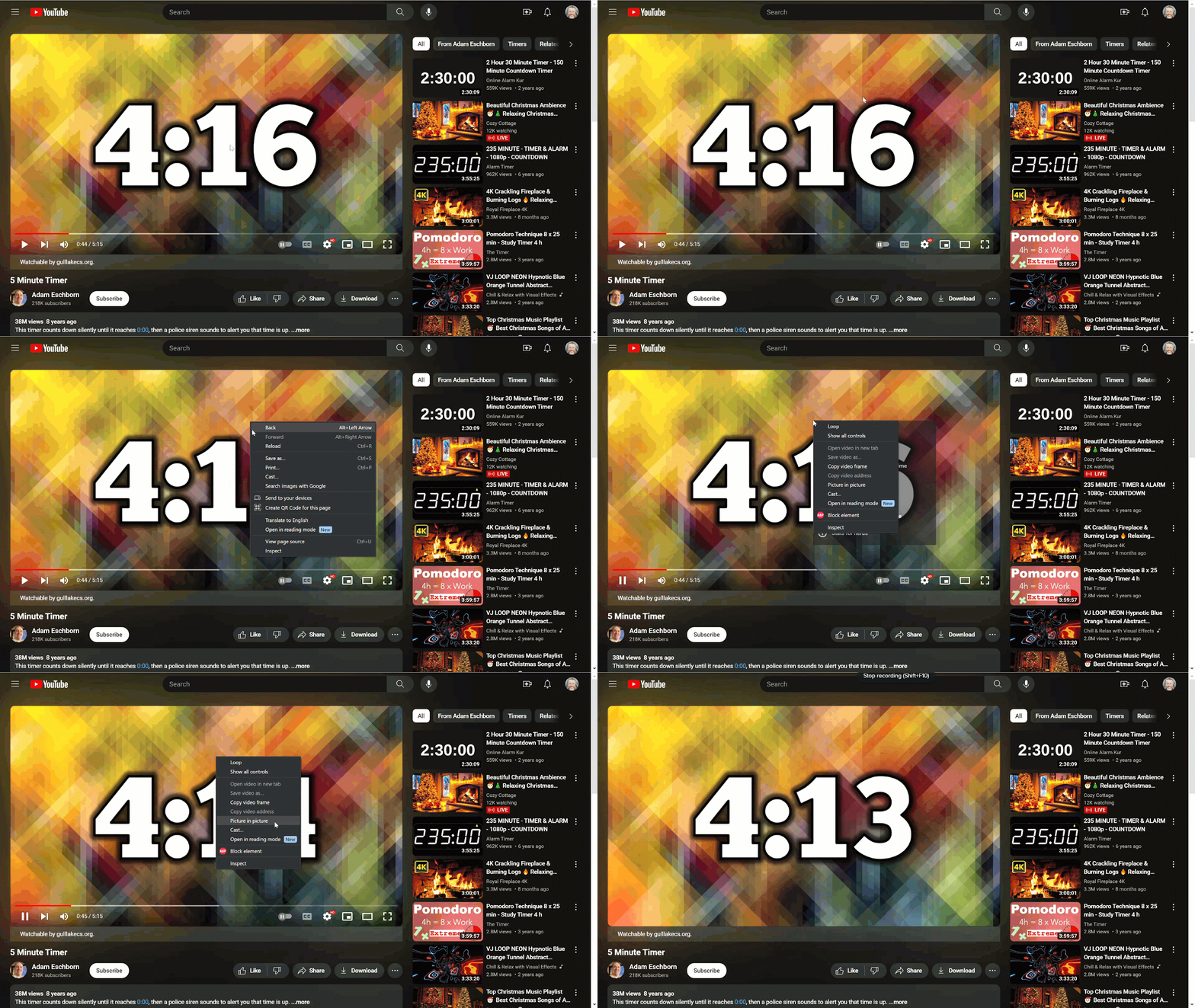
Have you ever wanted a pop-out timer to sit on your Chrome browser for classroom use? There are apps to do this, like the clock app in Windows and others, that let you do this. You can also do this with a Chrome Extension or some simple clicks!


Simple Clicks:

  1. Open a tab and go to YouTube.

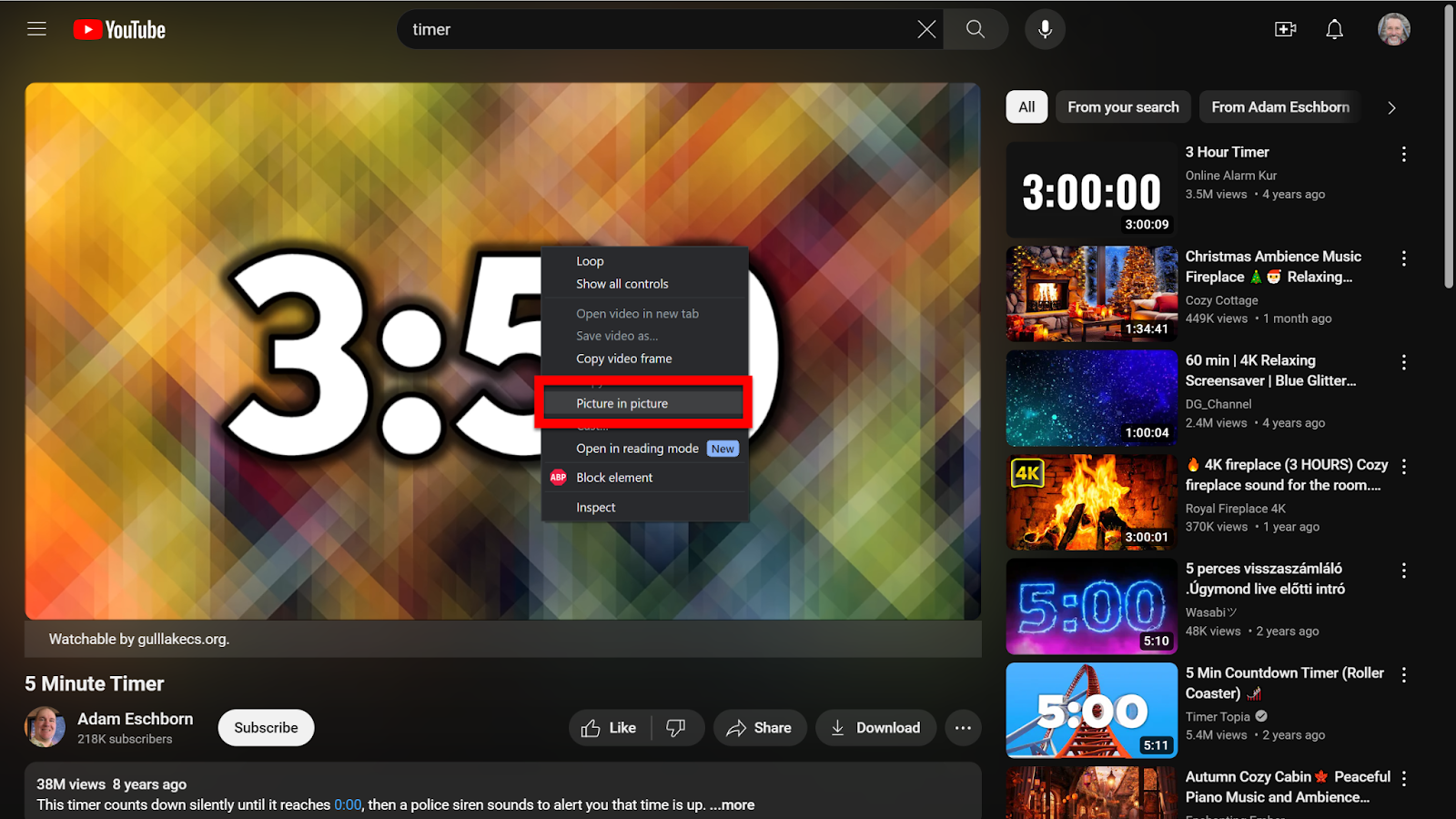
  2. Search for the timer length you want and view the video. Put your mouse on top of the playing video and double RIGHT-CLICK on the video (yes, RIGHT-click). It may take a little time to get it perfected. 


  1. Choose “Picture in Picture”. 


  1. This video will now be a small moveable video over your 


Chrome Extension:

  1. Install Google’s Picture in Picture Extension.

  2. Open the video you want to be on your browser.

  3. Click the extension and it will become a pop-out.


If you want these directions in a Document click HERE!


Friday, May 27, 2022

Using Chrome Tab Search

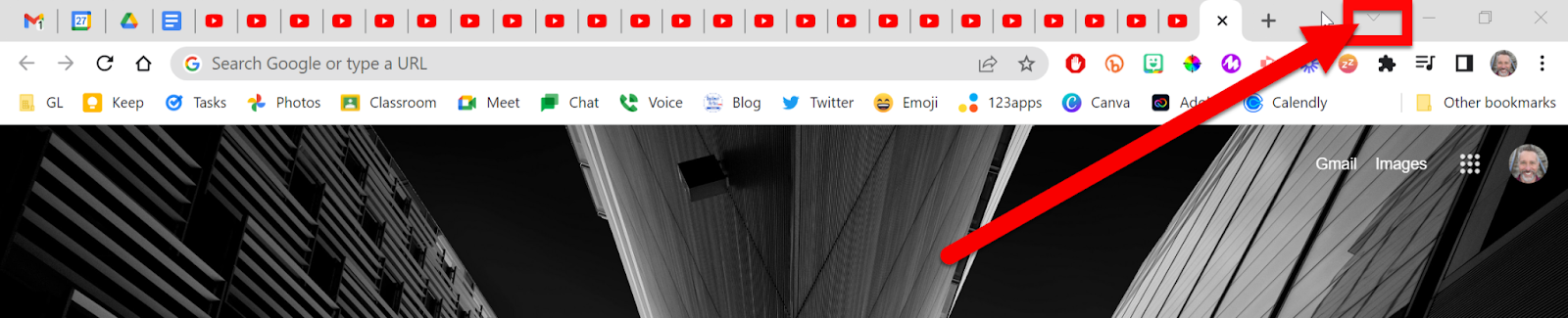
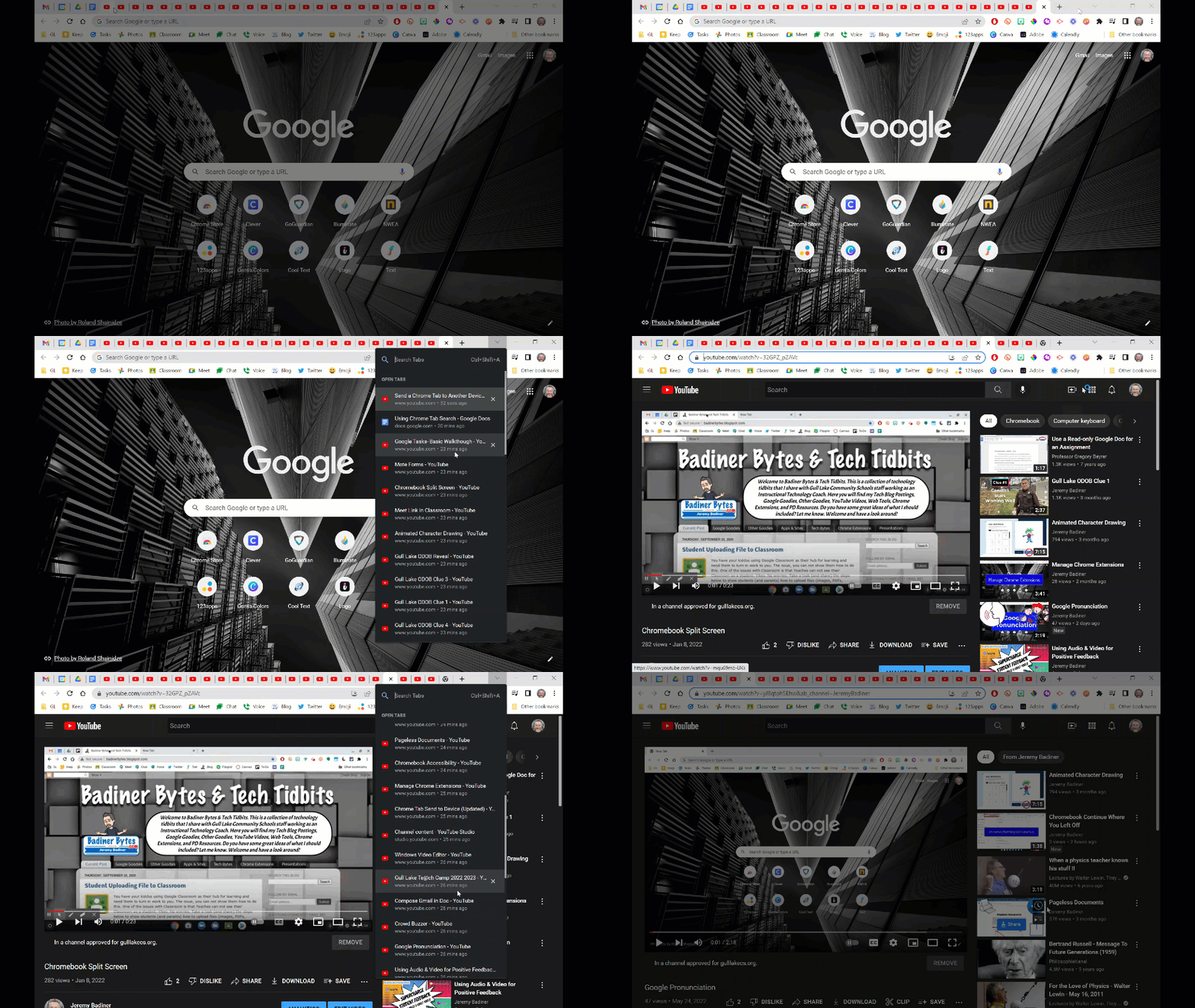
Are you one of those out there that has a million tabs open in your Chrome browser right now? (You don’t need to raise your hand, you know who you are.) Maybe you have so many that all you can see is the favicon (image in tab) on your tab. Then you spend too much time clicking all those similar YouTube tabs trying to find “just the right one”. Well, there is an easier (and more time-saving) way to find the correct tab. Use the Tab Search built right into Chrome.


Search Open Tabs:

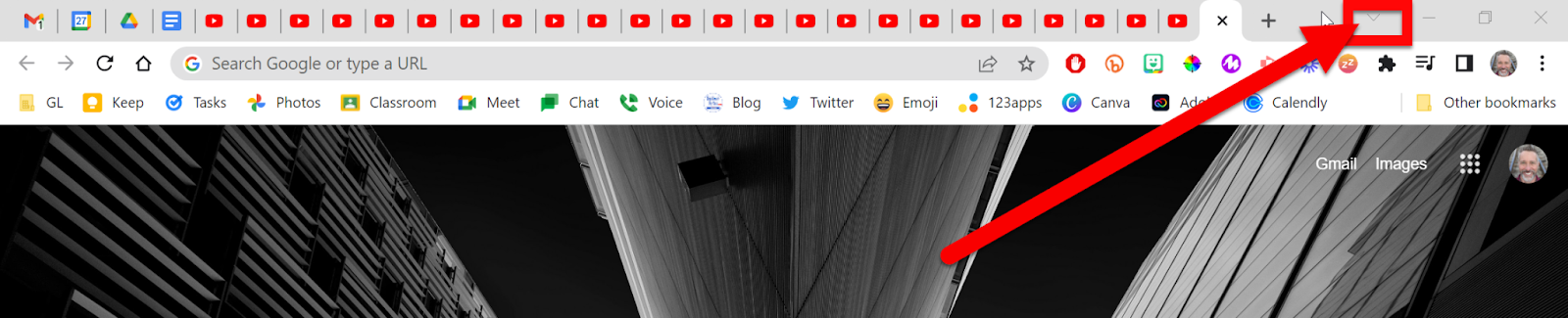
  1. Look to the far right at the top of Chrome. You will see a dropdown arrow that looks like this: “V”. Click that.


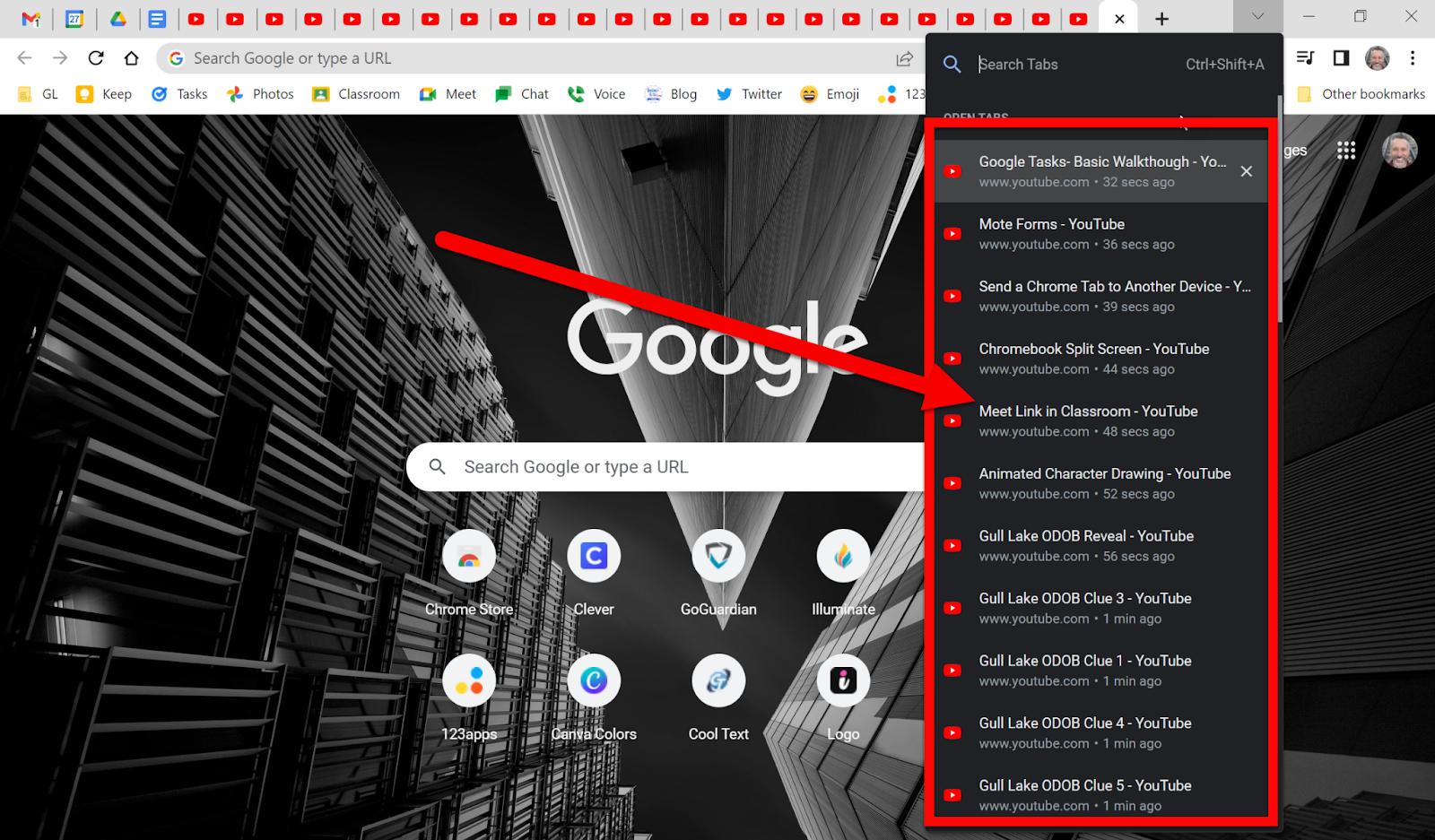
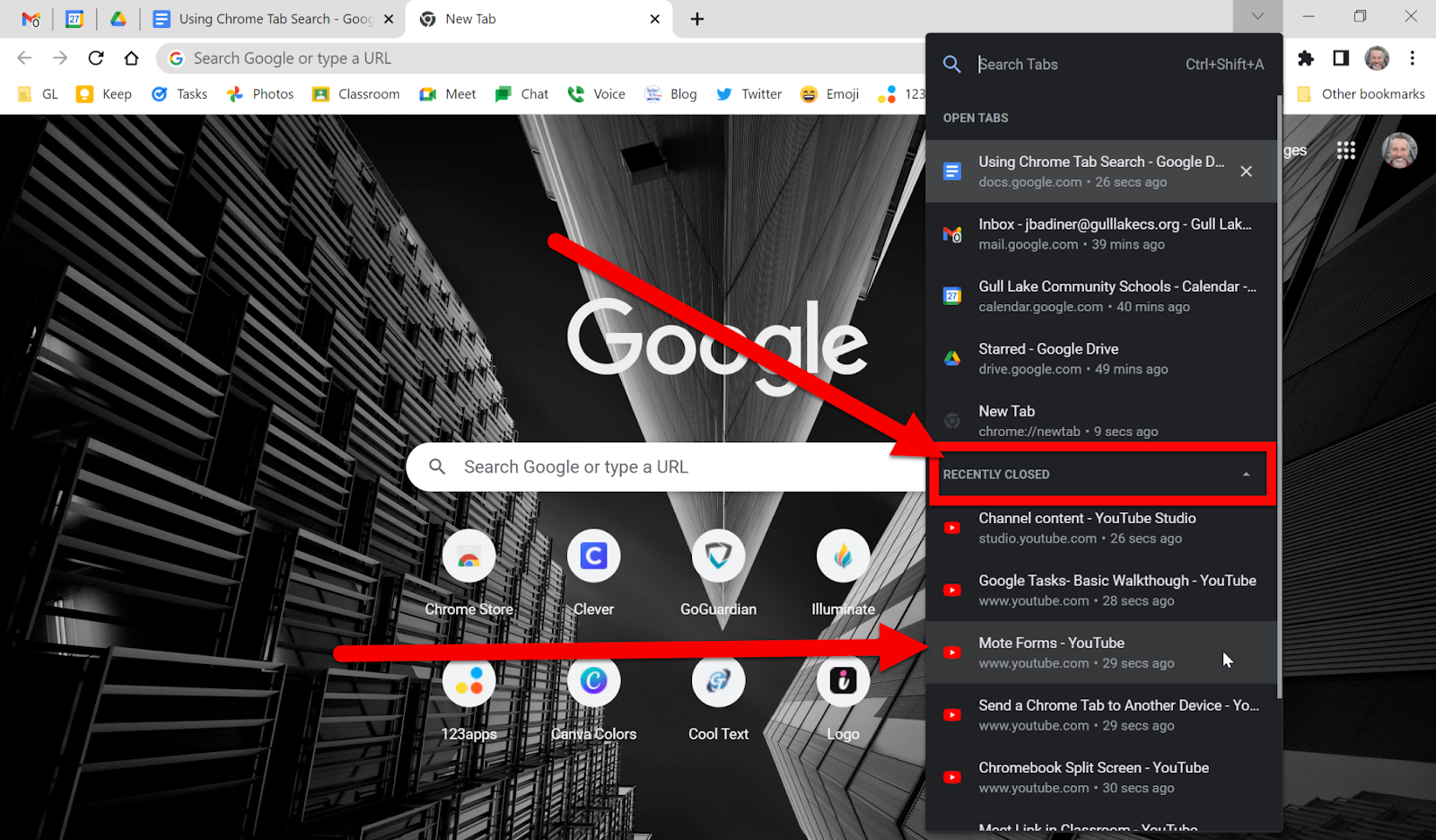
  1. The top section shows a listing of tabs that are currently open. Scroll until you see the one you need to open and click on it.


Open a Recently Closed Tab:

  1. The best way to do this is to use the keyboard shortcut “Control+Shift+T”.

  2. If there have been a LOT of closed tabs click the down arrow that looks like this: “V”. 


  1. The top section shows a listing of tabs that are currently open. Scroll until you see the “Recently Closed” section.


  1. Scroll until you find the tab you wish to bring back. You might not find your tab as our district blocks the storing of “Browsing History” but this will work for the current browsing session and not many days back. 


Now you can easily find the tab you are looking for. 


*Note: Every tab you have open does take system resources. The few tabs, the quicker your device will run.


If you want these directions in a Document click HERE!


Wednesday, May 25, 2022

Set Chrome to Continue Where You Left Off

Have you ever had many tabs open in Chrome and accidentally closed Chrome or shut down your device to discover you lost all those tabs you worked so hard to open? There is an easy setting that will make Chrome open all the tabs you had the next time it starts up. Follow these steps to never lose those tabs again! Also, give "Pinning Tabs" a shot as well!

*Note: If you do these settings on your PC/Mac, they will transfer to your Chromebook.


Set Chrome to Bring Back Tabs (PC/Mac):

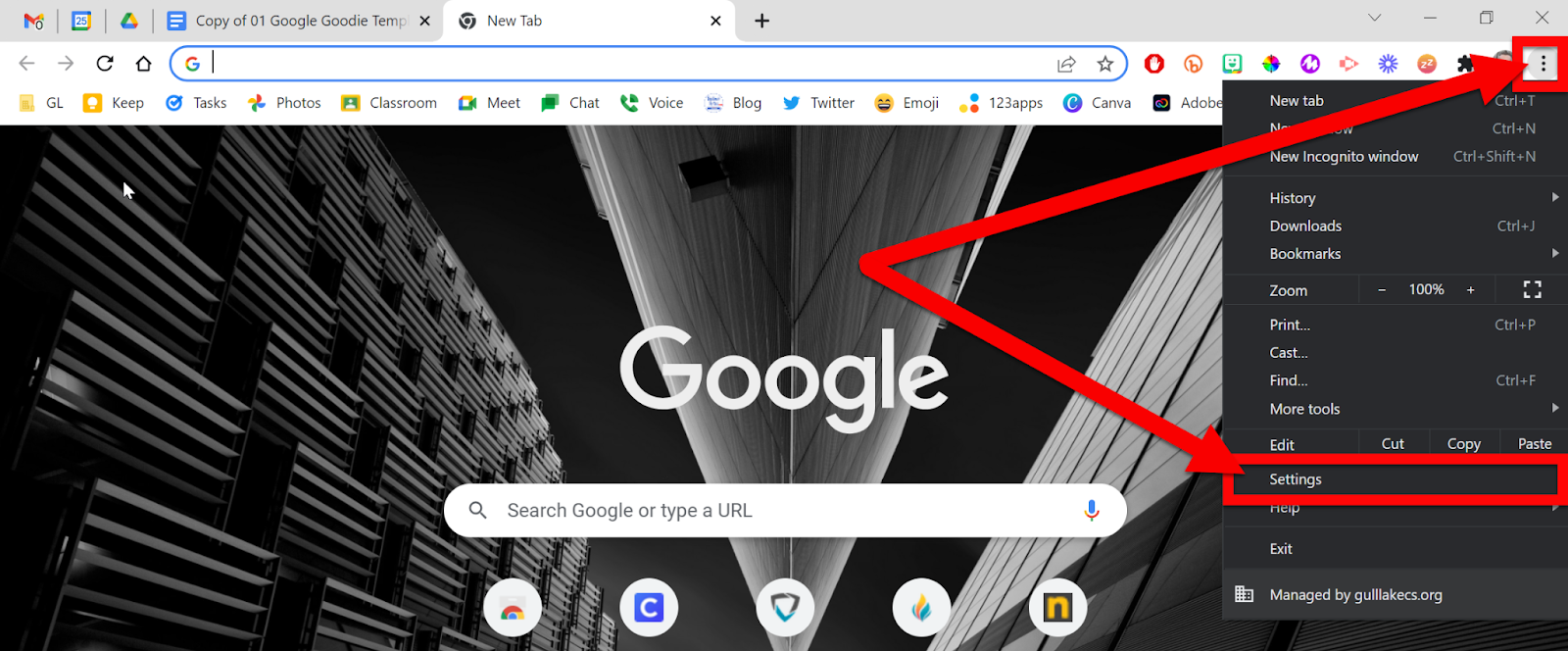
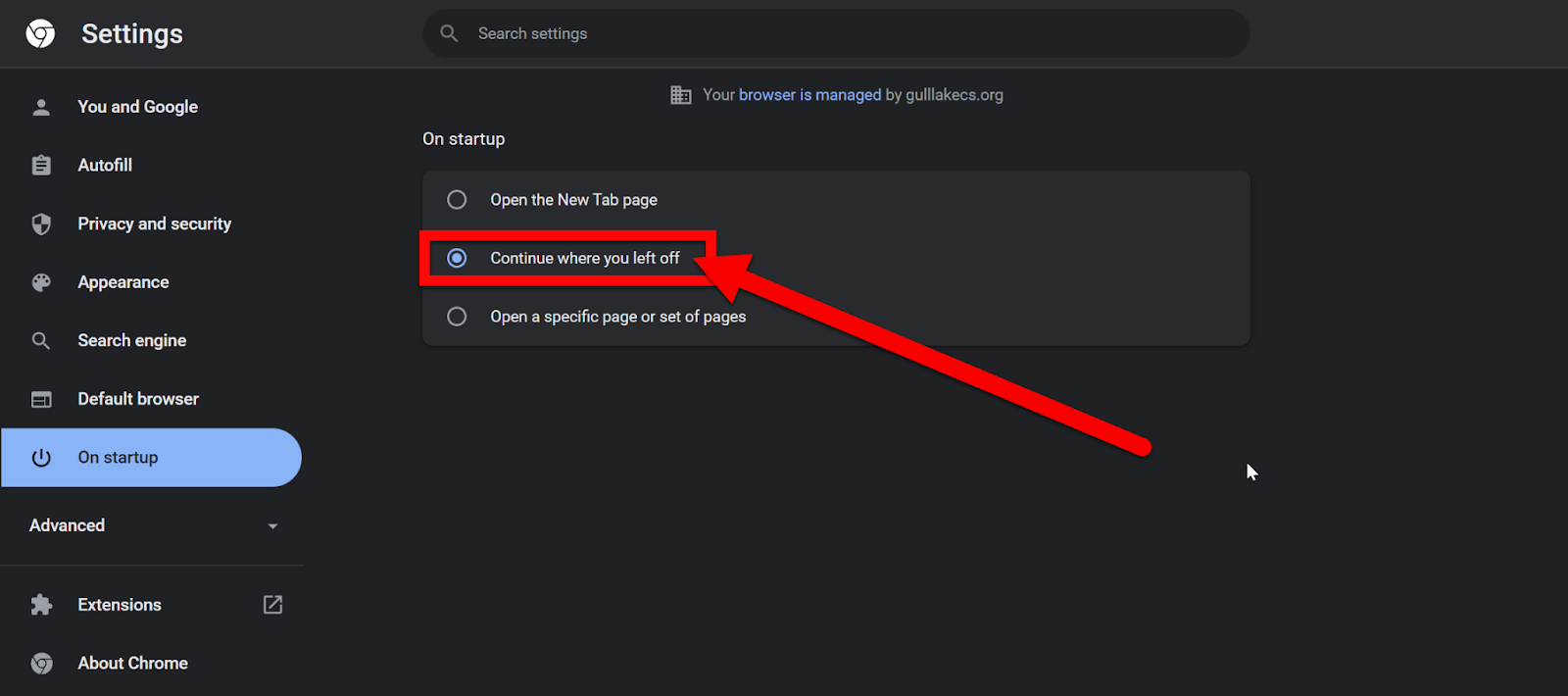
  1. Head over to your Chrome settings. On a PC or Mac (this setting is not available to adjust on a Chromebook) click the 3 vertical dots in the top right and click “Settings”.


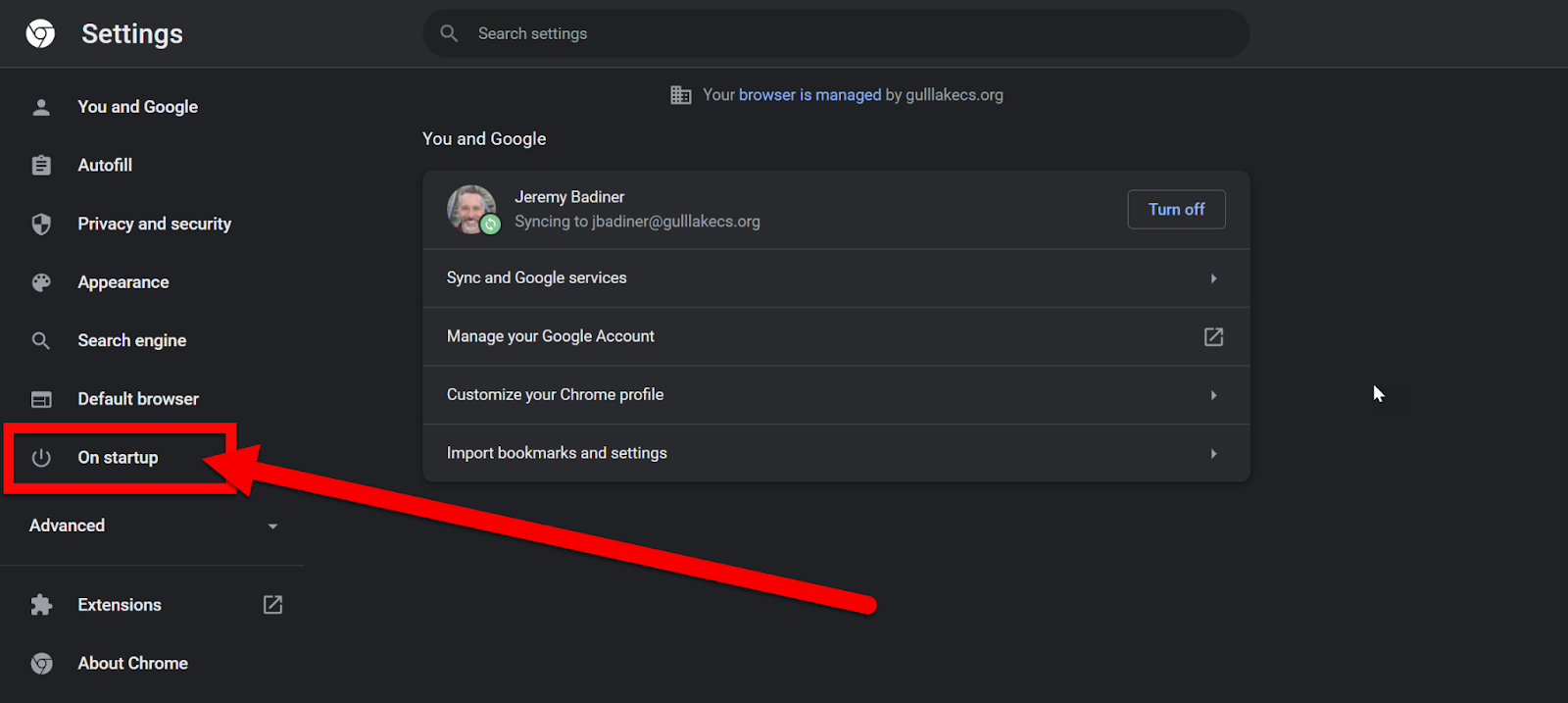
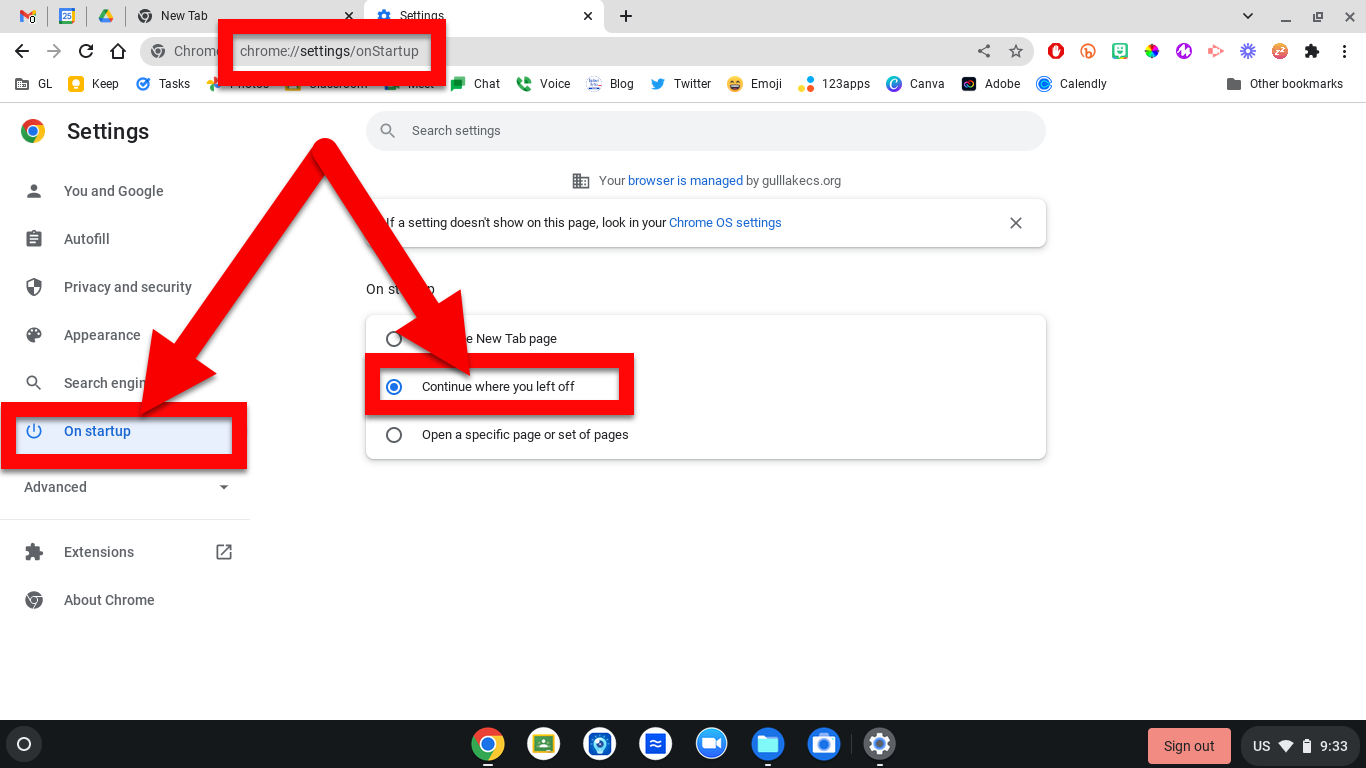
  1. On the left side click on “On Startup”.


  1. Select “Continue where you left off”.


All the PC/Mac Steps Here:


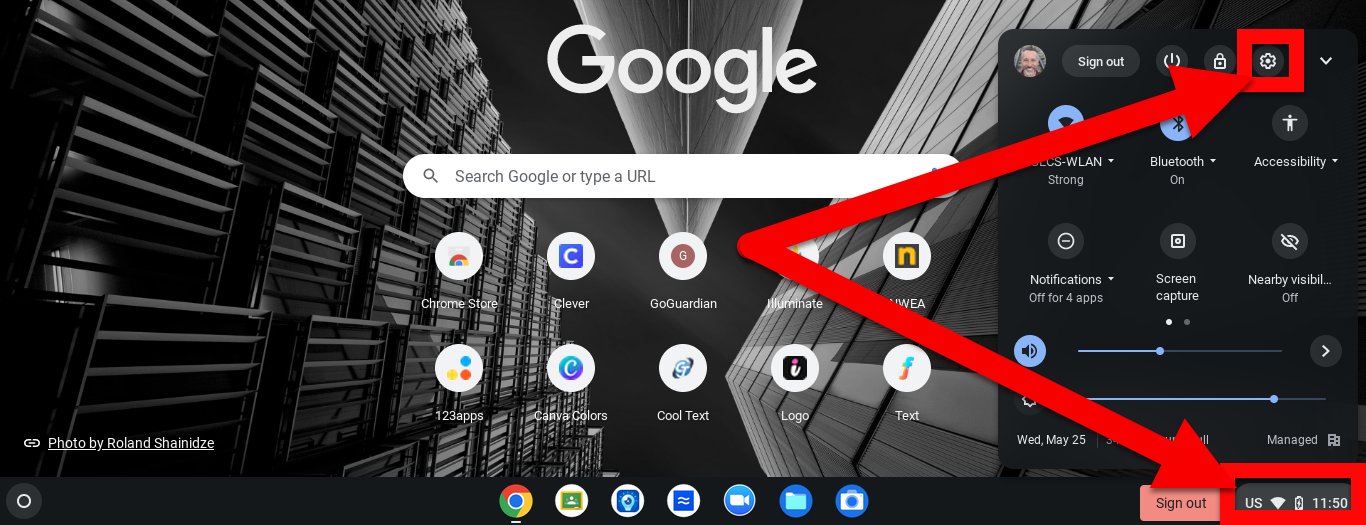
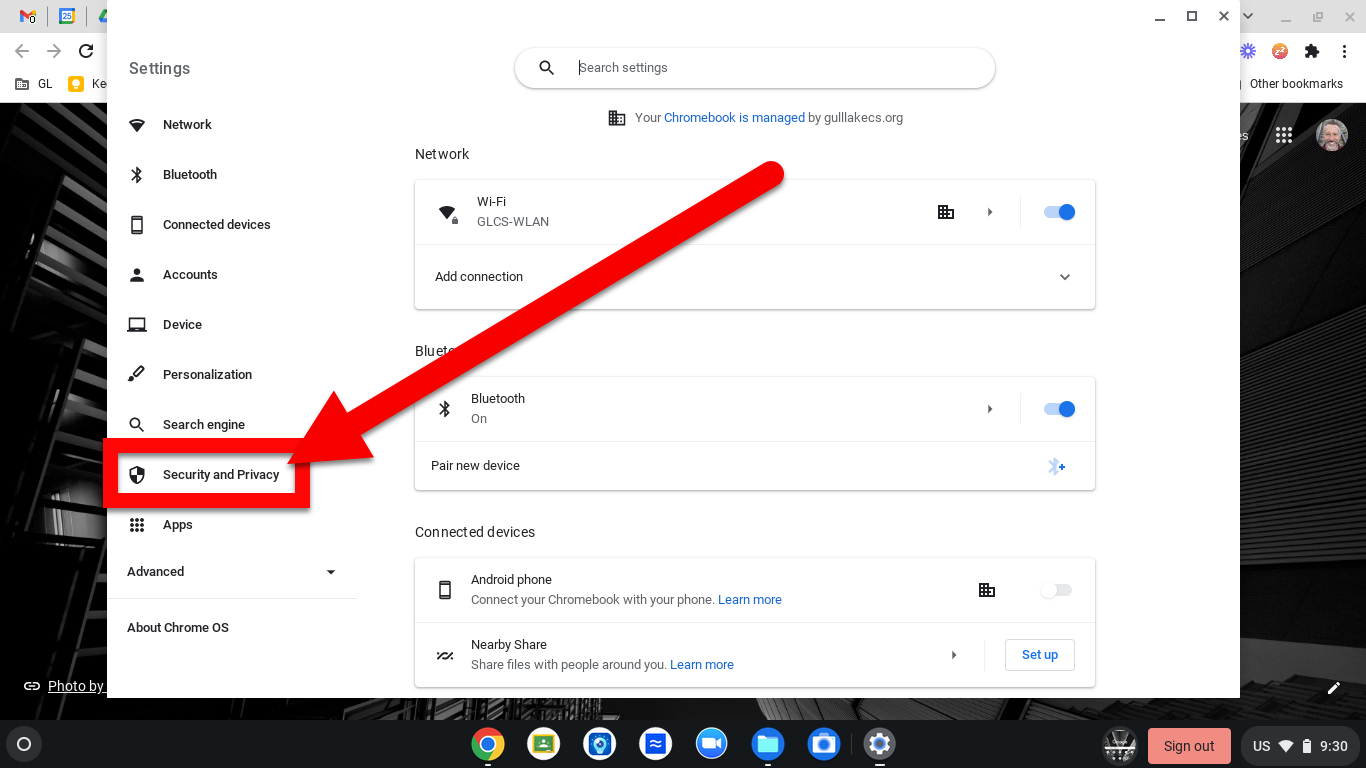
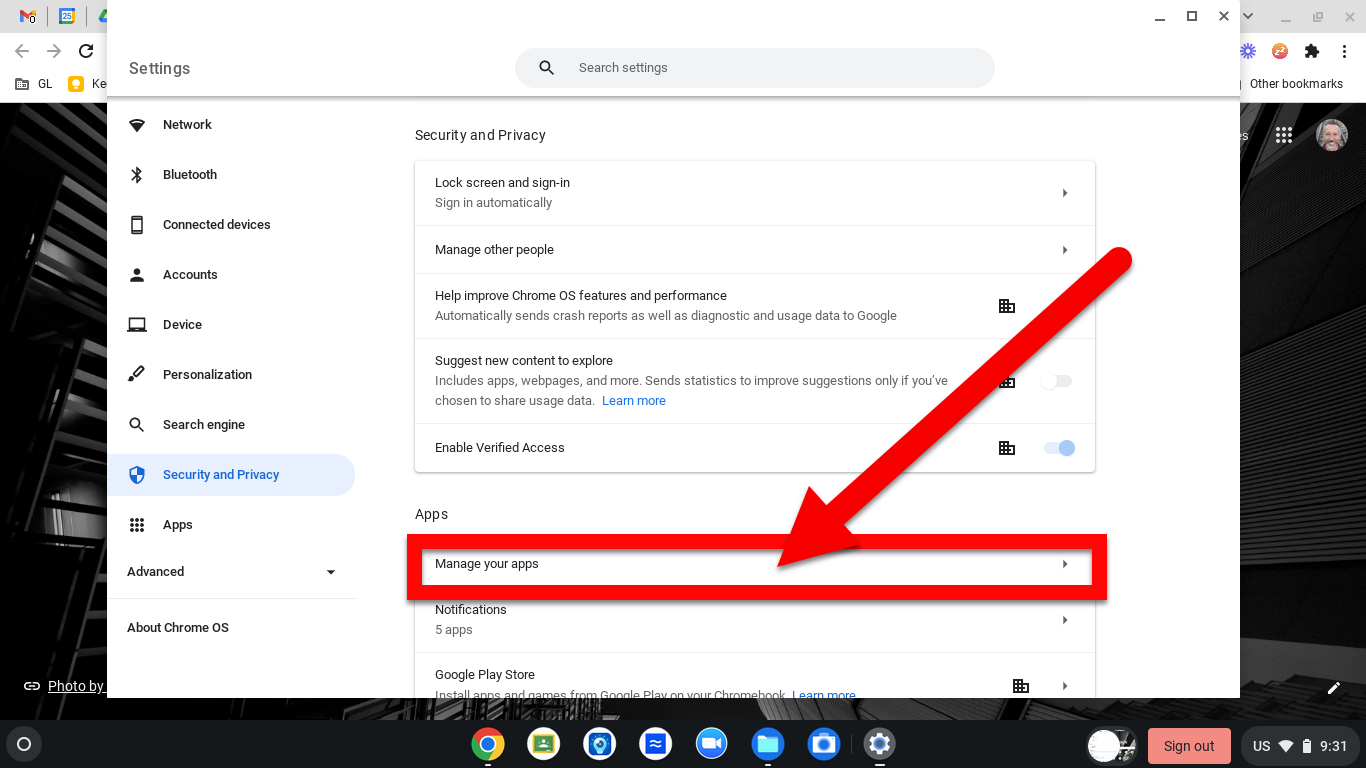
Set Chrome to Bring Back Tabs (Chromebook):

  1. Click on the clock and then the Settings gear.


  1. Click “Security and Privacy”.


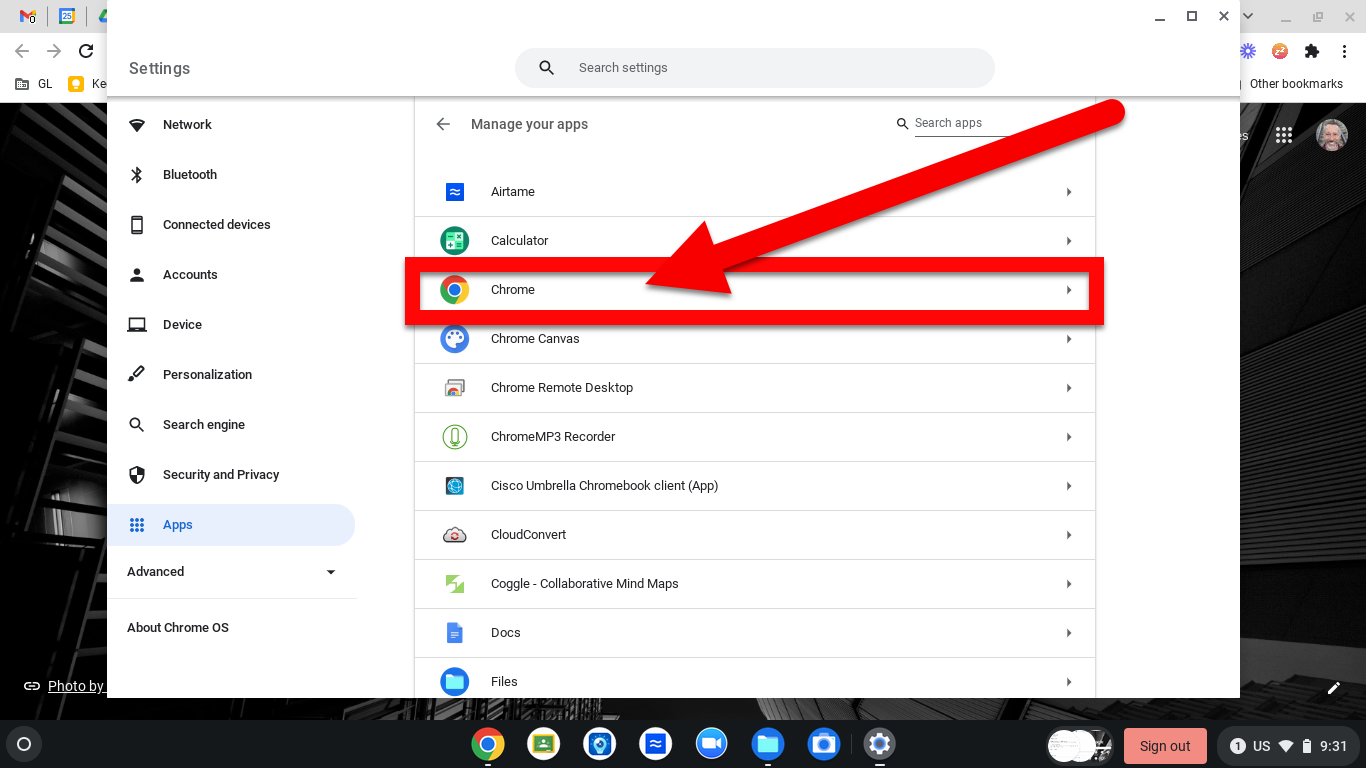
  1. Click “Manage your apps”.

  1. Choose “Chrome”.


  1. Click “More Settings and Permission”.


  1. This will bring up a new tab in Chrome. You can also type chrome://settings/onStartup and get here to avoid all the steps before. 


  1. Click “On Startup” and choose the setting you want.


All the Chromebook Steps Here:


Chromebook Video Walkthrough Here:

https://youtu.be/Cw5aOaj33wk


Now when you shut down your device and restart Chrome, all the tabs you were working on will reopen!


If you want these directions in a Document click HERE!