Showing posts with label Drive. Show all posts

Thursday, November 7, 2019

Google Drive Priority Page

Google released an update to Google Drive. They call it Google Drive’s Priority Page. When I first saw this I was not sold on its usefulness. I have since drastically changed my mind. What I thought was a “what we think is useful to you” page has turned into my perfect “important bundles of work for today” page. I use if for times that I need to set up groups of files for Conference Presentations or tasks that require multiple files that I want to access quickly (not having to dig through Drive to find the created folders). Priority Drive is only available to G Suite accounts (not personal accounts) and has two parts. Check out the details below to learn how to use this page to its fullest to keep you organized and working fast!


The Parts of the Priority Page:
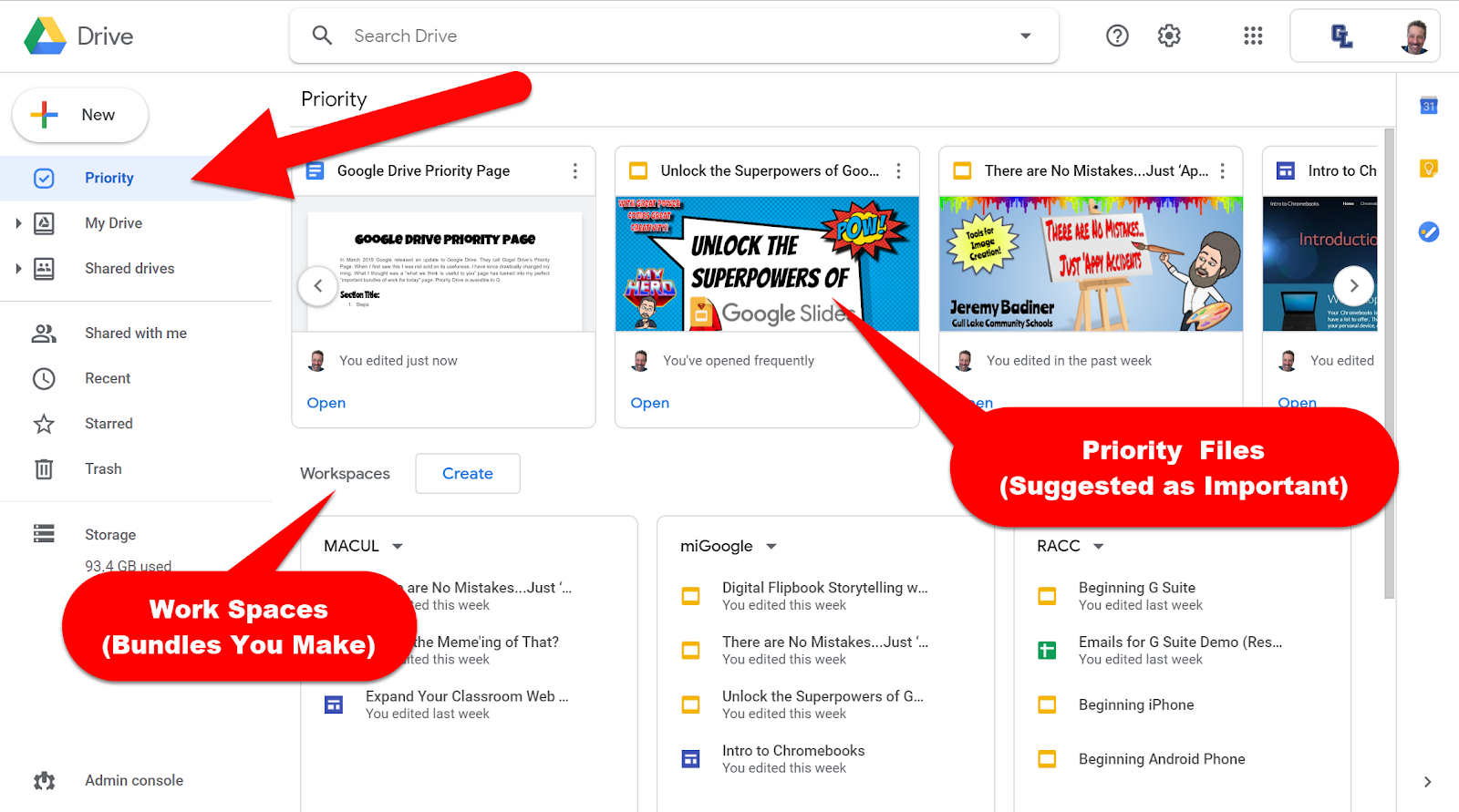
  • Priority: 
    • Here are the documents Google Drive thinks are most relevant to you right now. These are generally the most recent or timely files you have opened. On each document, you can click the “Snowman” to interact with the file like normally within Drive. You can also remove the file from view by selecting “Not a helpful suggestion”. 
  • Workspaces: 
    • Here you will be able to create a personalized group of files as a bundle (almost like its own folder) for easier access. You can create as many Workspaces as you wish, add up to 25 files to each Workspace, and when you are finished with the bundle you can “Hide” or “Remove” it. 


How to Work with the Priority Page:
  • Create a Workspace:
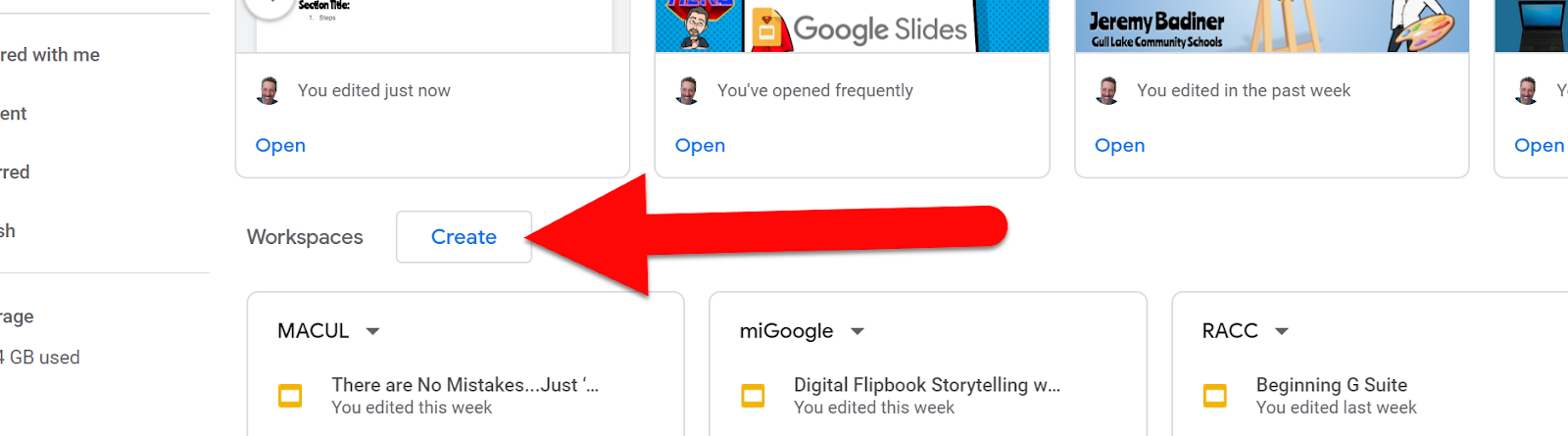
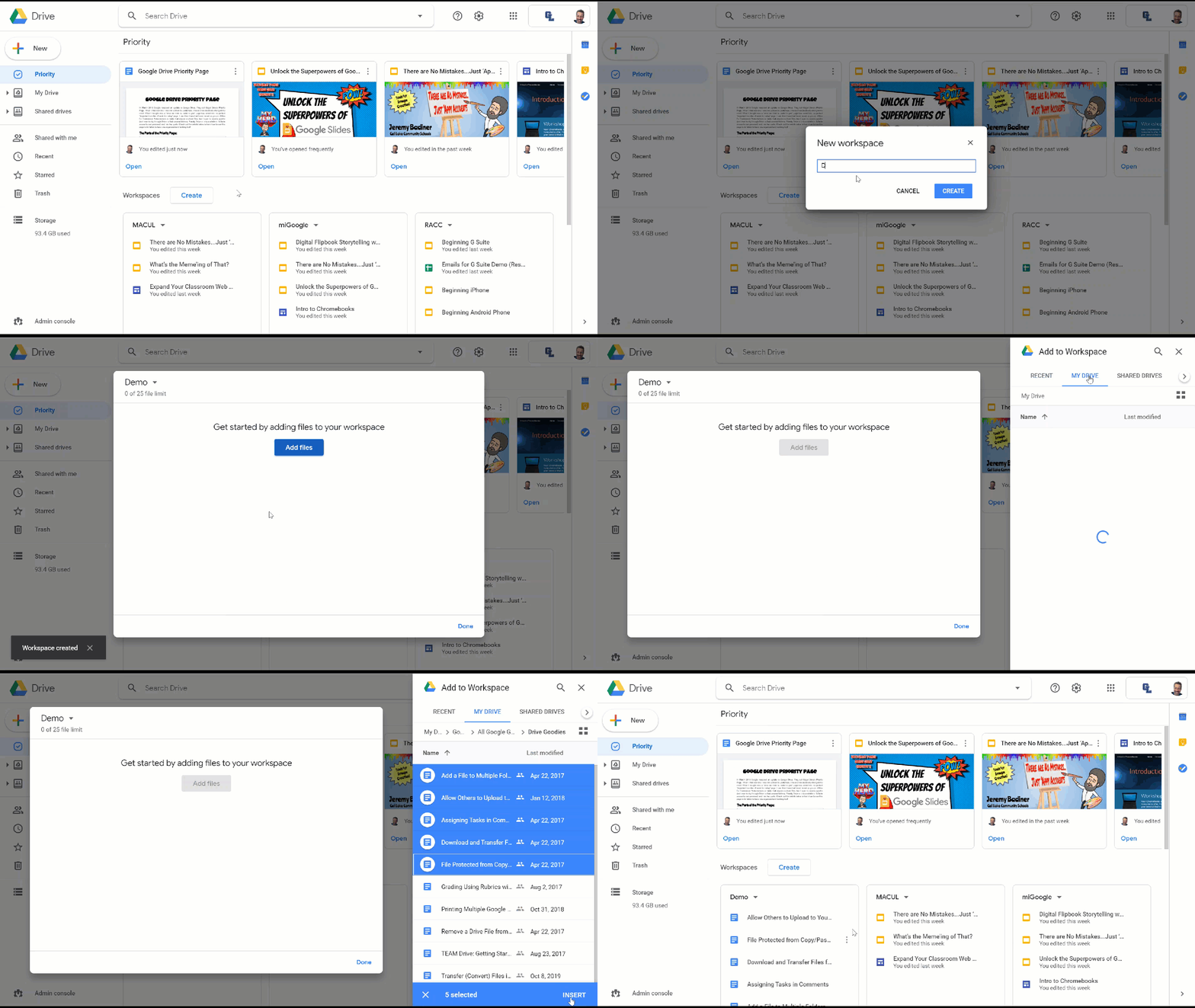
  1. Click on “Create” next to the word Workspace on the Priority Page.

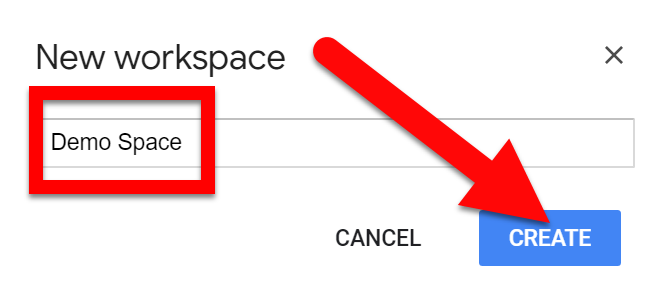
  1. Name the space and click “Create”.


  1. A new pop-up will ask you to choose files to add some suggestions that might come up and you can click “Choose other files” to get more. Select from your Drive what you want to be added to this Workspace, click “Add Files”, and click “Done”.
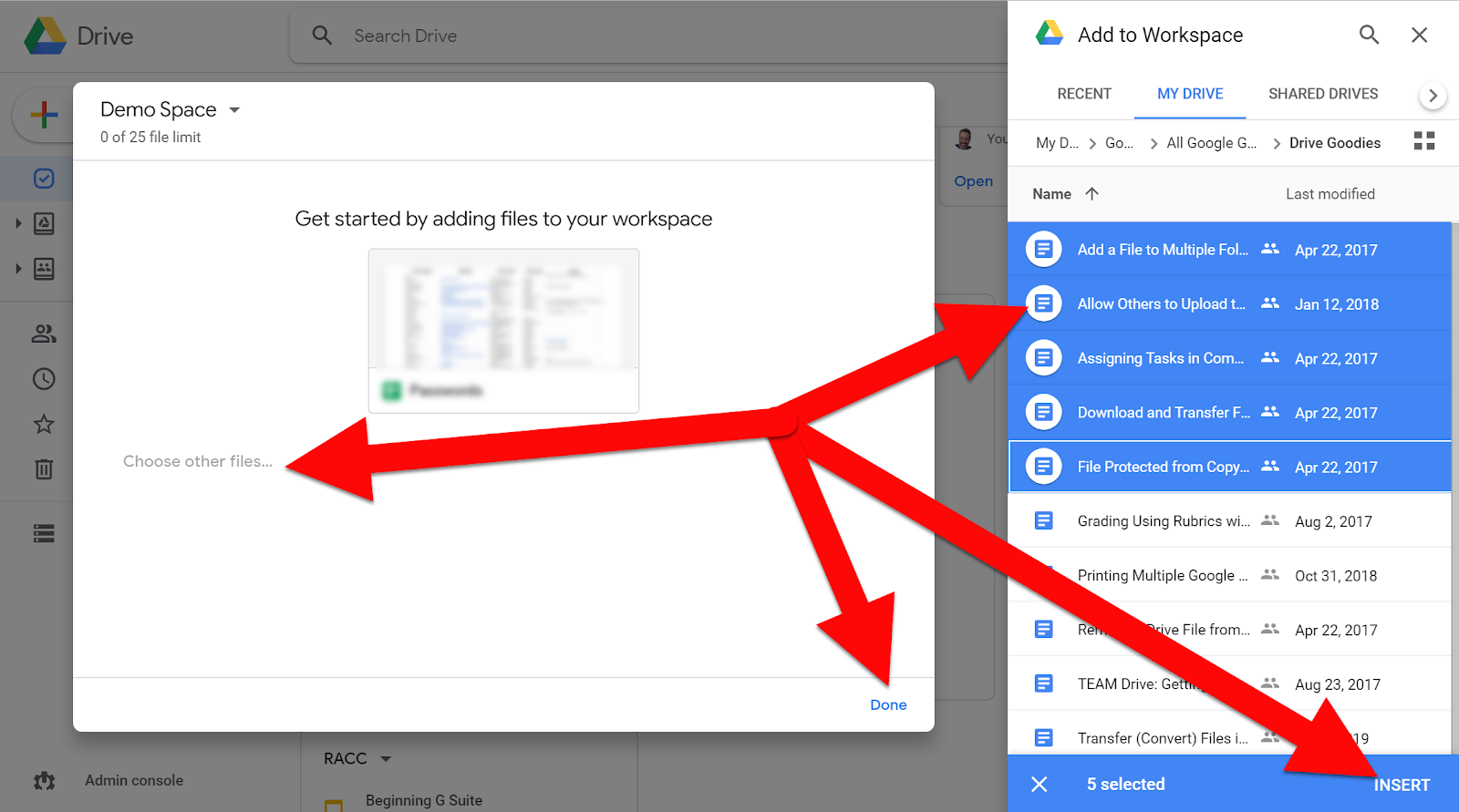

  1. Your new Workspace is now set! You can add and remove files any time you wish. The “Add” allows you to add new files to this Workspace and if you click the Snowman you will see “Remove from Workspace” on individual files.
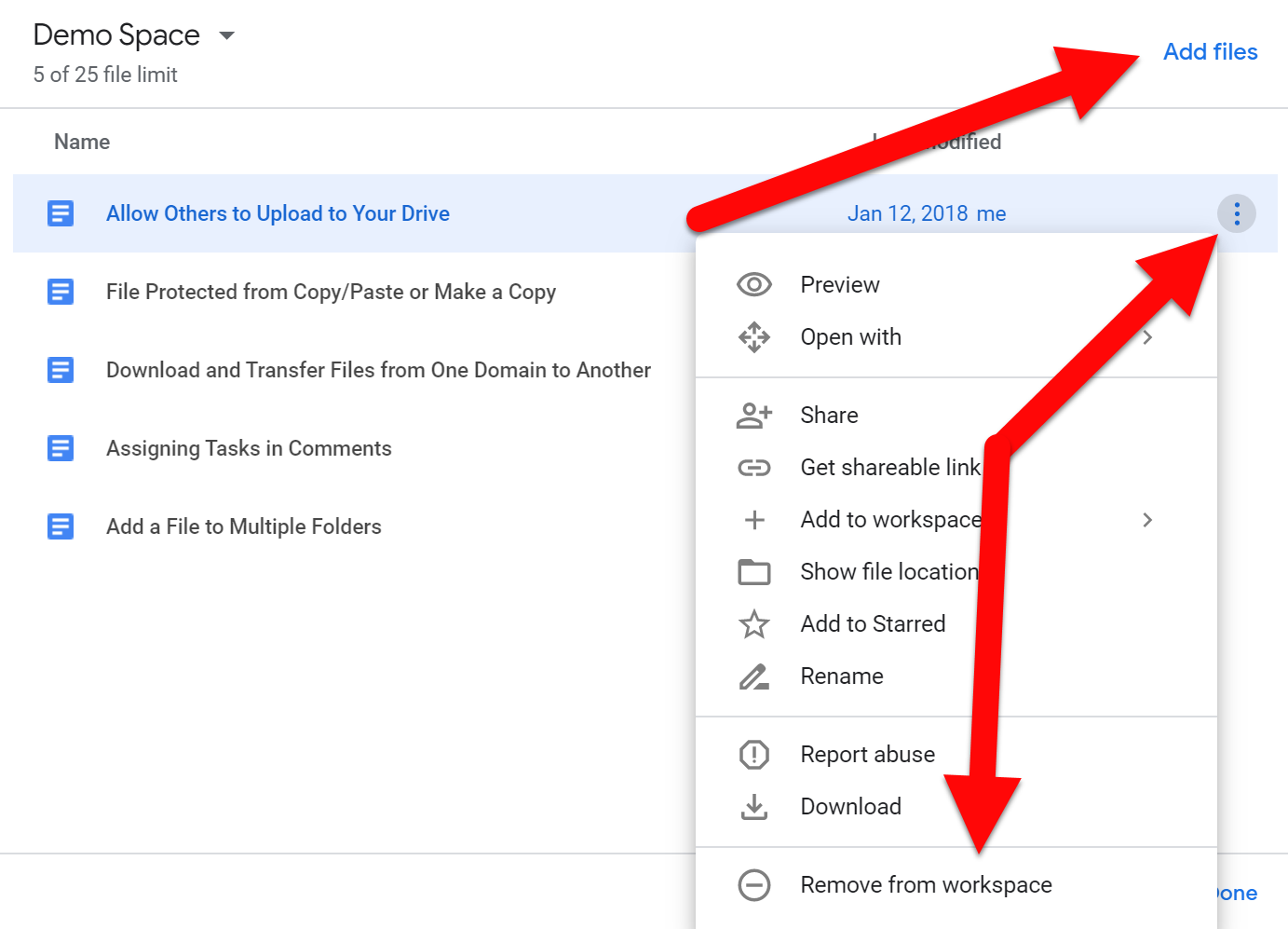

  1. When you are done with this Workspace and want to no longer see it, you can Hide or Remove. Hide just tucks it away for later use while Remove deletes it. No worries, your files are not removed from Drive, just from this visible “Bundle”.


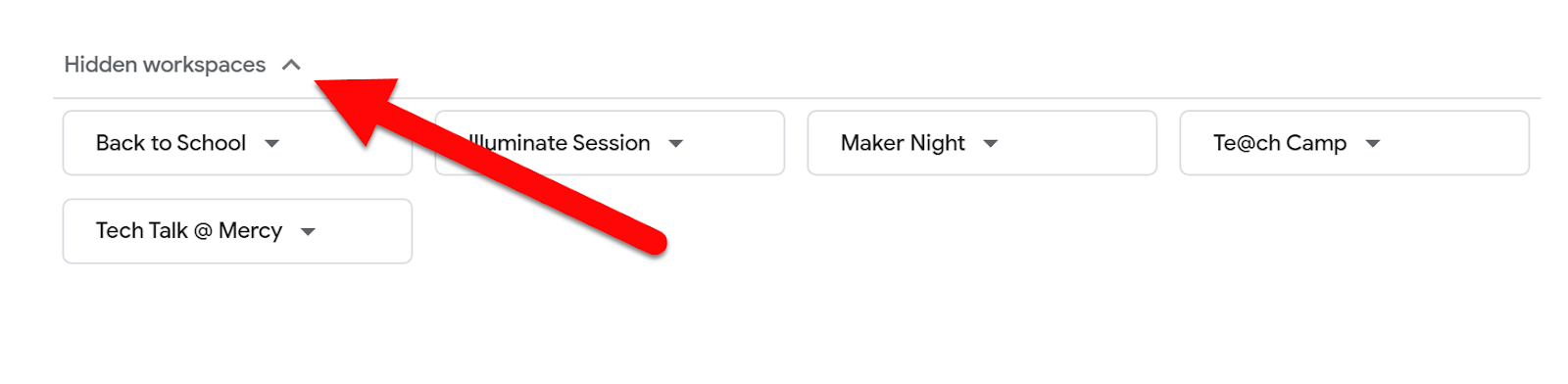
  1. If you Hide the Workspace, you can find it later in the “Hidden workspaces” section at the bottom. These can be brought back for later use!


Head into your Drive and create a time-saving Workspace to organize your related content!


If you want these directions in a Document click HERE!

Monday, May 6, 2019

Download Your Google Content with Google Takeout

Students use their school Google Apps Accounts to produce a lot of great writing, presentations, and more. When they graduate or leave the district they might like to take that work with them. You can download your Google files for safe keeping. You can then upload these files to a personal Google Account later, turn them into Microsoft Office files, or upload contacts, calendars, and email to another Google account.


Download Your Content:
  1. Visit Google Takeout and login with your school Google Account.
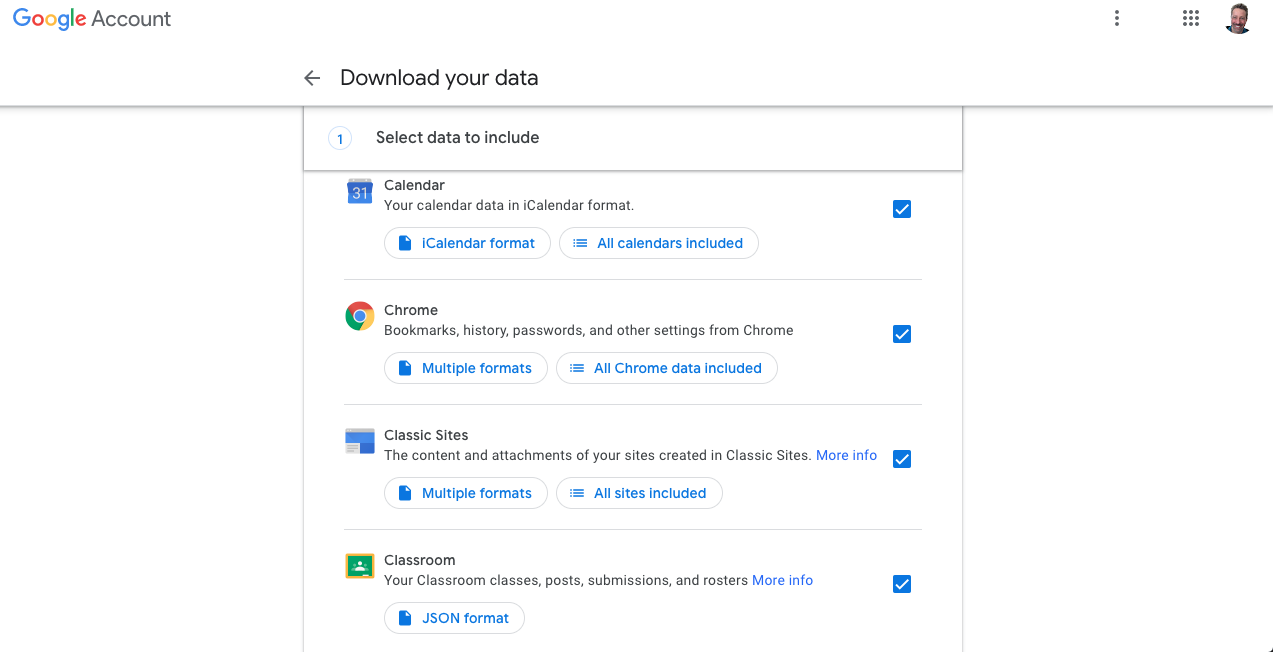
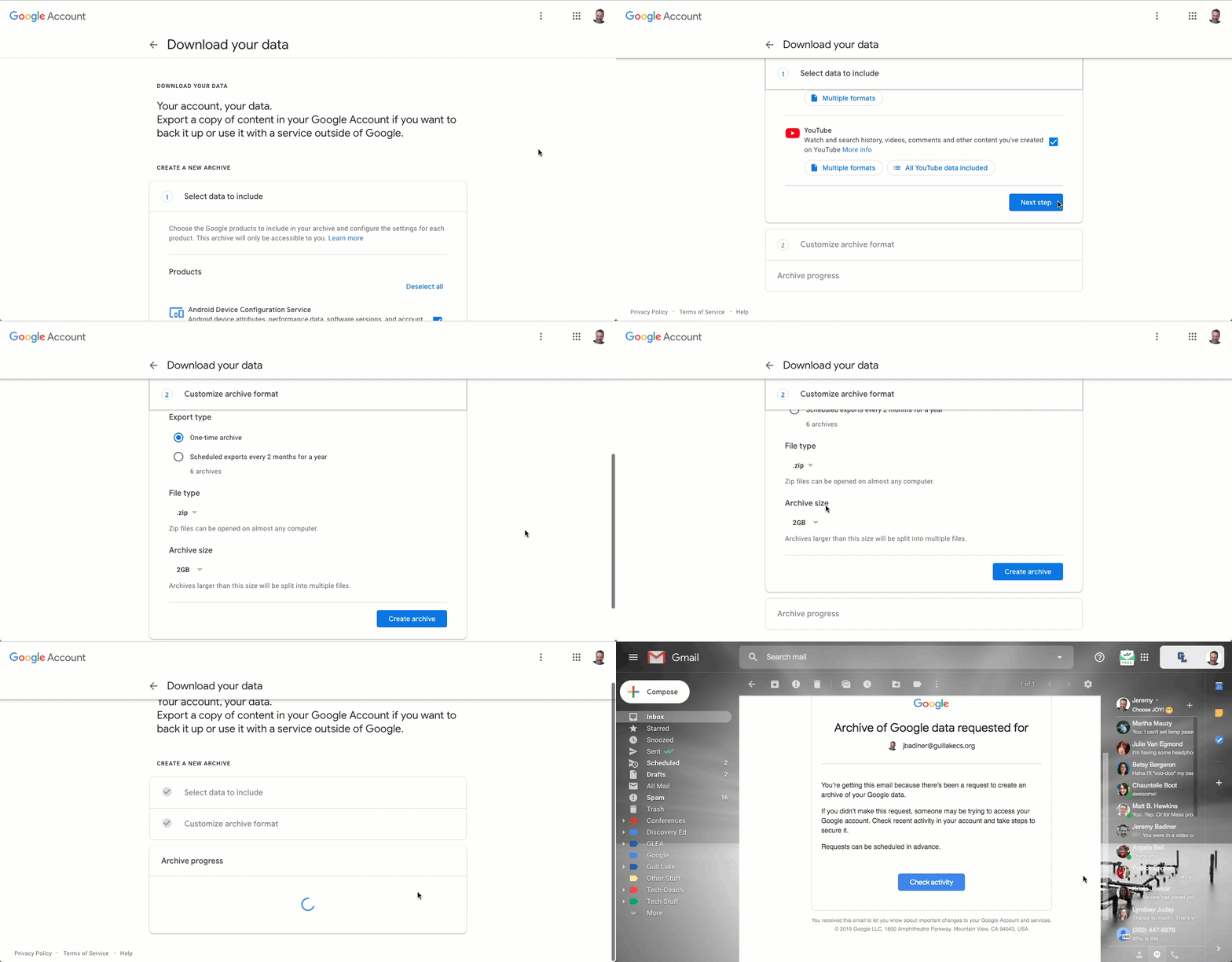
  2. Select the Google Tools and Services you want to export your data and documents from and select the option to receive the file as a download via email (depending on the size of your Google account, this could take several hours).


  3. Click “Next Step” when done.


  4. Check your email. You will receive an email when the files are ready for download.


Unzip and Upload Your Content:
  1. Once the Google Takeout email arrives, use the links to download your archived data and documents.
  2. Download the archive (there may be more than one archive for large amounts of data) and save them to your personal computer, external hard drive, or other location.
  3. You can "unzip" the archives and then upload the data and documents to a new personal Google Account or use the files and document in Microsoft Office or other applications.


Things to consider:

  • Google Forms do not download.
  • Google Sites do not download.
  • These are downloaded as Microsoft Office files so some fonts and layout issues may arise.

If you want these directions in a document click HERE!

Transfer Your G Suite Content to Another Google Account

The end of the school year always brings on changes in staffing or High School students moving out of school your domain. In the past, G Suite users had to download all their content and then deal with transferring manually into another Google account if they wanted to keep their Google files. There is now a very easy way to transfer all your G Suite content into a personal (or another school) domain easily! The best part is that this just makes a new copy in the new account. The original account does not lose these files. Follow the steps below to move your G Suite content to a new account!


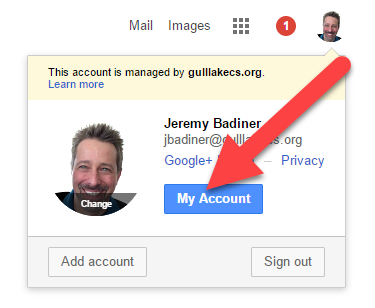
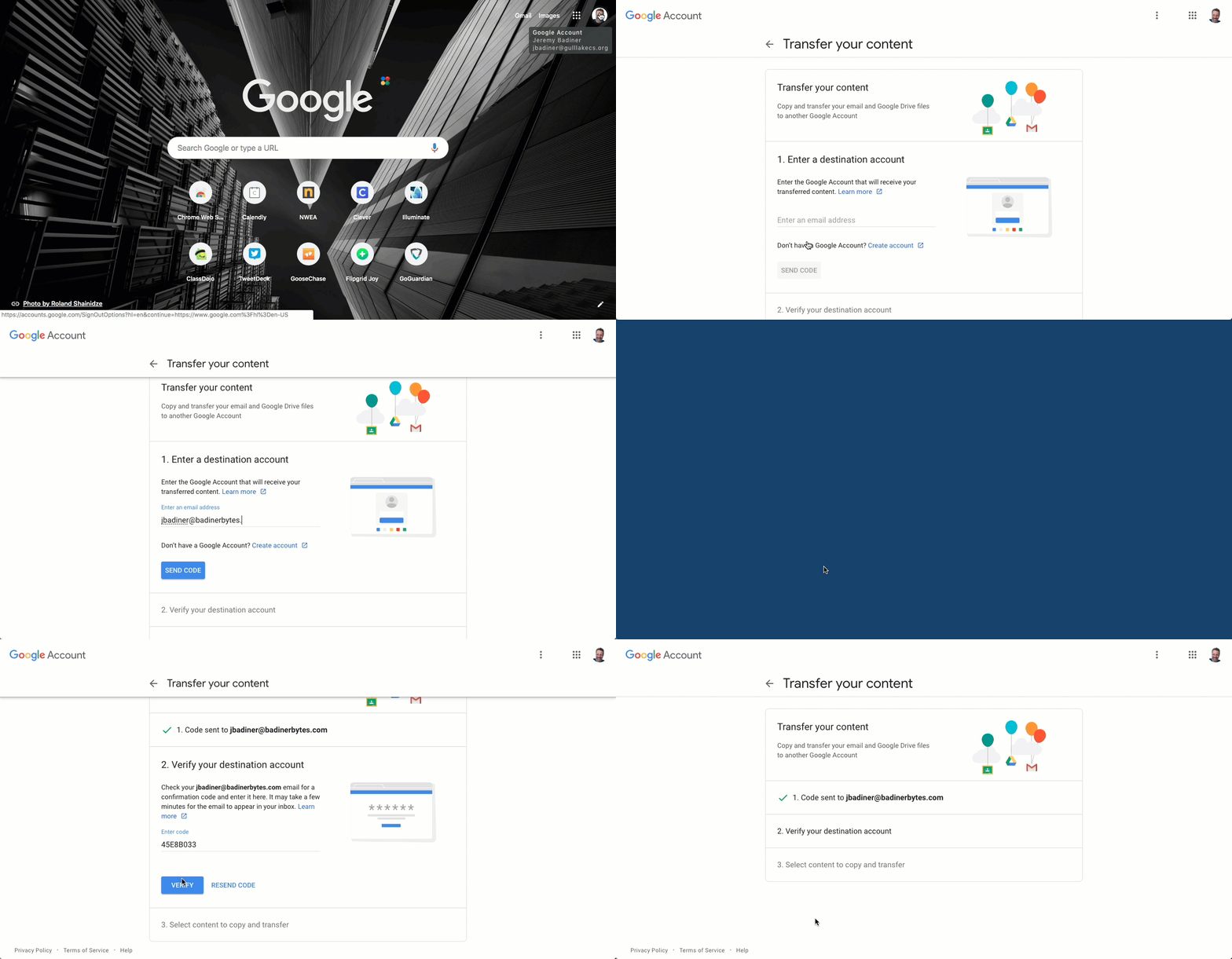
  1. Click on your profile icon in the top right of your screen and click on “My Account”. Click on your profile icon in the top right of your screen and click on “My Account.
  2. In the center isTransfer Your Content”. Click on Start Transfer".


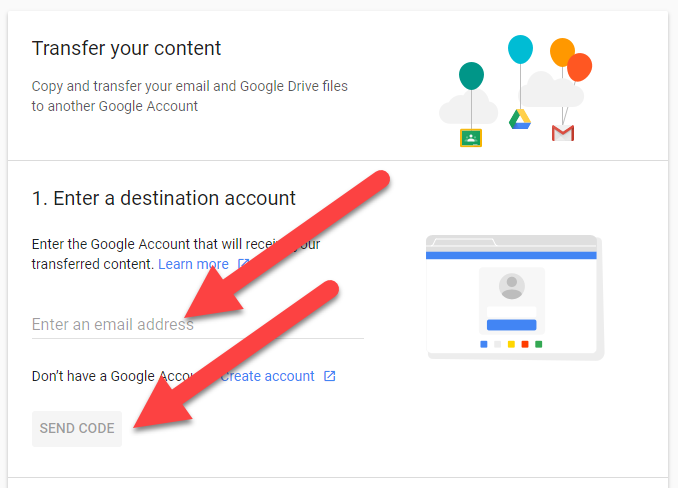
  3. Enter in the email address you wish to have content sent to and then click Send Code”.
  4. You will need to sign into the account you are sending content to and check for an email with a code. Click Get confirmation codeand copy the code and enter it in the original account. You will be prompted to select/unselect Drive and Gmail to transfer.
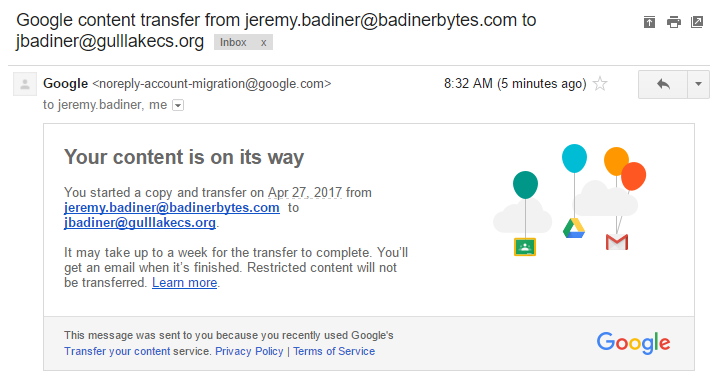
  5. Once you start the process you can leave the page you are on. Your account that is receiving the content will get two emails: The first one will state that “Your content is on its way”.
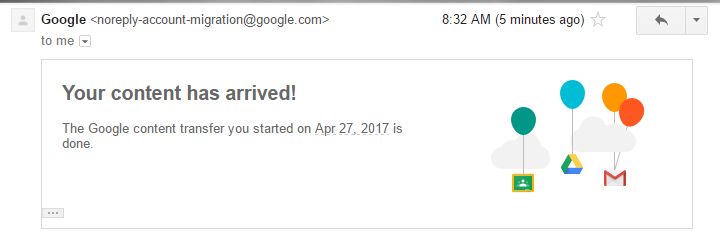
  6. When the transfer is completed you will receive a second one stating “Your content has arrived”.


Things to consider:
  • Google Forms do not transfer.
  • While this is running, you will see files appear and disappear in your main Google Drive folder. This is normal. Copies are being made and moved. Just let Transfer do its thing.
  • The first time I did this not all my files transferred. You may want to visually double check that all your files do make it over. If they don’t you can do these steps again.

If you want these steps in a document click HERE!
Monday, February 23, 2015

Force Others to Make a Copy of a Google Document

One of the gems of Google Drive is how easy sharing documents can be. One of the struggles, however, can be getting students to create a copy of a shared document. In most cases I would simply share a document with “View Only” rights, tell them to go to “File” and then click “Make a copy”. This works well, and most students can handle it. Every once in a while you might want it to be even easier. Below are some steps to make a document viewable only after the student makes a copy.


Force Others to Make a Copy of a Google Document


Create your document and give it “View only” rights.
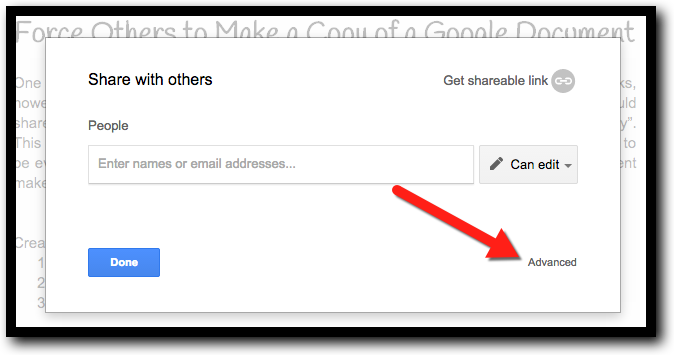
  1. Open a document and click the blue “Share” button.
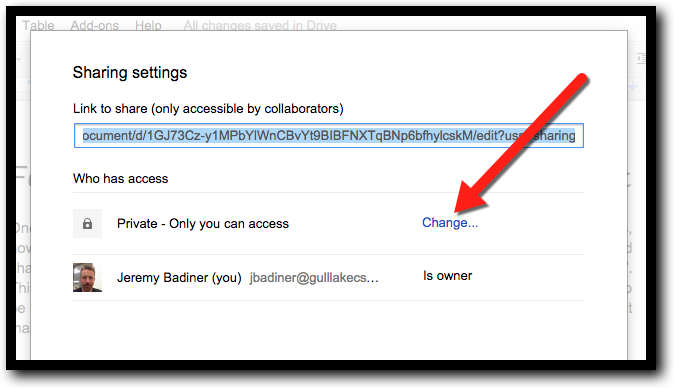
  2. Click “Advanced”.


  1. Click “Change”.


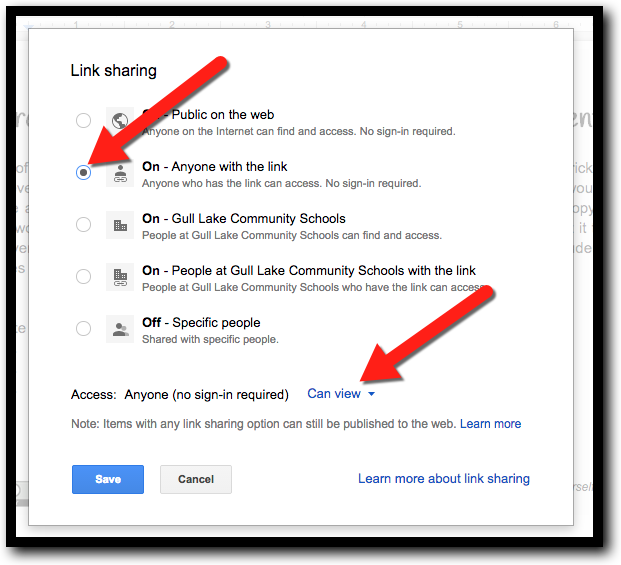
  1. Click “Anyone with the link” and choose “Can view” from the dropdown.


  1. Click “Save”.
  2. Click “Done”.


Make the document a force “Make a Copy” document.
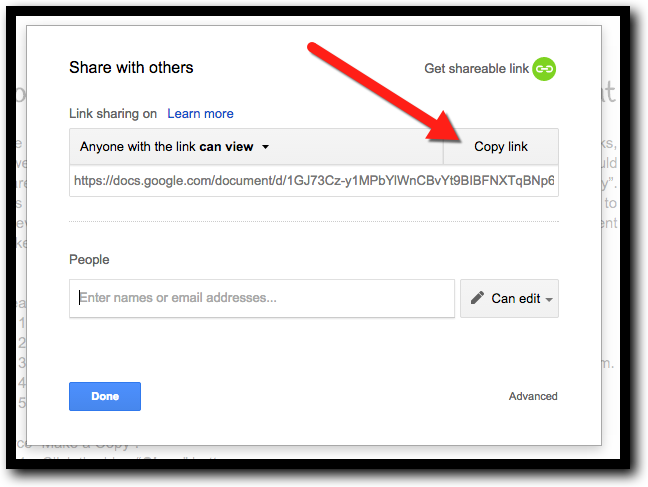
  1. Click the blue “Share” button.
  2. Click “Copy Link” then click “Done”.


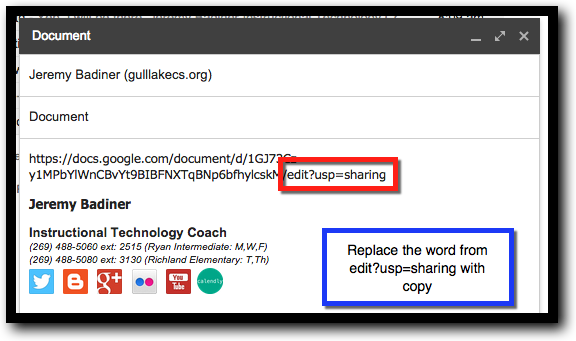
  1. Share this link in an email to your students. When you paste the link into the email, change the words “edit?usp=sharing” (or your text) at the end of the url to “copy”.


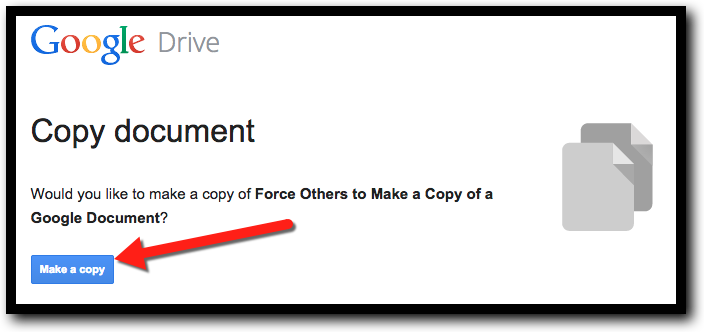
  1. Send your email. They will get the following screen when they click the link asking them to make a copy. They will need to click “Make a copy”.


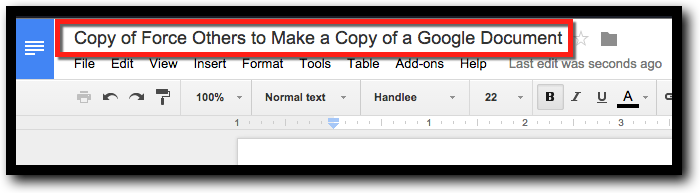
  1. Have them rename the document to your naming format by clicking on the title and renaming the document.


If you want these directions in a document click here.


Wednesday, January 28, 2015

Download and Transfer Files from One GAFE Domain to Another

Google Drive is my “Go-To” place for all documents. I live in my Drive. With all the great uses and advantages Drive has over MS Office, there is one drawback. You can not transfer ownership from one domain in GAFE to another. This normally might not be an issue, but we recently went through a domain migration so this was an issue for us. Even after using a 3rd party product to migrate files over, things did not go too smoothly. Below are directions on how to bulk download and transfer files from one GAFE domain to another.


Download and Transfer Files from One GAFE Domain to Another

Download Old Account Files:
  1. Sign in to the old GAFE account (gl.k12.mi.us for Gull Lake Staff).
  2. Go to your Drive.
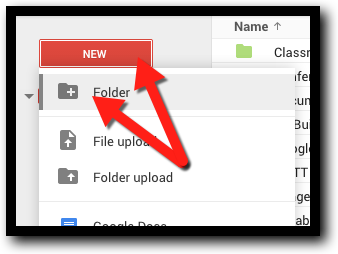
  3. Click on “New” and create a folder and name it “All Files”.


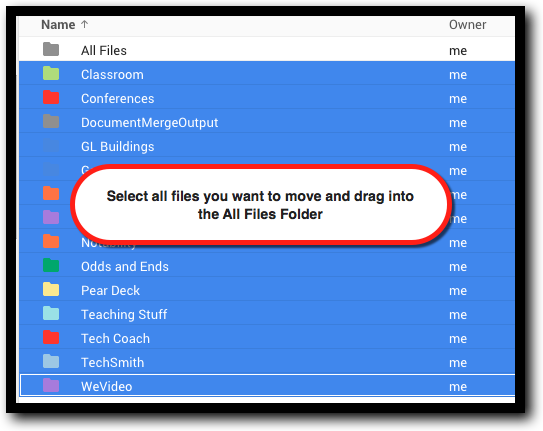
  1. Drag all your files/folders in your Drive into this folder. If you are only missing a few files or folders, only drag those into this new folder.


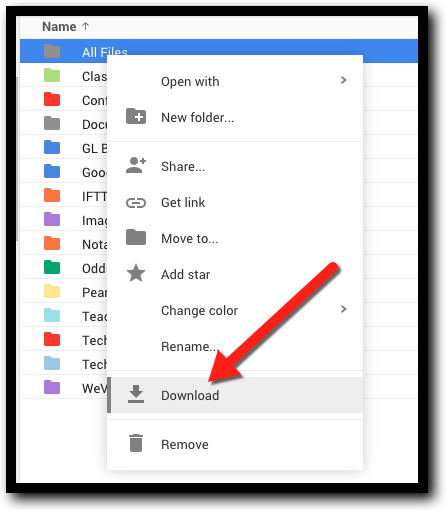
  1. Right click on this folder and click “Download”.


  1. Find the location of this file on your computer. You will need to unzip this folder. It is usually done by just double clicking on it and it will open a new folder.
  2. Sign out of your old GAFE account.


Upload Files Into New Account:
  1. Log into your new GAFE domain account (gulllakecs.org for Gull Lake Staff).
  2. Go to your Drive.
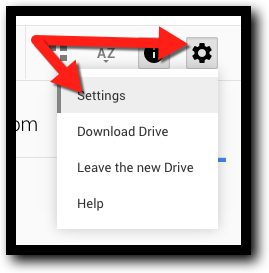
  3. Click on the gear in the top right and click “Settings”.


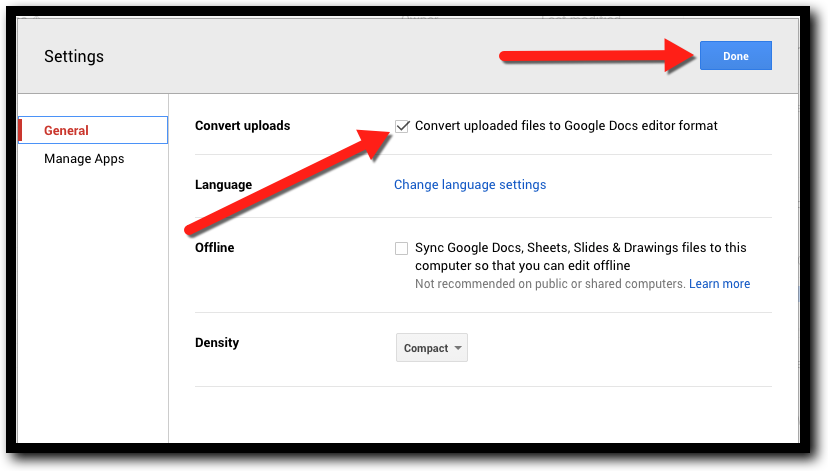
  1. Make sure the checkbox next to “Convert uploaded files to Google Docs editor format” is checked. Click “Done”.


  1. Locate your unzipped folder from your computer and drag it into your Drive folder. It will upload and convert keeping the folder organizational system you had.
  2. Now you can relocate all these files/folders to where you want them in your new Drive.


I would suggest that after you are done uploading and organizing files to delete the All Files folder so you are off and running with a clean Drive.


If you want these directions in a Document Click Here!


Friday, January 23, 2015

Edit Images in Google Slides and Documents

Google Slides and Documents are awesome. With all the updates Google is always doing with these products they just keep getting better. One of these improvements is the ability to edit images. There are many options now that were not available before. Below are some easy steps to help you start editing your images in both Documents and Slides.


Edit Images in Google Slides & Documents


Insert an Image:
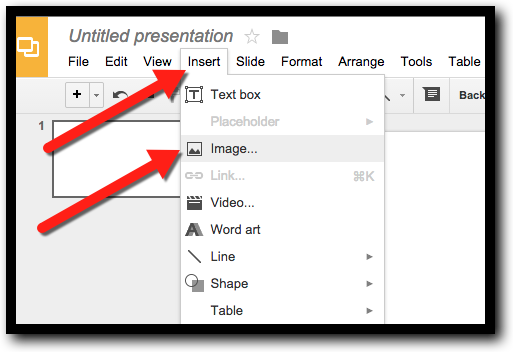
  1. Click “Insert”.


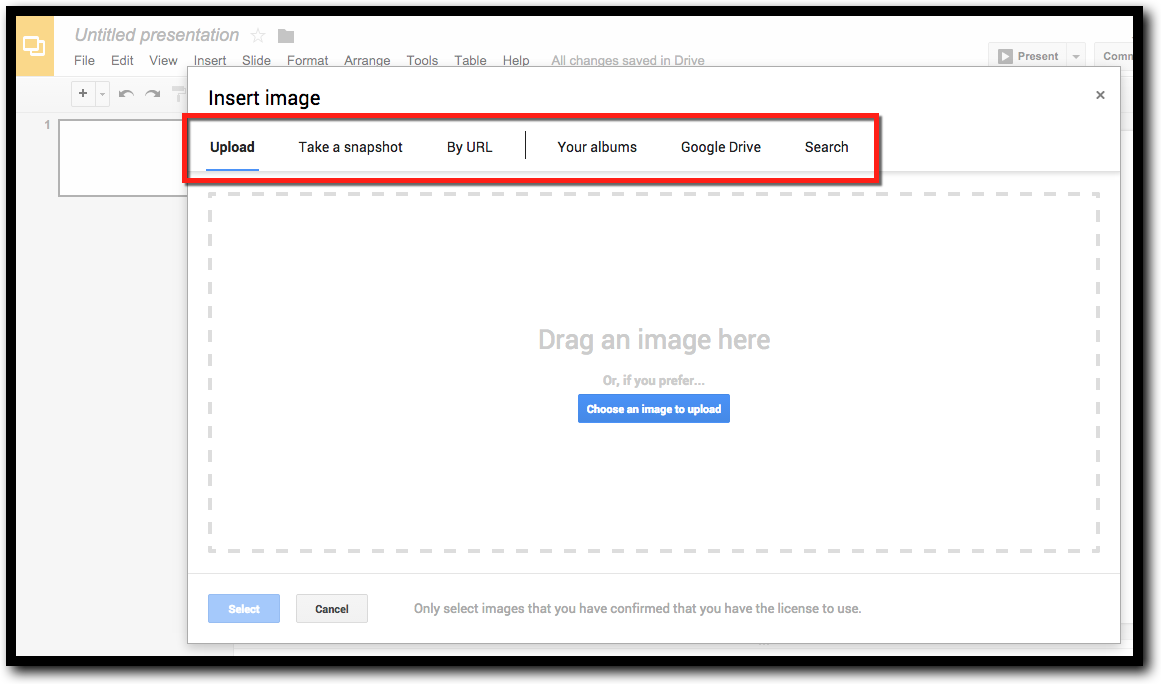
  1. Find where the image is located.


Edit an Image: (Make sure to click on the image first to bring up these tools.)
   
Crop:
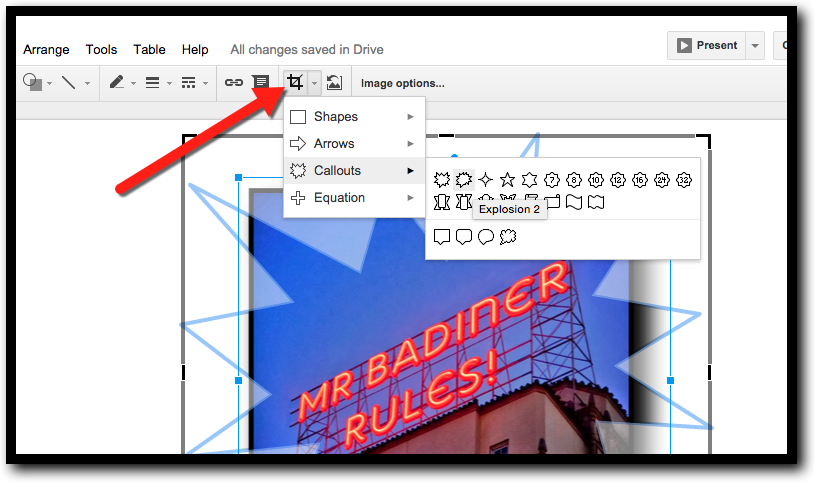
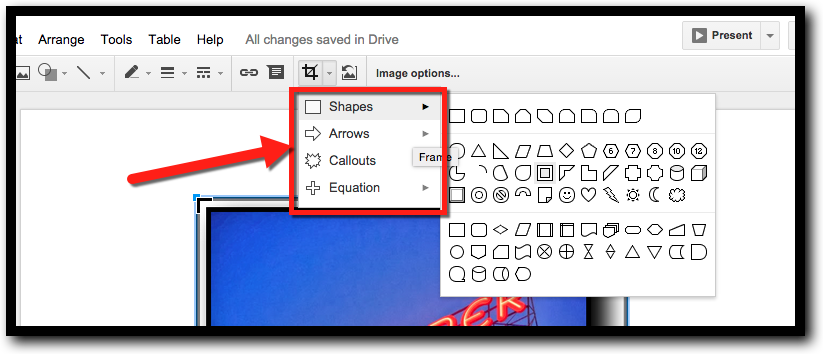
  1. Click the “Crop tool”.


  1. You can crop the image using the corners or sides to keep it a rectangle...or…


  1. Choose the shape you want to use. There are lots to pick from. Make sure the image fits in the outlines of the shape.


Border:
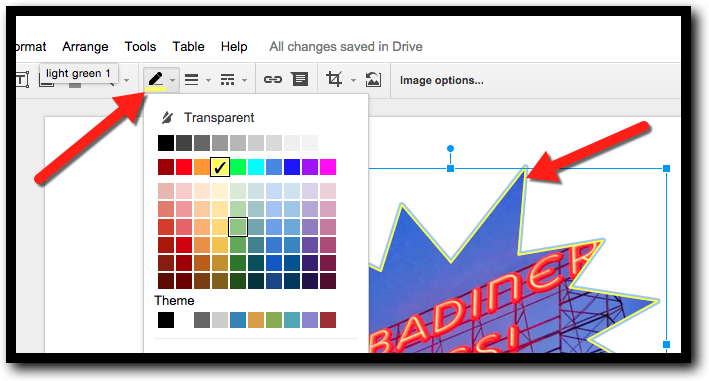
  1. Line Color: Click to add a border to you image.


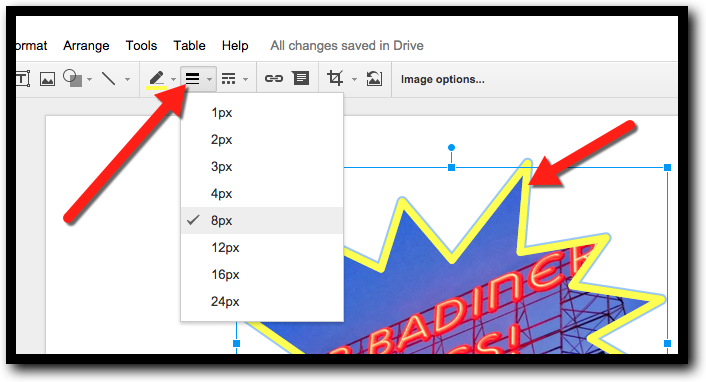
  1. Line Weight: Click this tool and choose how thick you want the border.


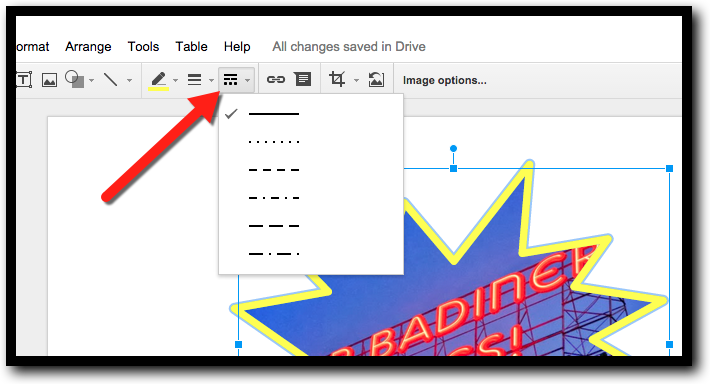
  1. Line Style (style): Click this tool and choose style of line used in the border.


Reset Image:
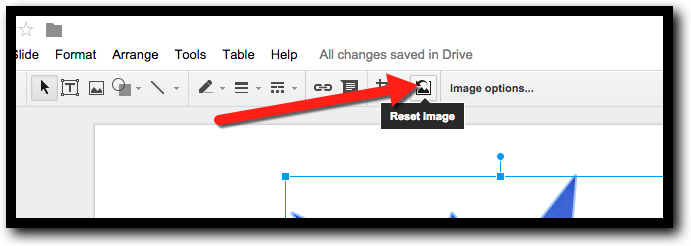
  1. We all makes mistakes. If you click the Reset button your image will go back to it’s original format and you can start over. The ultimate in “undo”. Little 1 step errors can still be undone with the “Undo” arrow


Inserting and editing images in Documents and Sheets will add more appeal and effectiveness to your documents. Open a document or Slide and give these steps a try!


If you want these directions in a Document Click Here!