Showing posts with label Tips. Show all posts

Wednesday, December 17, 2014

Creating Another User in Chrome


We are undergoing a change in our district right now. We have been a GAFE district for a number of years, but we are changing our domain. This sounds simple enough, the email address just changes at the end...right? Well...there is a lot more that goes into it. What about all those files in your Drive? You do realize that you can not just share and transfer ownership outside your GAFE domain. Sharing, yes. Transfer ownership...not so much. Also, all those calendars that you can not make others owners of. The list goes on. We have been migrating our @gl.k12.mi.us account to @gulllakecs.org for 5 days now. Things are slowly showing up, sharing, and reorganizing. Slow and steady wins the race. I will be sharing some Tips and Tricks on this migration for the next couple weeks. This tip will be to show how to set up another User in Chrome to avoid having to sign in and out all day juggling between domains and personal accounts.


Creating Another User in Chrome
This is helpful when you have more than 1 Google Account and you want to log into each form the same computer. This allows you to not have to log out each time. You will want a User set-up for each account you are using. You will have an icon in the top right (Mac) or top left (PC) to switch.

  1. Open Chrome.
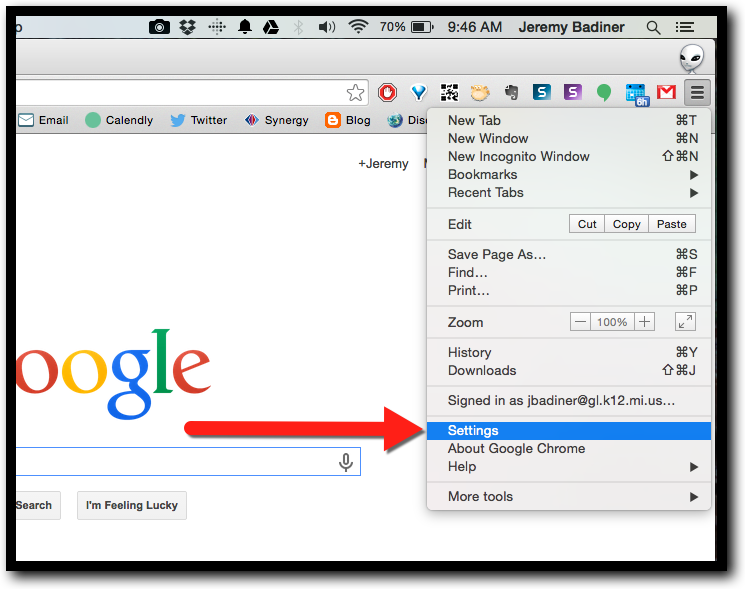
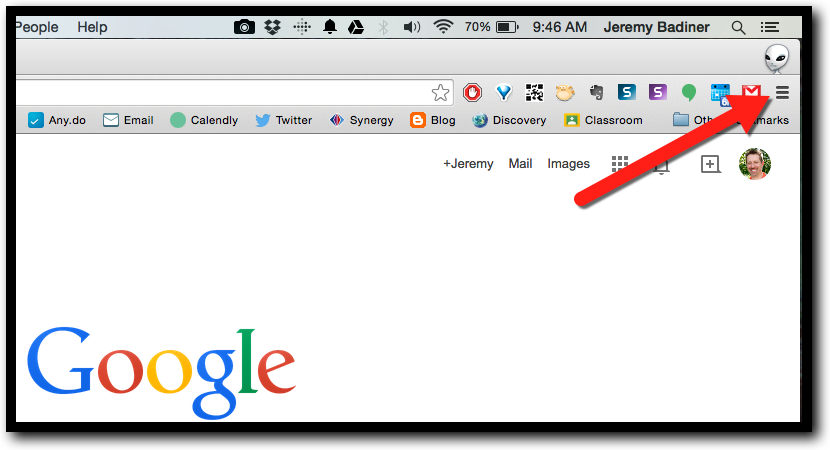
  2. Click the 3 horizontal lines (hamburger) in the top right corner.

  1. Click “Settings”.


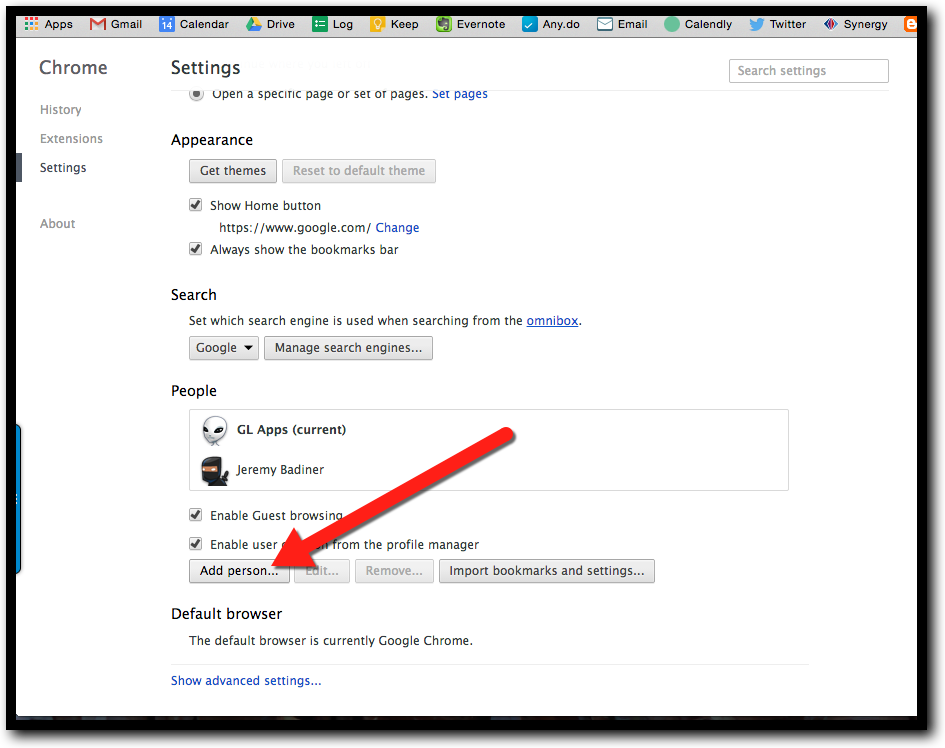
  1. Scroll to “People”.
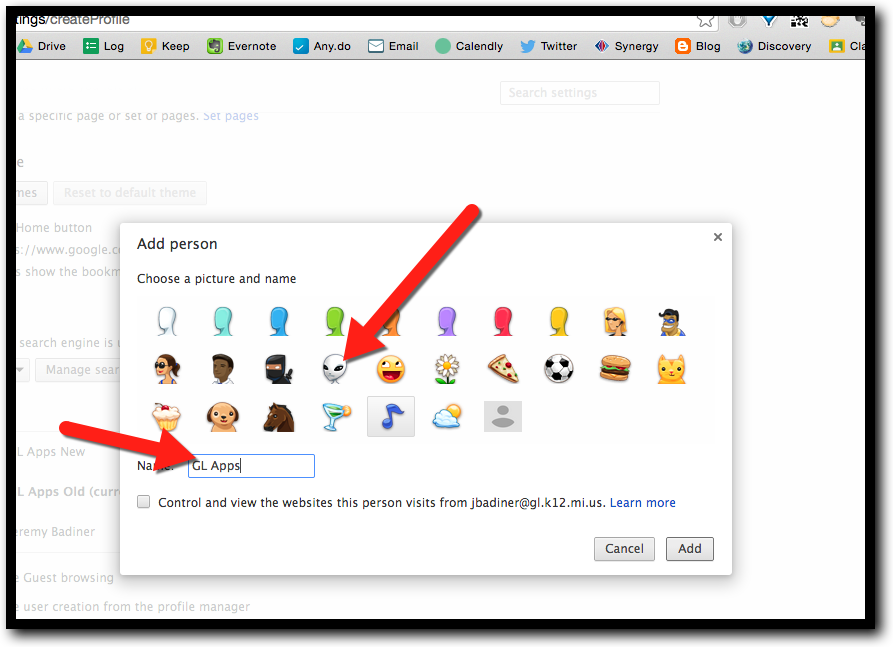
  2. Click “Add Person”.


  1. Name the Account (GL Apps or something) and choose an Avatar.

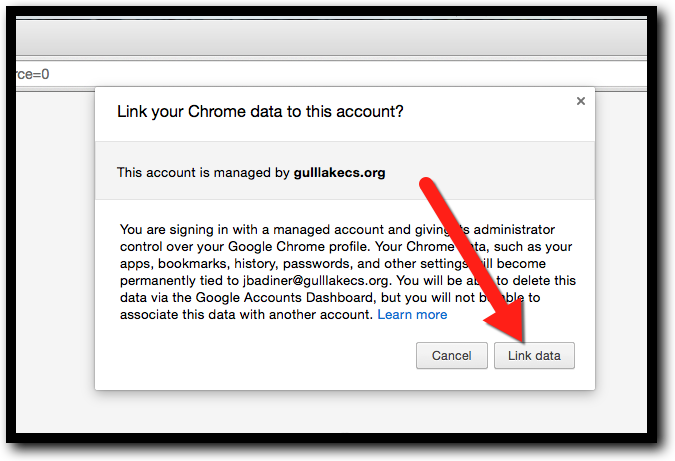
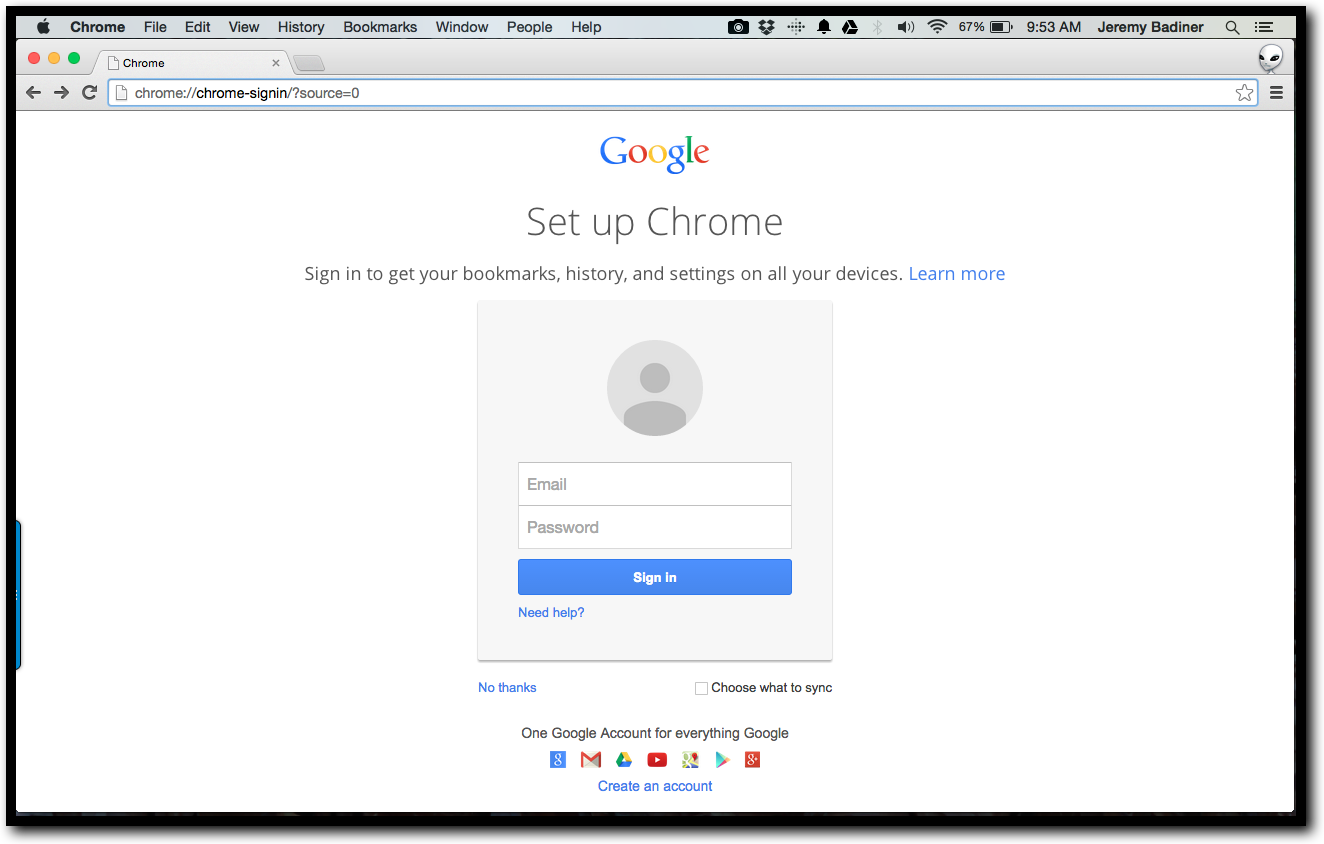
  1. Sign In with your gulllakecs.org account.

  1. Click “Link Data”.


  1. You are all set!

Here is a link to a document to help: Creating Another User in Chrome

Tuesday, December 16, 2014

Forward Gmail to Another Gmail Account


We are undergoing a change in our district right now. We have been a GAFE district for a number of years, but we are changing our domain. This sounds simple enough, the email address just changes at the end...right? Well...there is a lot more that goes into it. What about all those files in your Drive? You do realize that you can not just share and transfer ownership outside your GAFE domain. Sharing, yes. Transfer ownership...not so much. Also, all those calendars that you can not make others owners of. The list goes on. We have been migrating our @gl.k12.mi.us account to @gulllakecs.org for 5 days now. Things are slowly showing up, sharing, and reorganizing. Slow and steady wins the race. I will be sharing some Tips and Tricks on this migration for the next couple weeks. We will start with forwarding all those emails that we all know we will still get in the old GAFE domain to the new on. Below are the simple steps to accomplish this task:


Set Up Forwarding in Gmail

  1. Log in to your gl.k12.mi.us account.
  2. Go to your mailbox.
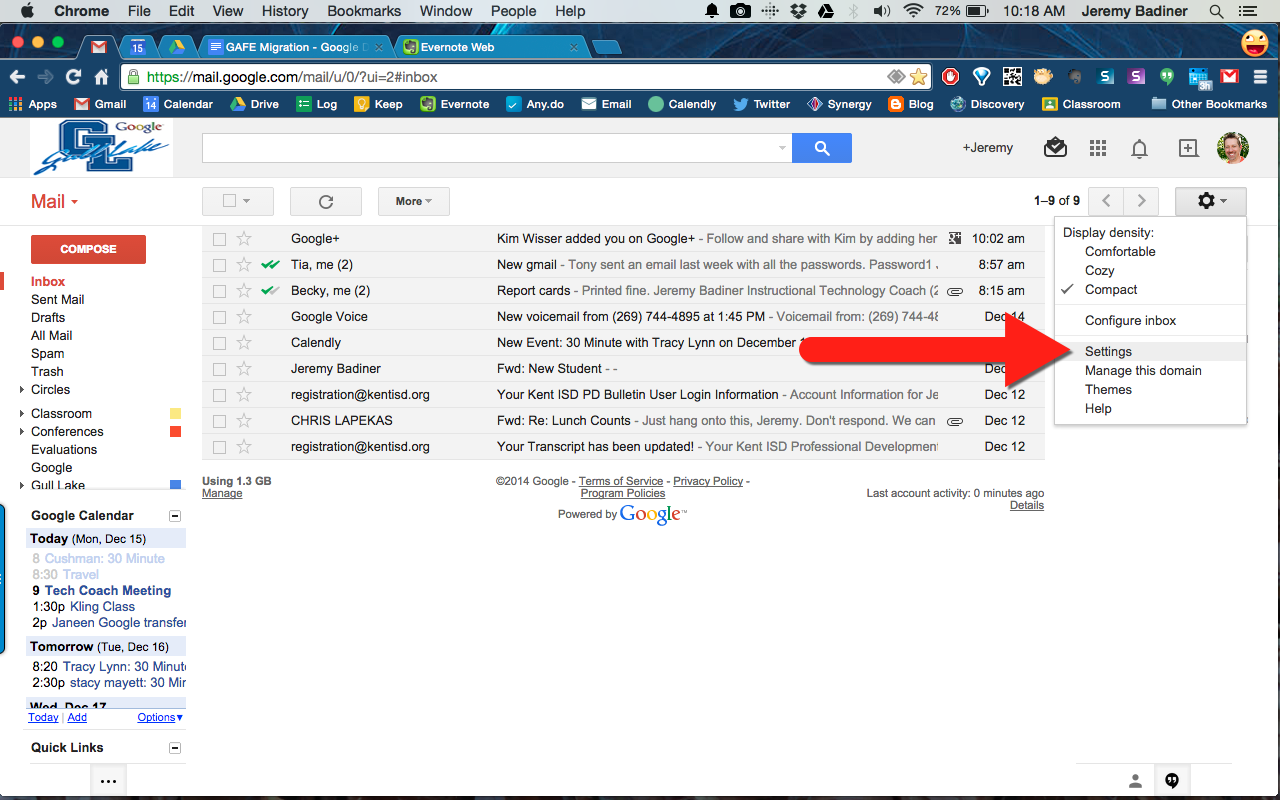
  3. Click the gear in the top right and click “Settings”.


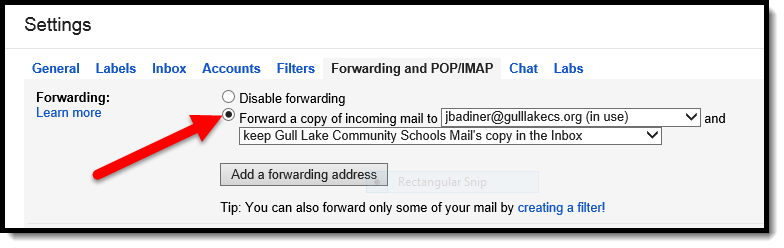
  1. Click “Forwarding and POP/IMAP” (yours will look different as I already did this).

  1. Click “Add a forwarding address”.
  2. Type in you gulllakecs.org address and click “Next”.
  3. An email will be sent to your forwarding address. Click the confirmation link.
  4. Return to your first (now forwarded account).
  5. Click the word “Verify” next to your forward email address.
  6. Make sure your forwarding email is enabled (checkbox).


  1. You are all set!


Want to see these steps in a document? Here you go! Document Here.