Showing posts with label Groups. Show all posts

Friday, March 7, 2025

Create Groups with Grouper

There are many ways to create groups within your classroom. Pulling popsicle sticks, random number drawings, ClassDojo or similar tool, and others. The tool Grouper does this easily by pulling names from your existing Google Classroom. Grouper is a quick and easy. The best part is that all your groups are saved in Grouper for later use. Oh, did I mention that it is FREE? Give it a try!


Create Groups:

  1. Head over to grouper.school

  2. Create an account by signing into Google.

  3. Allow the site access to your Google Classrooms.

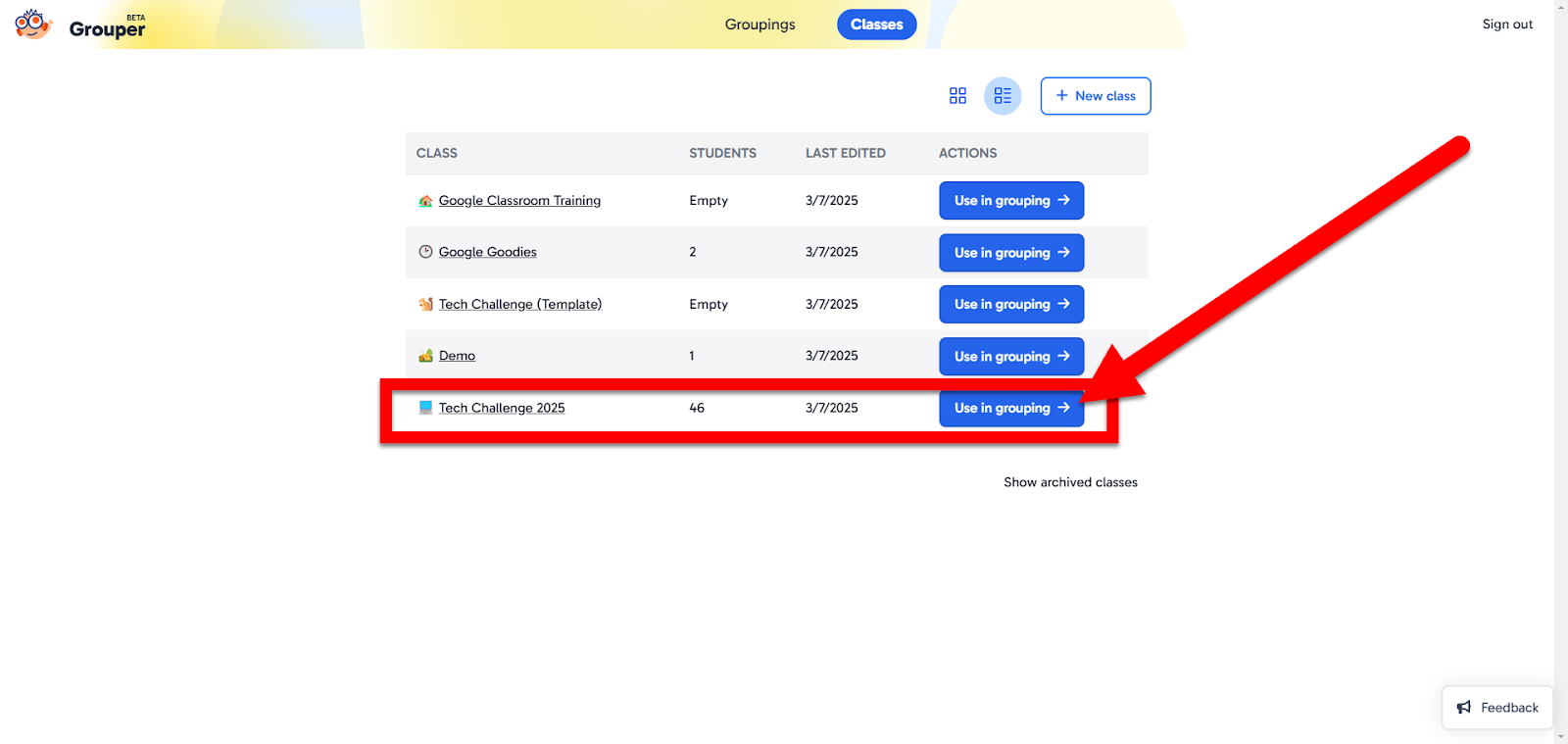
  4. Choose the classroom you wish to use to create student groups. Click “Use in grouping”.

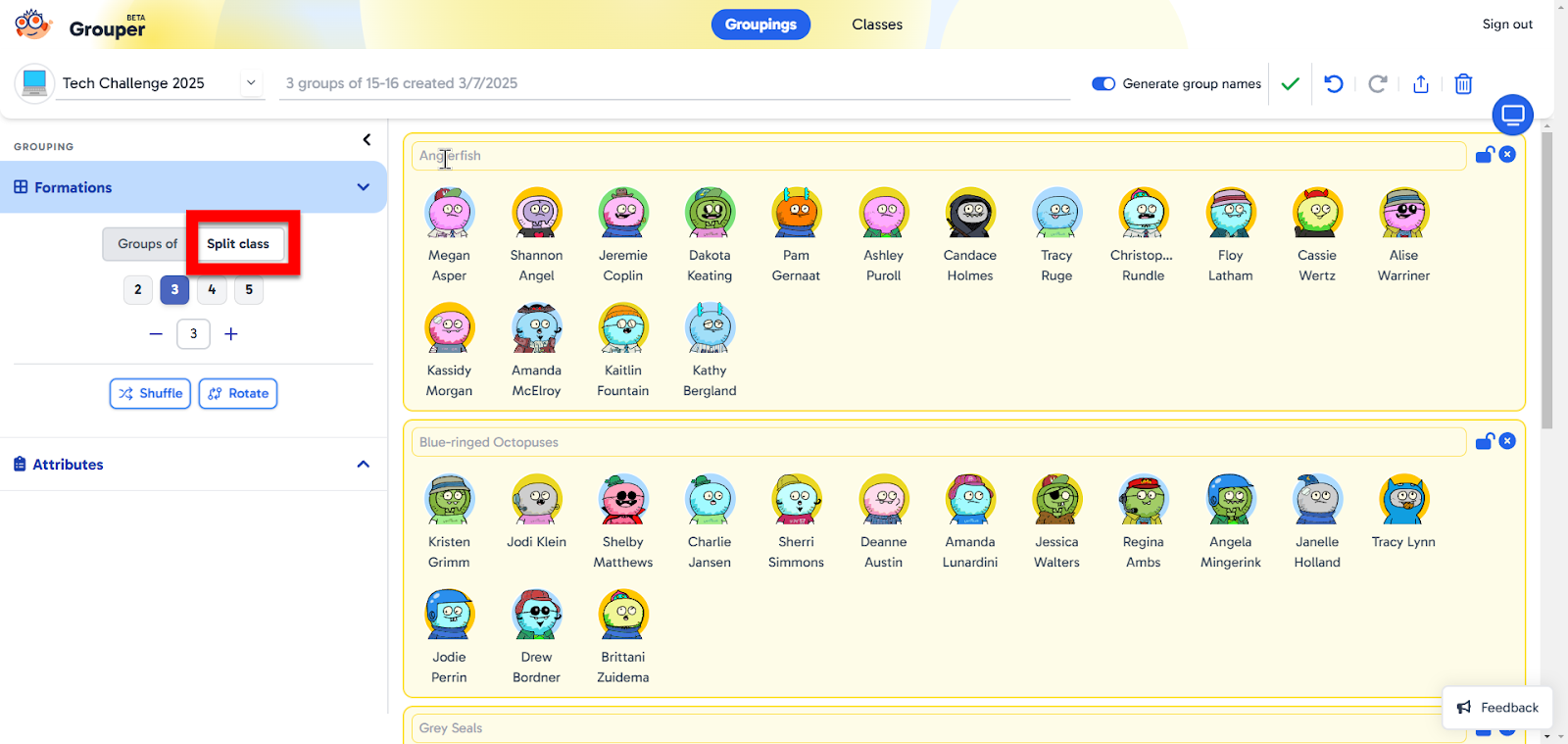
  1. Choose what you want to do. 

    • Groups Of: Make groups of a certain number
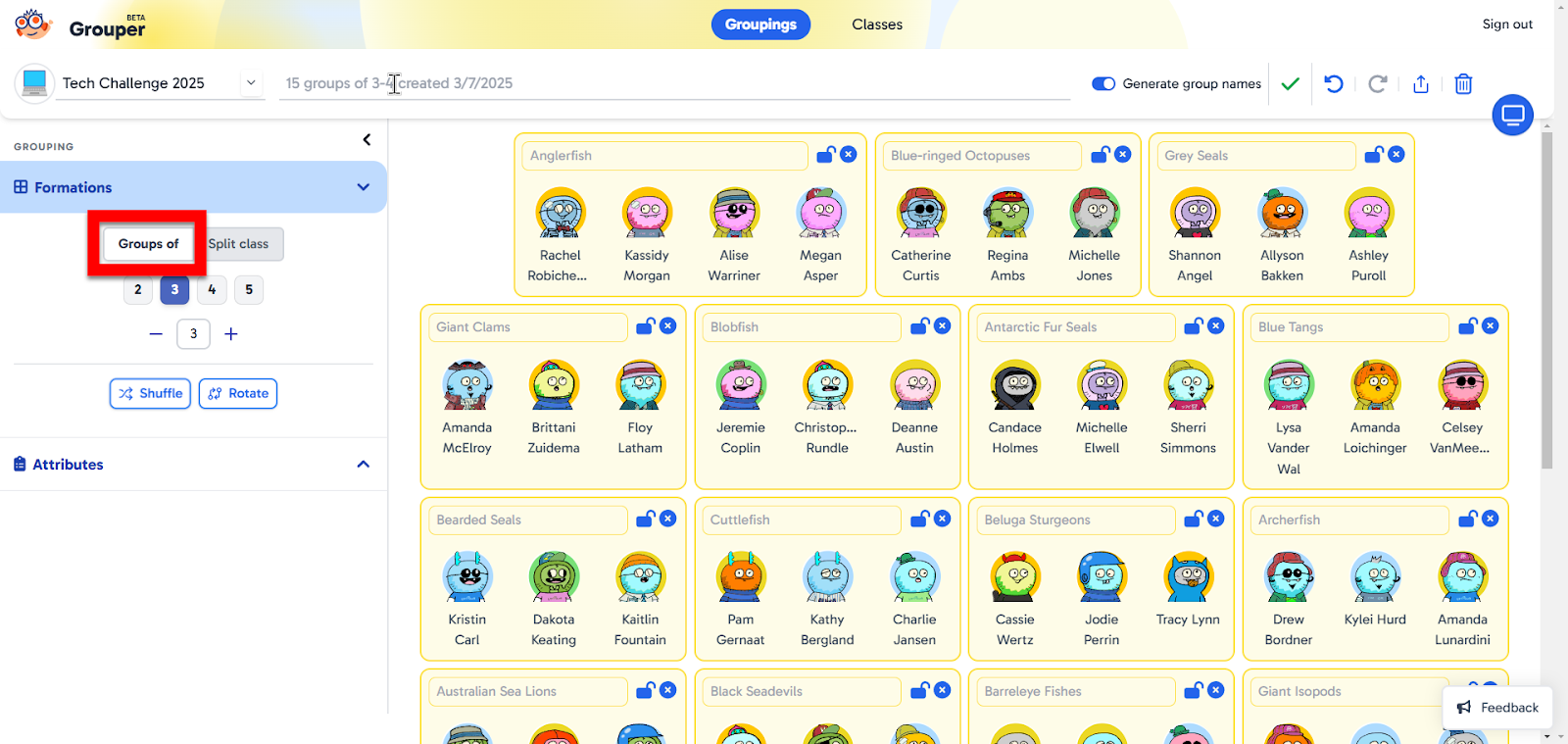

  • Split Class: Split class into a set number of groups


Editing Groups:

Now that you have created groups, there are many things you can do with these.

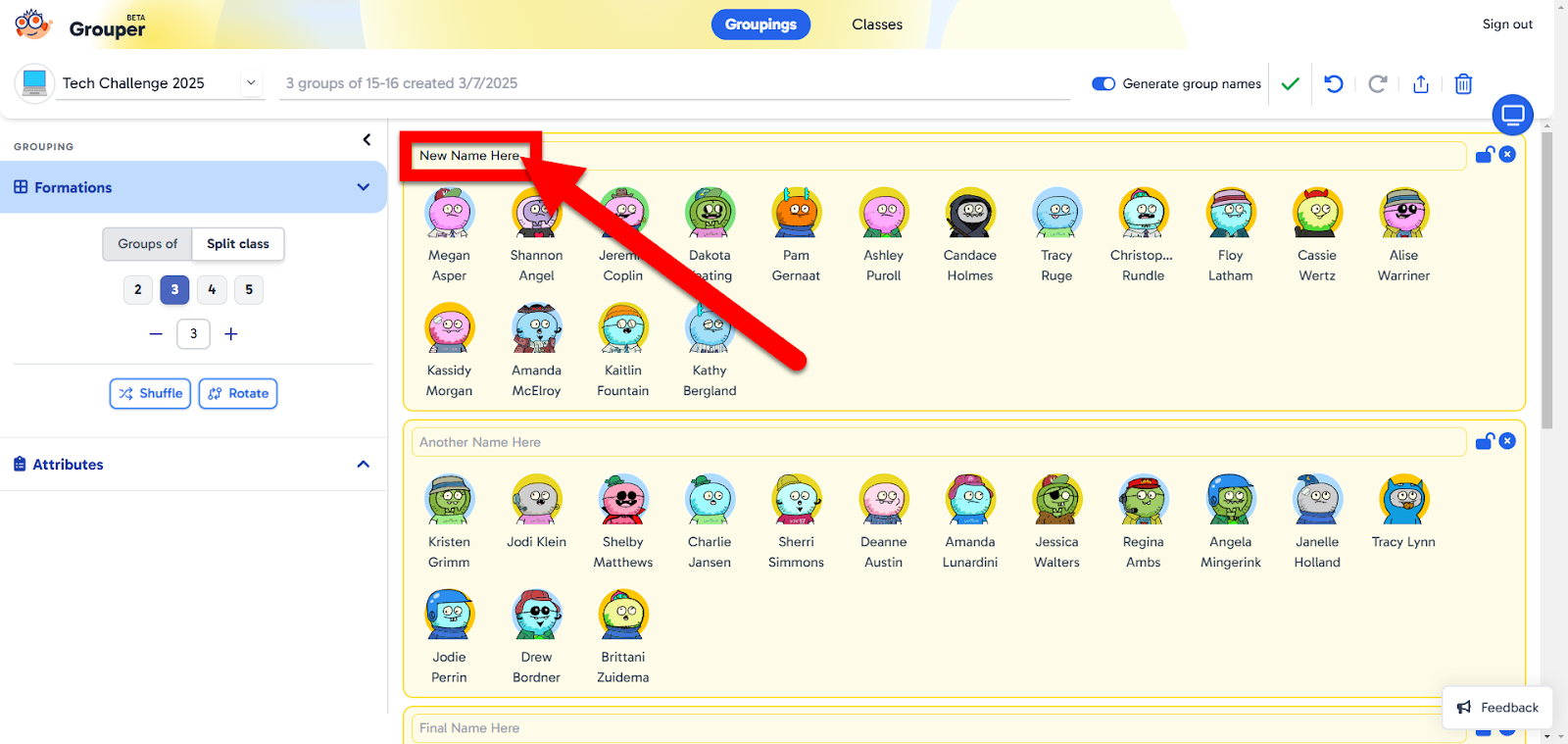
  1. You can edit the name of each group if you want by clicking on the name and typing a new name.

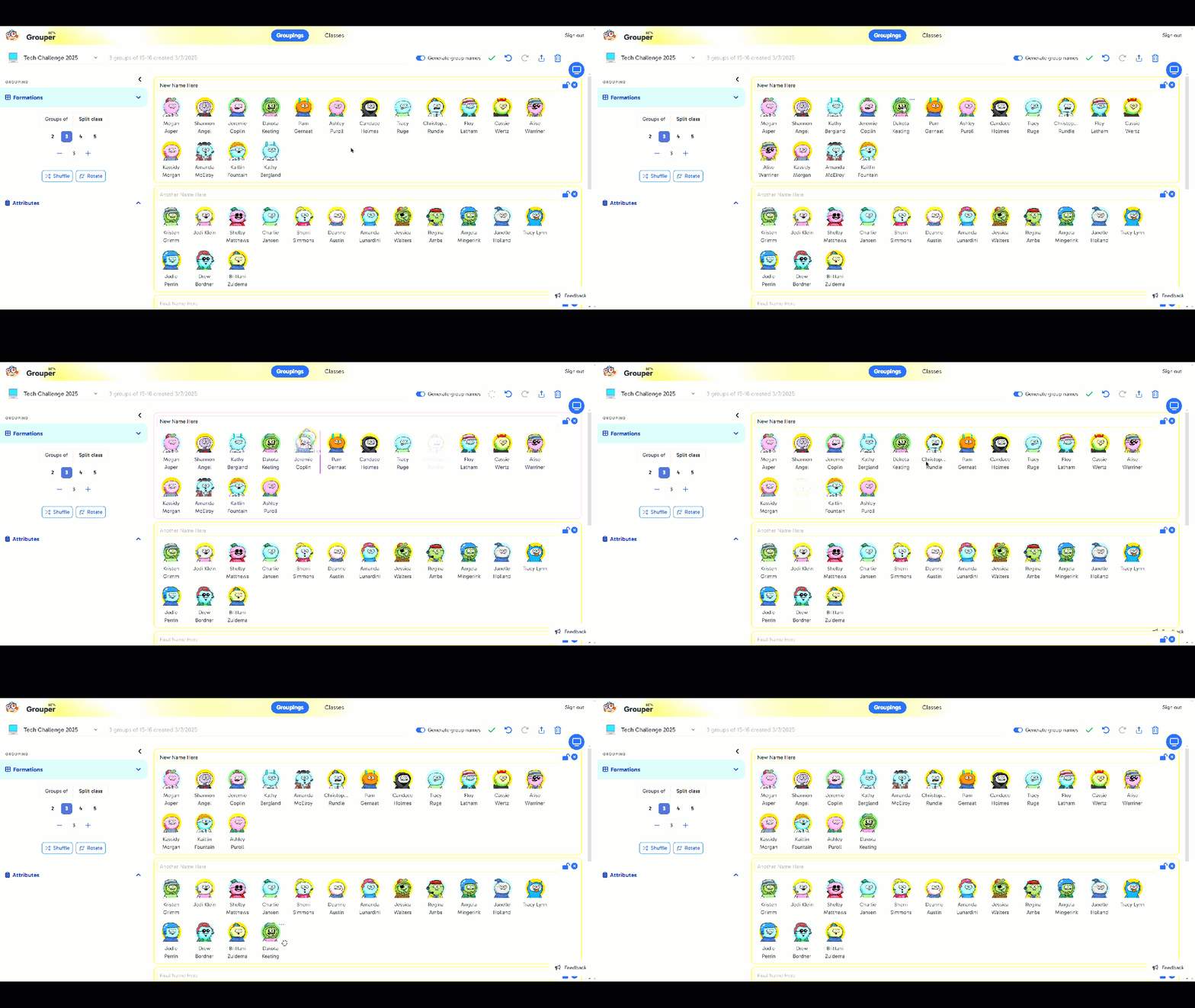
  1. You can reorder the students in any way you want by dragging students around within their group or even to other groups.

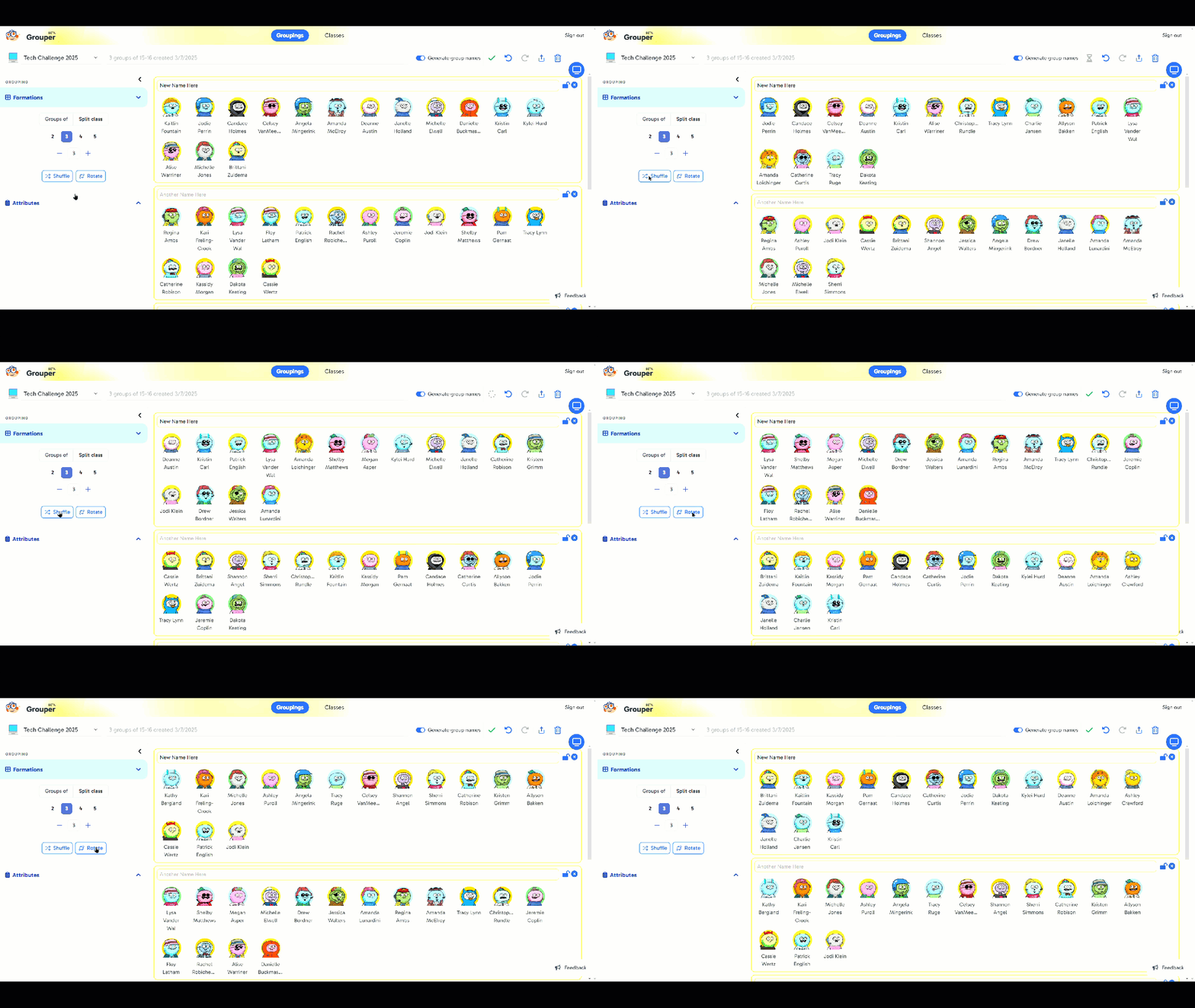
  1. You can shuffle (create new groups) and rotate (reorder on the screen) your groups.

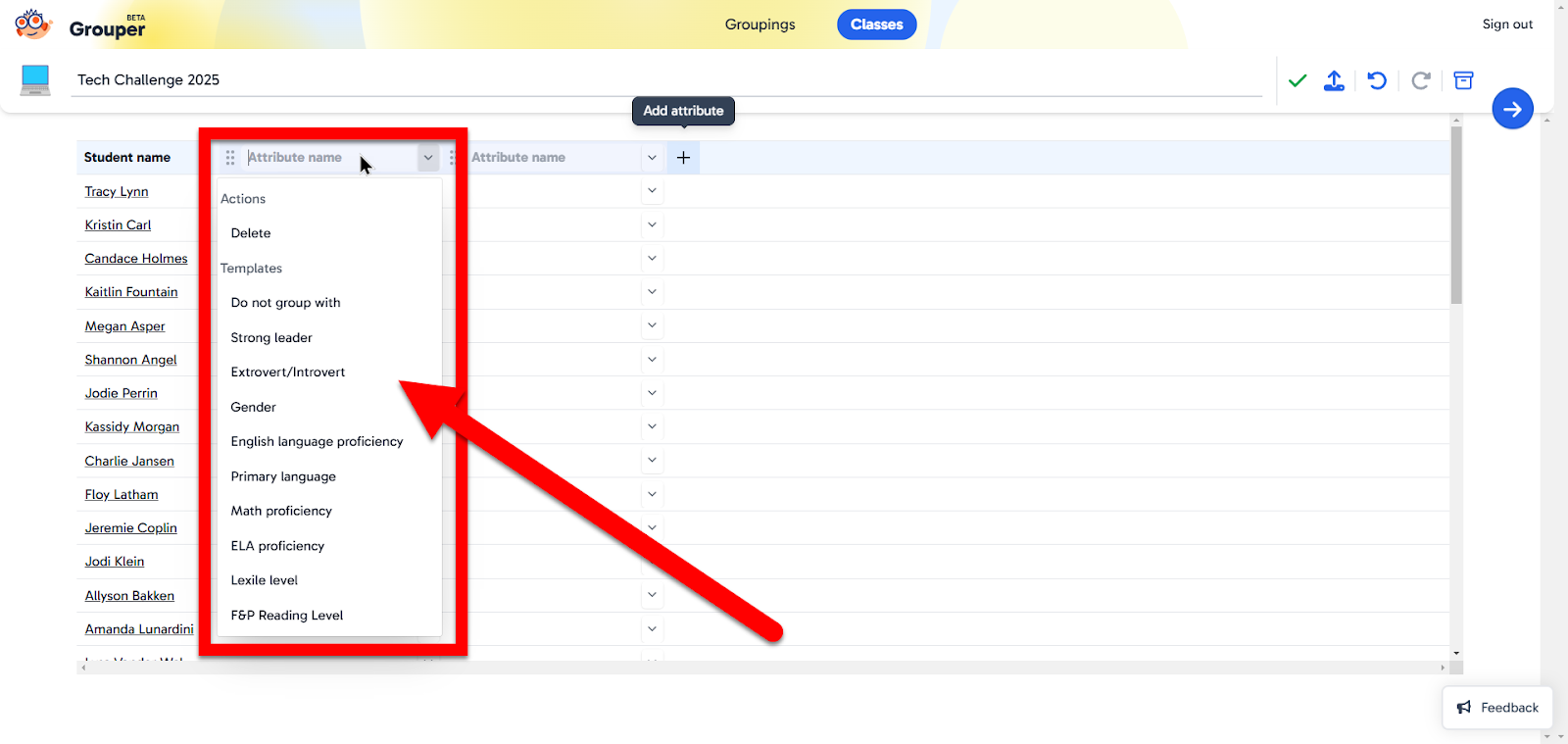
  1. By clicking “Attributes” on the left, you can set rules for individual students to help make equal or well-working groups. 


This is a useful and easy tool to help create and manage working groups. Give Grouper a try!


If you want these directions in a Document, click HERE!


Monday, January 19, 2015

Create a Contact Group in Gmail


Gmail is a great tool. It is easy to use, stores conversations in ways that make sense, and is intuitive at finding contacts’ addresses. If you have sent, received, or created a contact it can show up by merely typing part of a recipient’s name in the “To” line while composing an email. Even better, creating email groups is easy. Below are the simple steps to do just this.


Create a Contact Group in Gmail

  1. Login to your Google account and go to your email.
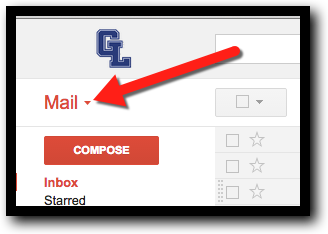
  2. On any screen in Gmail click the word “Mail” in the top left corner.


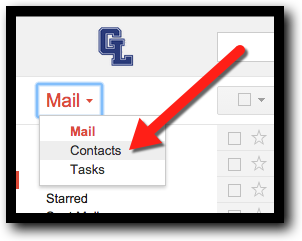
  1. Click on “Contacts”.


  1. This is a list of all your contacts. If you are in a GAFE domain, you will also have access to every address in the domain. We will be using this to set up our groups.
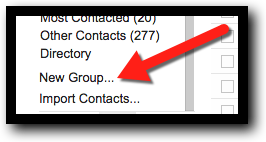
  2. Look at the very bottom right. You may have to click “More”. Find “New Group…


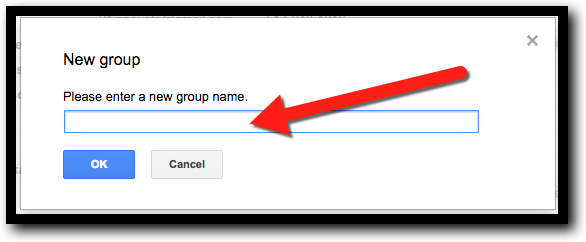
  1. Click on “New Group...” and Name this new group (ex: Teachers, Students, or Parents). Click “Done”.


  1. Now find the group that you want to add contacts to on the left and click on it.
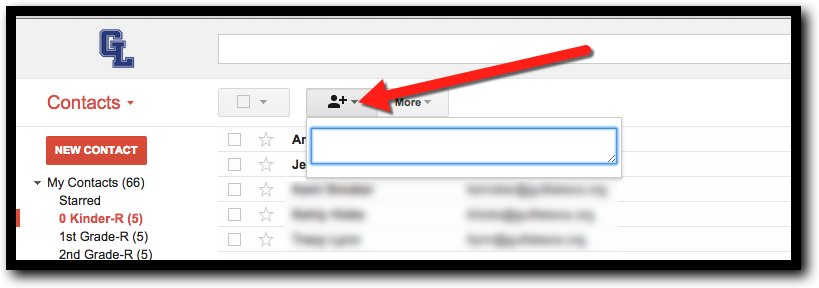
  2. Click on the image of the person with a + sign towards the center of the screen at the near the top.


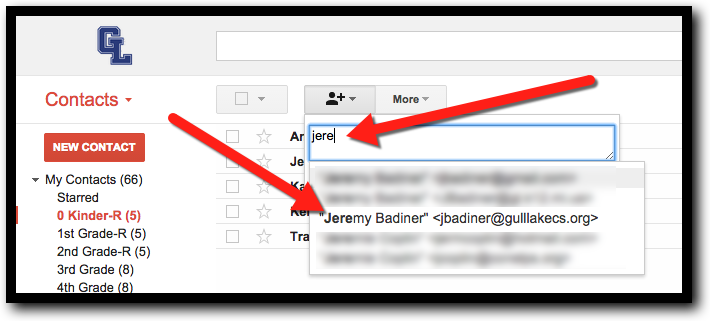
  1. Start typing the name of your contact you want to add to this group. When you see the correct contact click on it. You can continue to add as many contacts as you need at this point to complete this group.


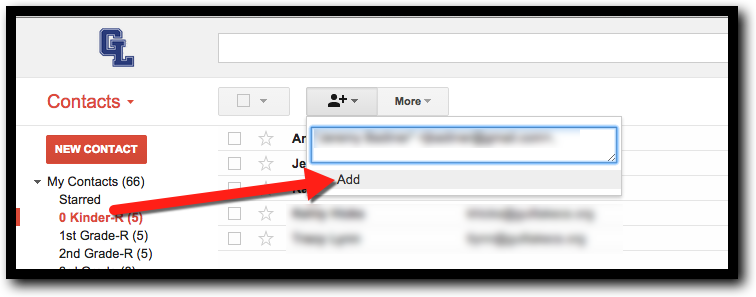
  1. Click “Add”.


  1. From here on out you can type the name of the group in the “To” line of an email (or in the share button in and Google Drive file) and the contacts in the group will receive the email.


If you want these directions in a Document Click Here!