Showing posts with label Bitmoji. Show all posts

Thursday, February 21, 2019

Friendmojis with Bitmoji


Have you gotten caught up in the Bitmoji craze? Like many others, I have! Along with using fun images of yourself in social media, texts, and with your students in the classroom, you can now include your friends in on all the fun! Many iPhone users have had access to Friendmojis through Bitmoji and Snapchat in the past, but there is another way to do this. You can now share Bitmoji links with friends and put both of you in the image easily! All you need is a link from both people (easily found in the Bitmoji extension) and the spreadsheet attached below (spreadsheet available courtesy of Michelle Armstrong-@armstrongedtech and Jordan Poles-https://jpoles1.github.io/). Follow the steps below and you will never be lonely in a Bitmoji again!


Add Friends in Your Bitmoji:

  1. First, make a copy of this Google Spreadsheet.
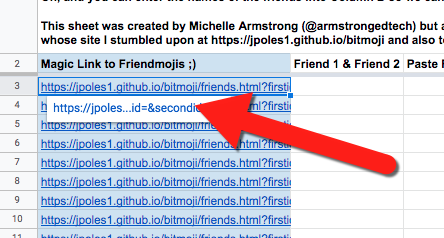
  2. You and your friend will need to get your Bitmoji link address into the spreadsheet
  3. Click on the Bitmoji Extension in Chrome (Click Here to See How to Install it)

  4. Right-Click any of the images and choose “Copy Image Address”.

  5. Paste that in the correct row in the Spreadsheet.
  6. You will need to add both your link and your friend’s link.

  7. After you have added your Bitmoji links, you click on the far left column and open that link.

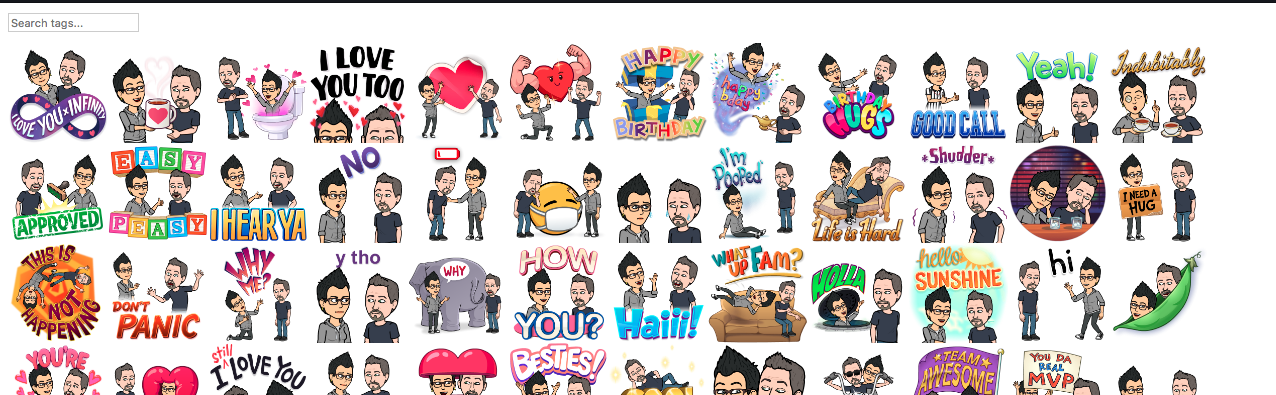
  8. This will open a new tab and have every Friendmoji available to you. Just right-click on any of these images and "Copy" or "Download" to use!
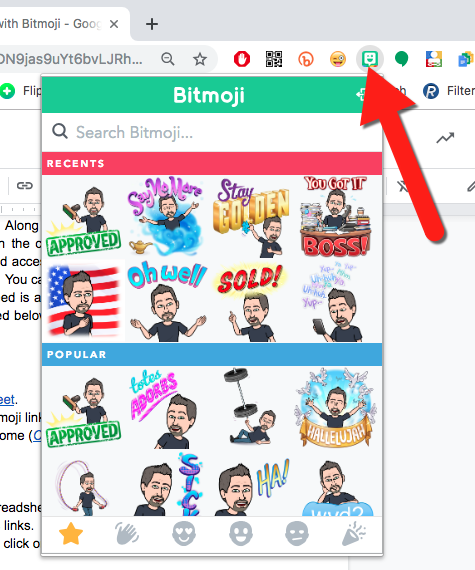

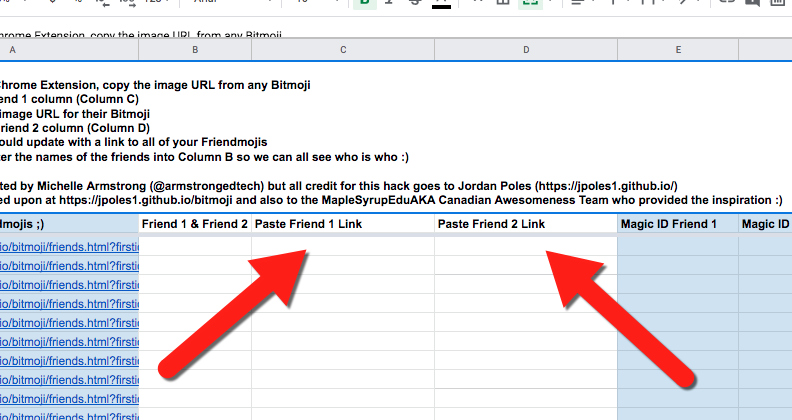
Just a suggestion...I make 2 rows for each friend. One with my image on the left (Name 1) and one with my image on the right (Name 2). That way I have all the possible Bitmojis!



Reminder...There are some Bitmojis that are NOT School Age appropriate. Please keep this in mind.


Start sharing your link and get your friends’ links to make Bitmoji more friendly!


If you want these directions in a document click HERE!


Saturday, April 14, 2018

Classroom Fun with Bitmoji


As teachers, we are always trying to grab our students’ attention. We create fun activities, engaging lessons, and try to make our time with students meaningful and connected. One way to do this is to put ourselves into our work. An easy way to do this is with Bitmojis. These are easy to use images of ourselves saying and doing everyday things the students can relate to. It is easy and fun (and a little warning here...addictive!). I find I use Bitmojis in many emails, presentations, social media posts, texts, messages...ok in EVERYTHING! Get started! Create your Bitmoji and start getting into your work today!


Create Your Bitmoji:
1. On your mobile device install the Bitmoji app.
  • Google Play
  • iTunes
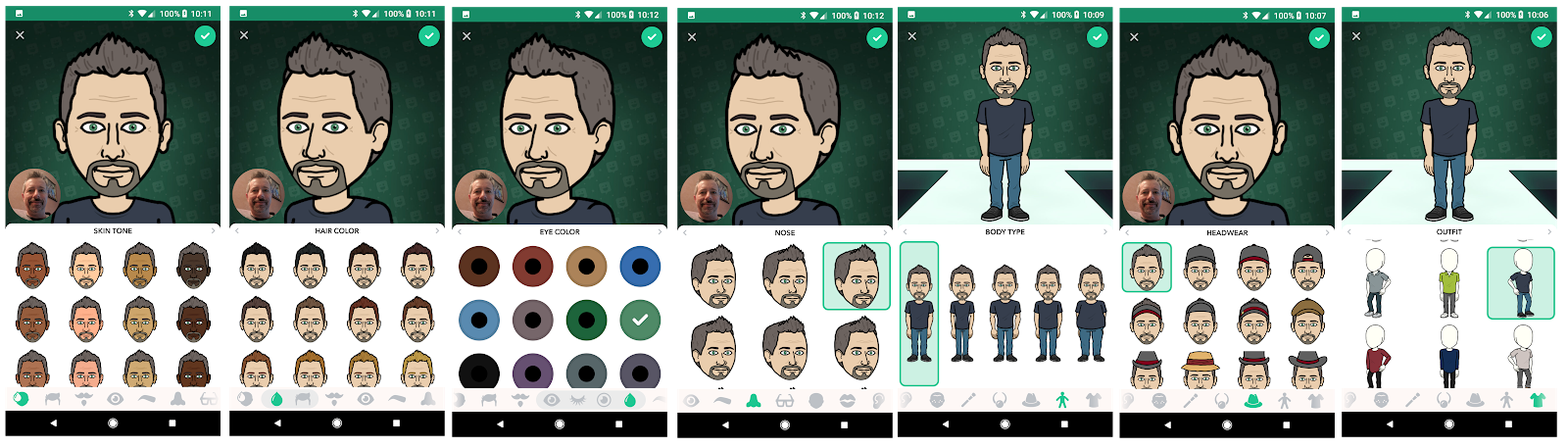
  • Create a likeness of yourself (face, hair, eyes, wrinkles, hat, clothing, etc) 


Use Your Bitmoji:
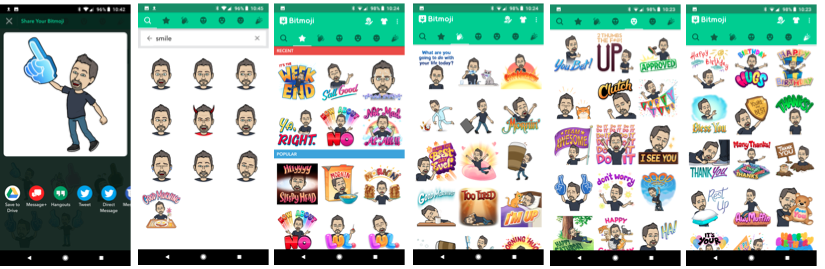
1. You can share your Bitmoji with your mobile app. Just tap the image you want and choose what app to use it in. There are categories as well as a search option.


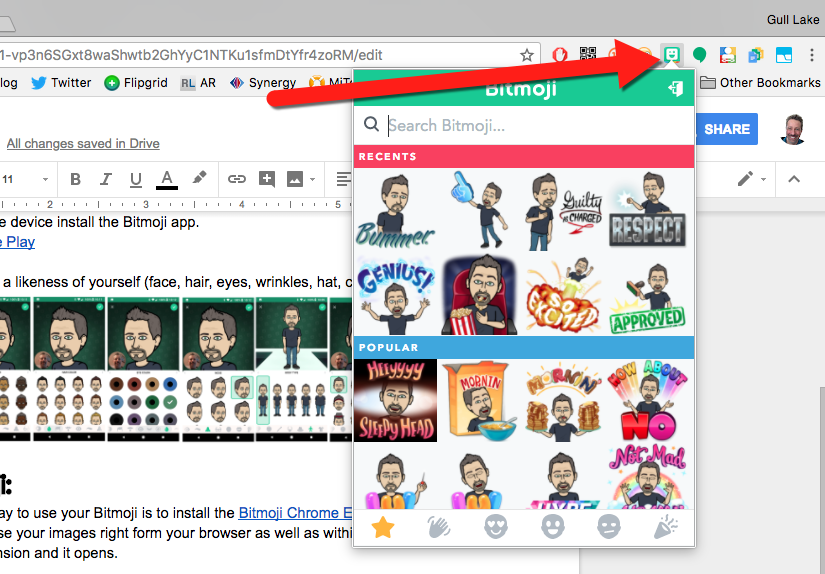
2. The easiest way to use your Bitmoji is to install the Bitmoji Chrome Extension. This will allow you to use your images right from your browser as well as within your email!

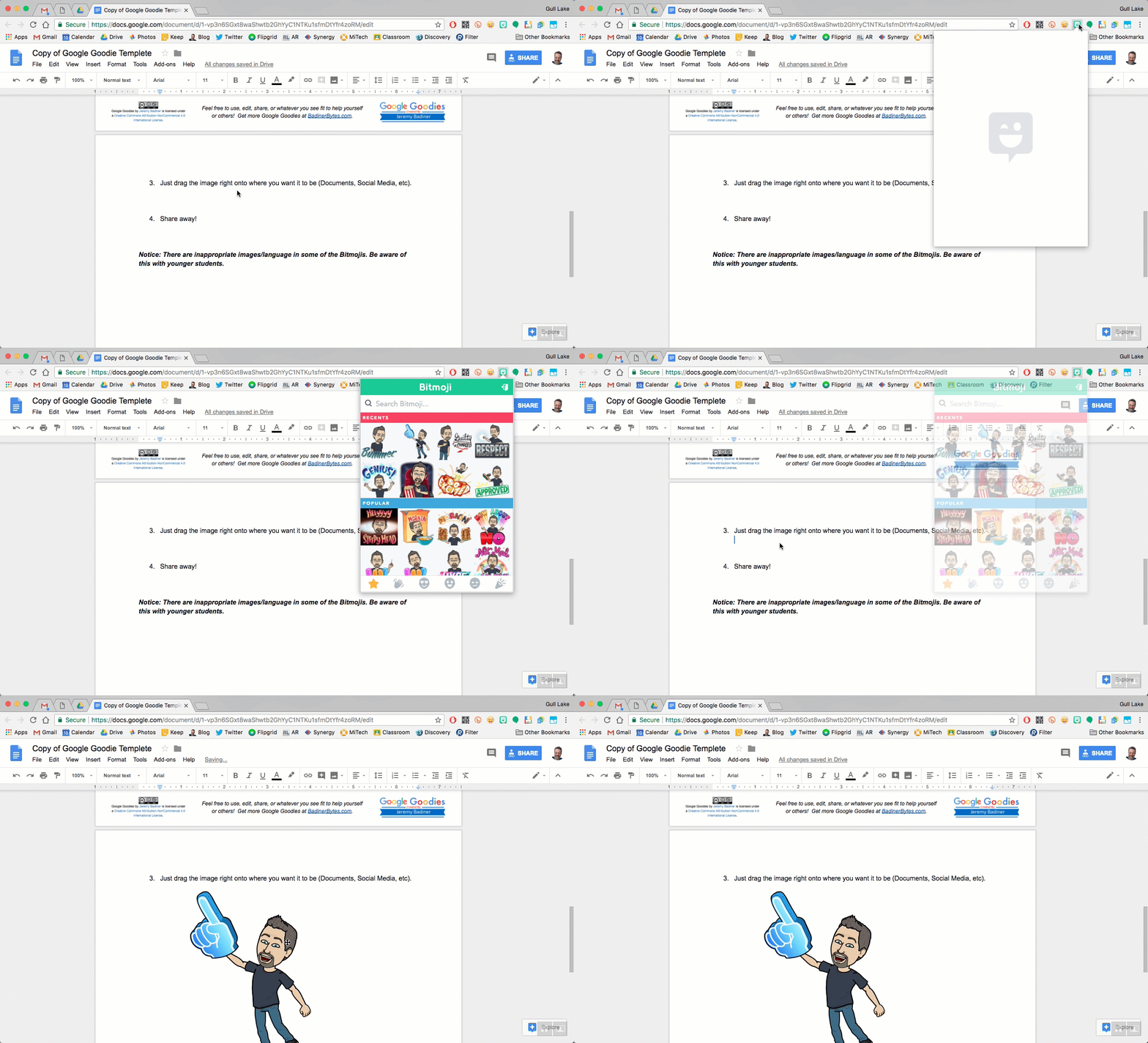
3. Click the extension and it opens.


4. Just drag the image right onto where you want it to be (Documents, Social Media, etc).


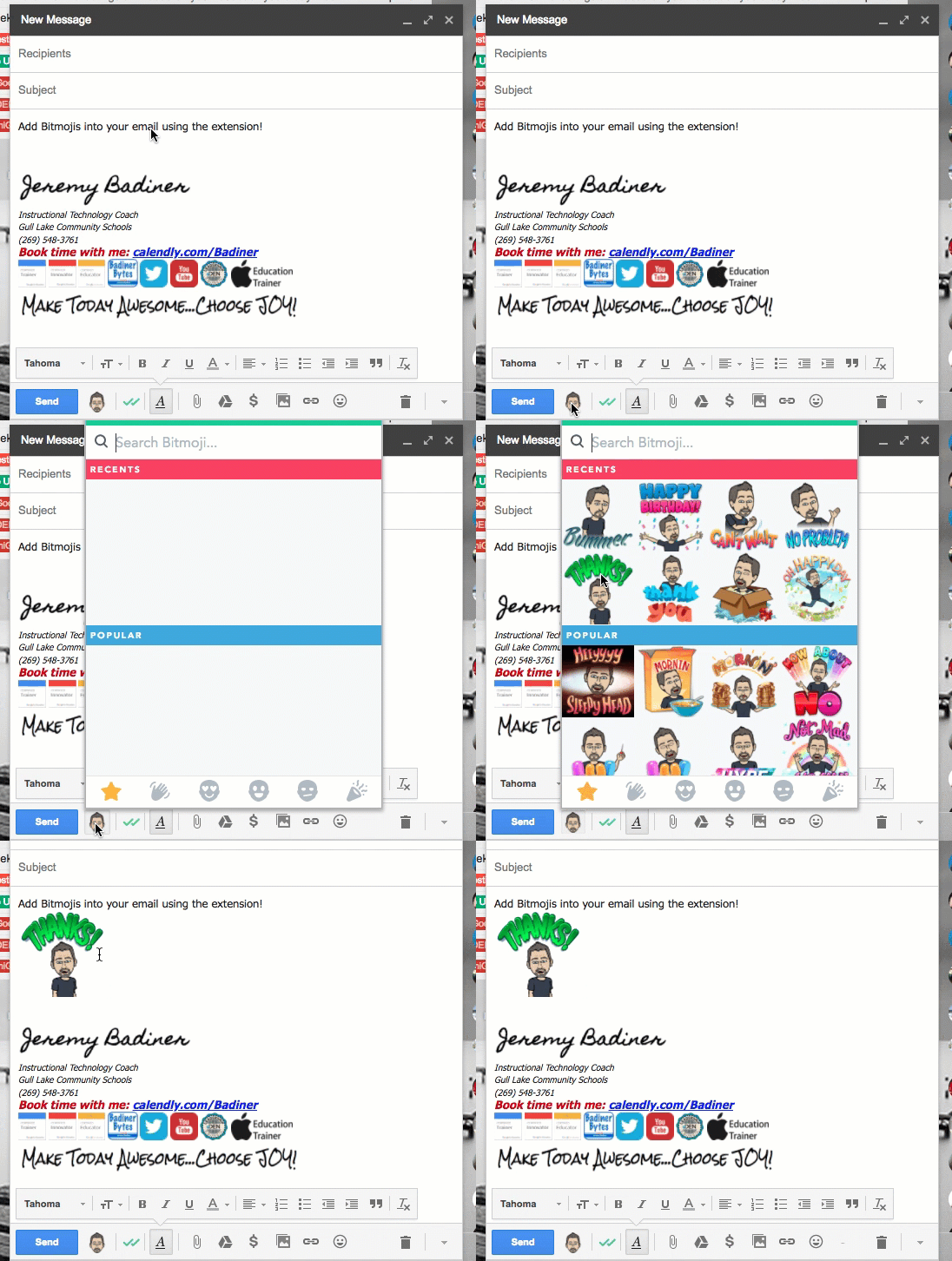
5. You can also use this extension within your Gmail.


6. Make your documents, posts, signs, or anything more FUN!


Bitmoji in the Classroom:
  • Student feedback
  • Enhance documents, forms, and any digital tool
  • Stickers! (print them on sticky address labels)
  • Add flare to presentations
  • Highlight directions or instructions
  • Use as an instructional hook
  • Comic book characters and digital storytelling
  • Digital badges
  • Avatars
  • Classroom signs
  • Booksnaps
  • Get creative and create your own images using Bitmojis and Google Drawing!


Notice: There are inappropriate images/language in some of the Bitmojis. Be aware of this with younger students.


If you want these directions in a document click Here!