Showing posts with label Adobe. Show all posts

Friday, October 14, 2022

Curving Text with Adobe Creative Cloud Express

Adobe Creative Cloud Express is an easy tool that allows teachers and students to create awesome projects! You can easily create all sorts of visual projects like flyers, web pages, videos, images, graphics, and more. With the EDU account, we have access to all the cool tools, resources, and projects. Students can easily use Adobe Creative Cloud Express to create projects to demonstrate their learning. It has many awesome features. One of my favorites is the ability to add curved text to images. Check out how to do this below!


Start a Project:

  1. Head to https://express.adobe.com/sp/ and sign in with your Enterprise Account.

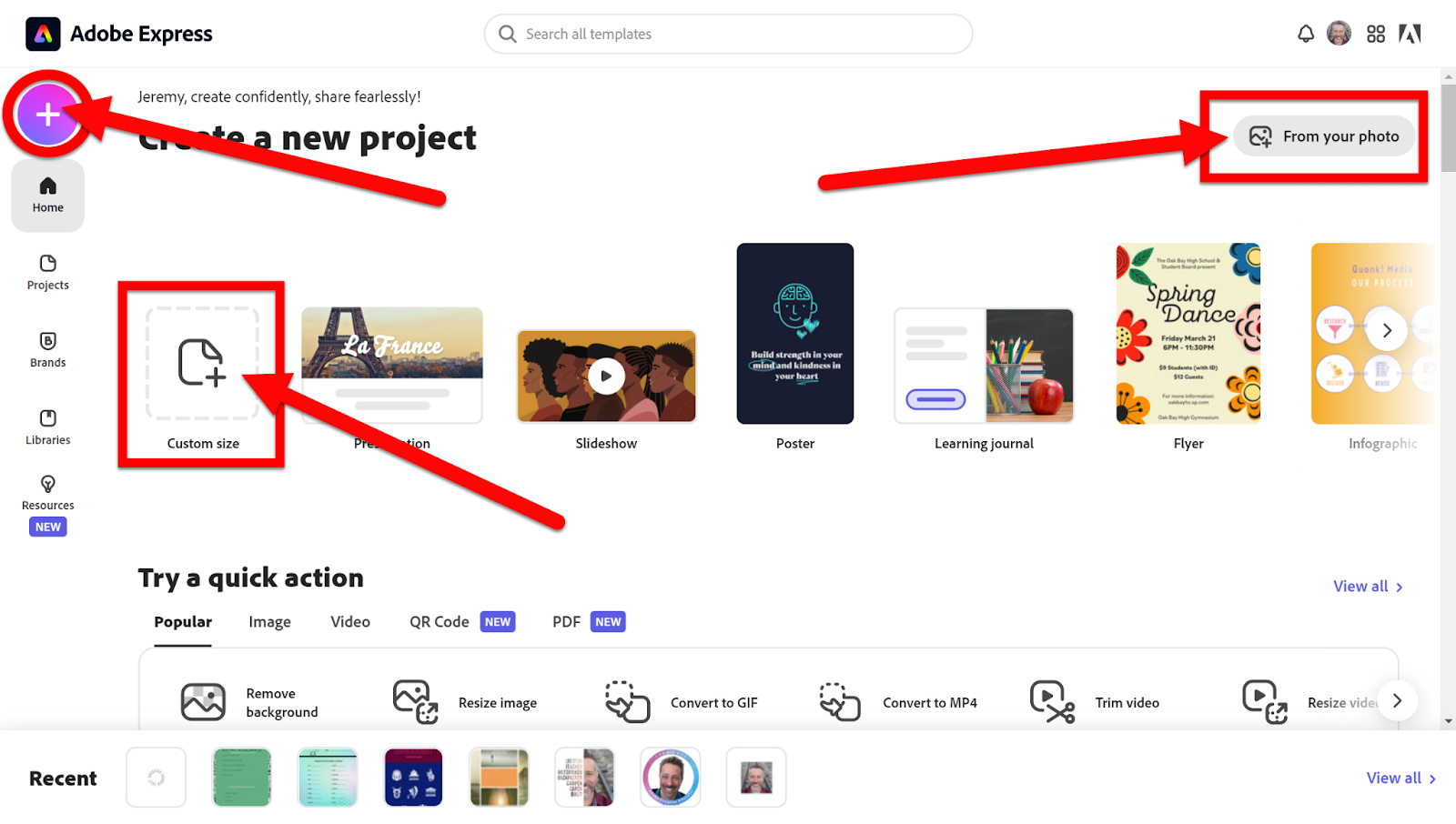
  2. On the main page, you will see a list of easy-to-create projects. You can also click on the purple “+” icon on the left to see more tools. Click on “Custom Size” or “From your photo” to make a quick project.

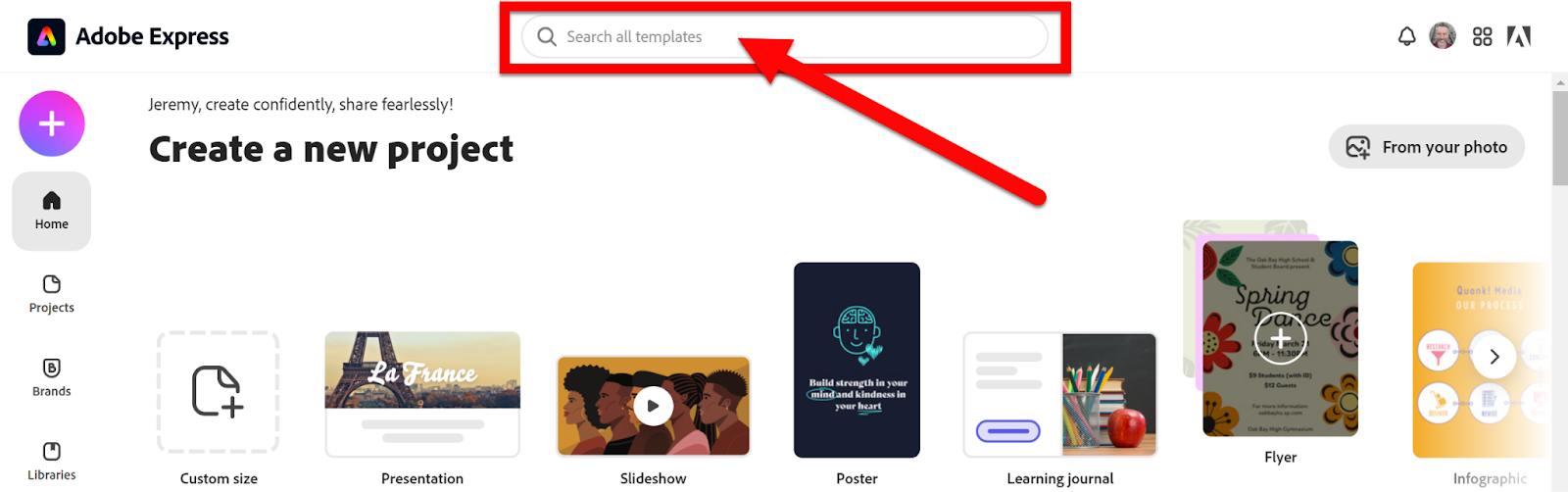
  1. In addition, you can search for templates with the Search Box or filter by project type.

  1. Choose one to use.


Add Curved Text

  1. Add some images or a background to your project.

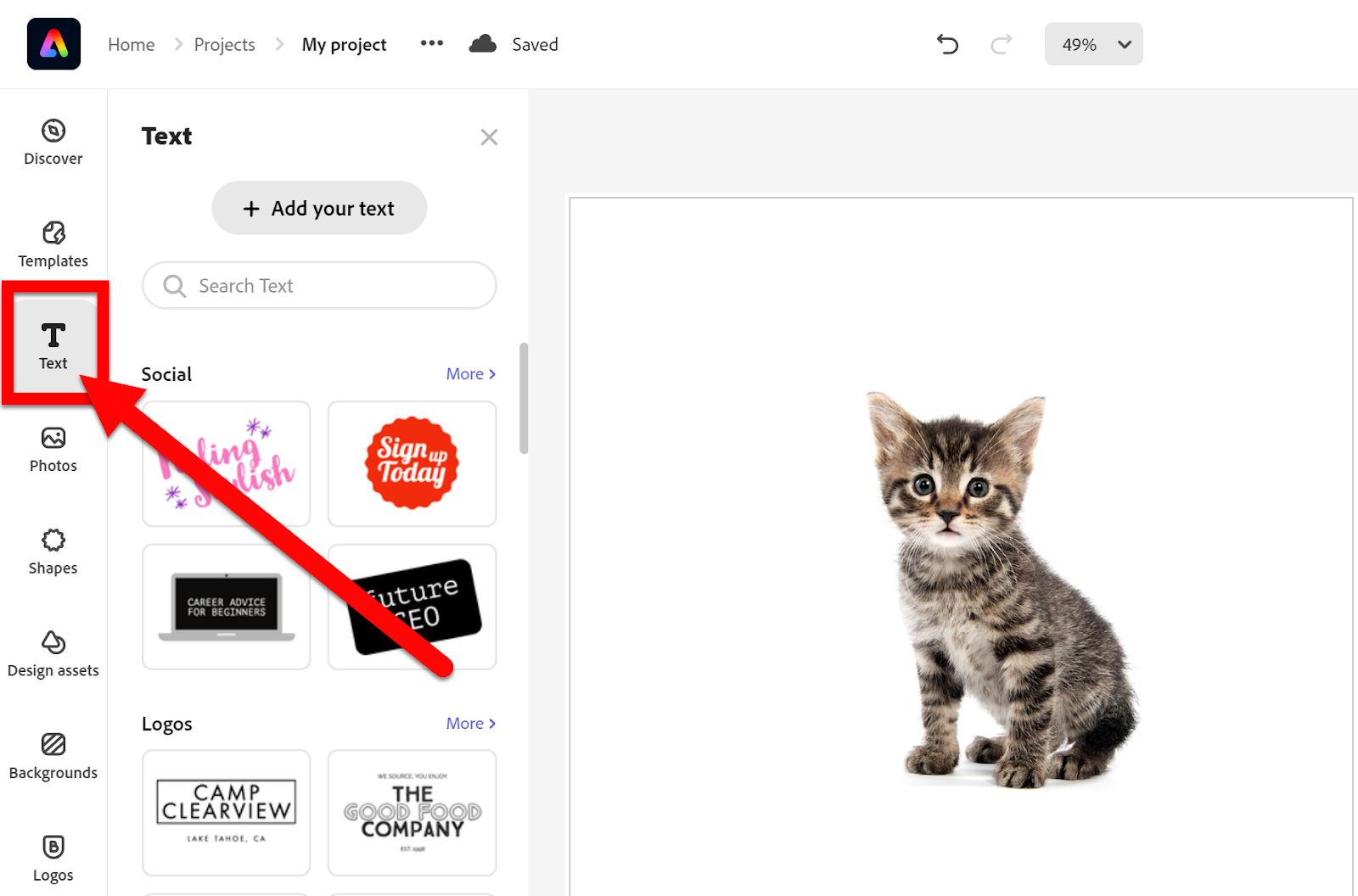
  2. Click on “Text” on the left.


  1. Type “Curved” in the search box and hit enter.
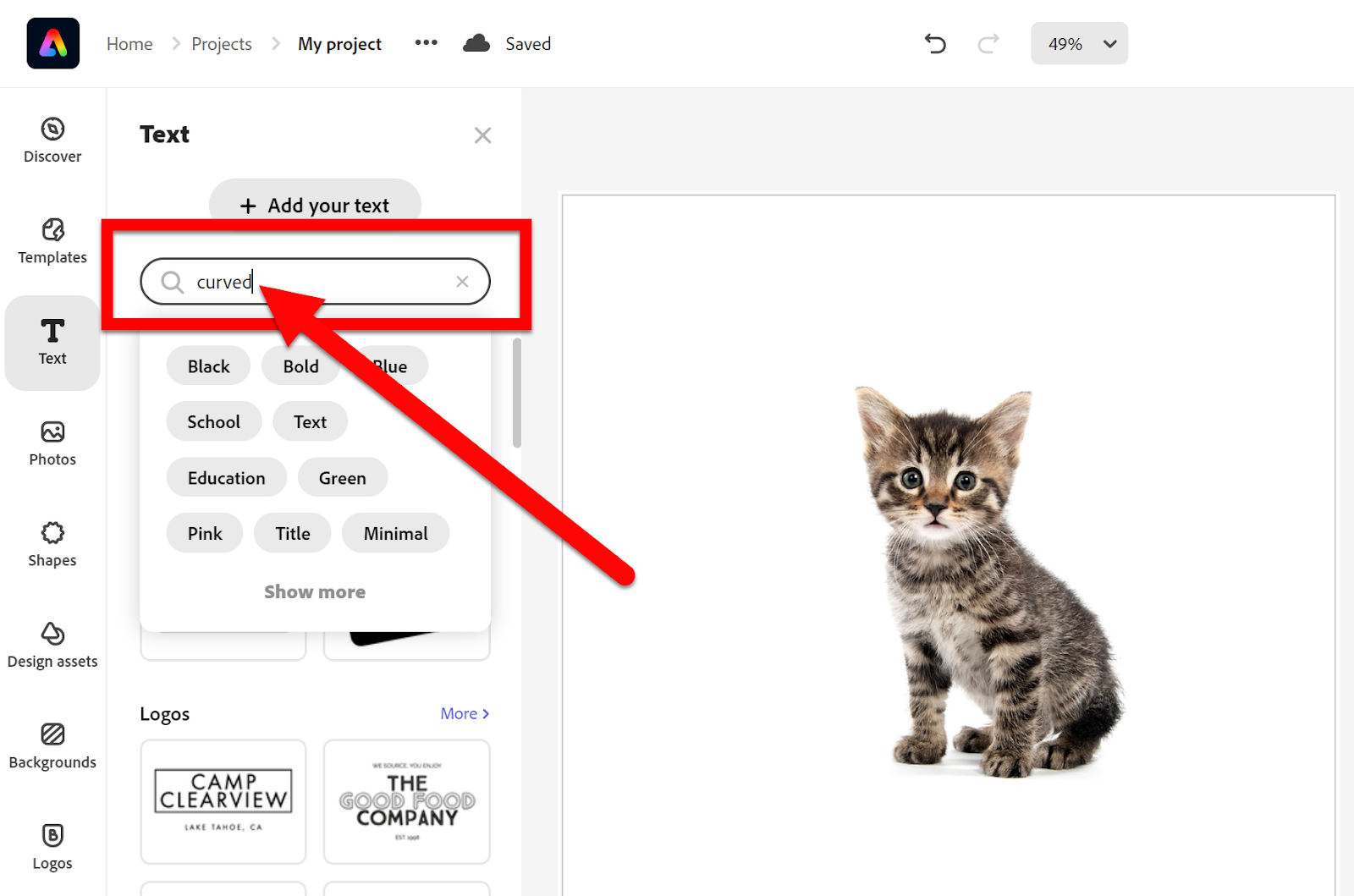

  1. Choose one of the curved styles at the top.
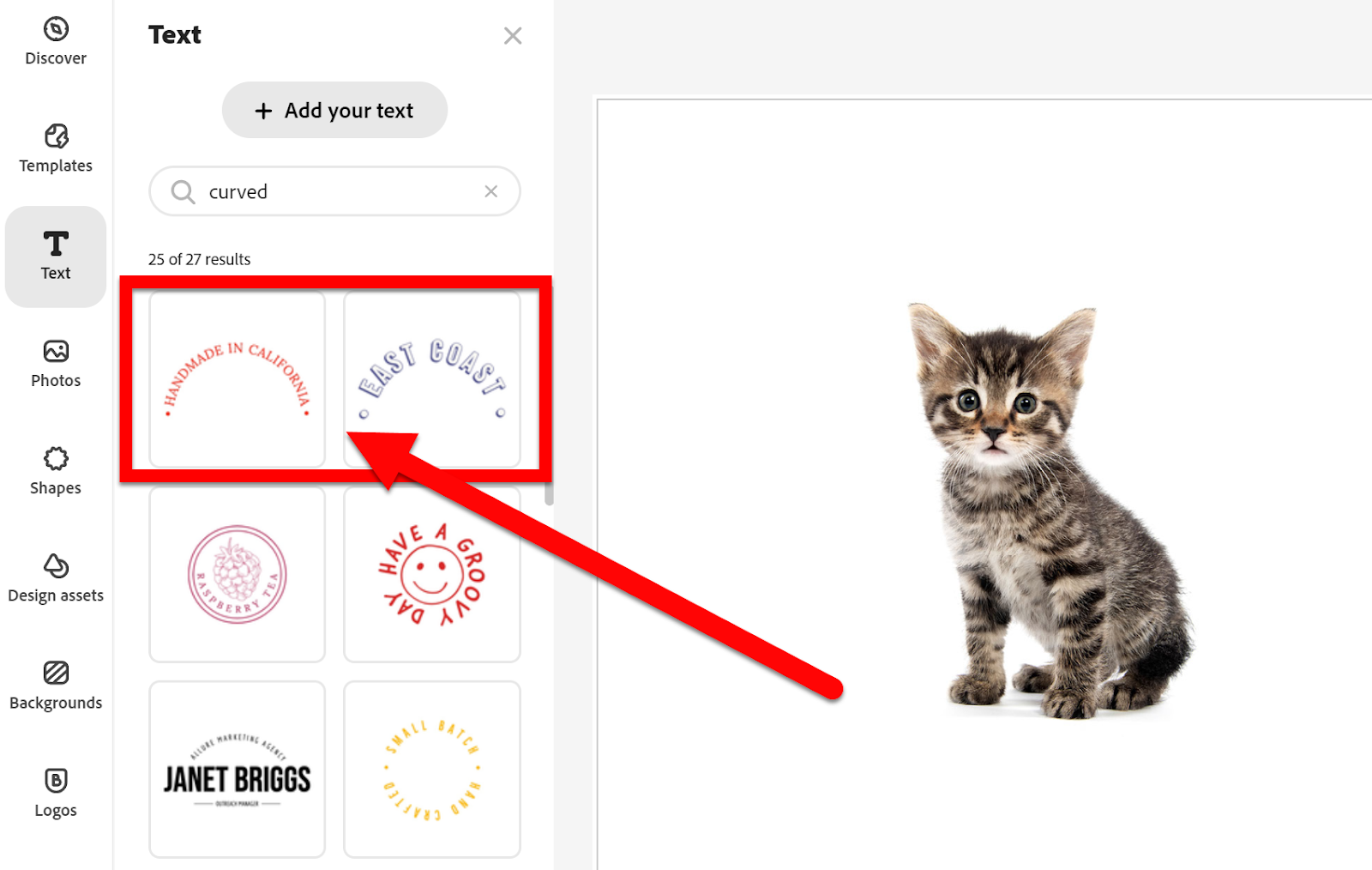

  1. Drag the inserted text to where you want it on your image.

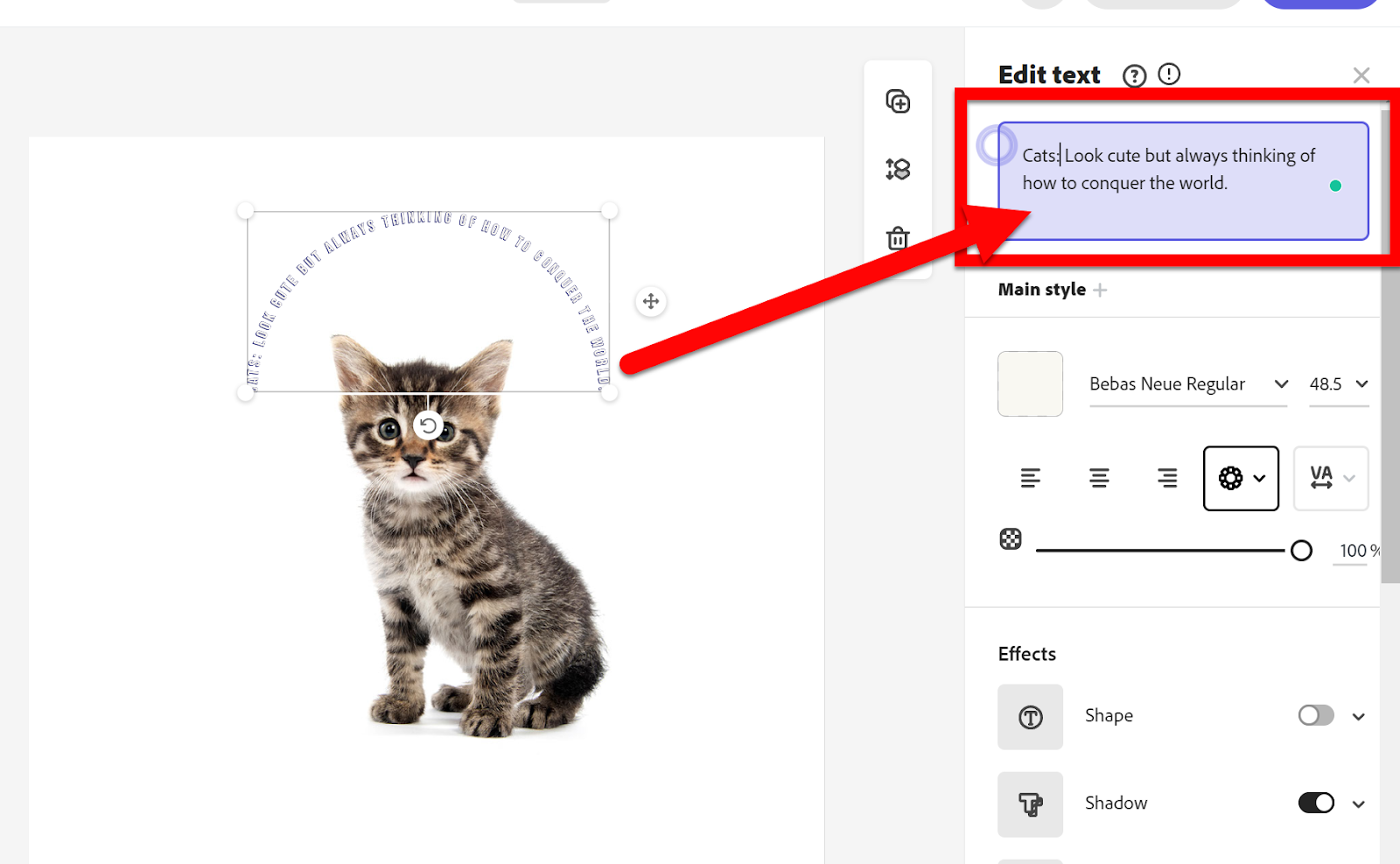
  2. Edit your text.


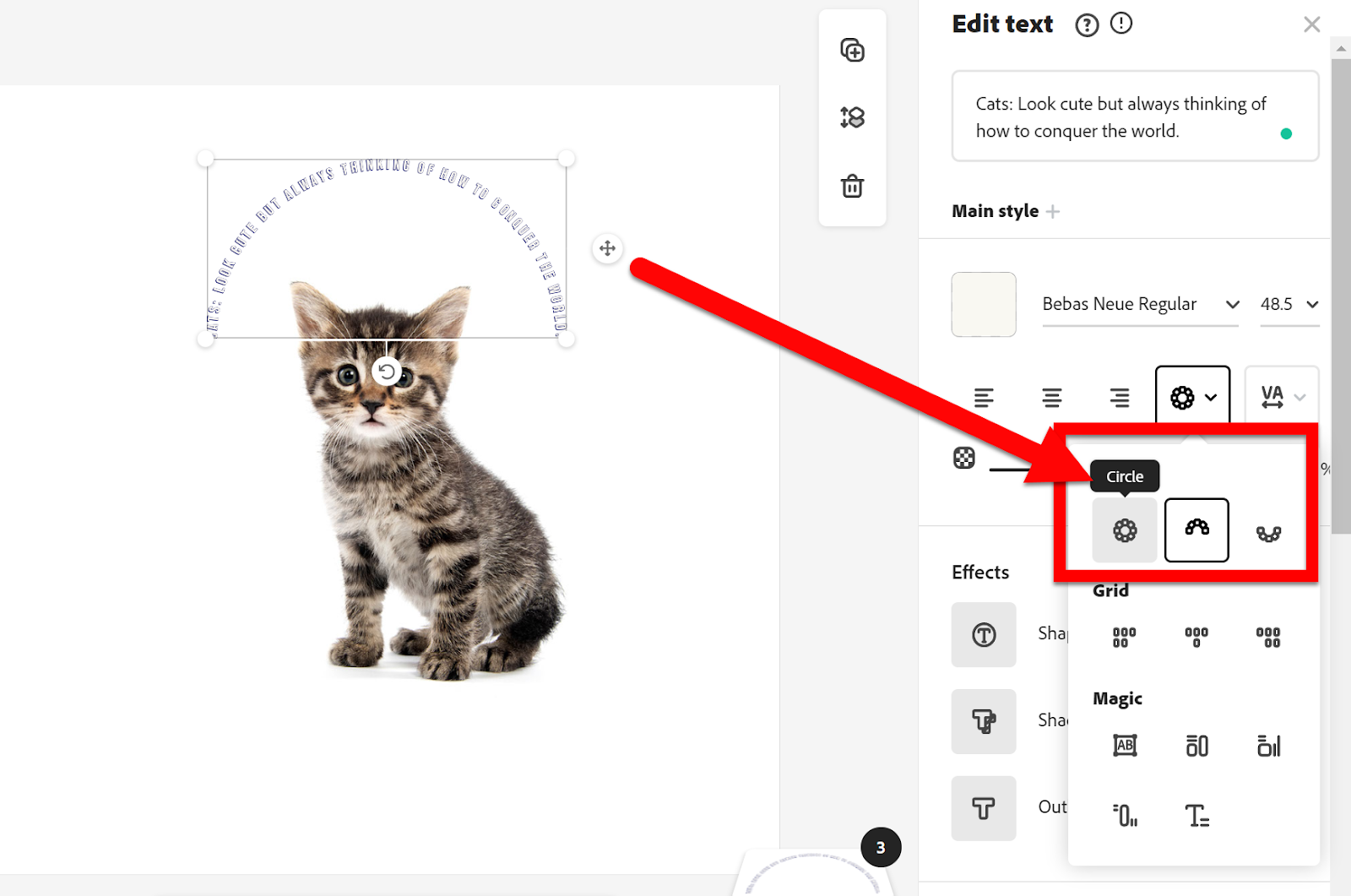
  1. Change the type of curve by clicking the Curved icon.
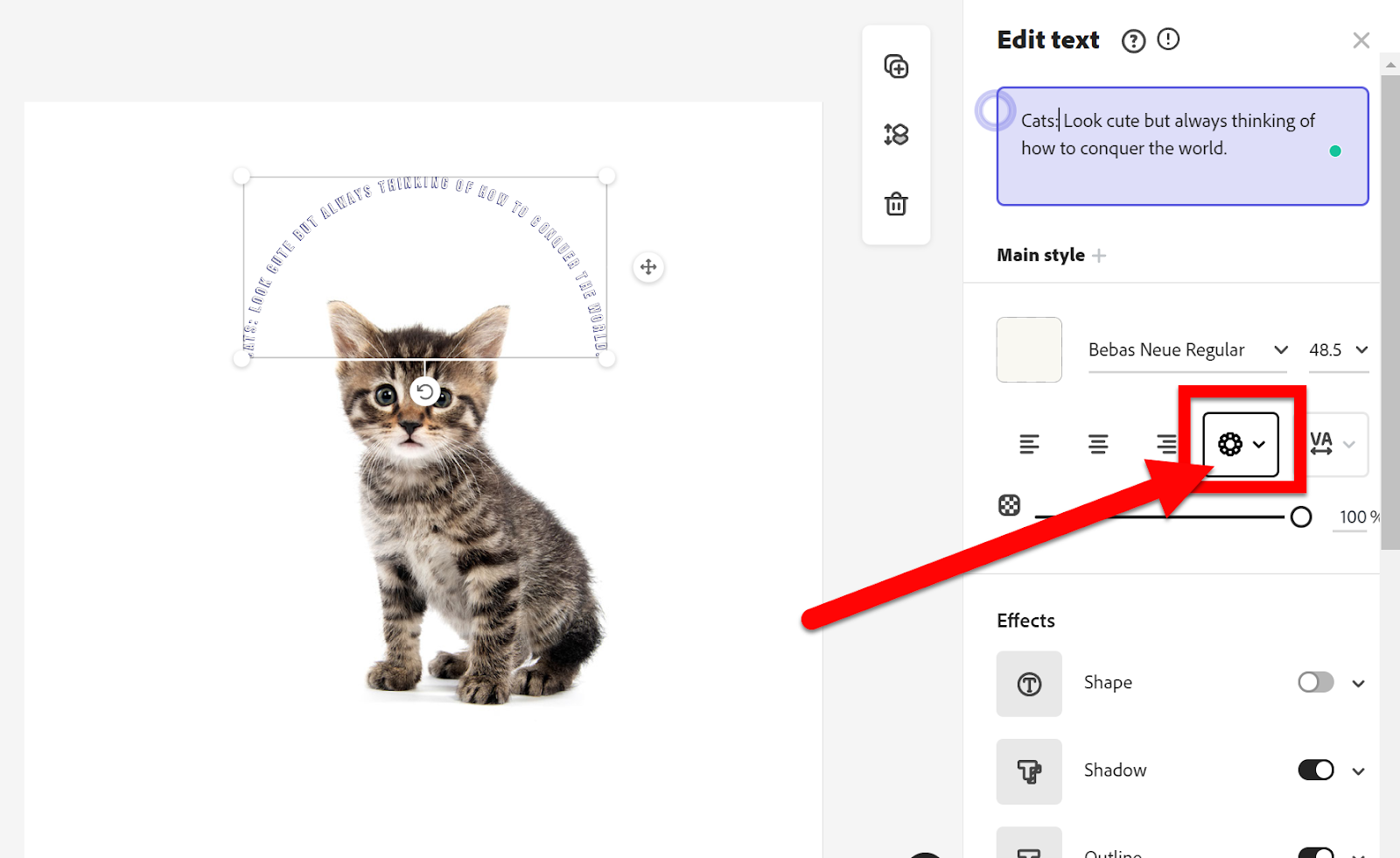

  1. Choose the style you want.


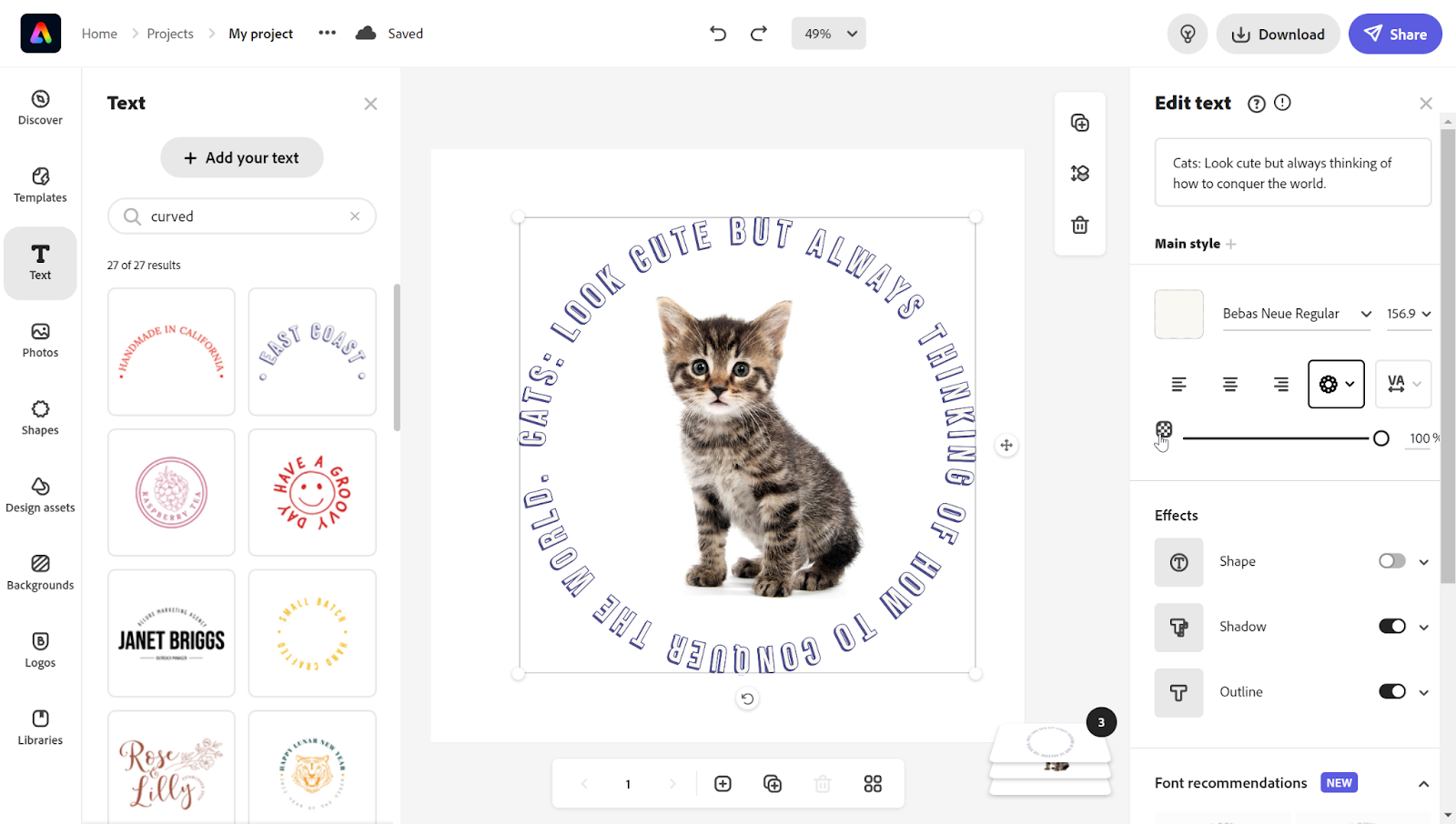
  1. Resize the text on your image.


Share Adobe Creative Cloud Express Projects:

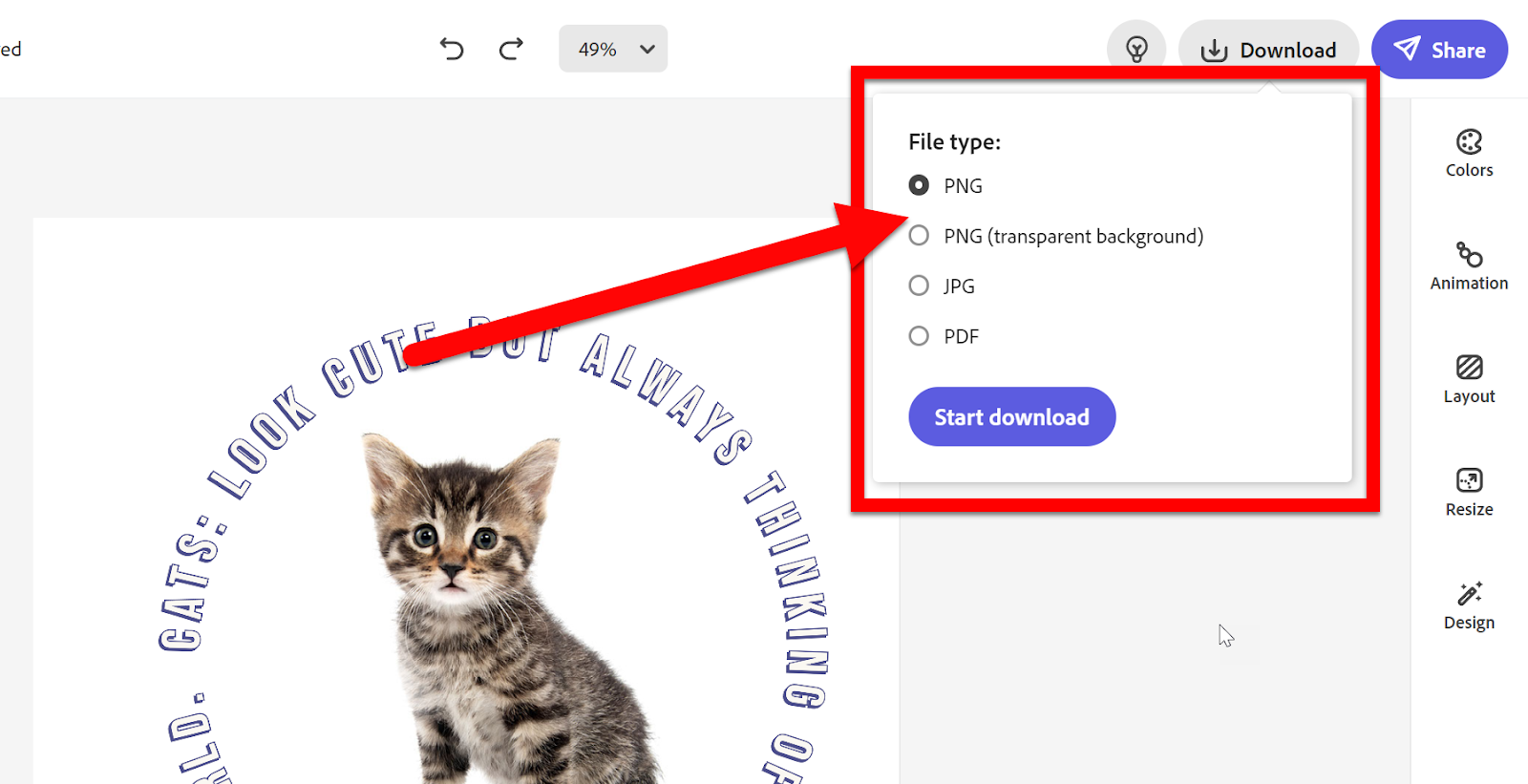
  1. After you create a project you will want to share it. You can share a link to this file or download it as an image. Because you are creating an image you should choose “Download”. 


  1. Choose the image format that best fits your needs. I always choose PNG. If you want the background to be transparent, you MUST choose PNG. 


Head to Adobe Creative Cloud Express & Start CURVING Your Text!!


If you want these directions in a Document click HERE!


Tuesday, March 2, 2021

Create Adobe Spark Projects

Adobe Spark is an easy tool that allows teachers and students to create awesome projects! You can easily create all sorts of visual projects like flyers, webpages, videos, images, graphics, and more. With the EDU account, we have access to all the Spark tools, resources, and projects. Students can easily use Spark to create projects to demonstrate their learning. Head over to Spark and start creating!


Adobe Spark Project Templates:

  1. Head to https://spark.adobe.com/ and sign in with your Enterprise Account.

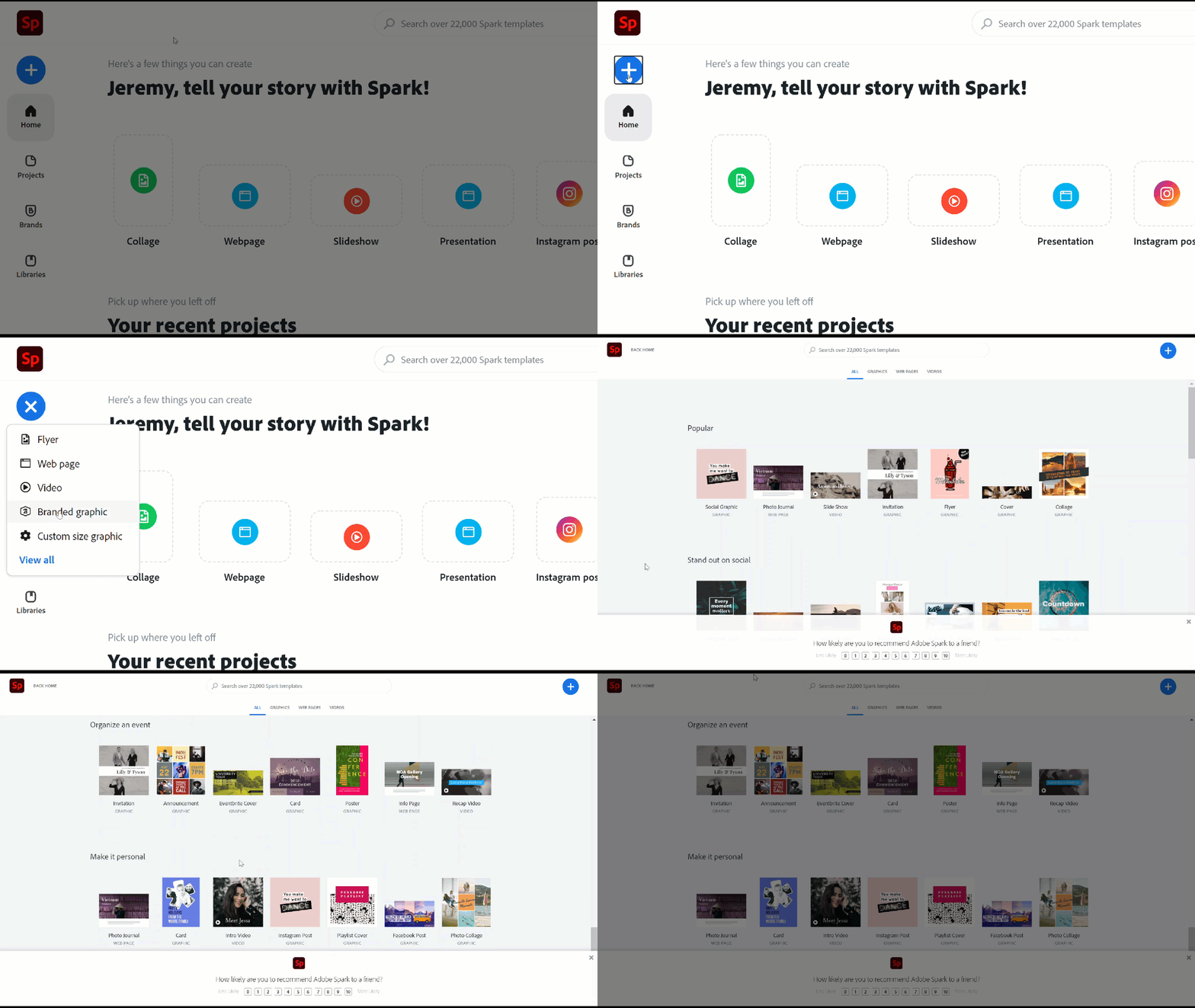
  2. On the main page, you will see a list of easy-to-create projects.


  1. You can also click on the blue “+” icon on the left to see more tools.


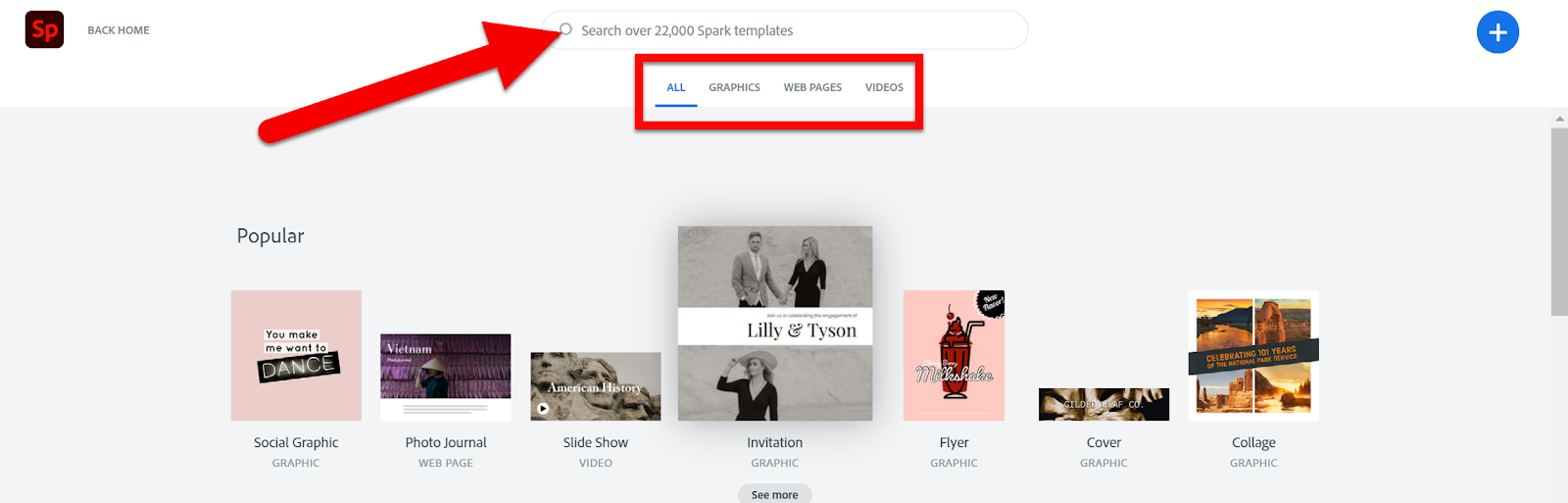
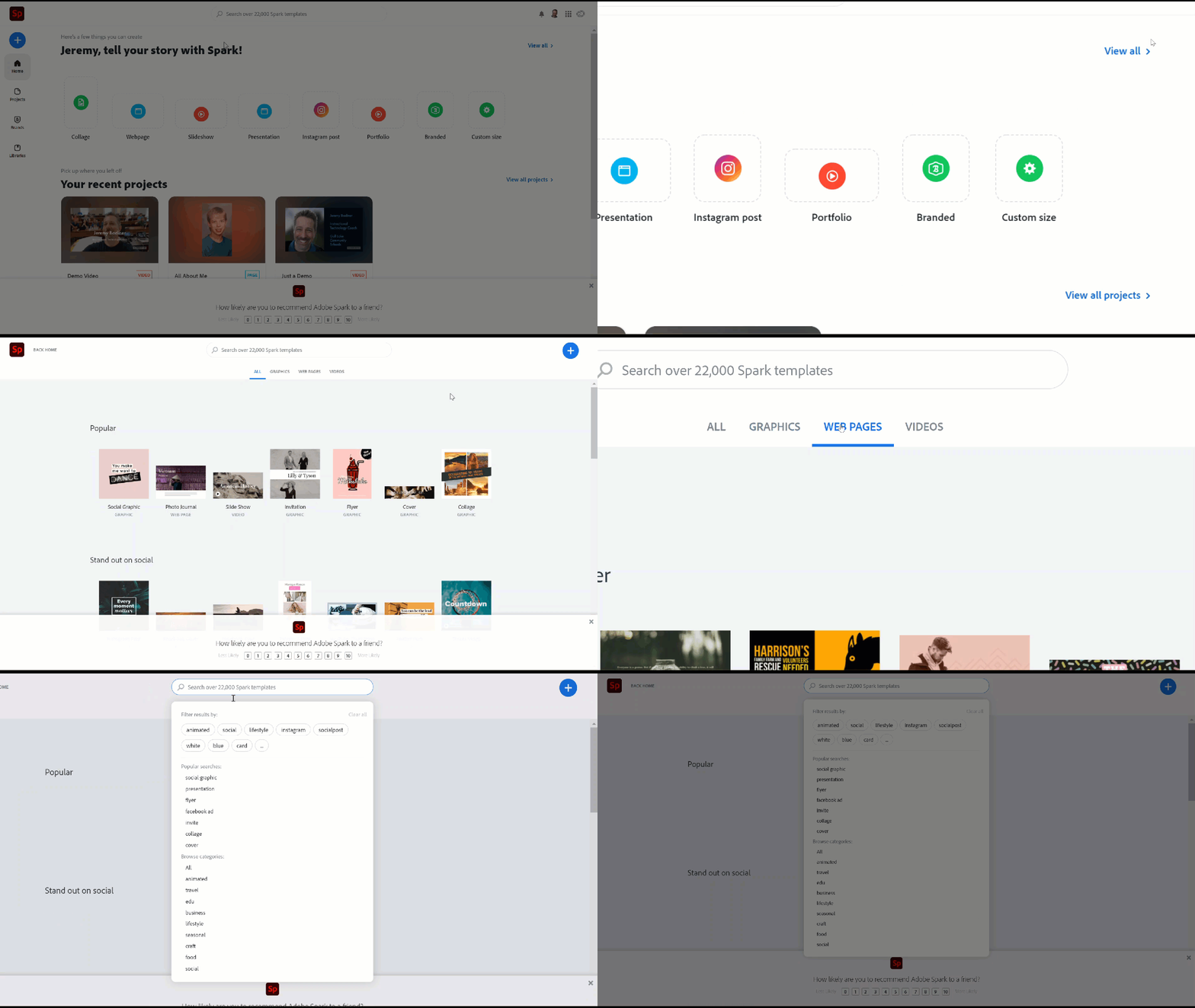
  1. In addition, you can search for templates with the Search Box or filter by project type.


  1. Choose one to use.

  2. You will be walked through the process of creating a project.


Share Adobe Spark Projects:

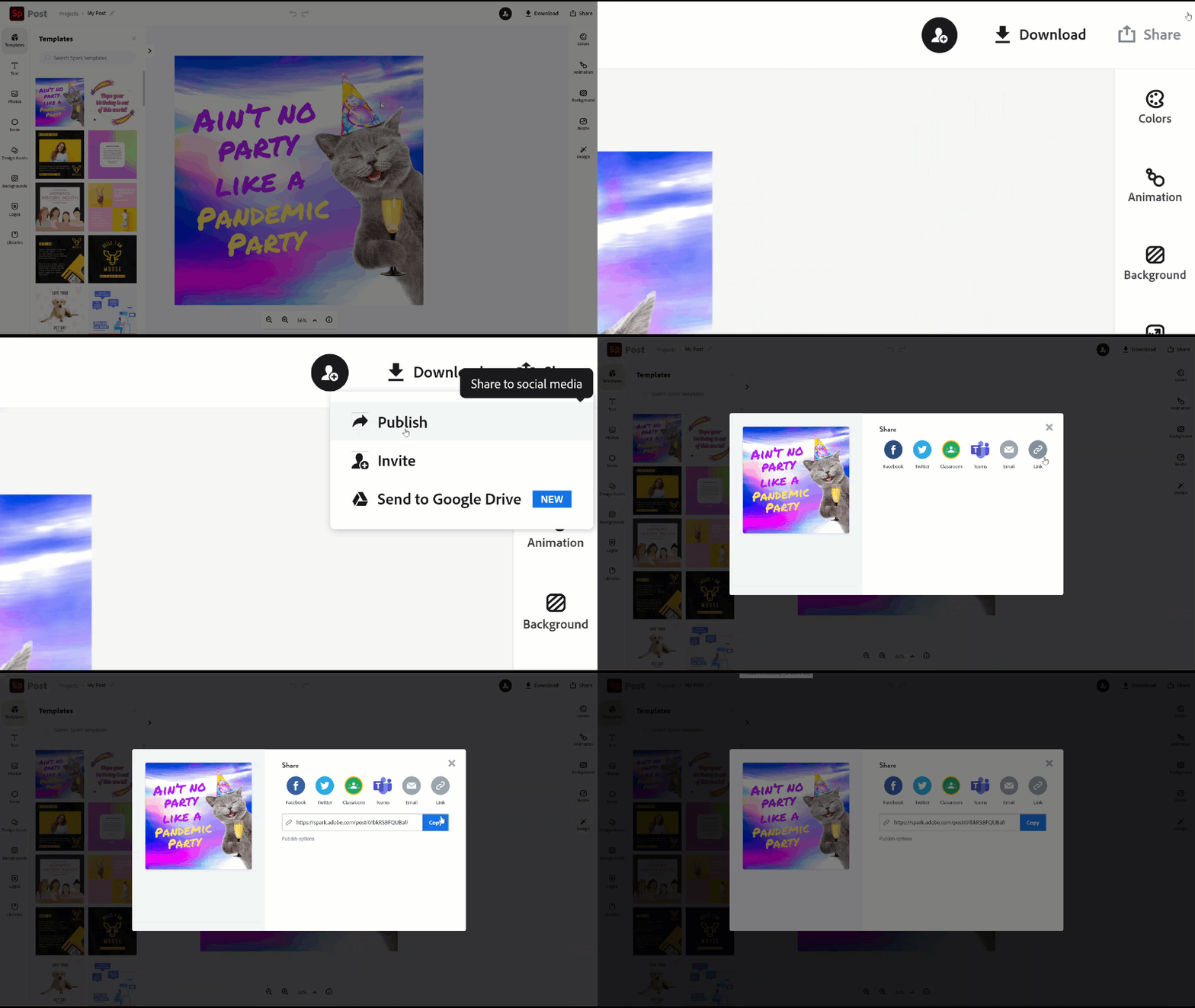
  1. After you create a project you will want to share it. Find the “Share Button”. 

  2. Then Choose “Publish” or “Publish and Share Link”. 


  1. This will be in different locations (depending on the project you are creating) but will work the same in all tools.

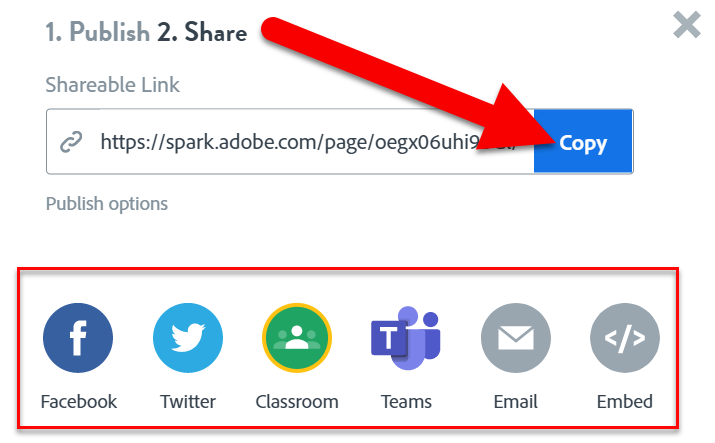
  2. You will see the sharing options. Generally, you will need to share a link (or Classroom). link created. All you have to do is click “Copy Link” and share that as you wish.


  1. This will be in different locations (depending on the project you are creating) but will work the same in all tools.


Head to Adobe Spark and Start CREATING!


If you want these directions in a Document click HERE!

Signing Into Adobe Spark

For those that have not explored Adobe Spark, it is INCREDIBLE! You can easily create all sorts of visual projects like flyers, webpages, videos, images, graphics, and more. With the EDU account, we have access to all the Spark tools, resources, and projects. Students can easily use Spark to create projects to demonstrate their learning. Head over to Spark and start creating!


Sign Into Spark with your Enterprise Account:

  1. Head to https://spark.adobe.com/.

  2. Click "Sign In".

  3. Choose "Continue with Google".

  4. Choose "Enterprise ID" (only if this option shows up...It did not on my demo student account, but staff might).


Make sure you are in Your Enterprise/School Account:

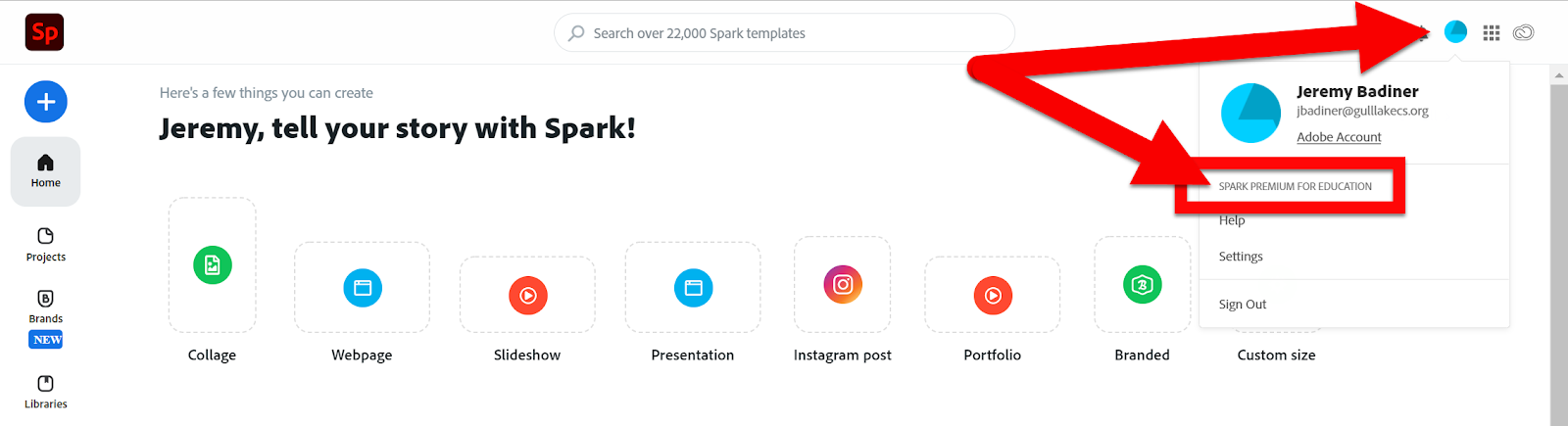
Make sure to check that you have the Premium Version. Click on your account icon in the top right and look for "Spark Premium for Education".


If you do not see "Spark Premium for Education" you may need to sign in with the steps below. I had that issue because I already had a Spark account set to my school email. I had to sign in once as an "Enterprise" account. Follow these steps one time:

  1. Sign out of Adobe Spark if you are already signed in.

  2. Head to https://spark.adobe.com/.

  3. Click "Sign In".

  4. Choose "Log in with school account".

  5. Choose "Continue with Google".

  6. Choose "Enterprise ID".

  7. You are ready to Create!


If you want these directions in a Document click HERE!