Showing posts with label Google Meet. Show all posts

Thursday, May 19, 2022

Use Google Meet within a Doc, Slide, or Sheet

If the past few years have taught us anything it is that we can do almost anything with Google Meet (or Zoom). Connecting and collaborating remotely has become the new norm. Google has launched an even easier way to collaborate within a Document, Slide, or Sheet. You can now create or join a Google Meet without leaving your Document! Check it out.


Access Meet within a Doc, Slide, or Sheet:

  1. Open a Document, Slide, or Sheet.

  2. Look at the top right corner for the Google Meet icon. Click on that icon.
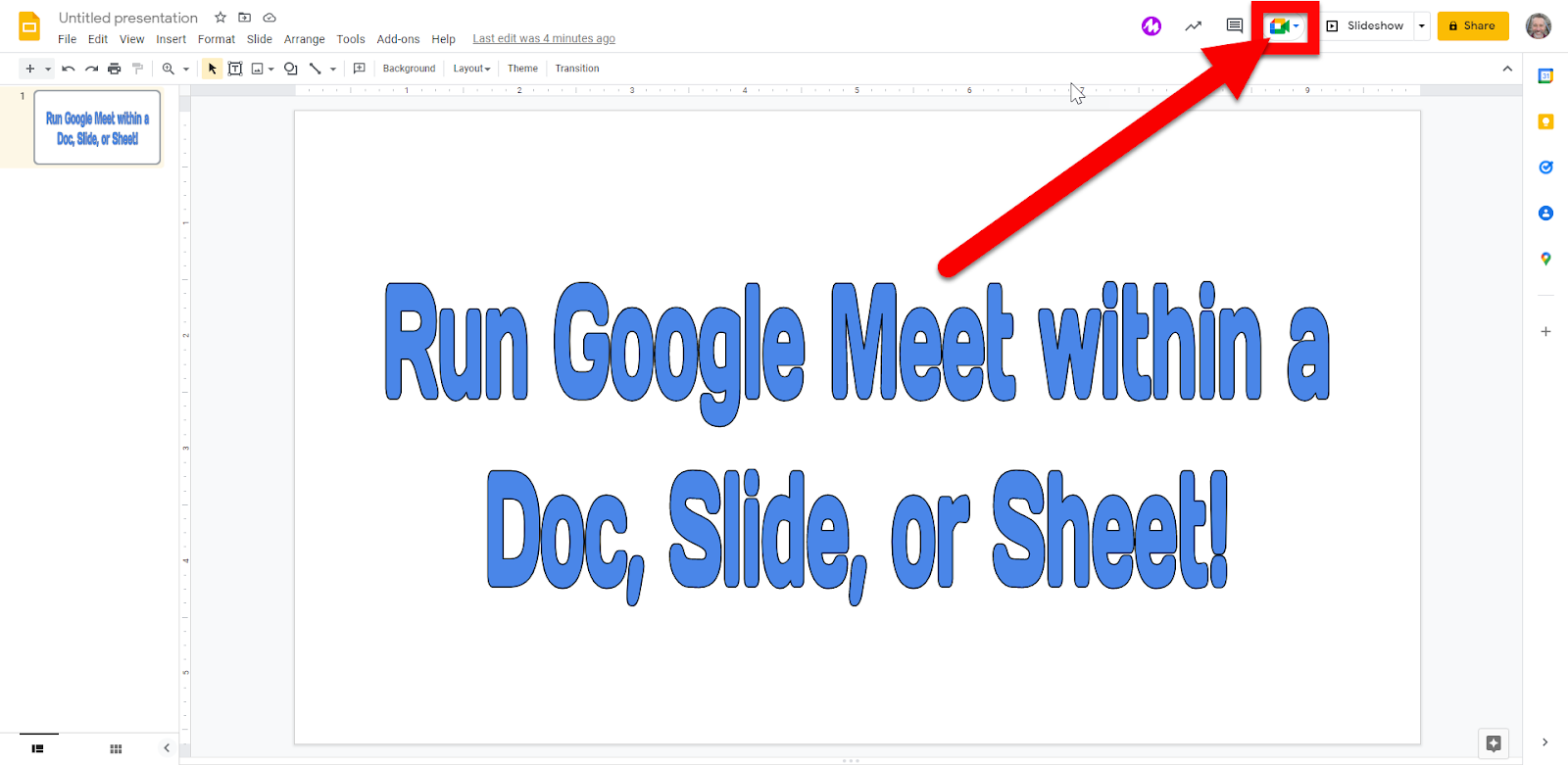

  1. If you want to create a meeting click on “Start new meeting”. 


  • You will get a link to share. Share this out with anyone you want in the meeting.


  • If you want them in the same Document, Slide, or Sheet you can copy the code (the last characters after the …com/ in the address) so they can enter them as their join code. This will allow them to see the Document, Slide, or Sheet without having to “Present” the tab. You can still present, but there might not be a need. You can then all edit at the same time as well.


  1. If you want to join an existing meeting click “Use a meeting code”.


  • Enter in the code you were given by the person who started the meeting. This will allow you to have the Document, Slide, or Sheet open and see other participants on the screen without having to share the screen.


  1. You will see other participants on the far right. There are options, like a regular Meet, that you can adjust as well.
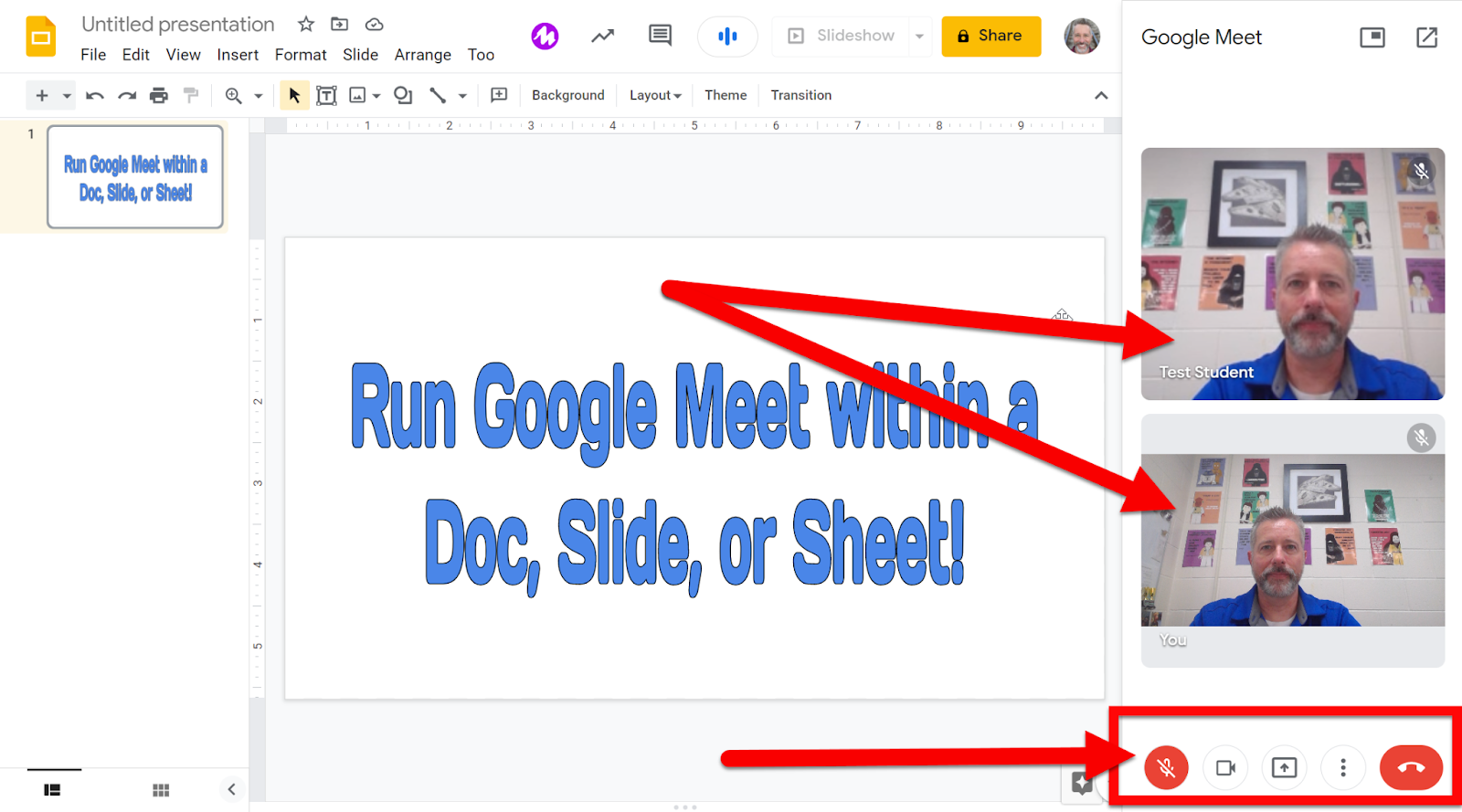

  1. End (or leave) the meeting when you want as you would a regular Meet.


The benefits of running a Meet from a Document, Slide, or Sheet is that you can all edit the document and collaborate while seeing and hearing each other without the indeed to “present” and take over the screen. Having the small video feed on the right and the live Document front and center is perfect for live creation, editing, and collaboration!


If you want these directions in a Document click HERE!


Thursday, February 4, 2021

Check Video & Audio Quality Before a Meet

Nothing is worse than joining a video call and having video or audio issues. Meet now has a tool that lets you make sure your device is running well and audio and video are ready. 


Check Video and Audio Quality:

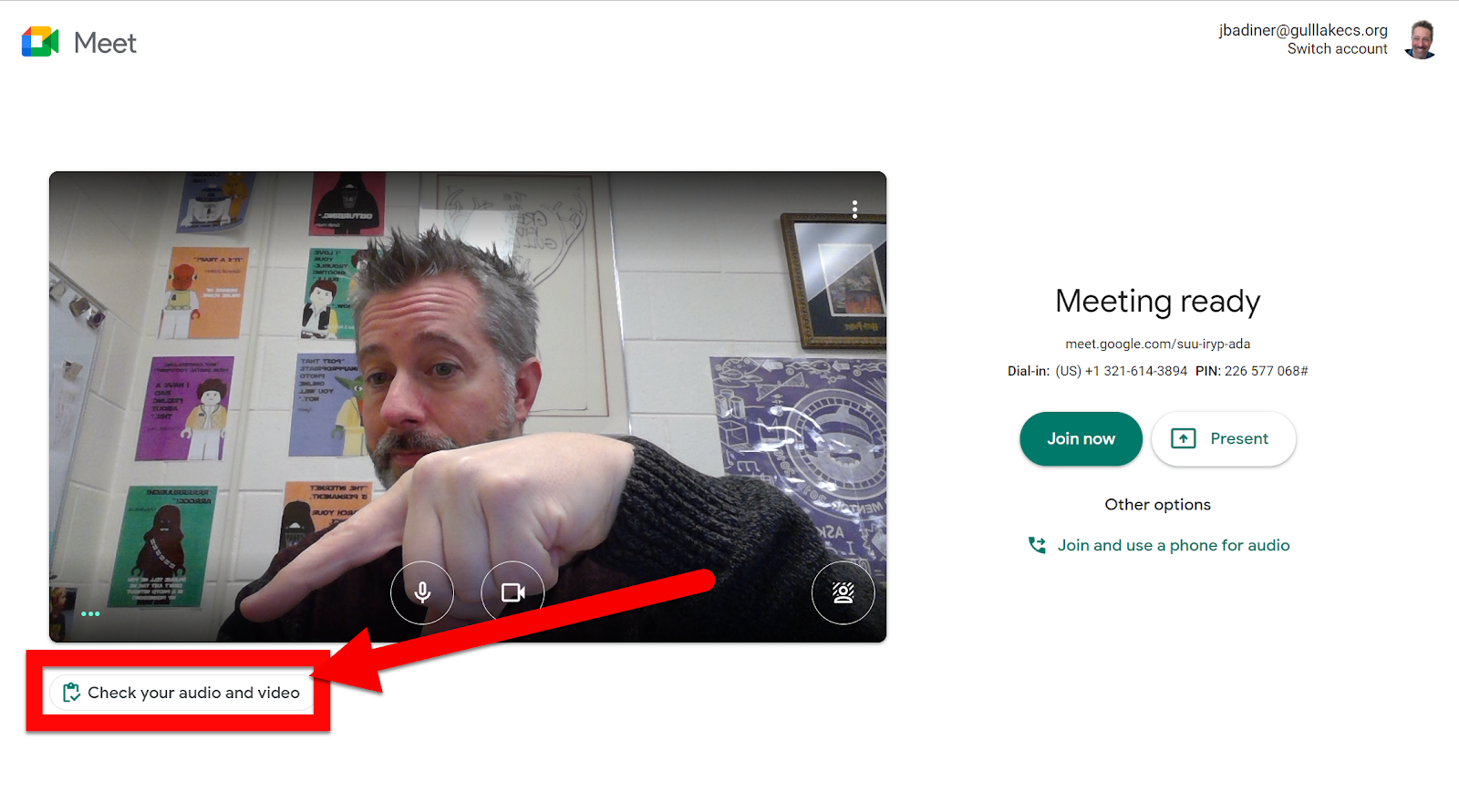
  1. Open up a Meet link (or begin a new meeting) at meet.google.com

  2. Click on the icon for “Check your audio and video” below your video.


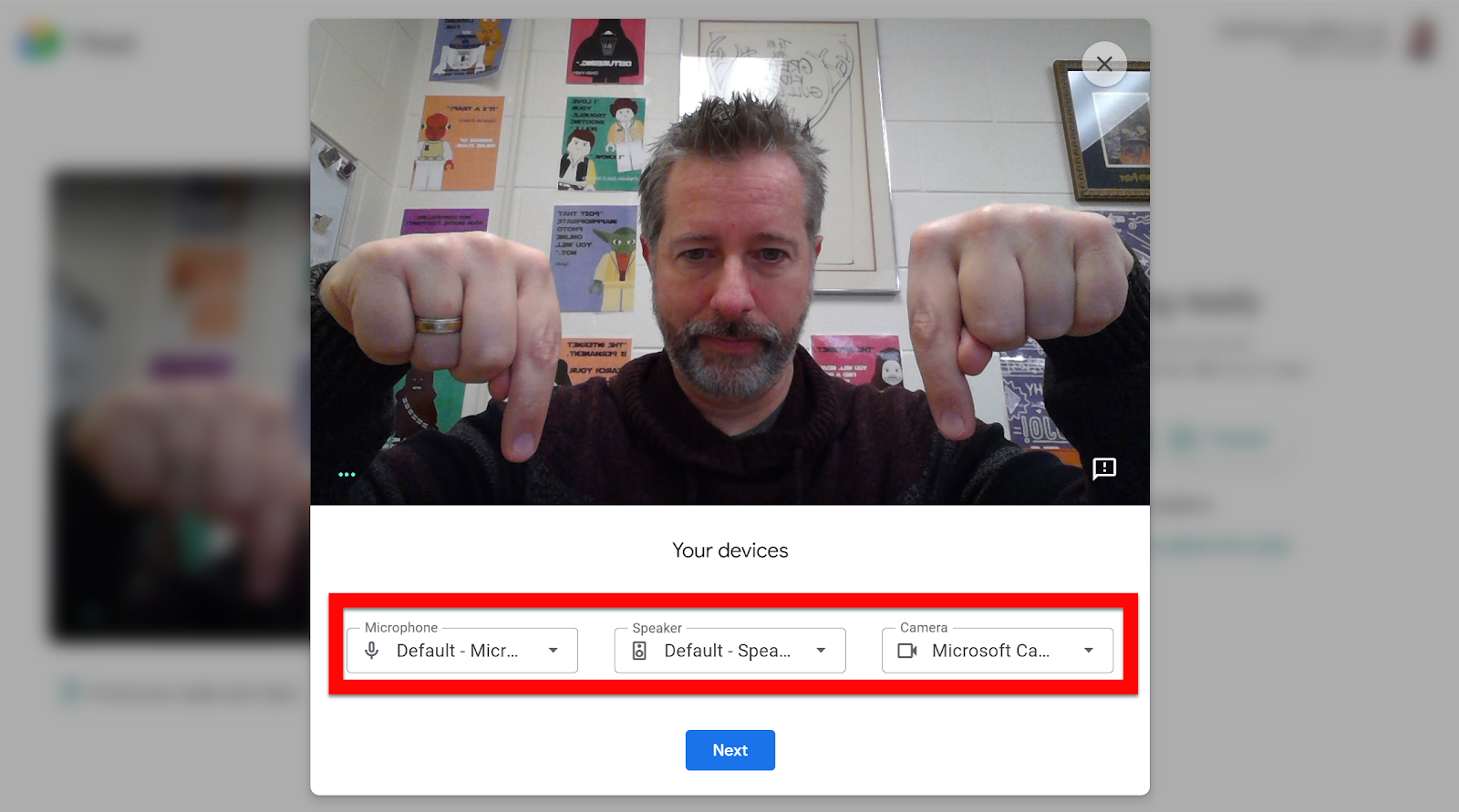
  1. Adjust your hardware as needed, then click “Next”.


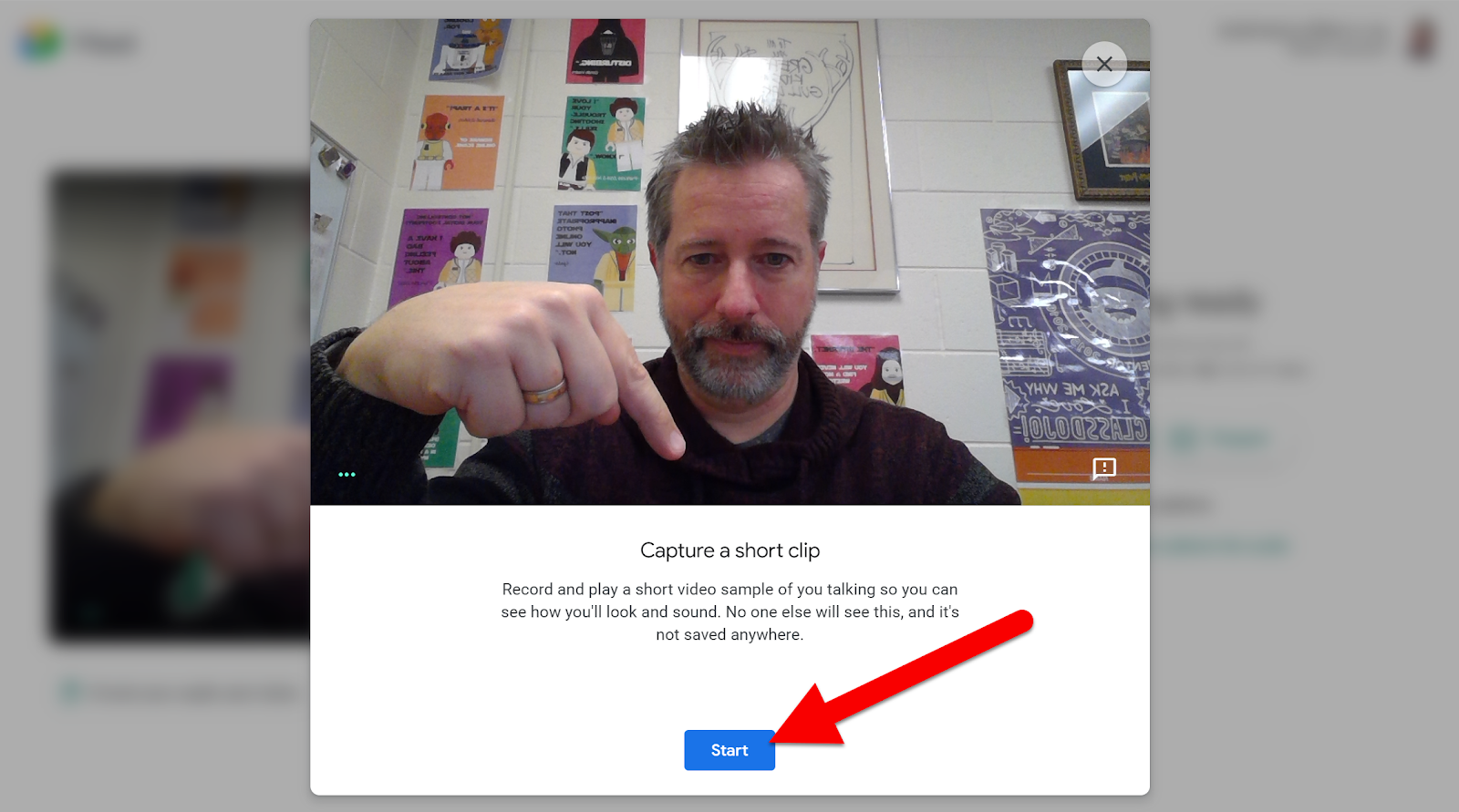
  1. Capture a video and audio sample by clicking “Start”.


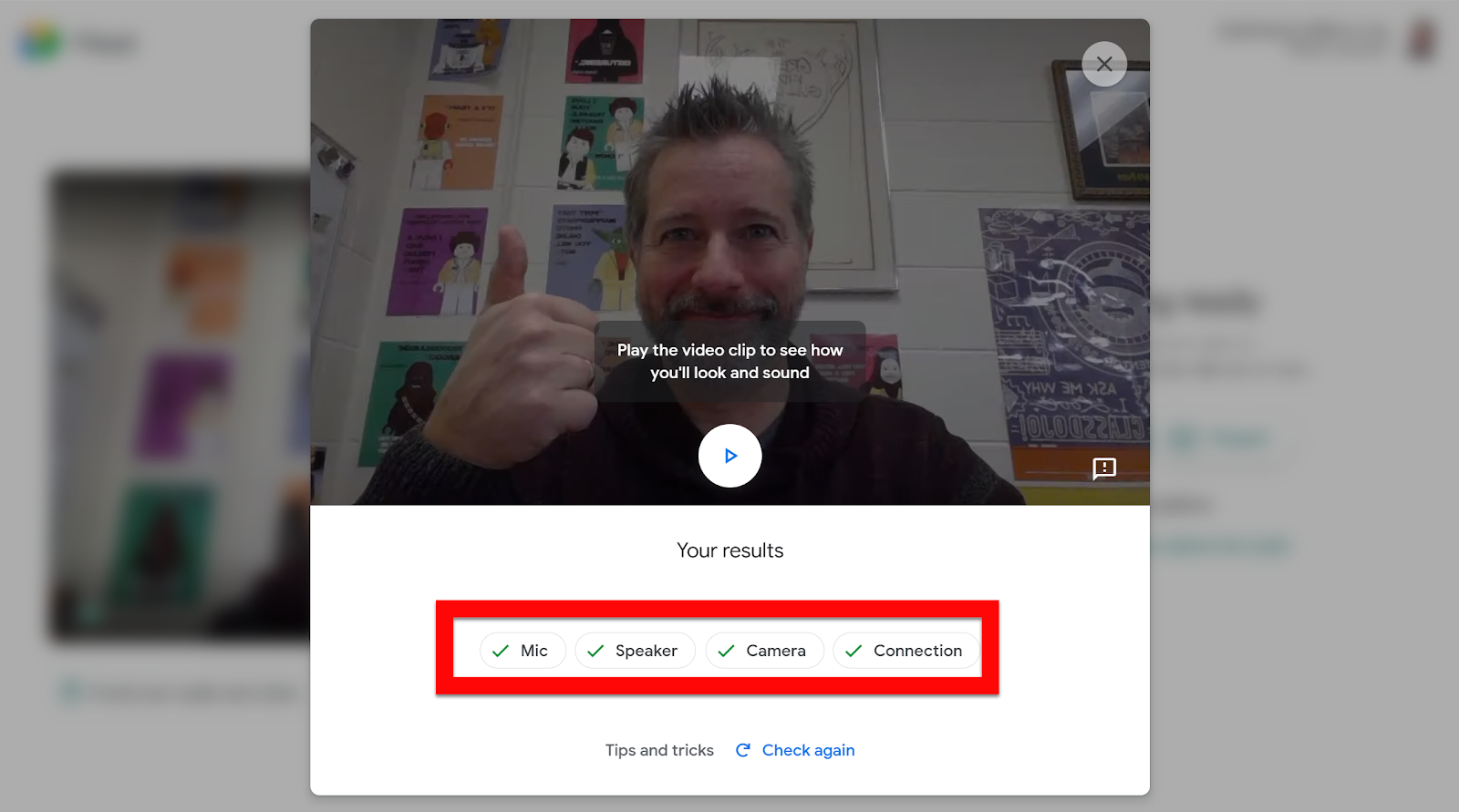
  1. See your results. Click “Check again” if you need to alter anything and want to run another test.


Close this out by clicking the “X” in the top right and you are ready to join your meeting knowing your hardware is ready!


If you want these directions in a Document click HERE!


Tuesday, November 17, 2020

Remove Unused Google Meet Extensions & Using Meet’s Built-In Grid View

Ok...the days of needing any of the Google Meet Grid View extensions are over. This is now built into Google Meet. What does that mean for many of you? You need to remove all those Grid View extensions as they are fighting each other, causing issues, using a TON of Chromebook/PC resources, and slowing down your device. The more extensions you have, the more resources are used all the time and the slower your device.


One Way to Remove Extensions:

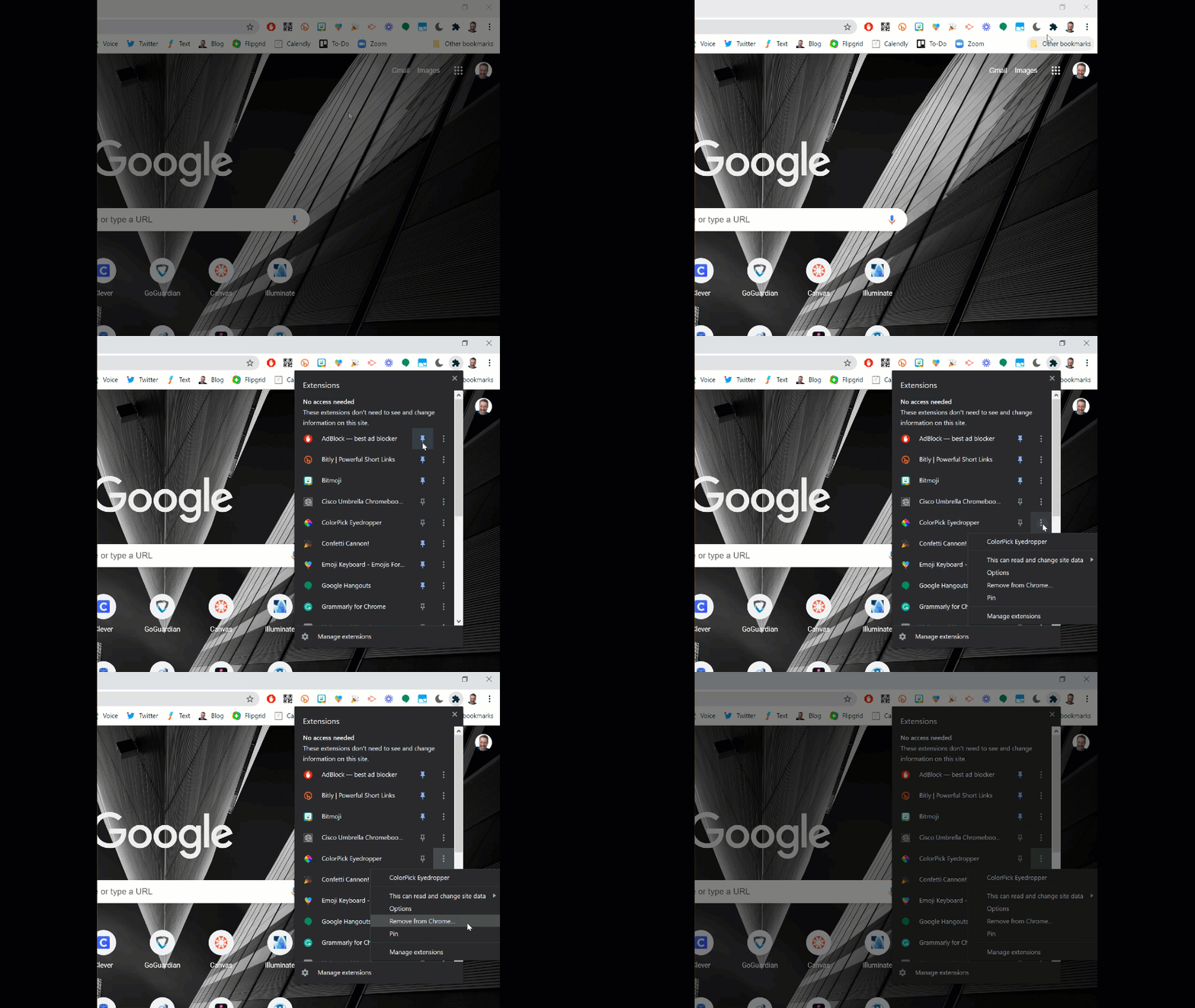
  1. Click on the Puzzle Piece in the top right of Chrome.

  2. Click the 3 dots to the right of the extension you are no longer using.

  3. Click on "Remove from Chrome..."

8574FDE8-246C-4205-8685-F0CDE0D0DA08.GIF


You should do this for any extension you are no longer using, not just Meet Grid View. Now is a great time to remove all those extensions you forgot you installed. The ones that you cannot remove are pushed by the District.


How to use the Built-In Grid View in Meet:

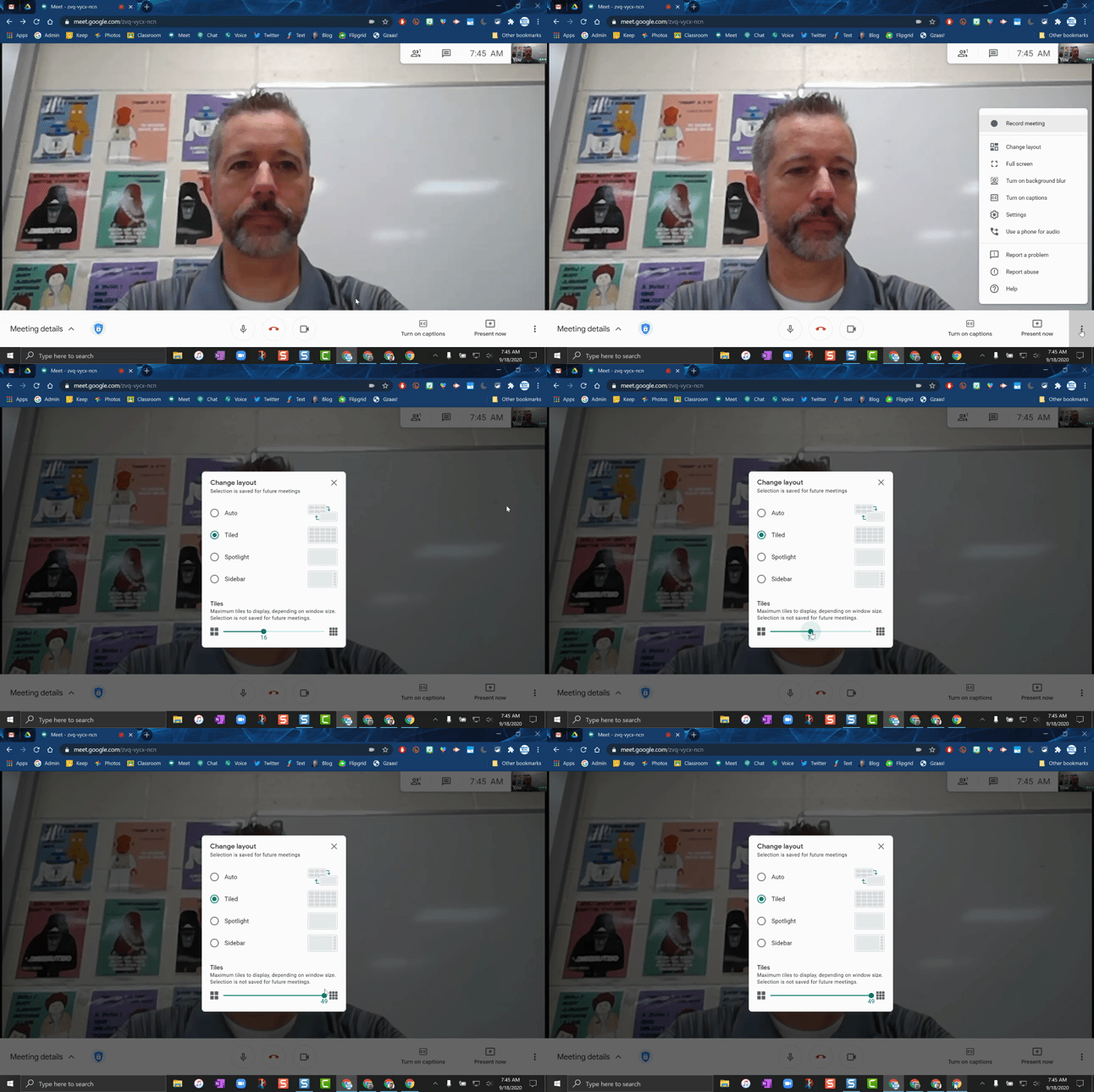
  1. Click the 3 dots in the bottom right corner.

  2. Click on "Change Layout".

  3. Choose "Tiled".

  4. Slide the slider at the bottom to the right.

Meet Grid View.gif


You will have to do this each time you start a meeting. Unfortunately, there is no saving this to default.


See all Participants in Meet While Presenting:

The only issue is when you are presenting you get that box that says "You are Presenting" (like we really need to be told?). This is usually the issue for those using 2 monitors (if you only use one you only see the screen you are sharing and not any participants).

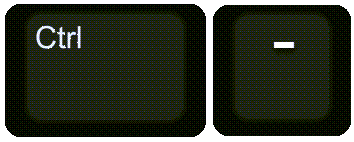
  • If you take that screen with the "You are Presenting" showing and hold Control and tap the -  button then the "You are Presenting" box will shrink. All your kids will show up (the more you tap the - button the smaller that box gets and the more kiddos you can see). 

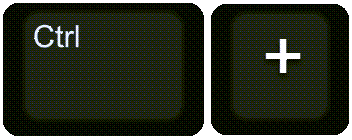
  • When you want to go back to normal you can hold Control and tap the + button. Not perfect, but gets the job done.


If you want these directions in a Document click HERE!


Tuesday, November 3, 2020

Background Updates to Meet


Google Meet has been receiving some updates over the last few months. Here is the latest update to change your video background! 


Open Background Settings:

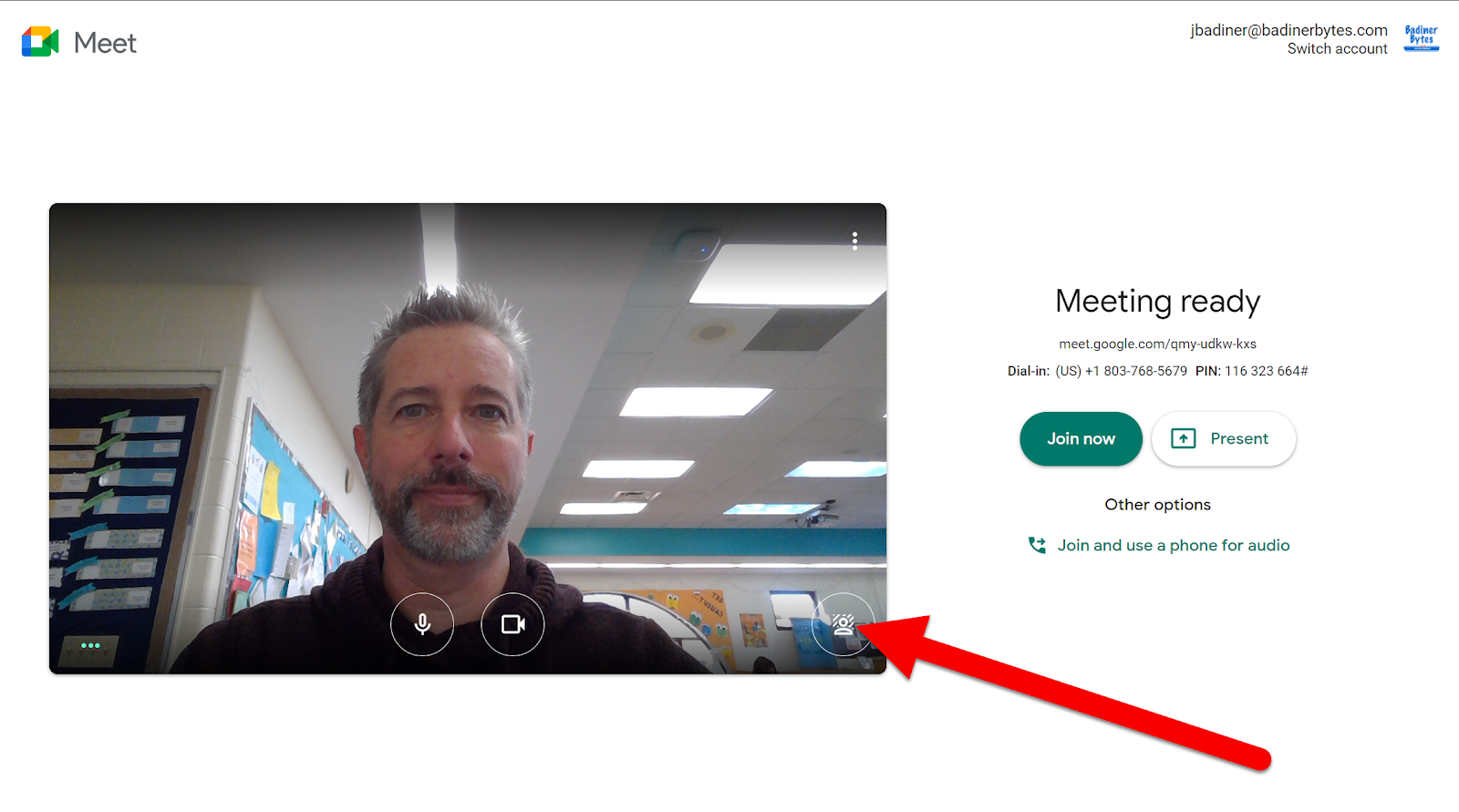
Before Joining Meet:

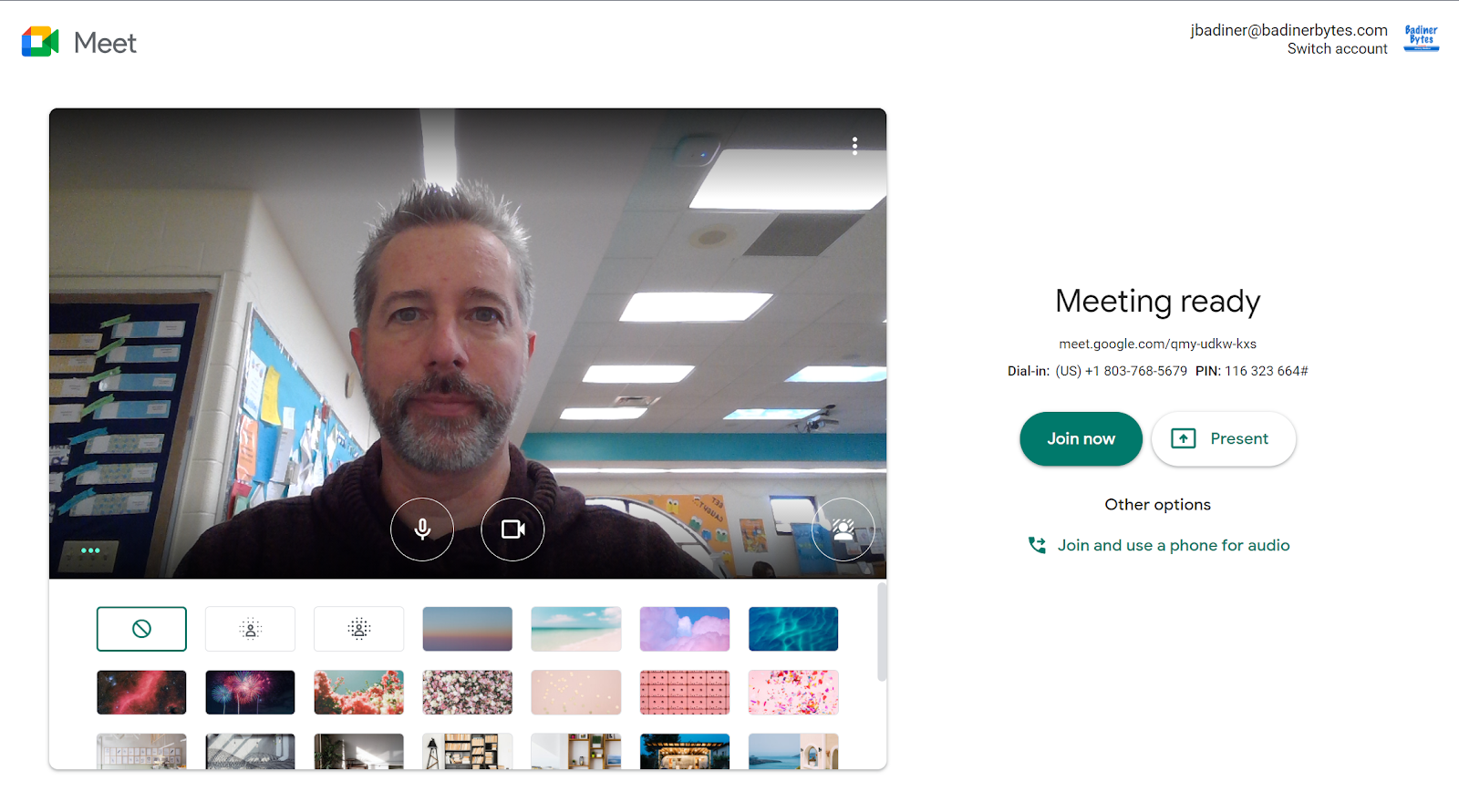
  • Click the shaded person icon in the lower right corner of your selfie video.


  • This will pop-up to select your background image.


After Joining Meet:

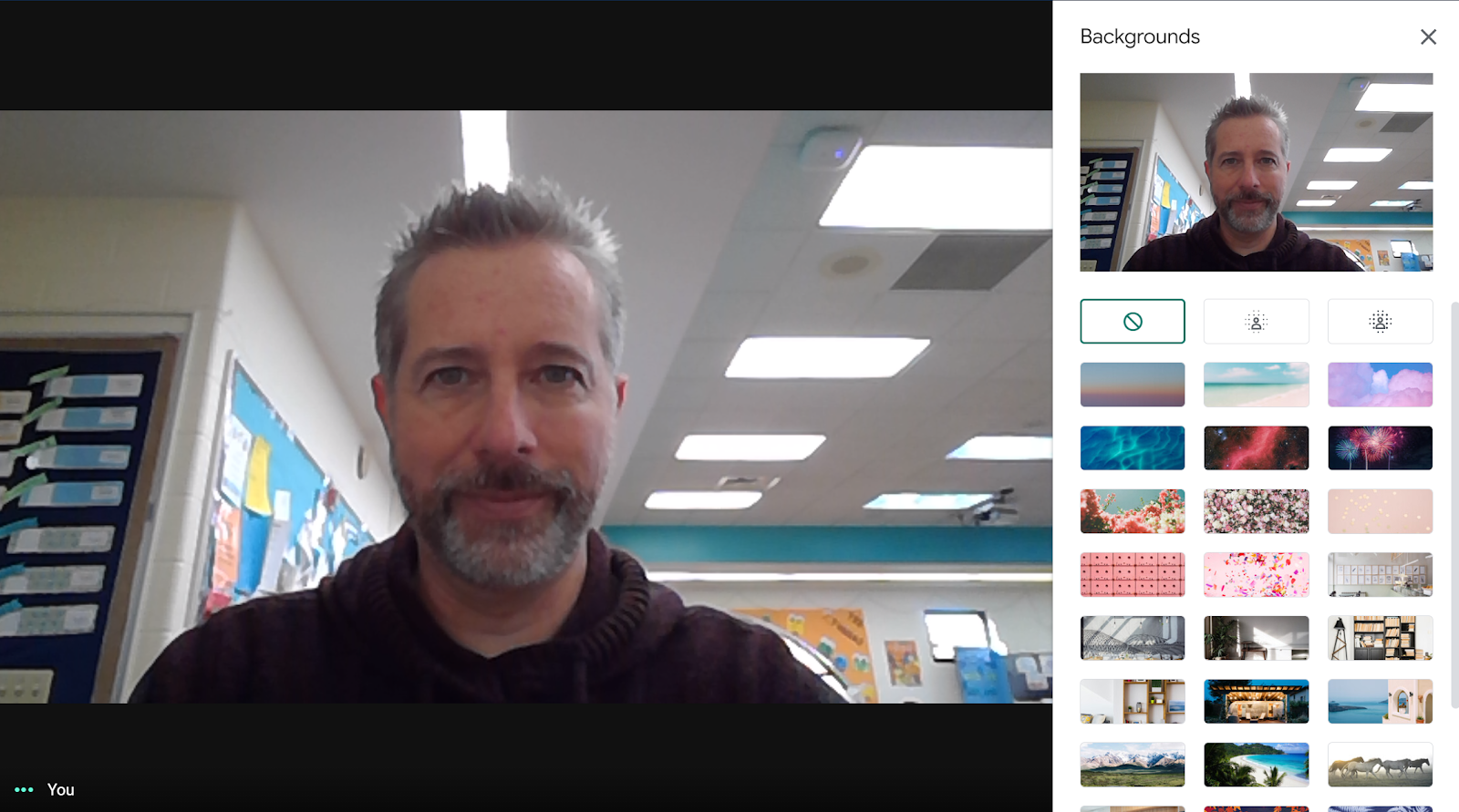
  • Click the 3 dots in the lower right corner and then click “Change background”.


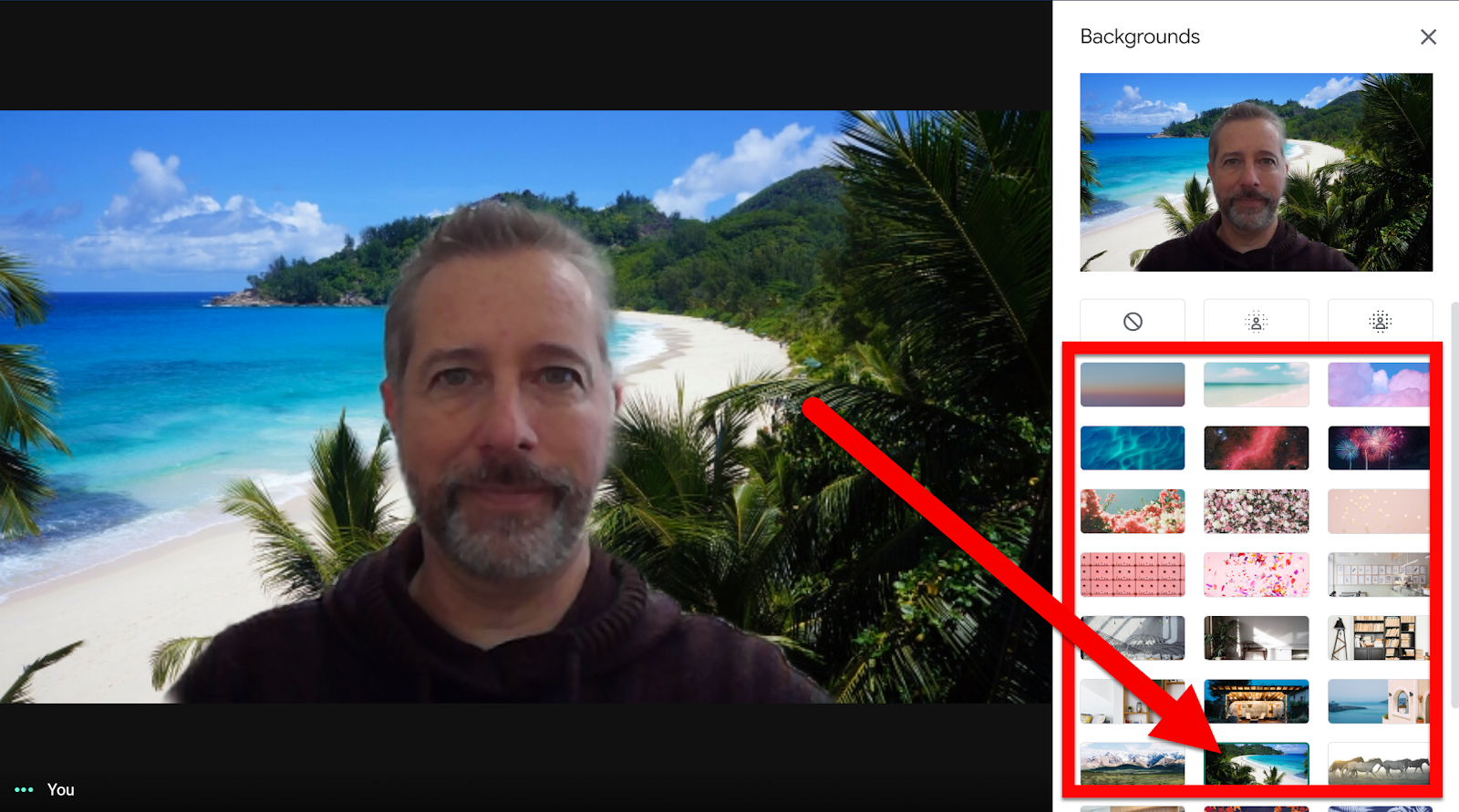
  • You will see the options available. The top row is the blur background options and the bottom lists images you can choose. The ability to upload your own will come later when Admin gets the ability to disable this for specific school groups.


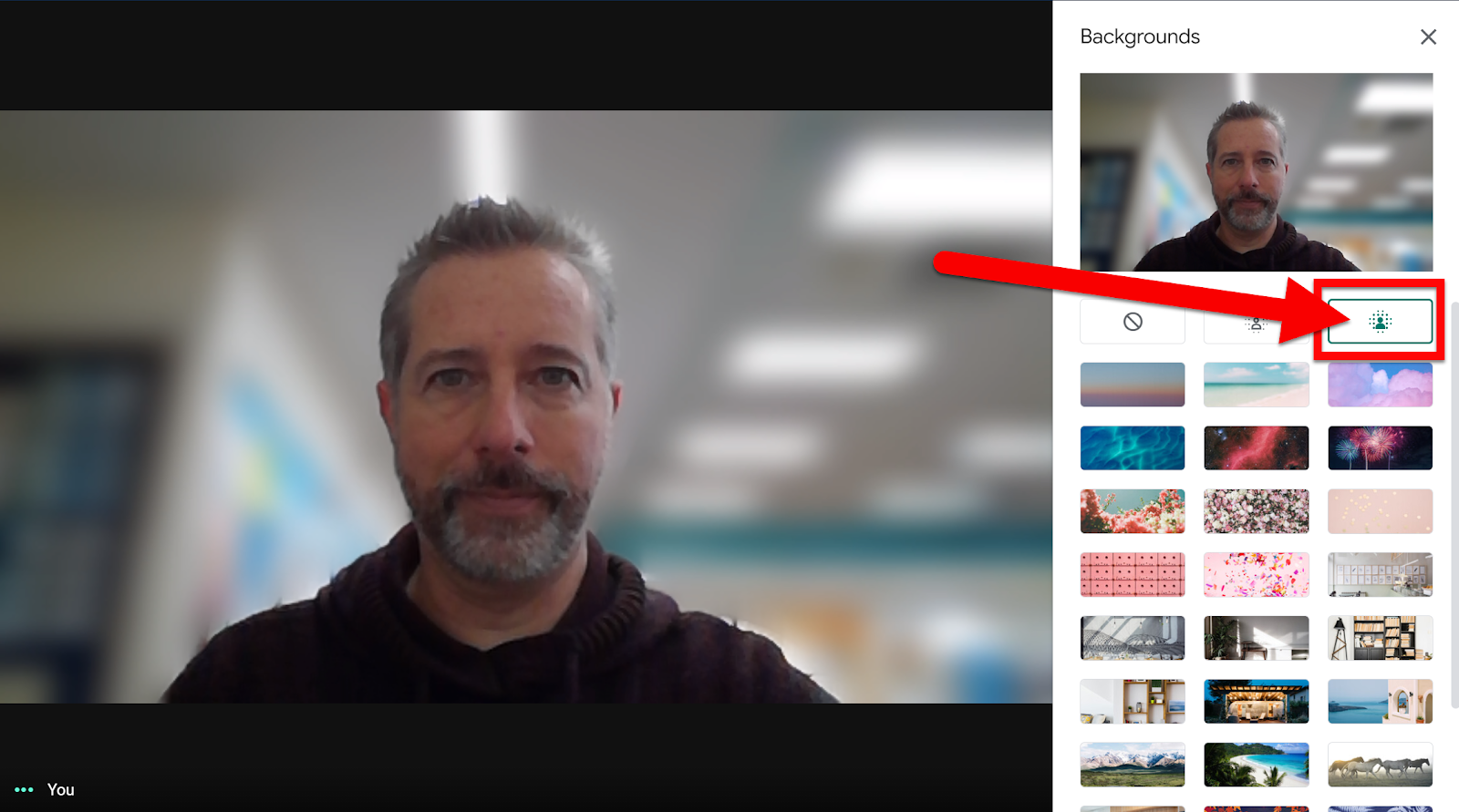
Blur Background:

  • Click the first “Blur” option. This is for a slight blurring of the background.


  • Click the second “Blur” option. This is for a heavy blurring of the background.


Set Background Image:

  • Click on any image listed. It will set that as your background.


Reset Background to No Blur or Image:

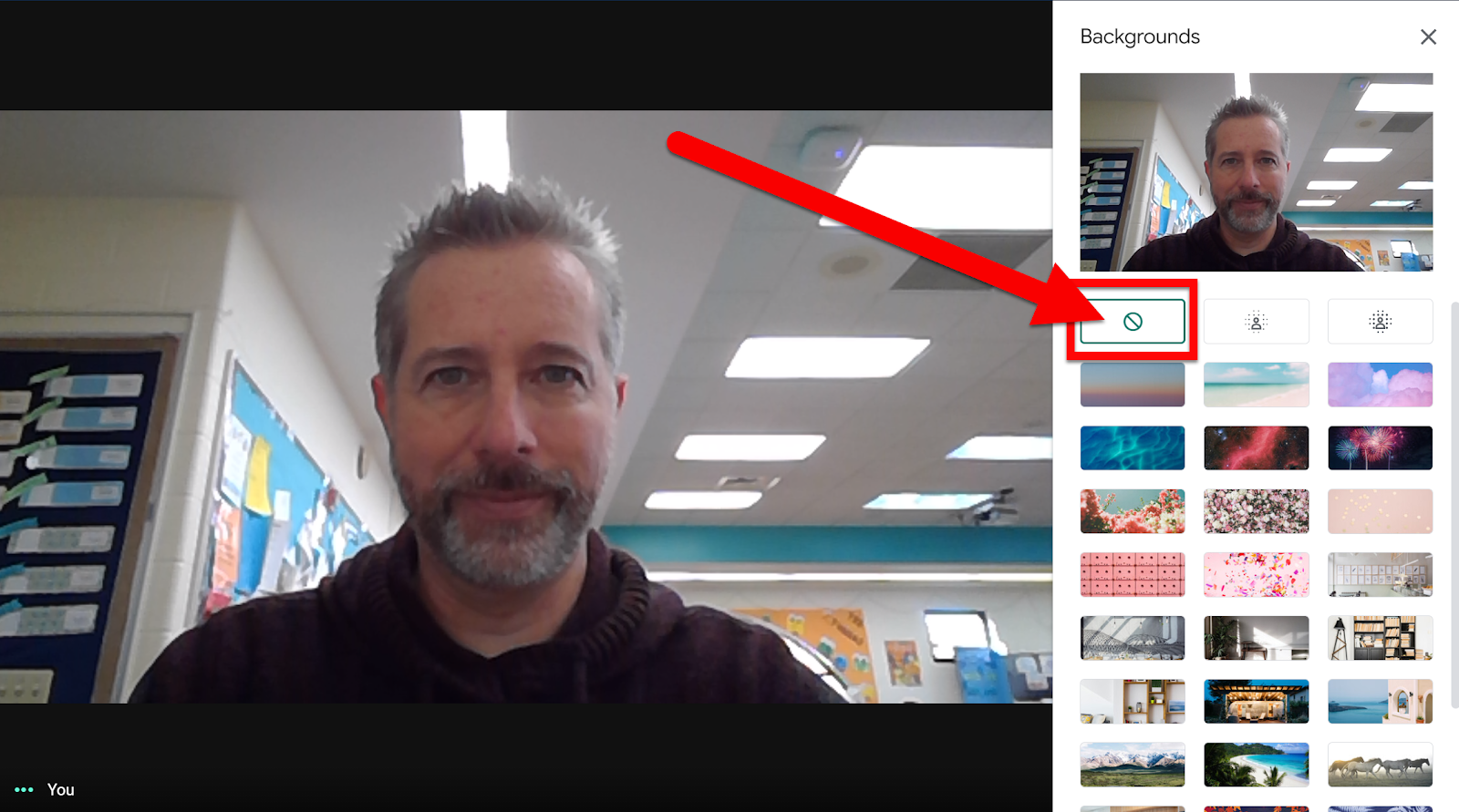
  • Click the 🚫icon to remove any background you previously added.


Any blur or image you set will be saved in your next Meet session.


If you want these steps in a Document click HERE!

Friday, September 18, 2020

Latest Updates to Google Meet


Google Meet is receiving some updates over the next few months. Here are the ones hitting domains now and over the next couple of weeks! 


Disable Students from Using the Chat or Screen Share Features:

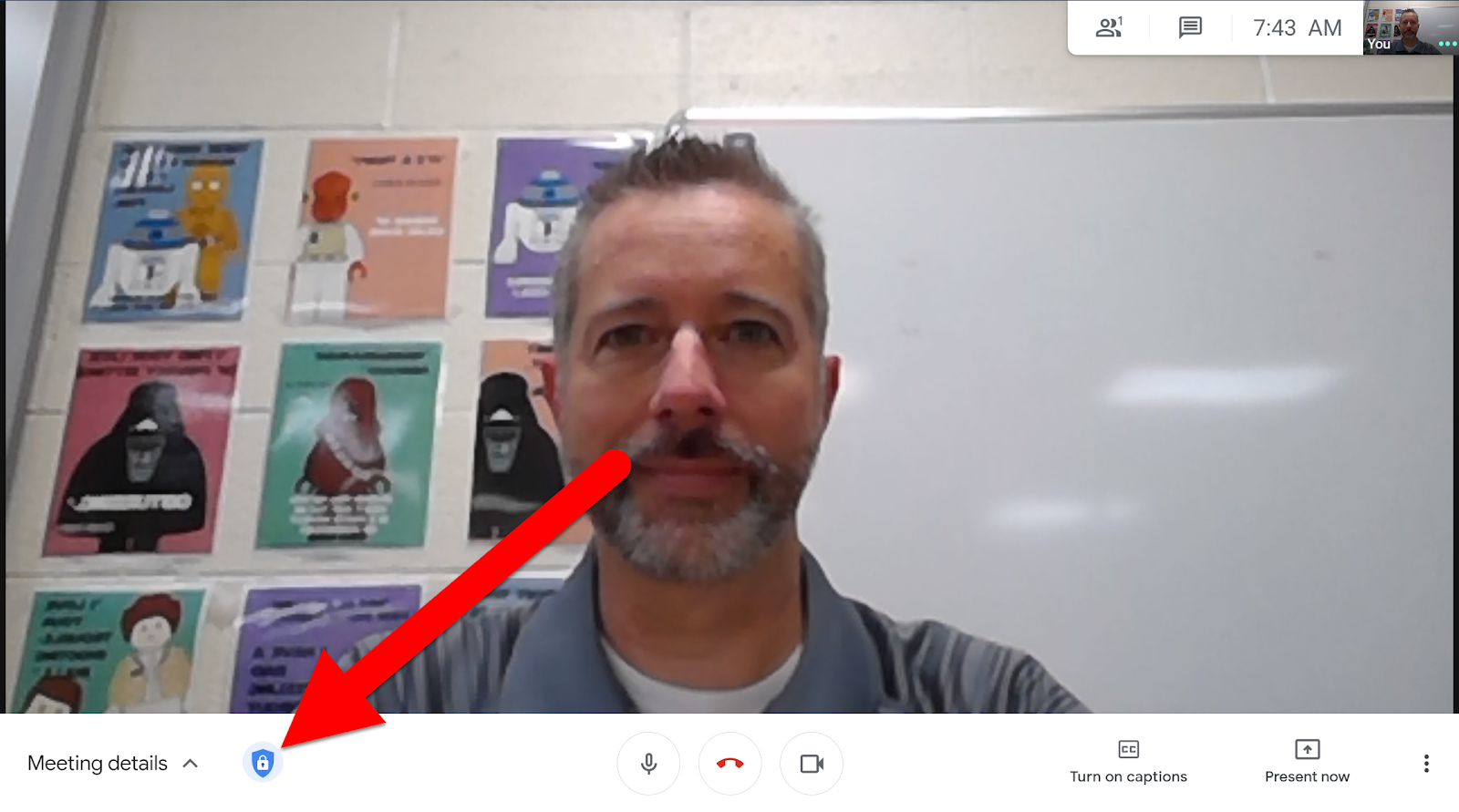
  • Click on the blue shield image in the bottom left corner.


  • Select which feature you wish to disable for participants. You can always enable them during the call if you wish.


Quick Access:

  • Click on the blue shield image in the bottom left corner

  • Turn on or off “Quick Access”.

    • On: Allow others into your Meet without having to manually allow.

    • Off: Everyone who is not invited (even those within your domain) must ask to join the Meet.


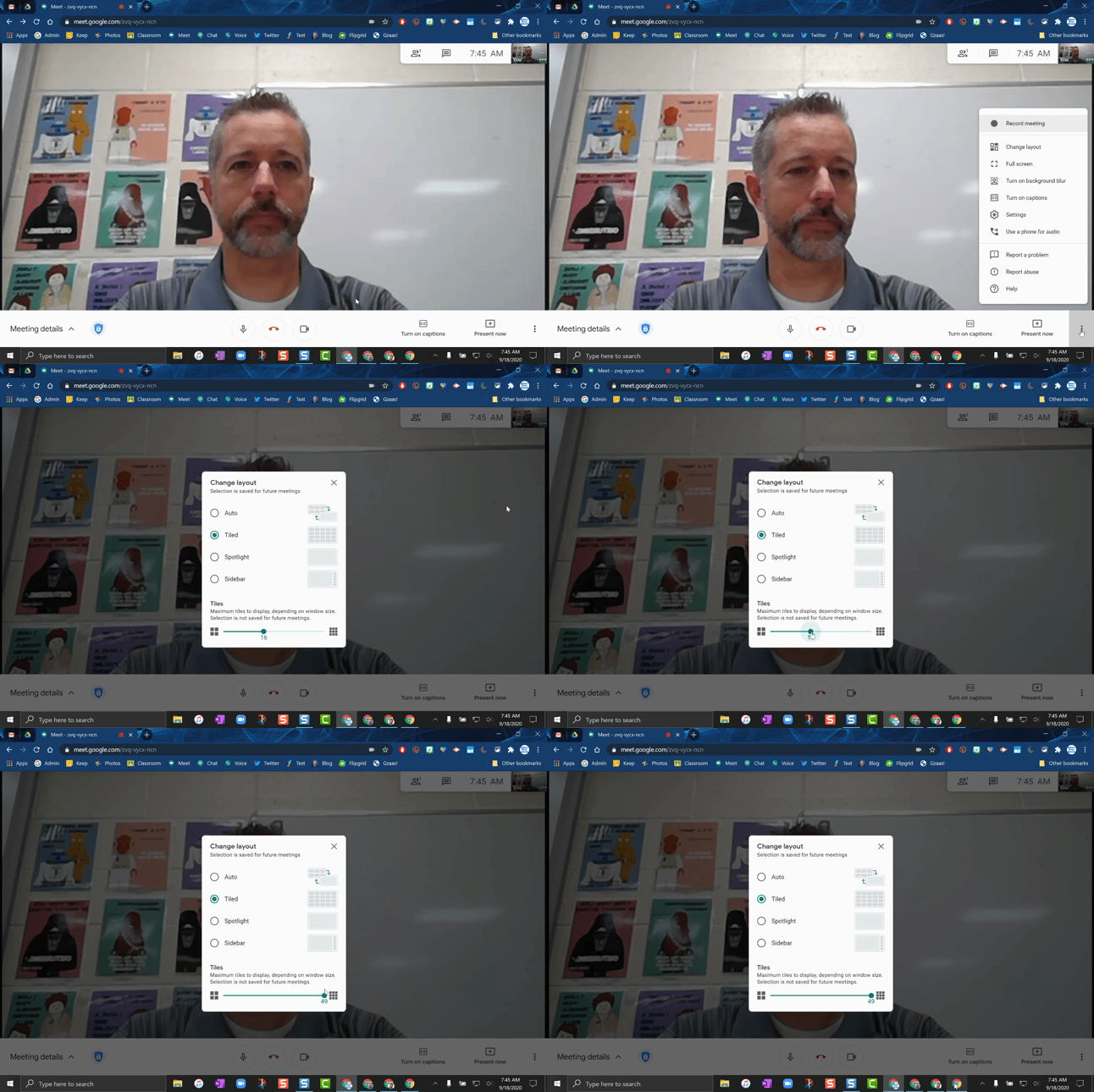
View Up to 49 Participants in Grid View (Without an Extention!):

  • Click on the 3 dots in the lower right corner.

  • Click on “Change layout”.

  • Click on “Grid”.

  • Use the slider at the bottom to select the max number of participants you wish to view.


Blur Your Background:

  • Click on the 3 dots in the lower right corner.

  • Click on “Turn On Blur Background”.

  • To turn off blur, follow the same steps, and click “Turn Off Background Blur”.


Keep an eye out for these Meet updates to roll out to our domain!


If you want these directions in a Document click HERE!

Tuesday, September 8, 2020

Updates to Google Meet

Google Meet is receiving some updates over the next few weeks. Some of these updates are upgrades to Meet functionality while others are features the free version is losing (reverting back to the original features after the COVID-19 free upgrades expire). There will be some added features and teacher controls to make it better for the classroom. Unfortunately, some of the updates will not be included in the G Suite for Education Free version (what we and most schools have) of Google Meet. Below are what we can expect to see in our G Suite Meet updates in the near future. I have only shared what is coming (and what is going away) to the Free version of G Suite for Education (not the features coming to the Enterprise version).


Google Meet Features that are Reverting (post COVID-19 upgrades):

Let’s start with the features we will be losing. With the outbreak of COVID-19 in the spring Google granted the free G Suite for Education accounts some upgraded features that were only available to the Enterprise Edition (paid edition). Beginning October 1, 2020, domains like ours that do not have G Suite for Education Enterprise will revert back to the standard G Suite for Education Meet capabilities. This means that Google Meet will now have these features:

  • Meetings up to 100 participants (was temporarily increased to 250)

  • No live streaming

  • Dial-in access to meetings 

  • Closed Captioning, viewer initiated

We will also lose the full Record Session Feature. We will revert to Temporary Recordings. What are temporary recordings?

  • With temporary recordings, a new free feature coming to G Suite for Education, any meeting host will be able to record a meeting and share the recording within their domain for up to 30 days before the video expires. Given disparities in internet access, temporary recordings are intended to help meeting participants replay a class or meeting they couldn't attend live. Temporary recordings can't be shared outside the host’s domain or downloaded. 


Google Meet Features that Upcoming (added upgrades):

Launching in September

  • Larger tiled views with a 7x7 grid so you can see up to 49 students at once 

  • A collaborative whiteboard with Jamboard in Meet so you can encourage students to share ideas and try creative approaches to lessons 

  • Moderators will be able to prohibit participants from joining meetings after they’ve been ejected or denied entry twice 

  • End meetings for all participants when class is finished

  • Manage join requests with ease by accepting or rejecting them in bulk

  • Disable in-meeting chat and set restrictions on who can present during a meeting 

  • A setting that requires the teacher to join a Meet first


Launching in October

  • Blur or replace backgrounds so everyone feels more comfortable during distance-learning classes. Note: Admins can disable custom backgrounds as needed.


Launching later this year

  • Hand-raising to help you identify students who may need help or have a question 


Keep an eye out when opening a Google Meet for these features to appear as they roll out!


you want these directions in a Document click HERE!

Sunday, April 26, 2020

Useful Google Meet Extensions

Google Meet is a great video tool. It can be used for video conferencing, screen-sharing, and even screen-recording. On its own, Meet is pretty basic. You can see up to 16 participants at a time, share your screen, and record meetings. The good news, there are extensions that can add functionality to Meet. Below are some of the useful extensions to make Google Meet even better! Click the link in each tool’s title or head to the Chrome Web Store for more details. 


Note: 
All these extensions will need to be installed before starting your Google Meet. Also, these only affect the person using the tool. Others in your Meet will need to also install any used extension in order to use the same tools (except the visual tools as they are only needed on the one side).


This extension adds the ability to see everyone in a Google Meet. This allows only the participants who have this extension already installed to see the others with the simple click on the Grid icon. 

Extension Options:
  • Only show participants with video
  • Highlight speakers
  • Include yourself int he grid
  • Enable grid view by default
  • Enable Screen Capture Mode (takes names off the screen)


This allows Meet to create a spreadsheet that records who was in a Meet on a given day. 


Extension Options:
  • Take attendance with a click
  • Create new Spreadsheets
  • Create new tabs in a spreadsheet


How-to video HERE


Google Meet Breakout Rooms


Welcome to the Breakout Rooms Extension which enhances Google Meet:

  • View all breakout rooms together in Tile or Tab format

  • Single-click to move seamlessly between rooms

  • Assign participants in either ad hoc or preassigned mode

  • Broadcast audio and video into all of the breakout rooms

  • Customize colors

  • One-time setup in Calendar.  Reuse links and never use Calendar again

  • Basic reports for attendance, breakout groups, participant group assignments, etc

  • Individual room controls (mute all participants, remove all, close room)

  • Export and Import Rooms links as well as the entire Extension data

  • Online help video library

  • Online version release notes 

  • Re-Tile to reset all the tiled windows in their appropriate place and size


This app adds a raise hand feature and whiteboard into Google Meet for each participant with the extension installed.


Extension Options:
  • Share whiteboard with others.
  • Math equations available


Nod allows Meet participants to send real-time reactions to presenters and speakers during meetings on Google Meet. It also allows for a “Raise Hand” feature.


Extension Options:
  • See Raised Hand
  • See Emoji Feedback


Video Details HERE


This will enable simple push to talk functionality to make it easier to only have your microphone on when talk to prevent feedback especially in large meetings


Extension Options:
  • When the spacebar is pressed down it will unmute the microphone 
  • When released it will mute the microphone


This extension allows the “space bar” to control the Mute and Unmute while in a Google Meet.


Extension Options:
  • Mute/Unmute: Quick push of the “Space Bar”
  • Hold “Space Bar” (default) to talk, release to go back to mute


How-to video HERE


Easily mute and unmute your Google Meet tabs!


To set the keyboard shortcuts, right-click the app icon > Manage Extensions> click menu > Keyboard shortcuts. Set keyboard shortcuts for this extension. 


Extension Options:
  • App's icon is tri-colored, there is no active Google Meet session.
  • App's icon is green, the microphone is currently unmuted.
  • App's icon is red, the microphone is currently muted.


For muting and unmuting Google Meet from the extension icon no matter what tab you're currently looking at.


Extension Options:
  • Toggle mute in your active Google Meet no matter what tab you're looking at
  • Extension icon is green when you're in an active Google Meet and unmuted, red when muted, and otherwise gray


Add visual effects to your Google Meet. 


Extension Options:
  • Add Backgrounds (*Needs Green Screen behind participant)
  • Blur
  • Pixelate
  • Freeze 
  • Inverse
  • Contrast
  • Virtual Glasses


Set/View users status, whiteboard sharing, react with Emojis, meeting timer, mute/unmute meeting audio, locate & focus on Google Meet.

Extension Options:
  • User Status Update
  • Real-time Whiteboard Sharing


Some of these extensions are in version 1.x so there may be many updates/changes in the works as well as some bugs could occur. Use these knowing there could potentially be issues.


If you want these directions in a document click HERE!