Showing posts with label Google Classroom. Show all posts

Friday, April 8, 2022

Supercharge Google Classroom with Schoolytics

There is no doubt Google Classroom is awesome. Just the ease of creating, sharing, and assigning Drive files to students is worth the setup. There is an add-on (yep, it is even FREE) that will add superpowers to your Classroom. With Schoolytics you can see all your students’ data in one place, drill-down and see all the data on individual students, create Progress Reports, track assignments, manage missing work, create student groups, quickly search for previous assignments to reuse, and much more…and Schoolytics can do all this for 1 student, 1 Classroom, or even ALL your students or ALL your Classrooms! It is a “one-stop-shop” for all your Google Classroom needs! Check it out, it is FREE (the free version allows teachers to manage up to 10 Classrooms at a time…more than enough for any teacher).


Get Logged In:

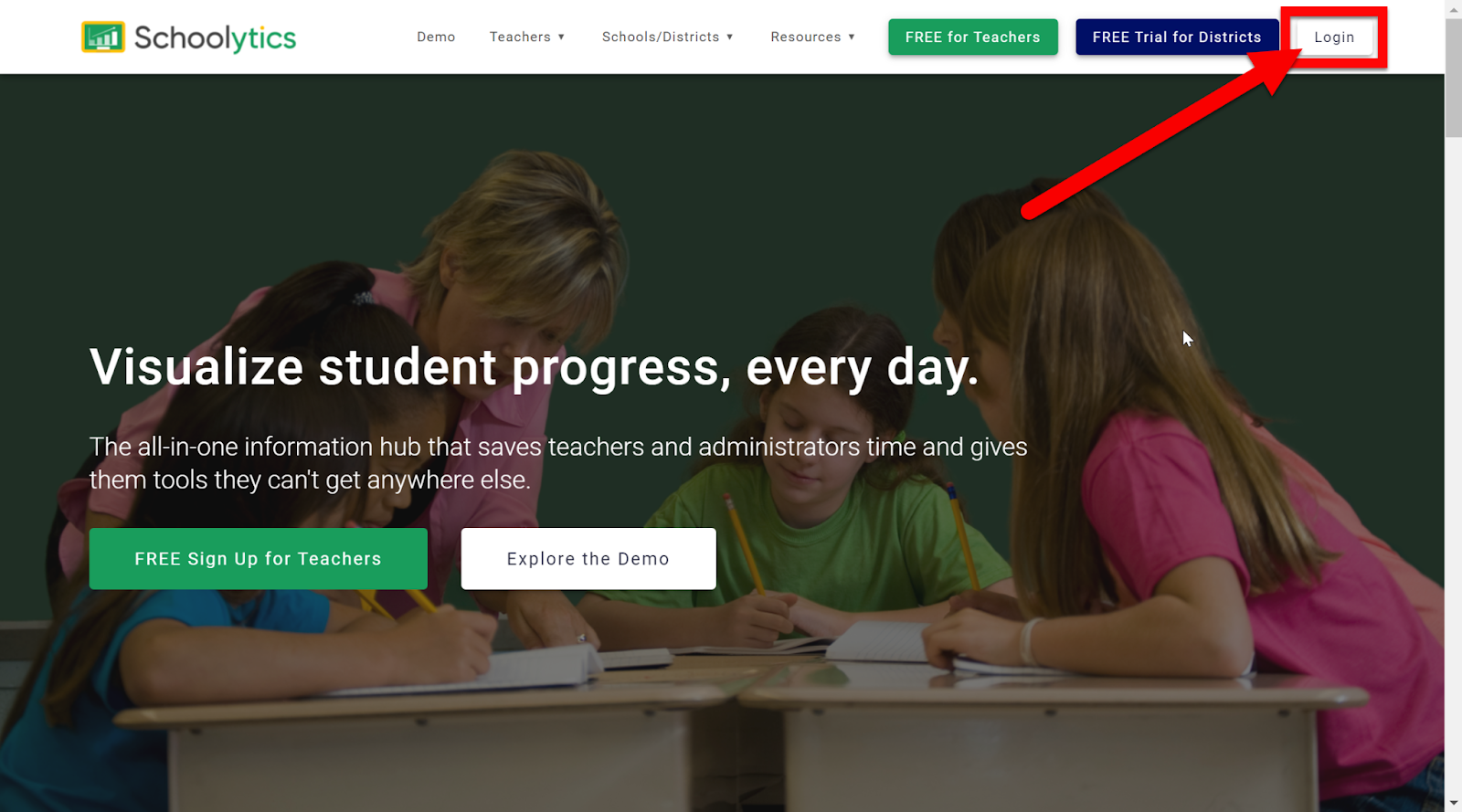
  1. Head over to schoolytics.com.

  2. Click the “Login” button on the top right.

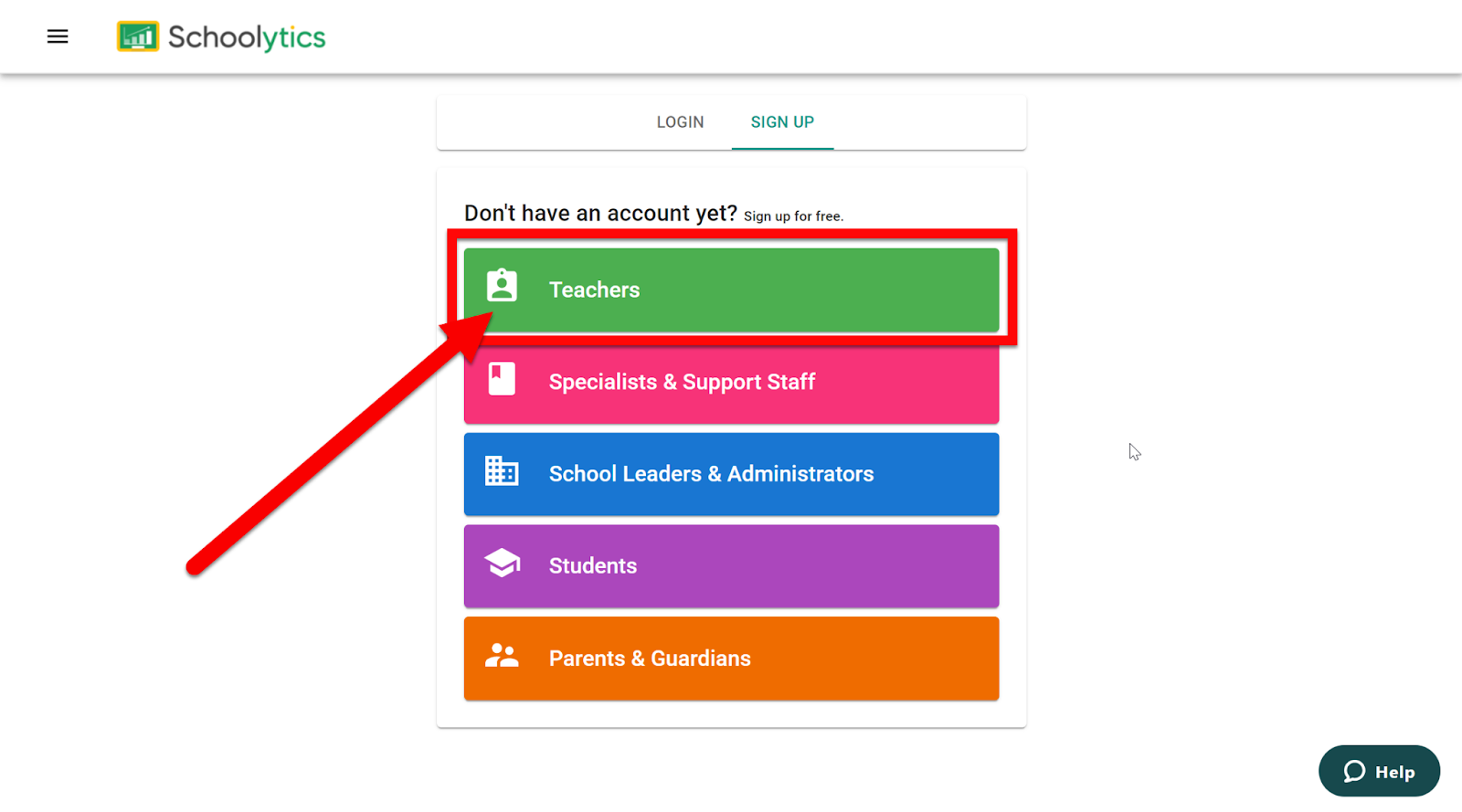
  1. Choose “Teachers” from the list of roles.

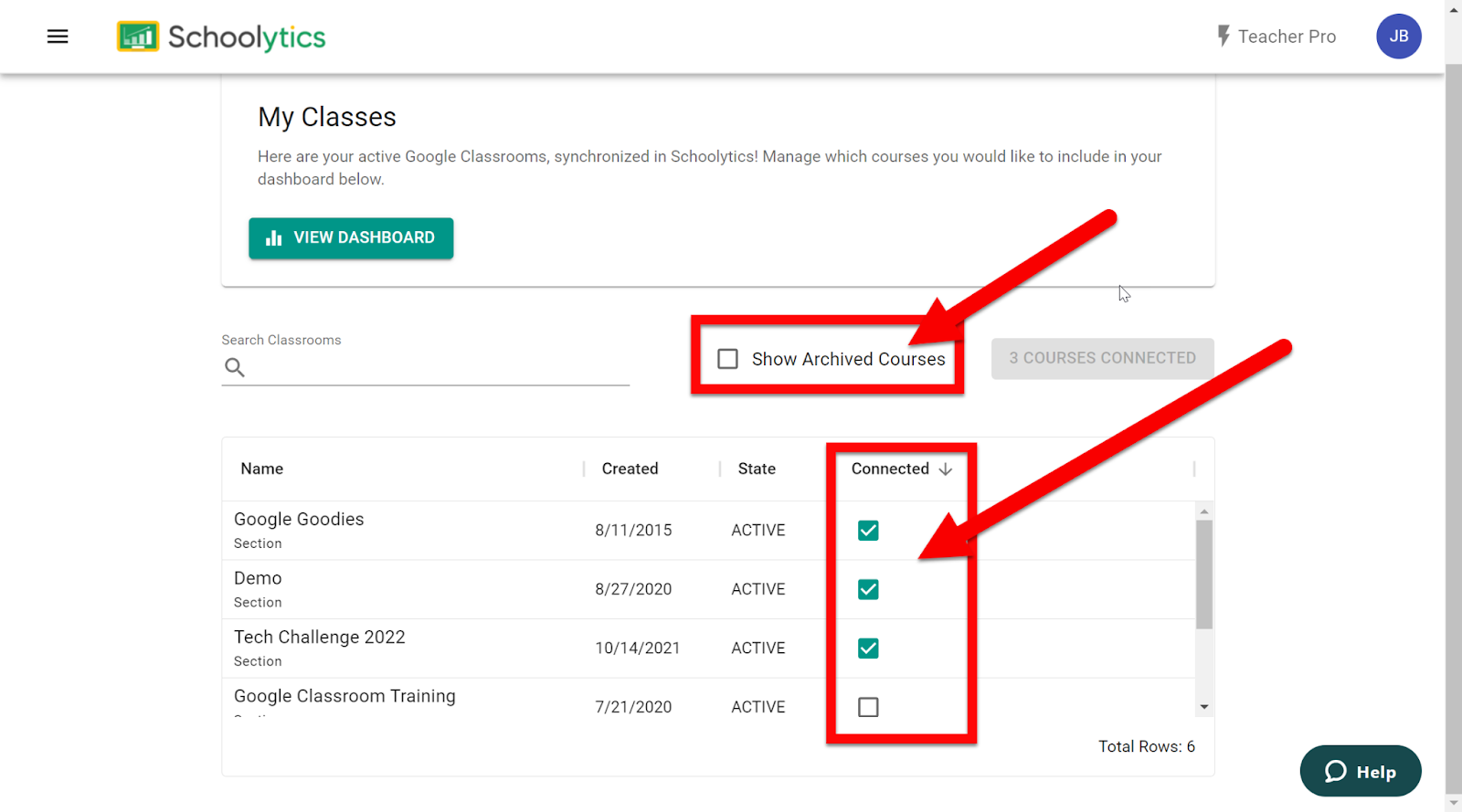
  1. Allow the permissions.

  2. Select the Google Classrooms you would like to be able to collect, track, and use data from (you can add/remove any of these Classrooms at any time). You can even include previously achieved Classrooms if you wish, just keep the list to 10 or fewer Classrooms for free.


Using the Filters:

  1. At the top of the page are always the filters to control what data you are viewing.


  • Period: choose overall time frame are you want to view
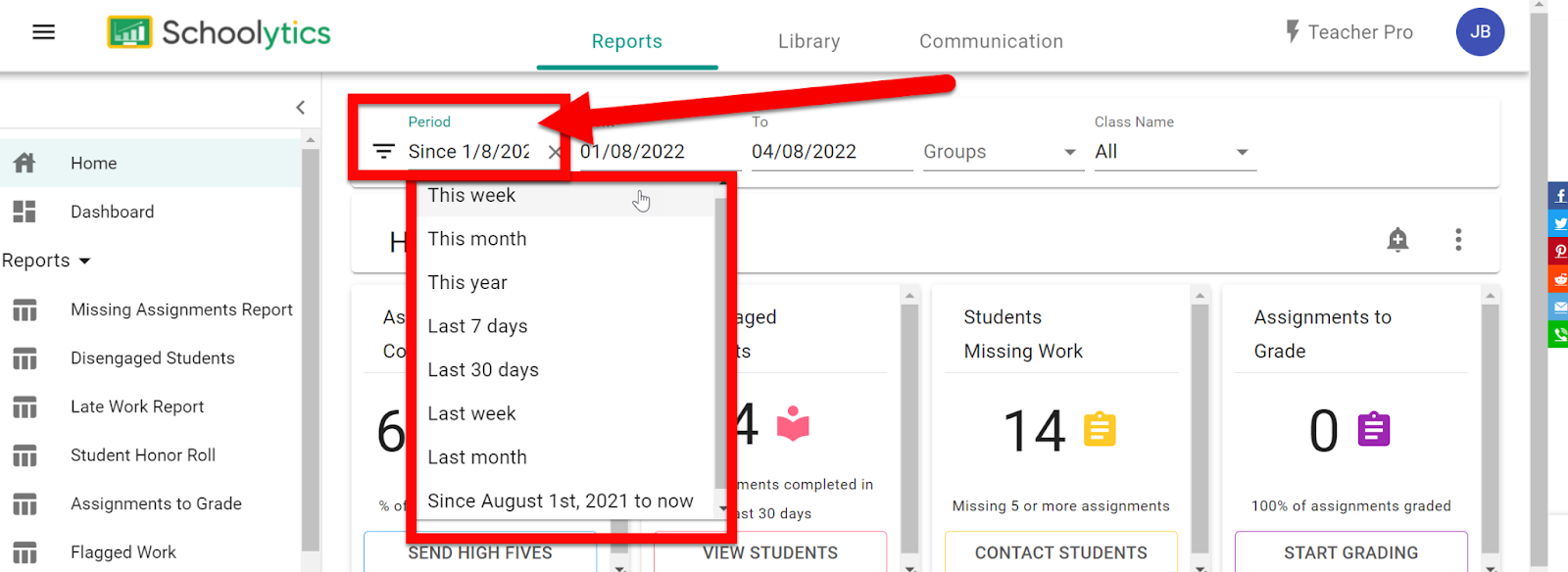

  • Dates: choose specific dates to see data from
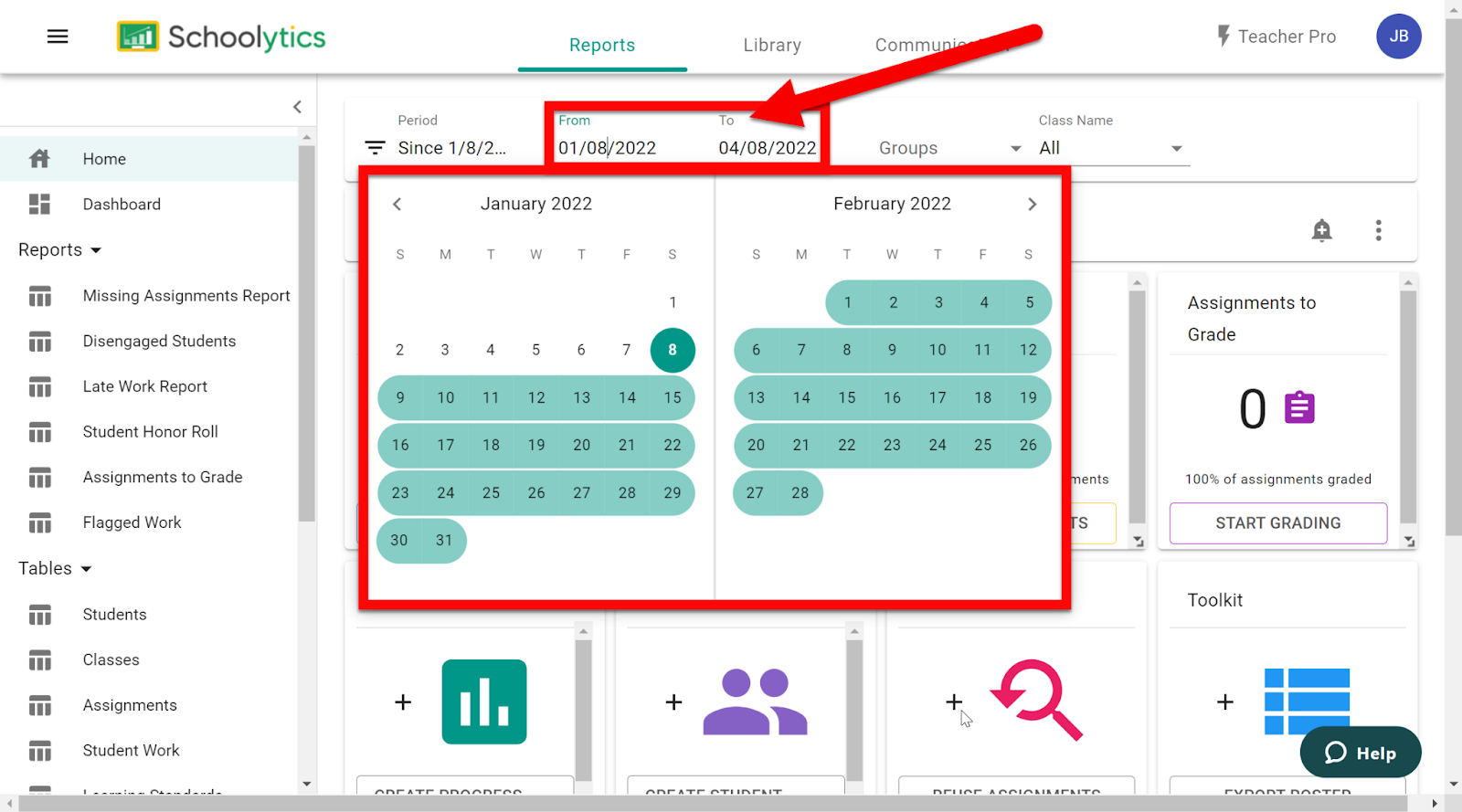

  • Groups: set up custom groups of students to track

  • Class Name: choose Classrooms do you want to view data from
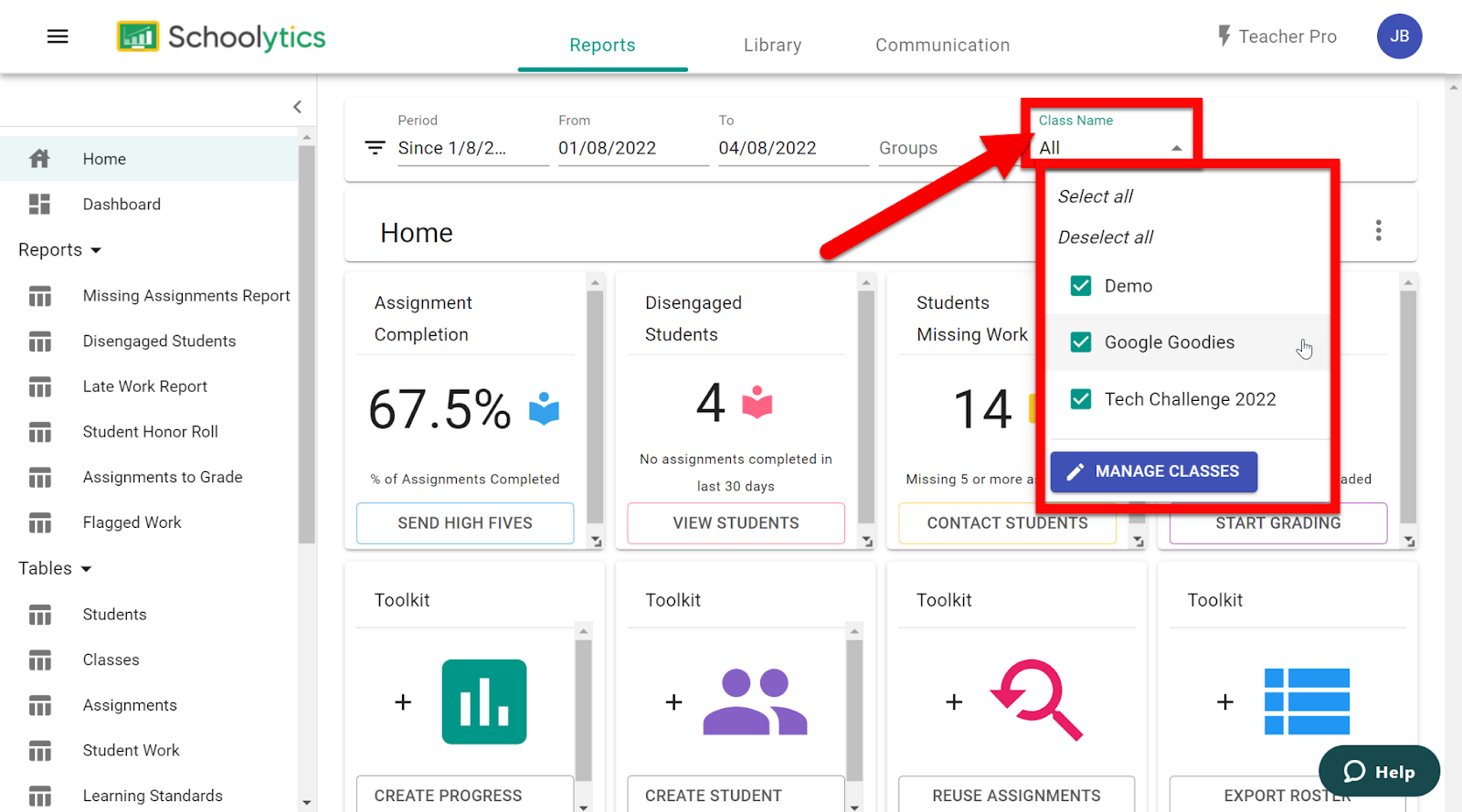


Progress Reports:

This might be the coolest part. You can create Progress Reports (as a PDF or an editable and shareable Google Document). These are really cool!

  1. On the Home page click on “Progress Report”.
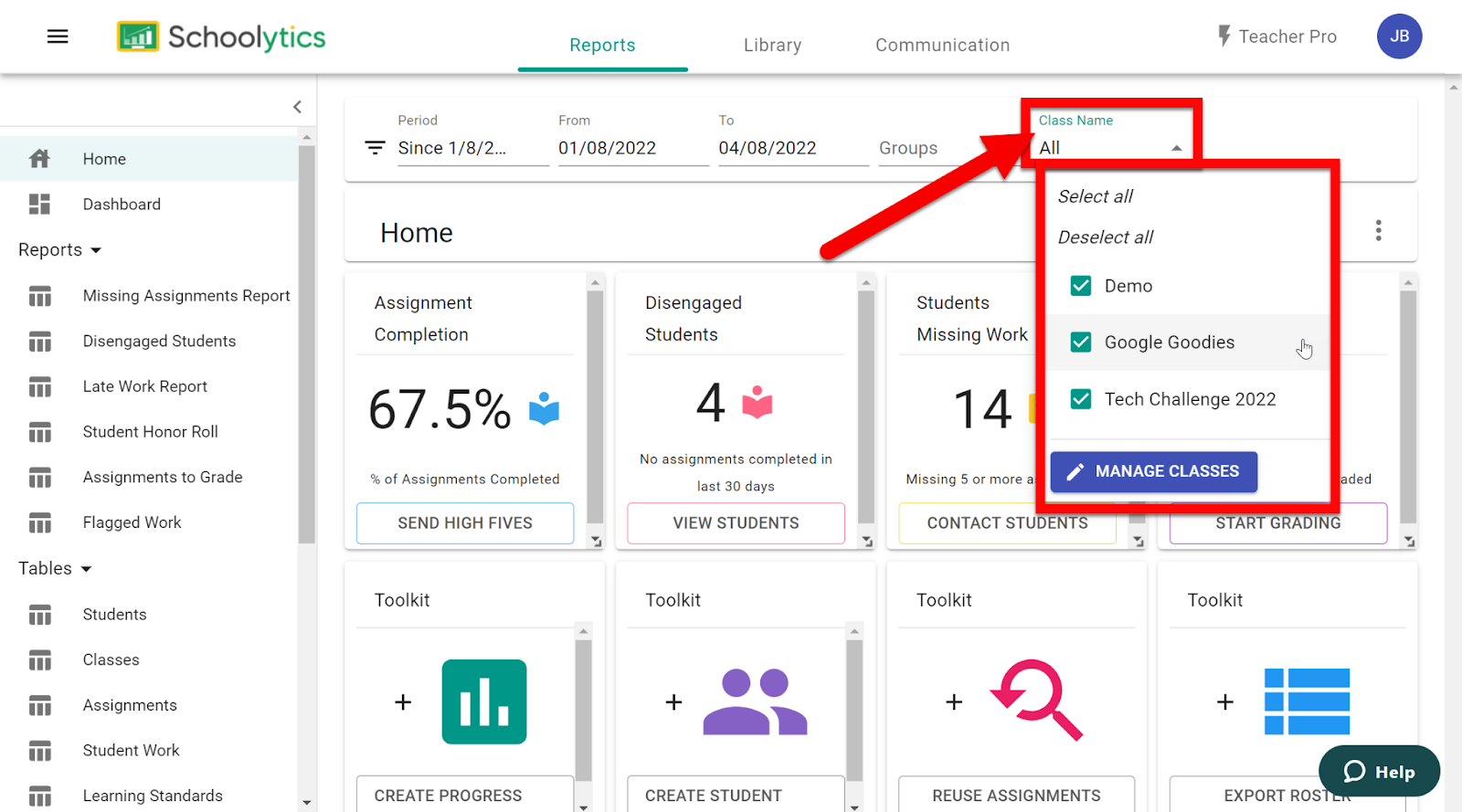

  1. Adjust the filters to what you want to view data.
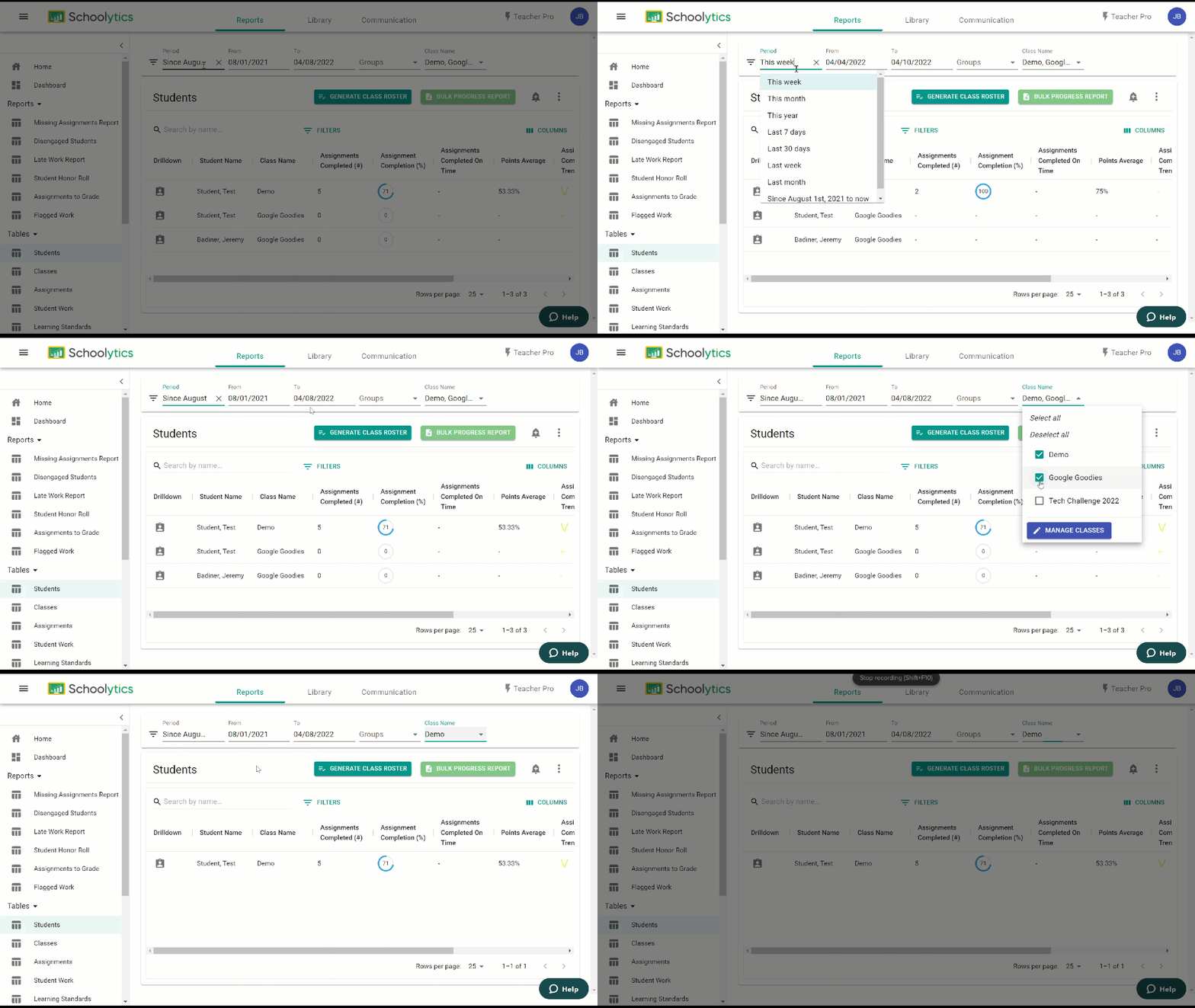

  1. If you want Progress Reports for the whole class click “Bulk Progress Report”. If you want it on just one student click the icon to the left of their name.
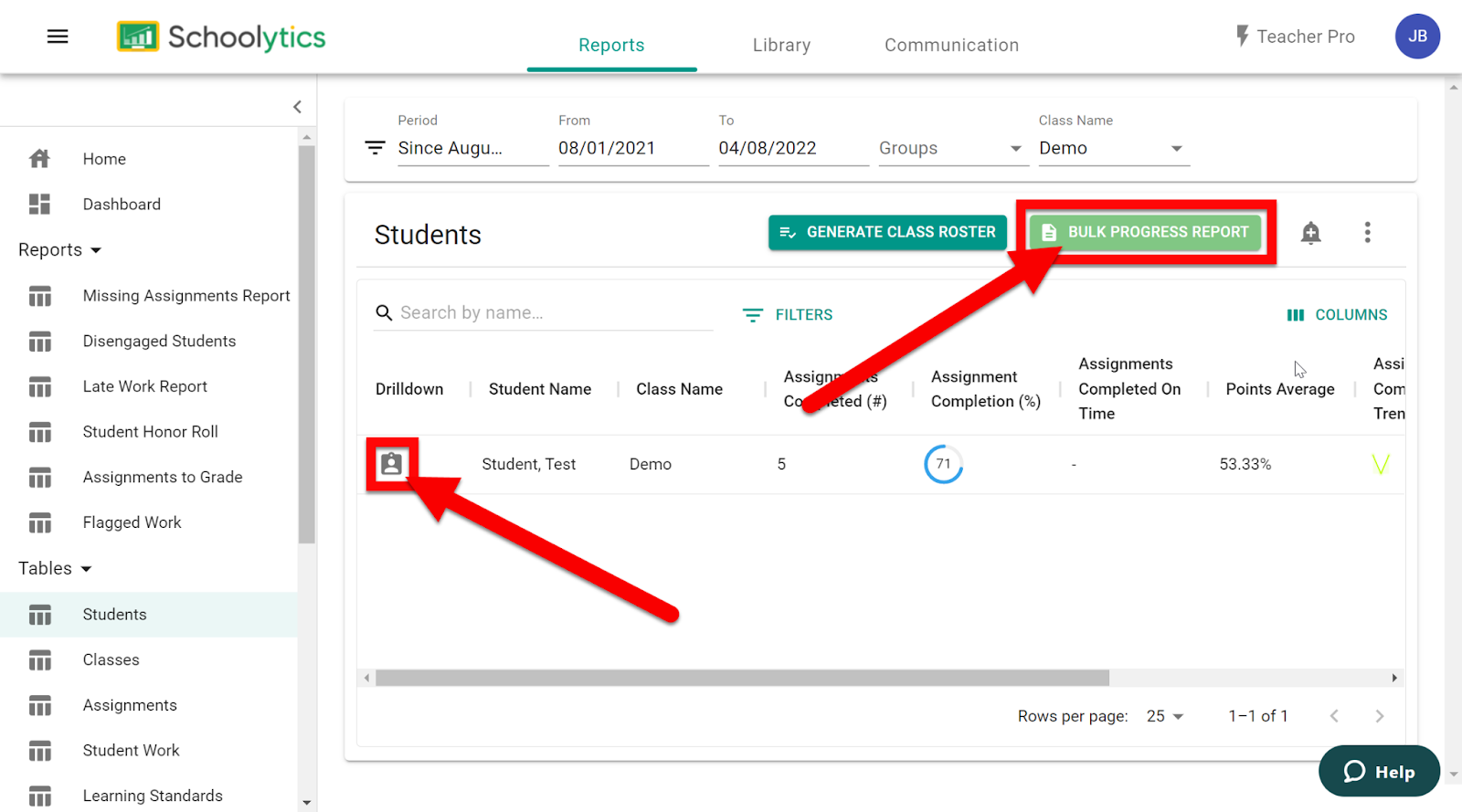

  • Whole Class:

    • Click “Generate Google Docs”. (You can also unselect any student to not run a report.)
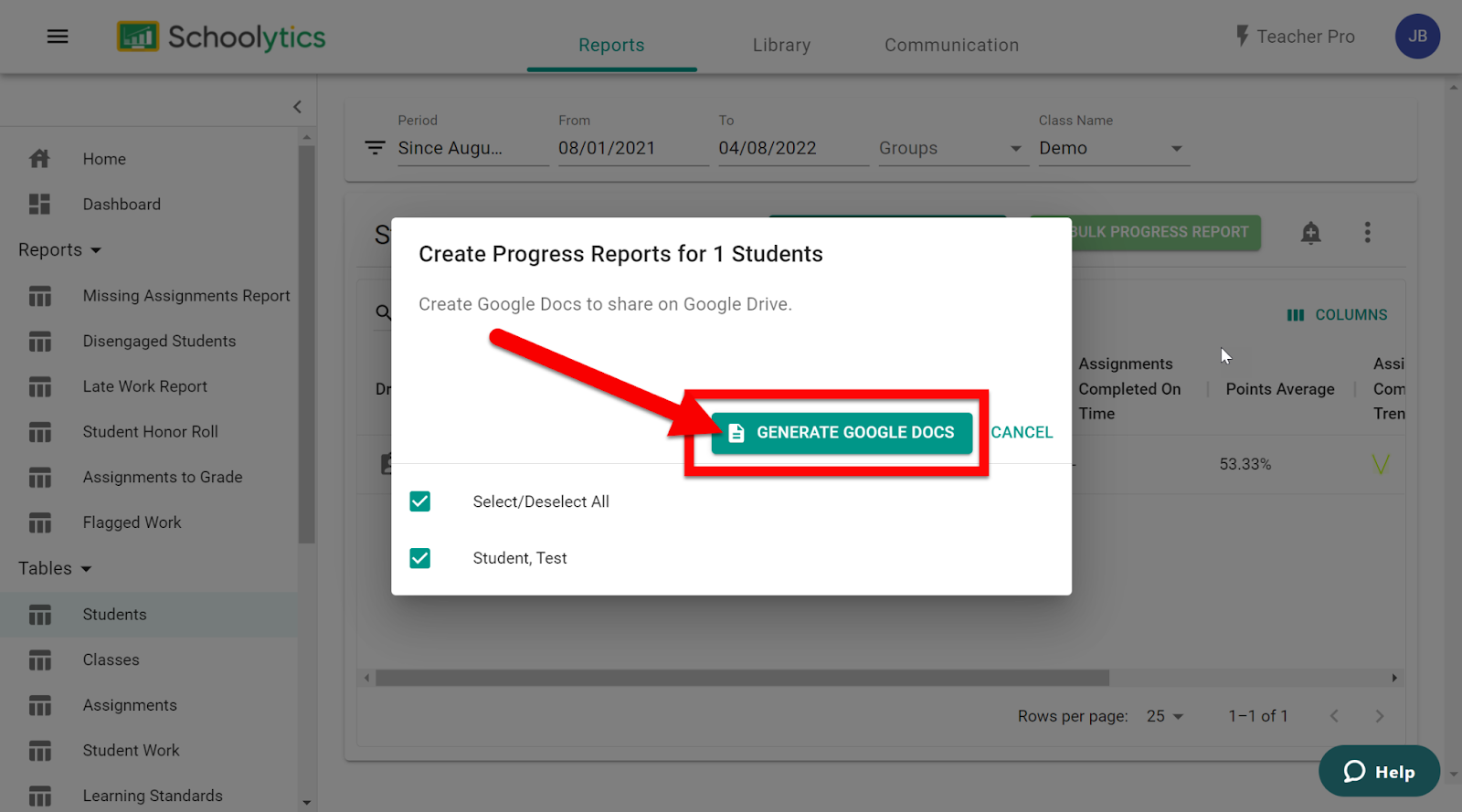

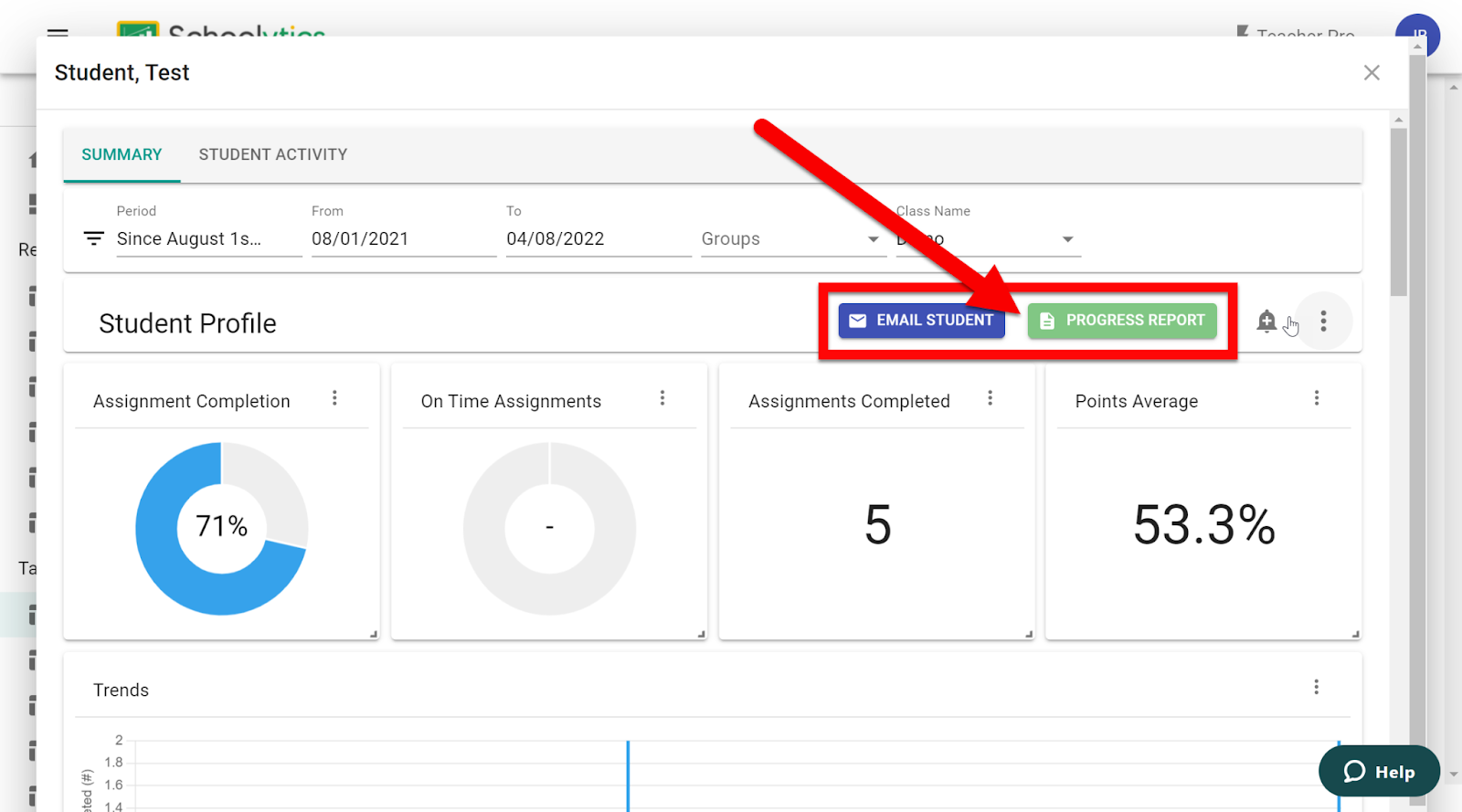
  • Individual Student:

    • You can click “Email Student” to send an email to this student or “Progress Report” to create a report.

  • You have the option to create a PDF or an editable Google Document of this report.
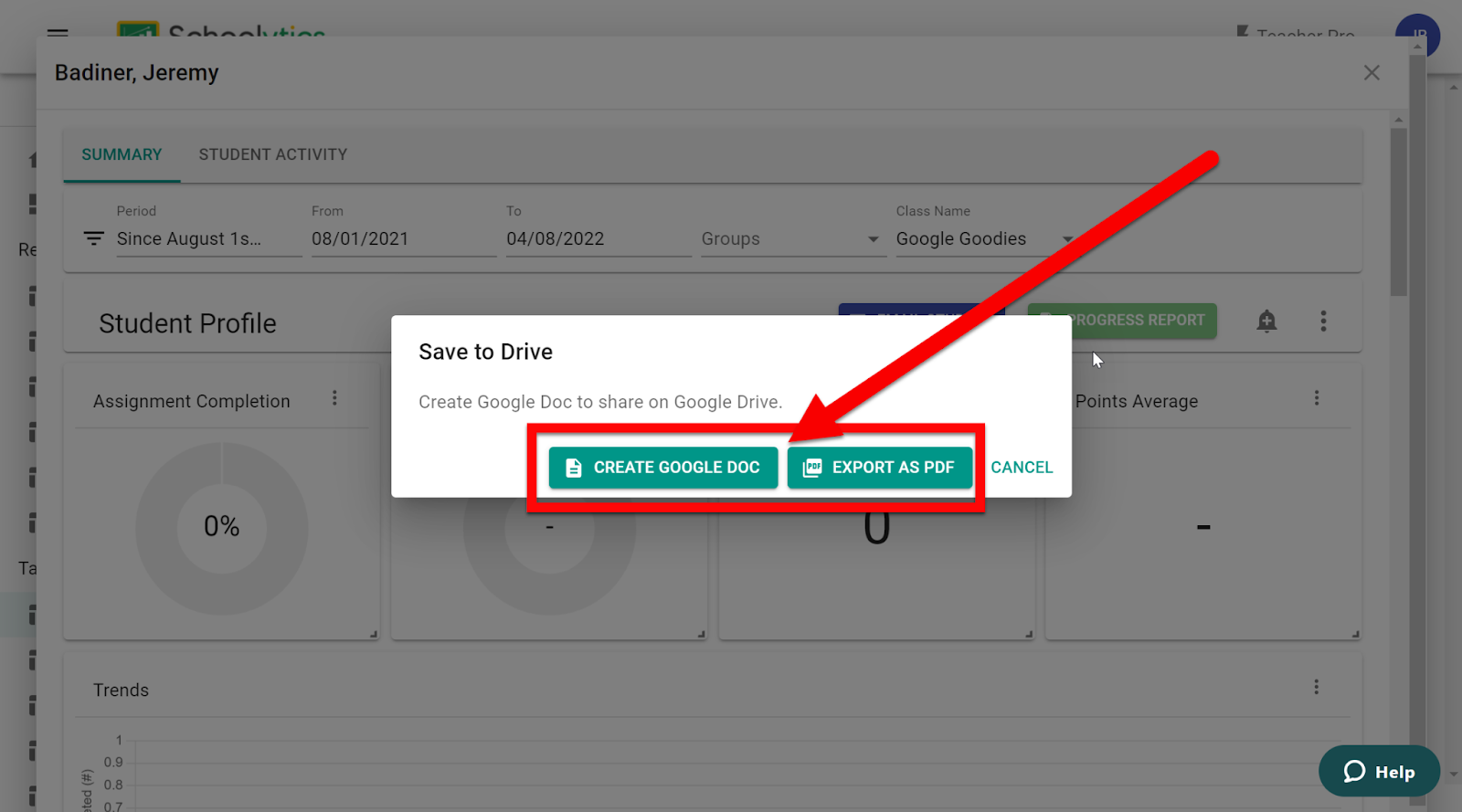

  1. You will find your created Progress Reports in your Drive.


Overall Student Performance (At a Glance):

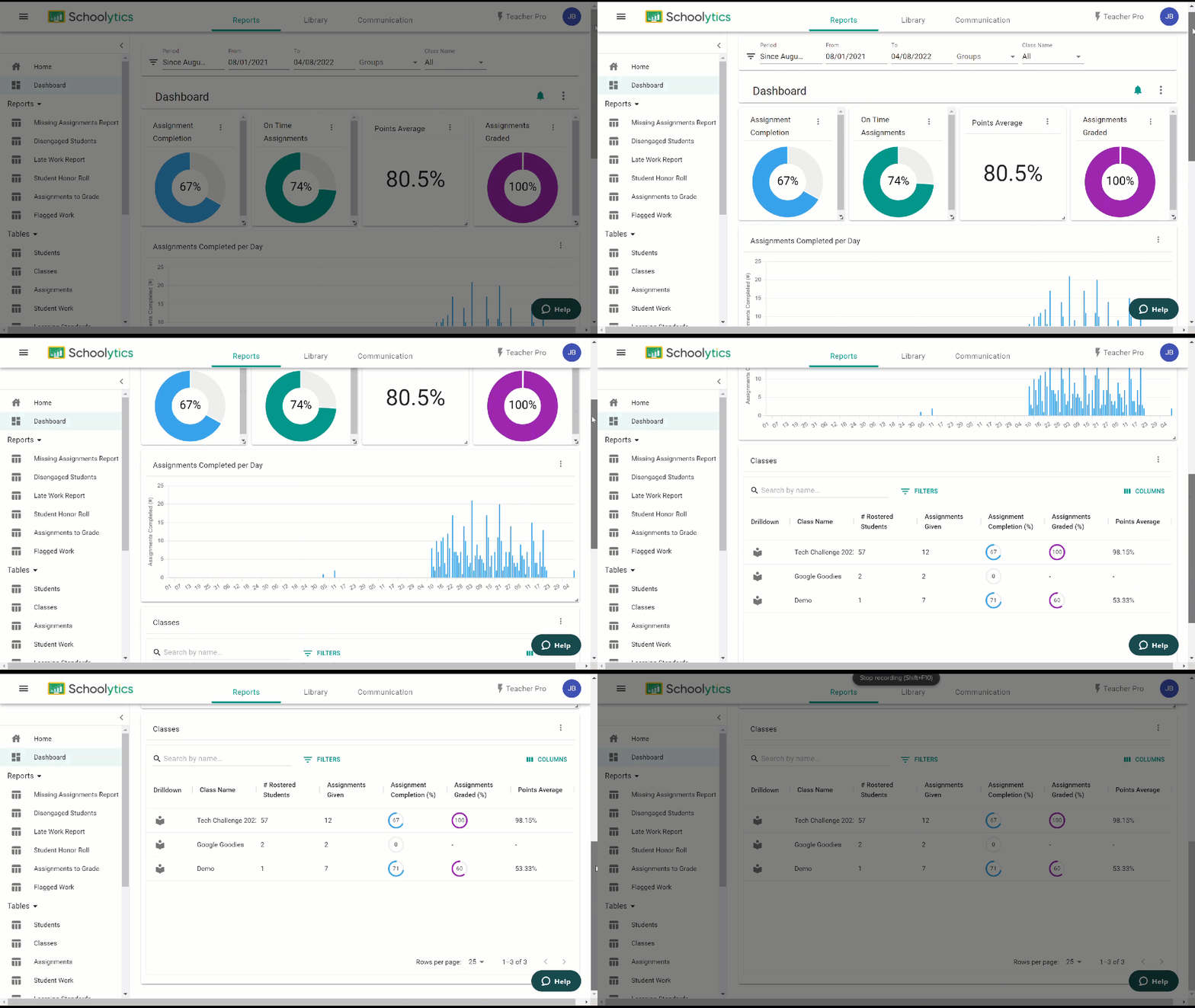
  1. Click on “Dashboard” on the left and adjust the filters to show data for your desired Classrooms and dates.
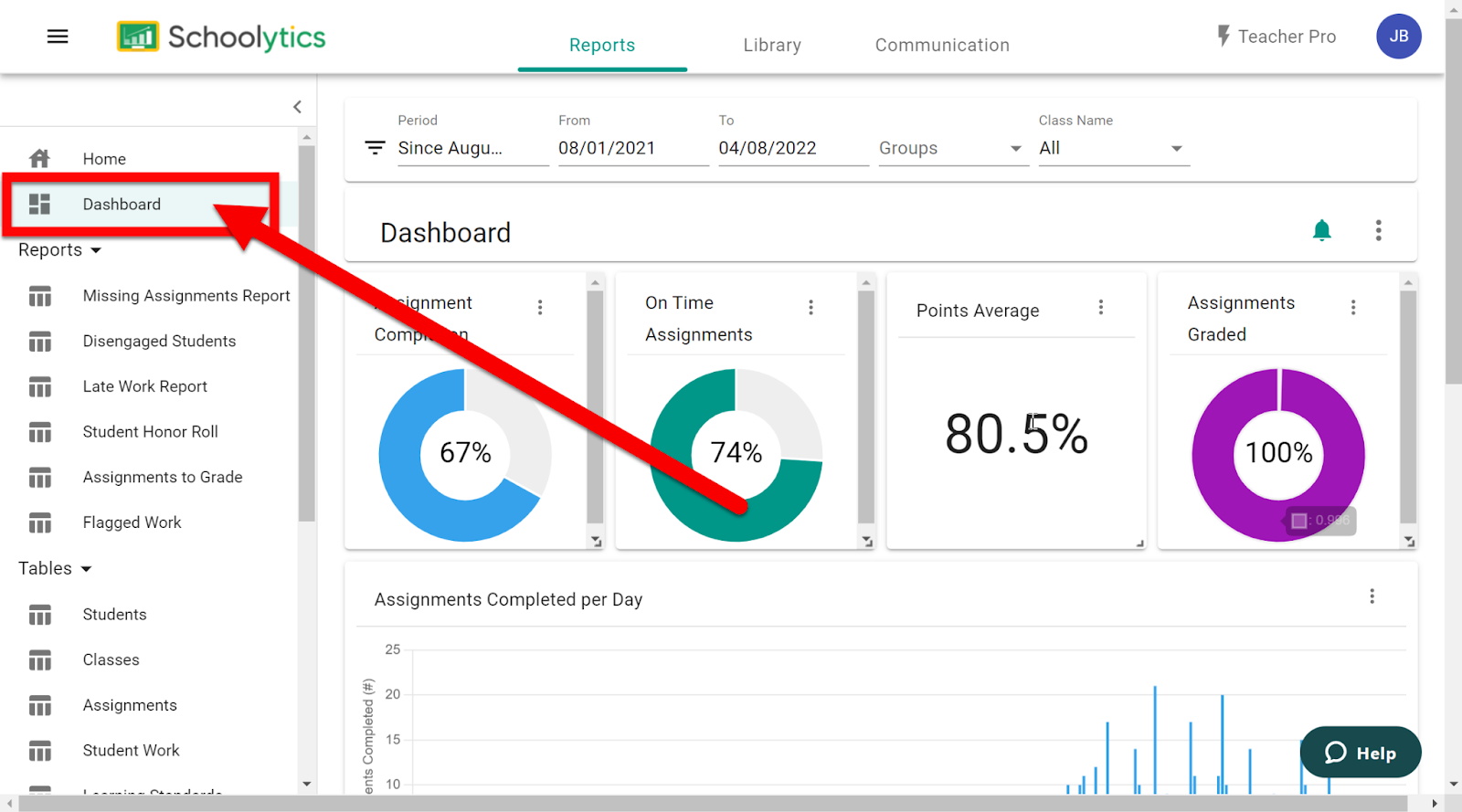

  1. You will see data on:

  • Assignment Completion 

  • On Time Assignments 

  • Points Average 

  • Assignments Graded 

  • Assignments Completed per Day 

  • Specific data on included Classrooms 

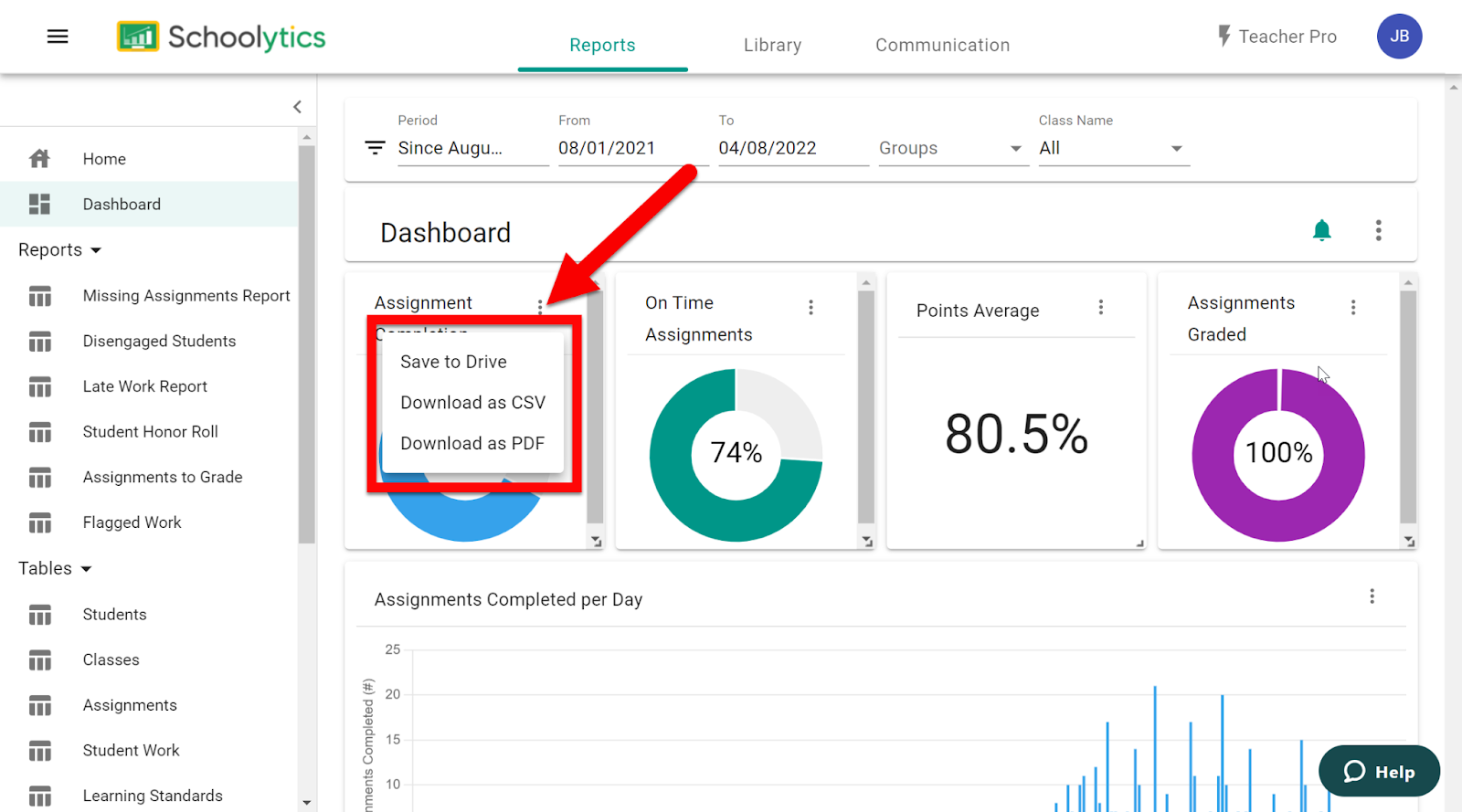
  1. By clicking on the 3 dots to the right of any of these you can save to Drive, as a CSV, or a PDF.


Other Features/Reports:

There are other features available as well.

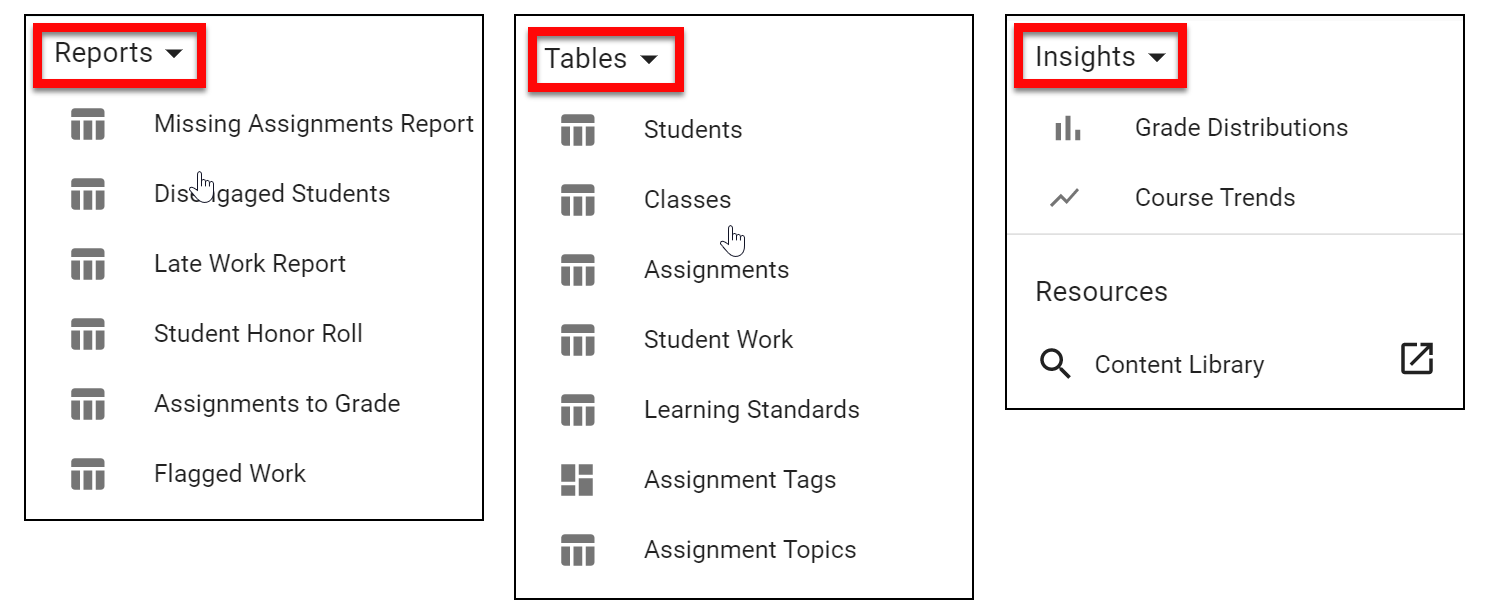
  1. Take a look at the left side and you will see other Reports, Tables, and Insights that are available.


Reusing Assignments:

Even though you can reuse assignments within Google Classroom, there is no way to easily search and find them. With Shoolytics you can search by assignment name from any connected Classroom!

  1. On the top click on “Library” or on the far left bottom click “Content Library”. 


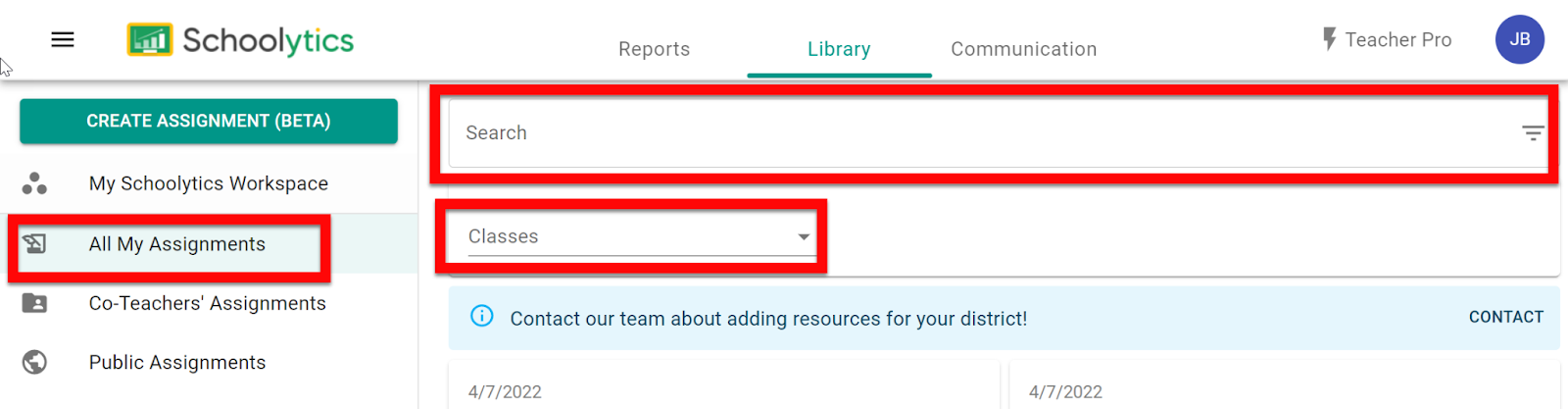
  1. Click on the left side to choose where your assignments are located, usually “All My Assignments”.
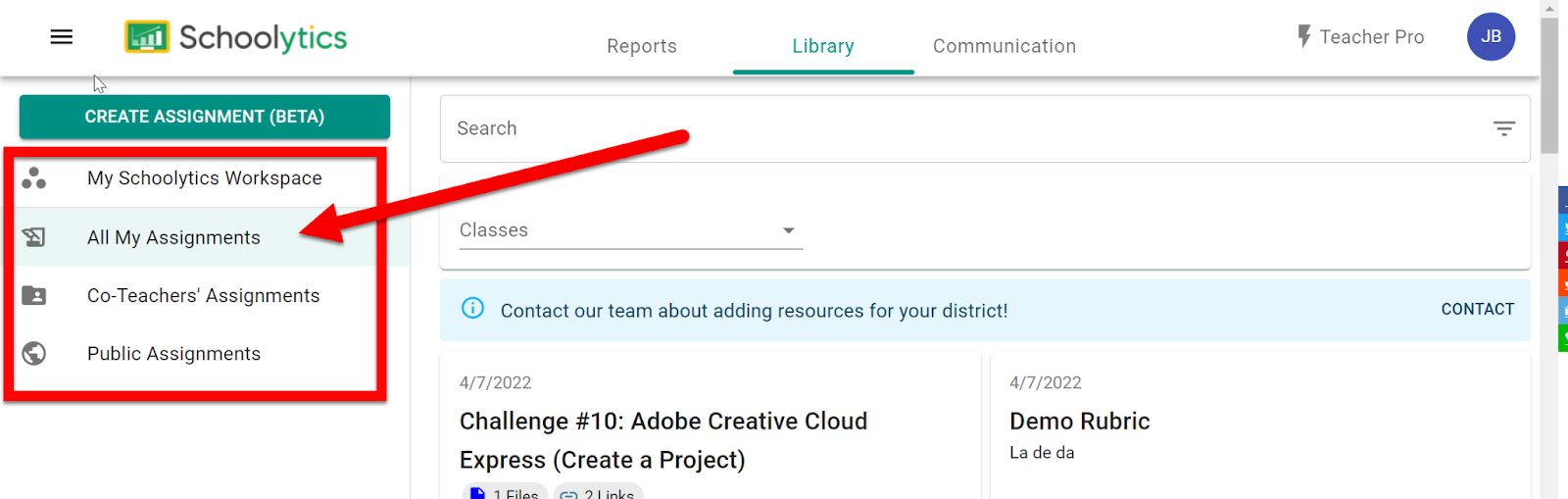
  • My Schoolytics Workspace: paid version and will be District shared assignments

  • All My Assignments: listing of all the assignments you have from your included Classrooms

  • Co-Teachers’ Assignments: assignments from Co-Teaching Classrooms

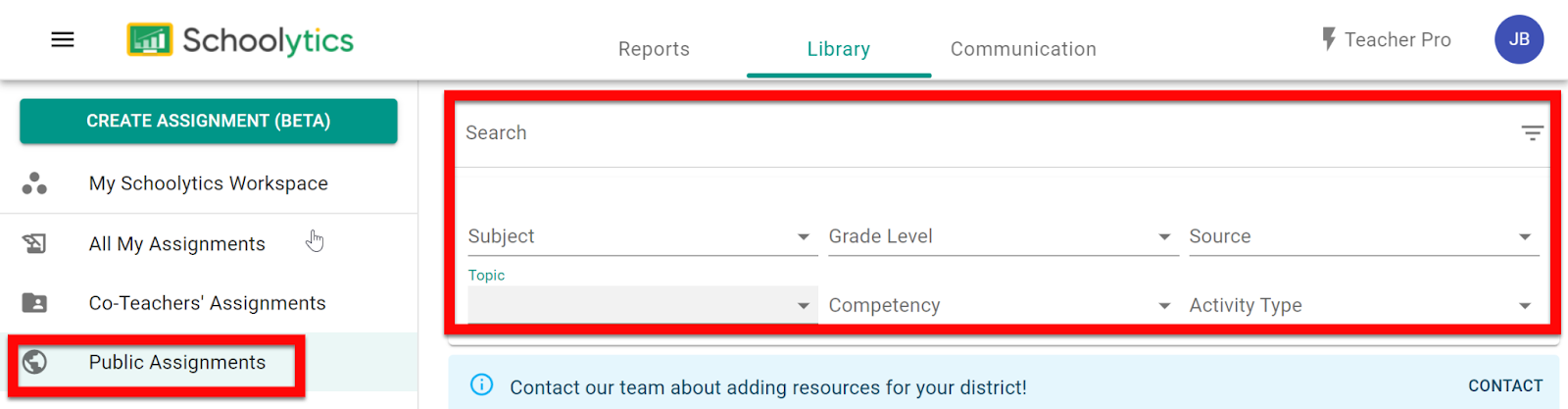
  • Public Assignments: other Schoolytics teachers who share their assignments


  1. Use the Search box to easily find your past assignments from your own Classrooms. 

  1. If you are in the Public Assignments, there are filters to sort by Subject, Grade Level, Source, Topic, Competency, and Activity Type.


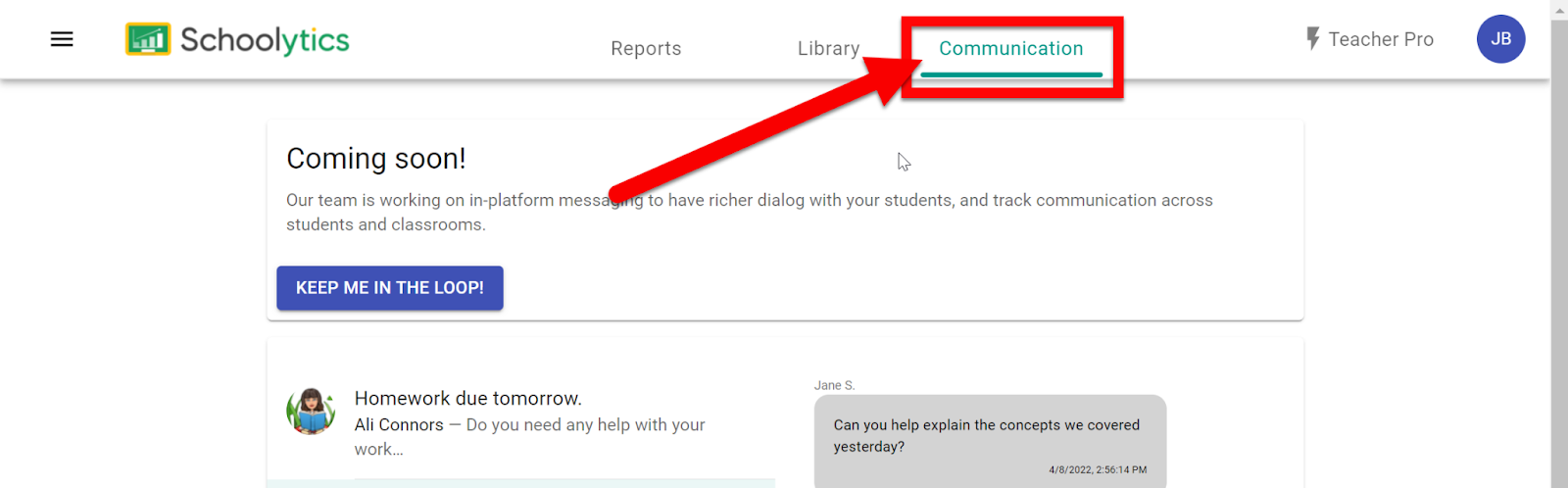
Communication Tools are Coming Soon! 

Head over to Schoolytics and start digging into your Google Classroom Data!


If you want these directions in a Document click HERE!

Sunday, September 12, 2021

Archive Previous Google Classrooms

Just a reminder for you to make sure you have Archived Last Year's Google Classrooms. This helps clean up the Classroom list on the student side as well as your Classroom list. 


Archive Classrooms:

  1. Make sure you have returned all turned in work (a habit you should do every time you "grade" or look at completed assignments. Otherwise, you own the students' work and they do not.

  2. Go to your Classroom list screen.

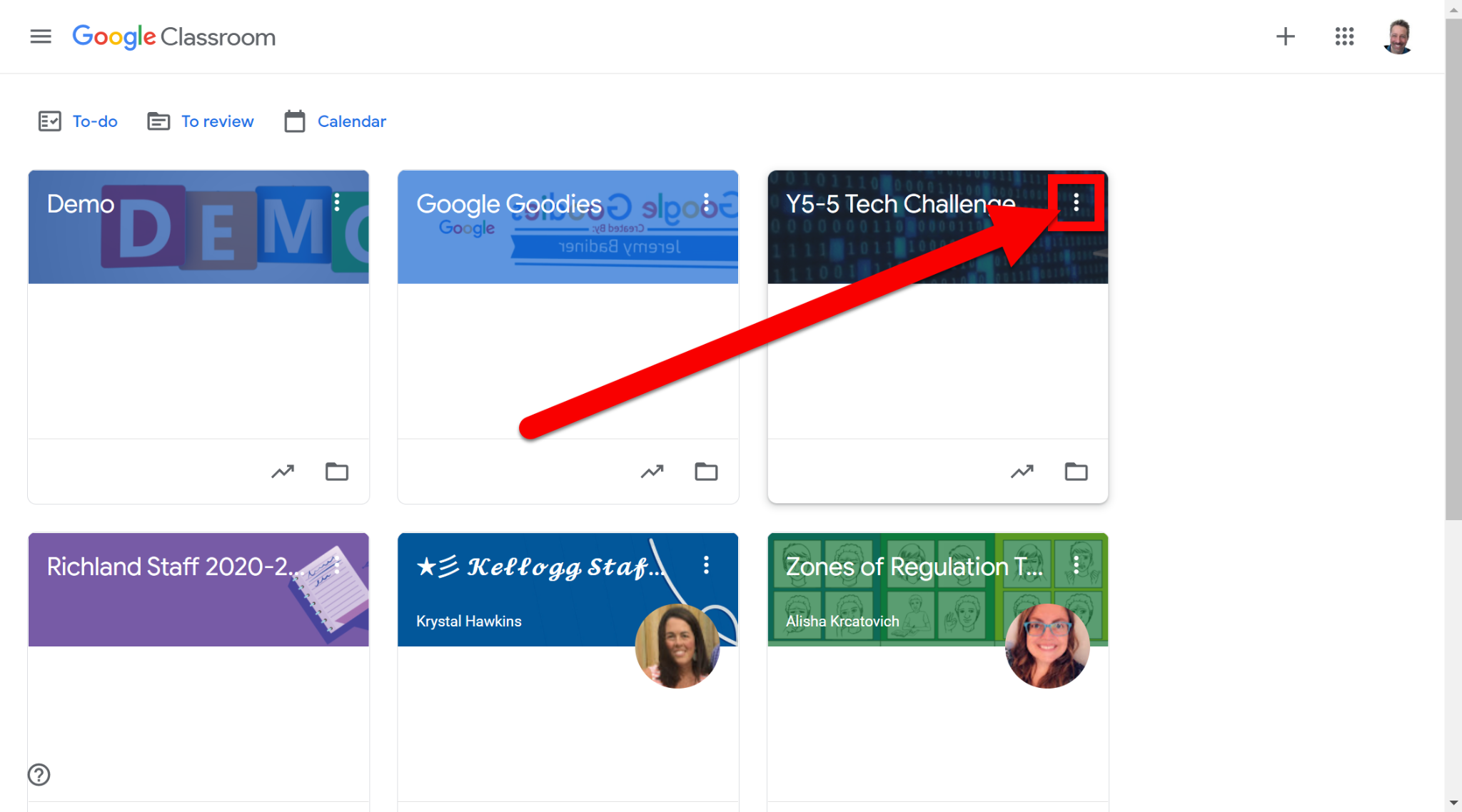
  3. Find last year's Classroom(s) and click the 3 dots in the top right of the Classroom Tile.


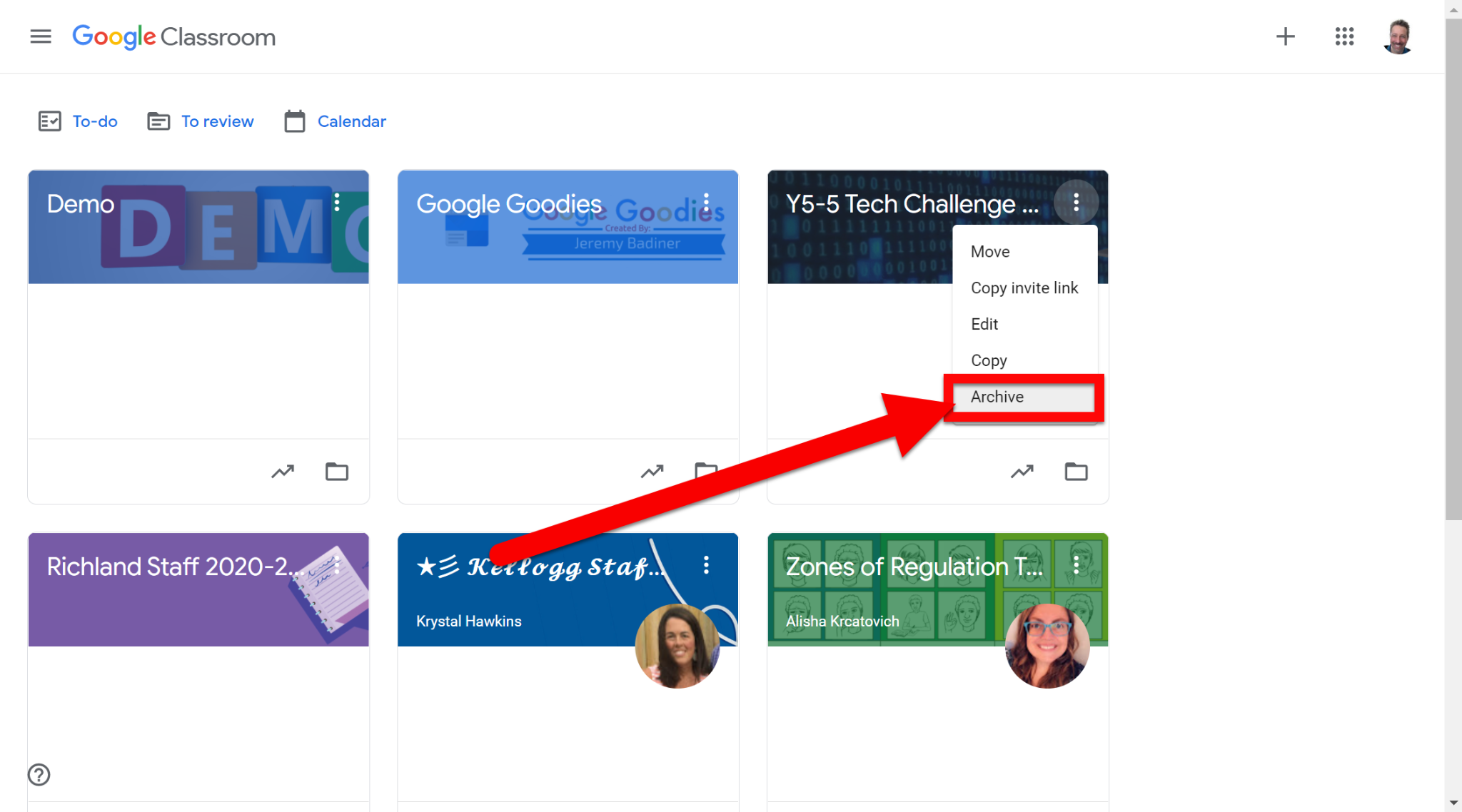
  1. Choose "Archive"


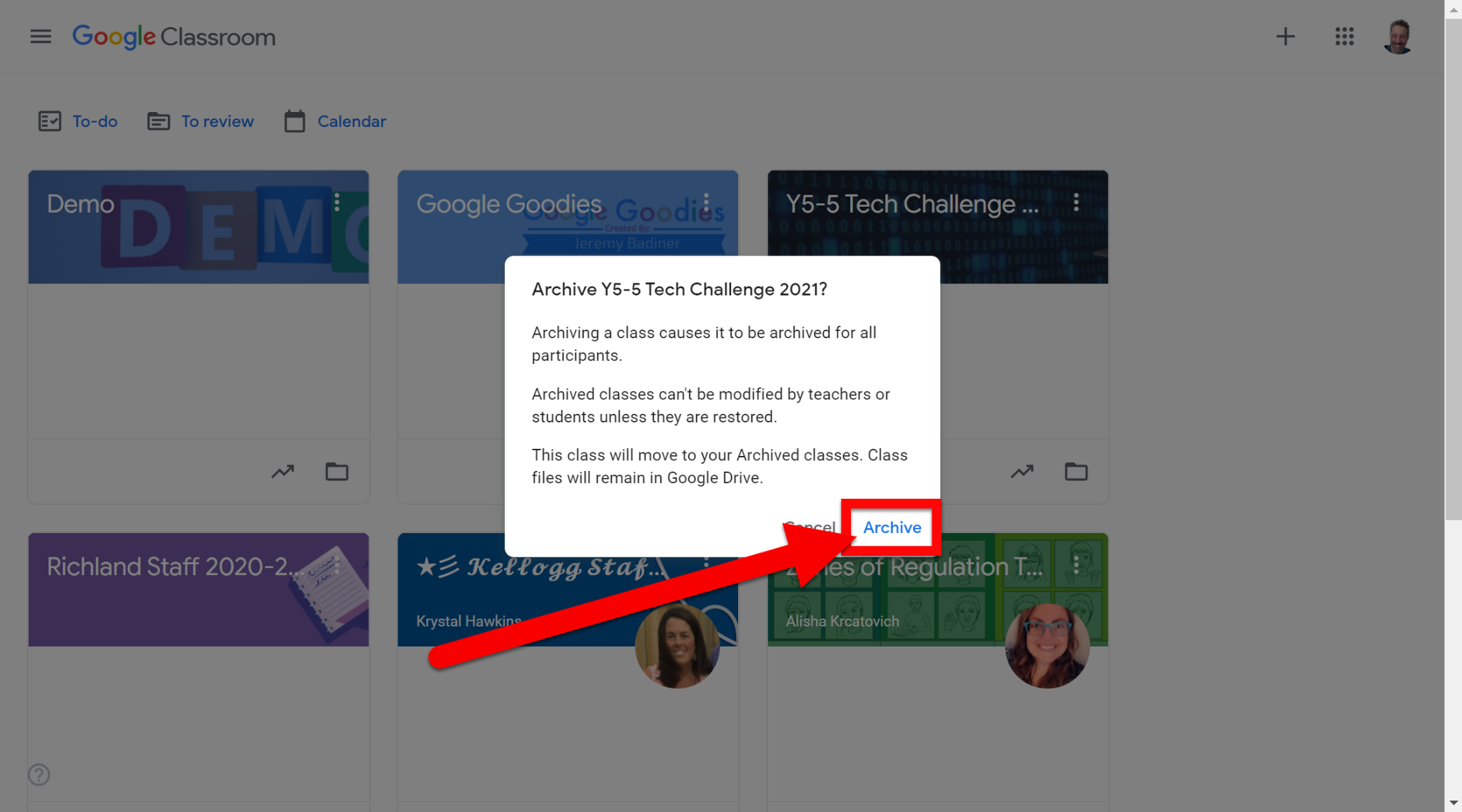
  1. Choose "Archive" on the next screen.


  1. Done!


 If you want these directions in a Document click HERE!


Thursday, September 10, 2020

Student Uploading File to Classroom

You have your kiddos using Google Classroom as their hub for learning and need them to turn in work to you. The issue, you can not show them how to do this. One of the issues with Classroom is that Teaches can not see their Classroom as a student. Yikes. No worries. Take a look (and share) the steps below to show students (and parents) how to upload files (images, PDFs, videos, other files) from their device into an assignment.


Upload a File to a Classroom Assignment:

  1. Get into your Classroom with the student login.

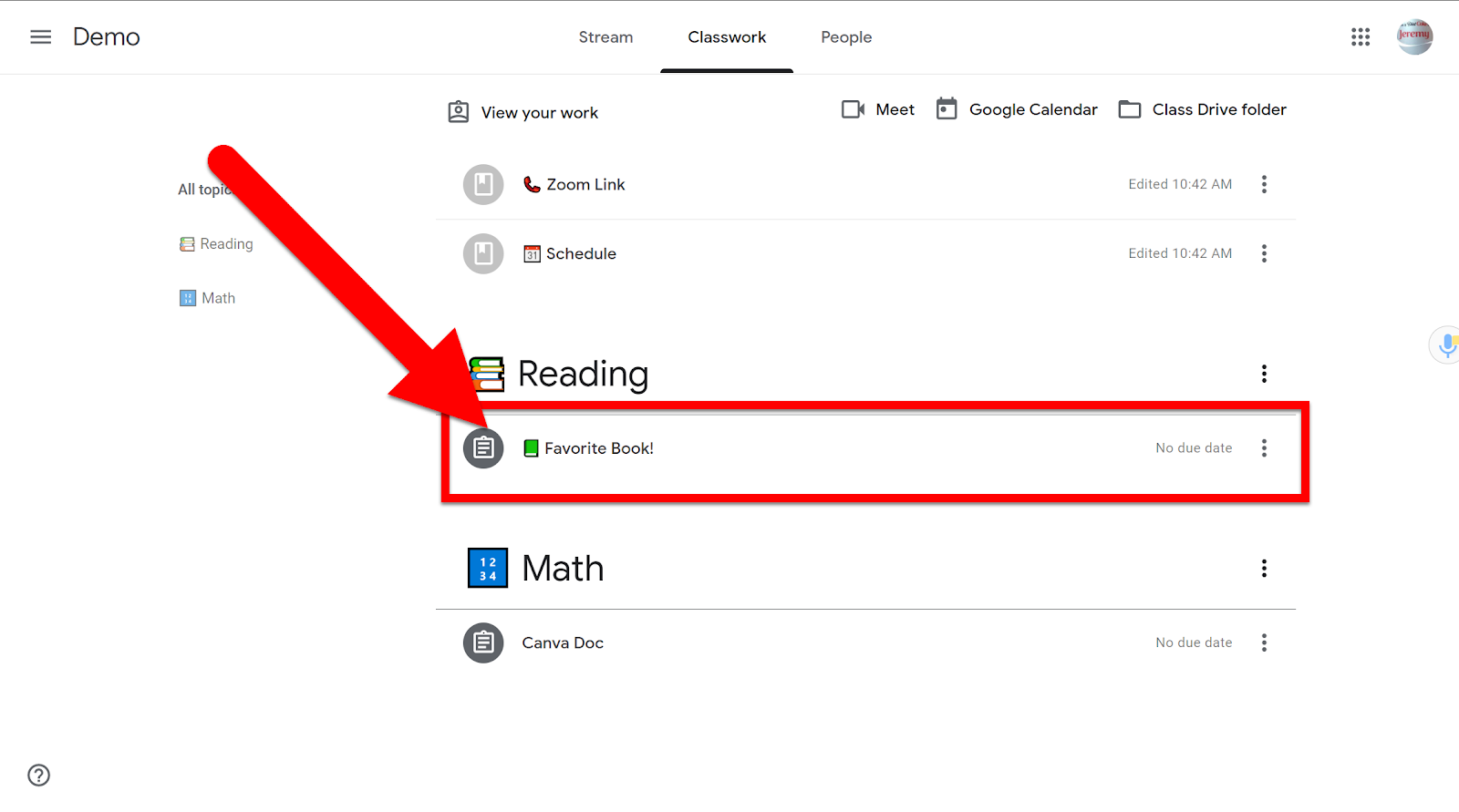
  2. Head to the “Classwork” tab.

  3. Click on the assignment you need to upload a file into.


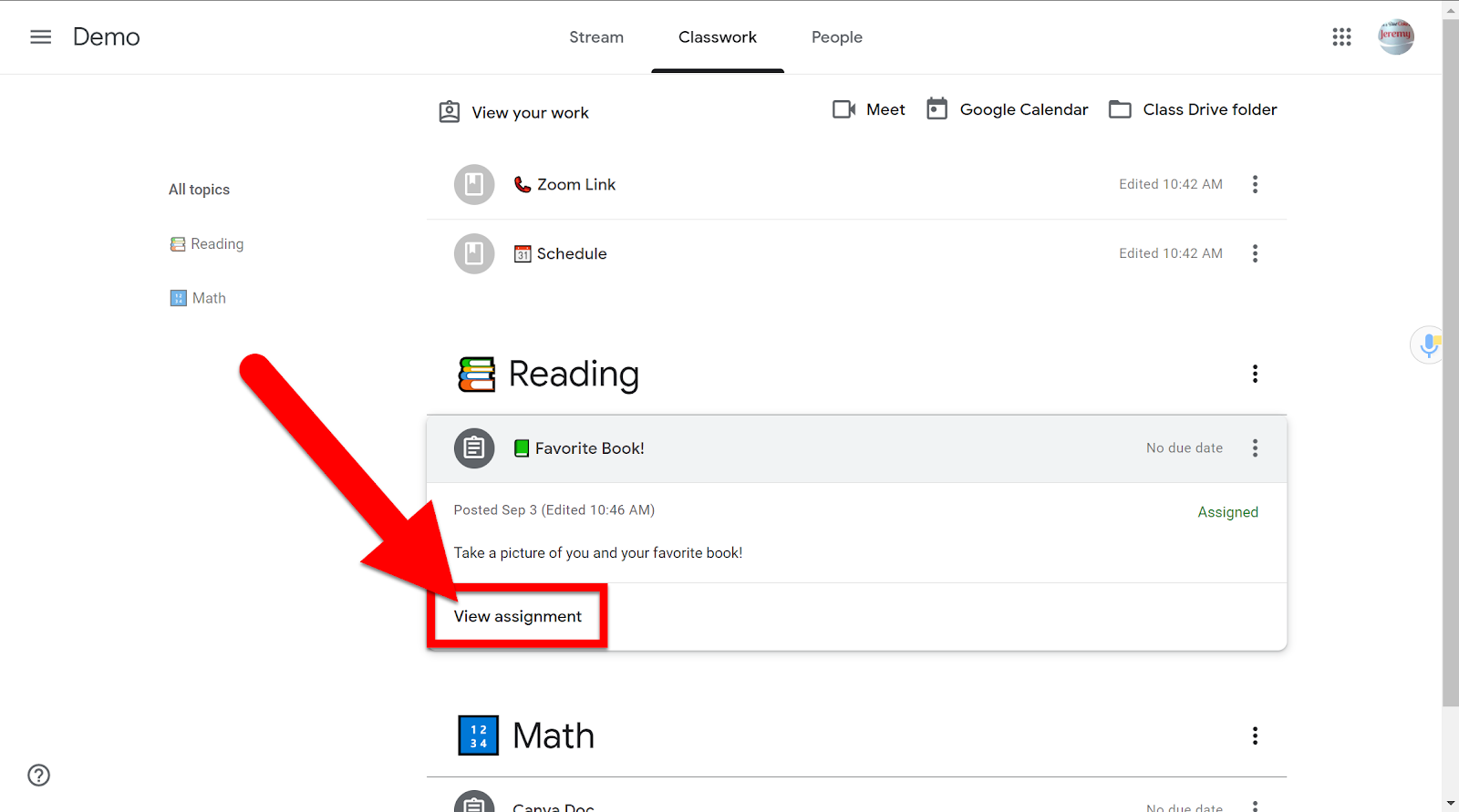
  1. Click on “View Assignment”.


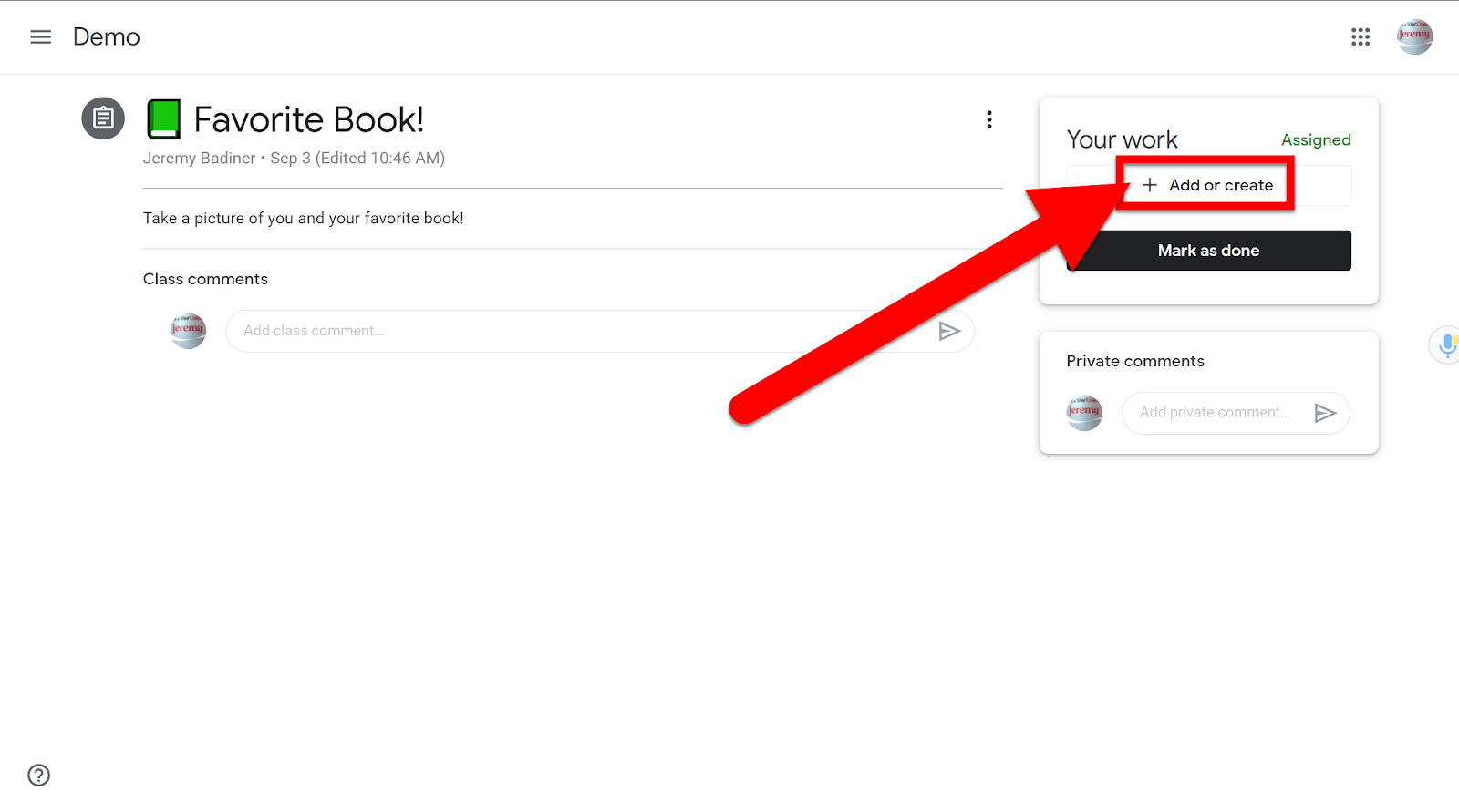
  1. Click on the “+ Add or Create” button in the top right.


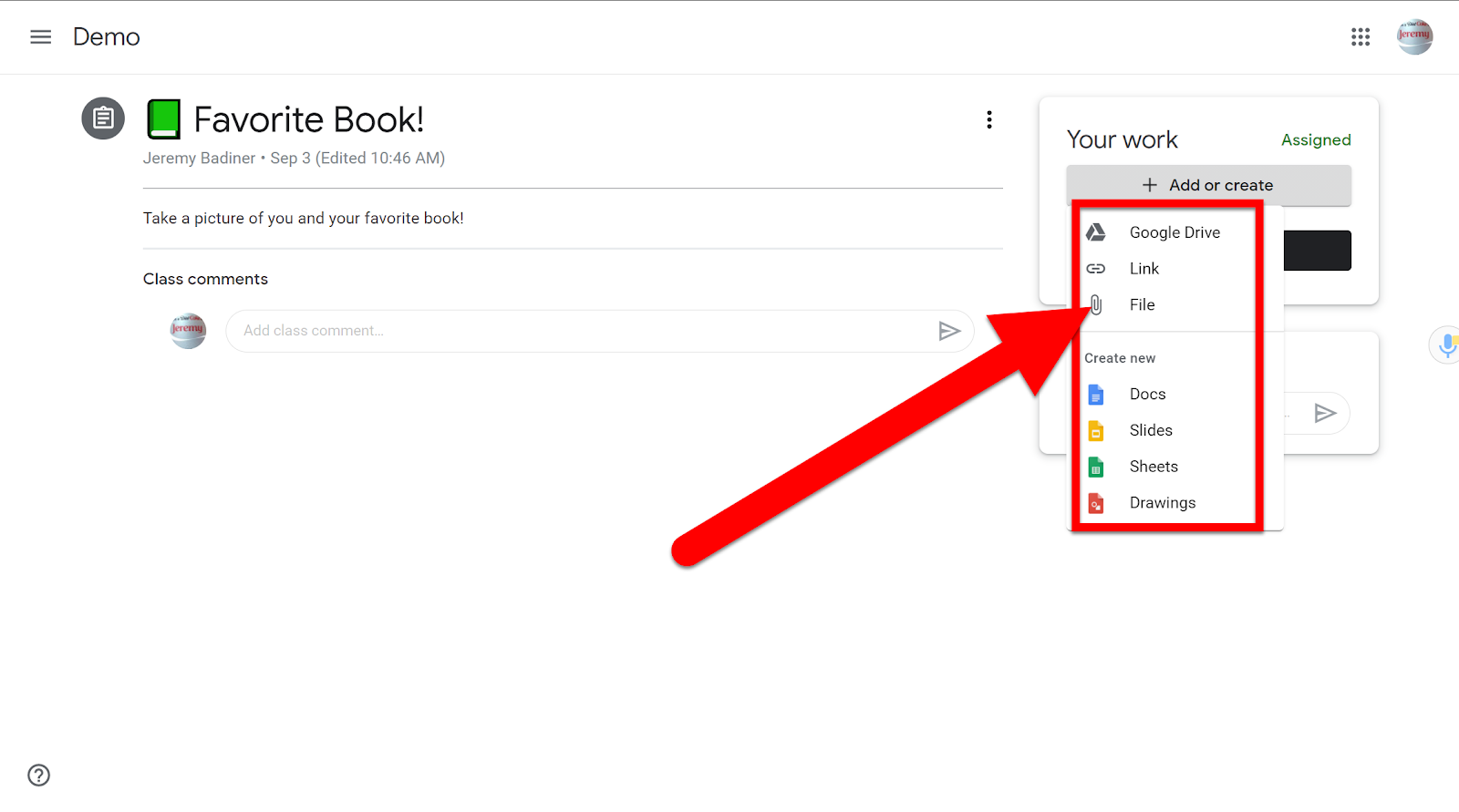
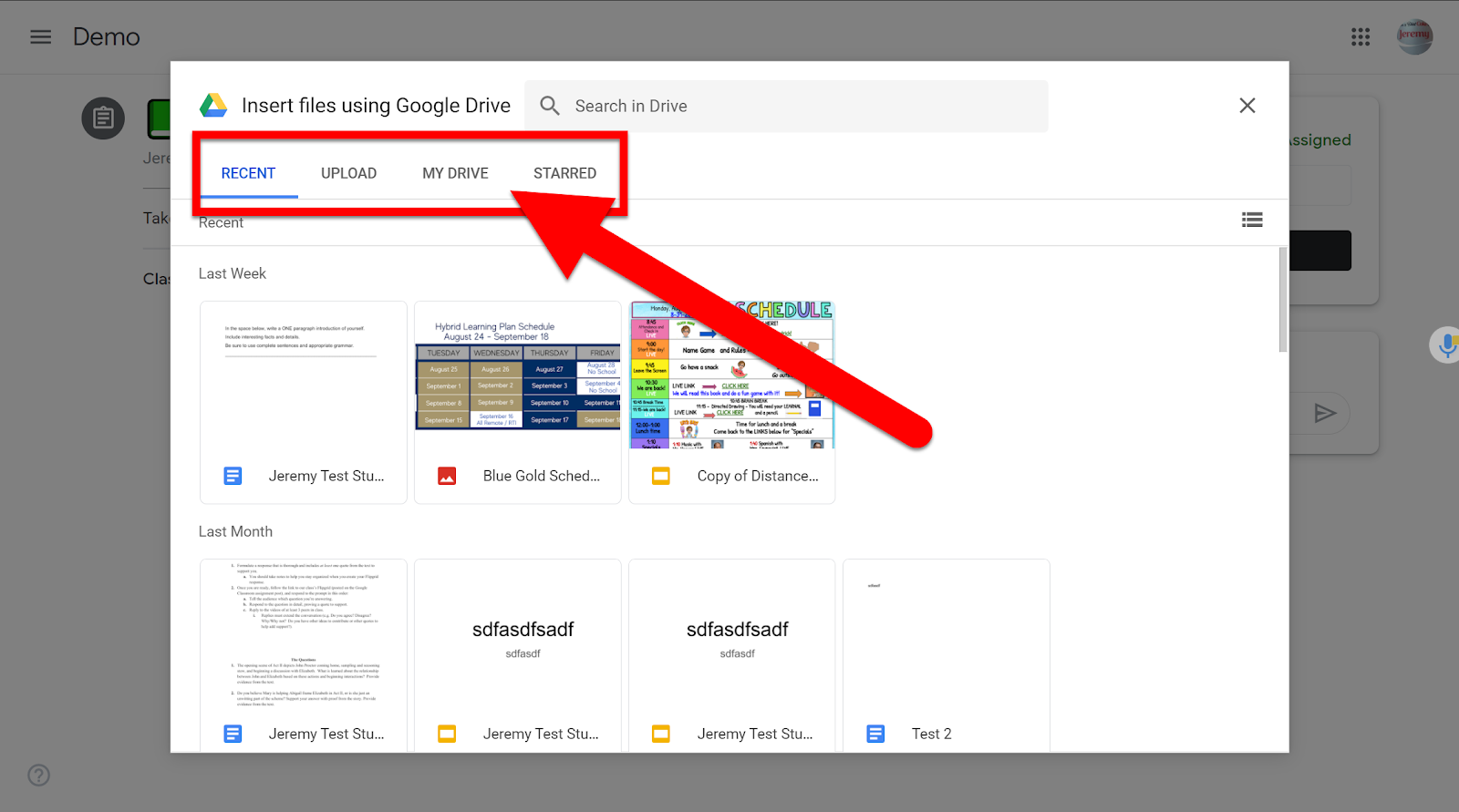
  1. Choose where the file is located and browse for it.


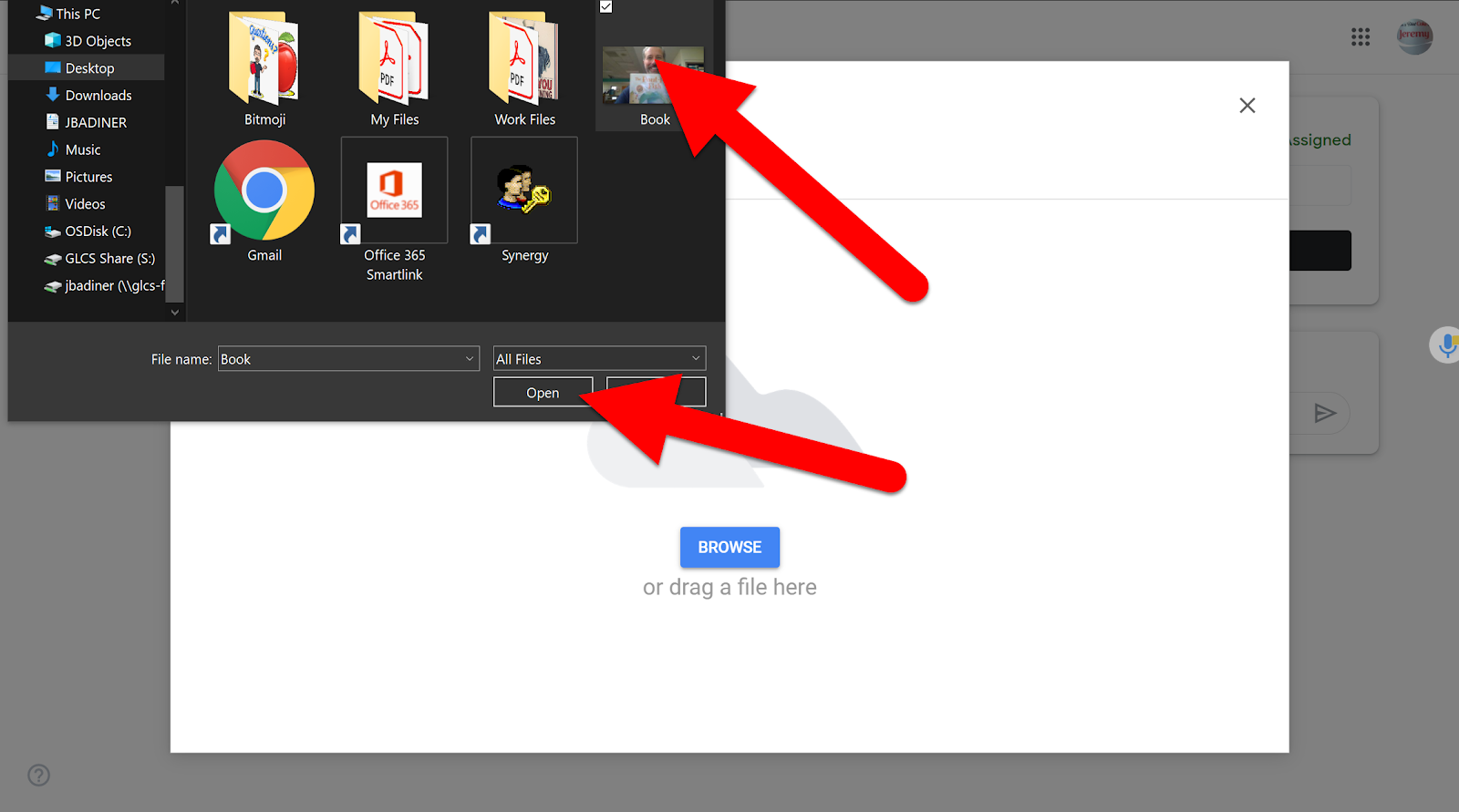
  1. Find the file in your Drive, device, or other location.


  1. Select the file and add it.


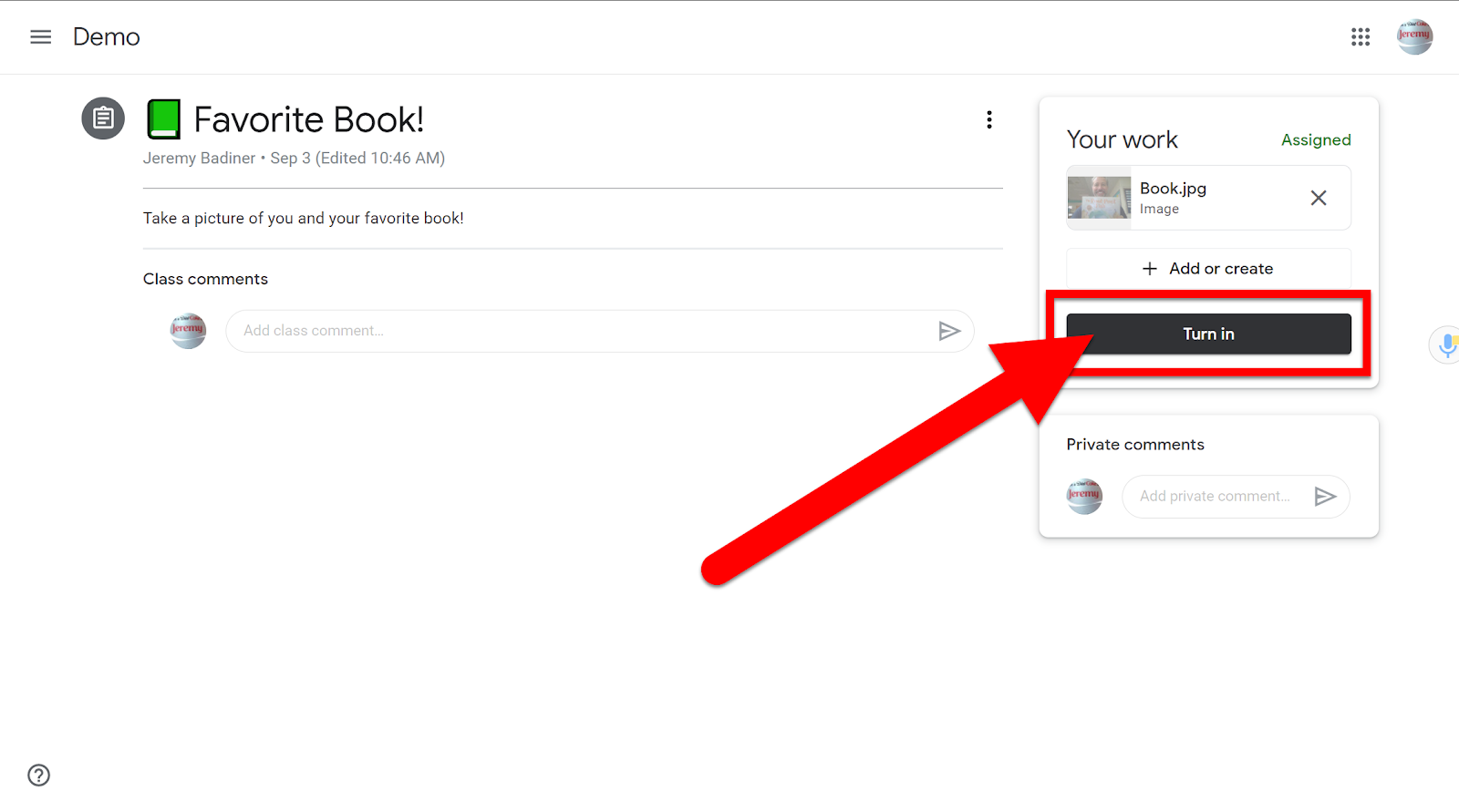
  1. Click on “Turn in”.


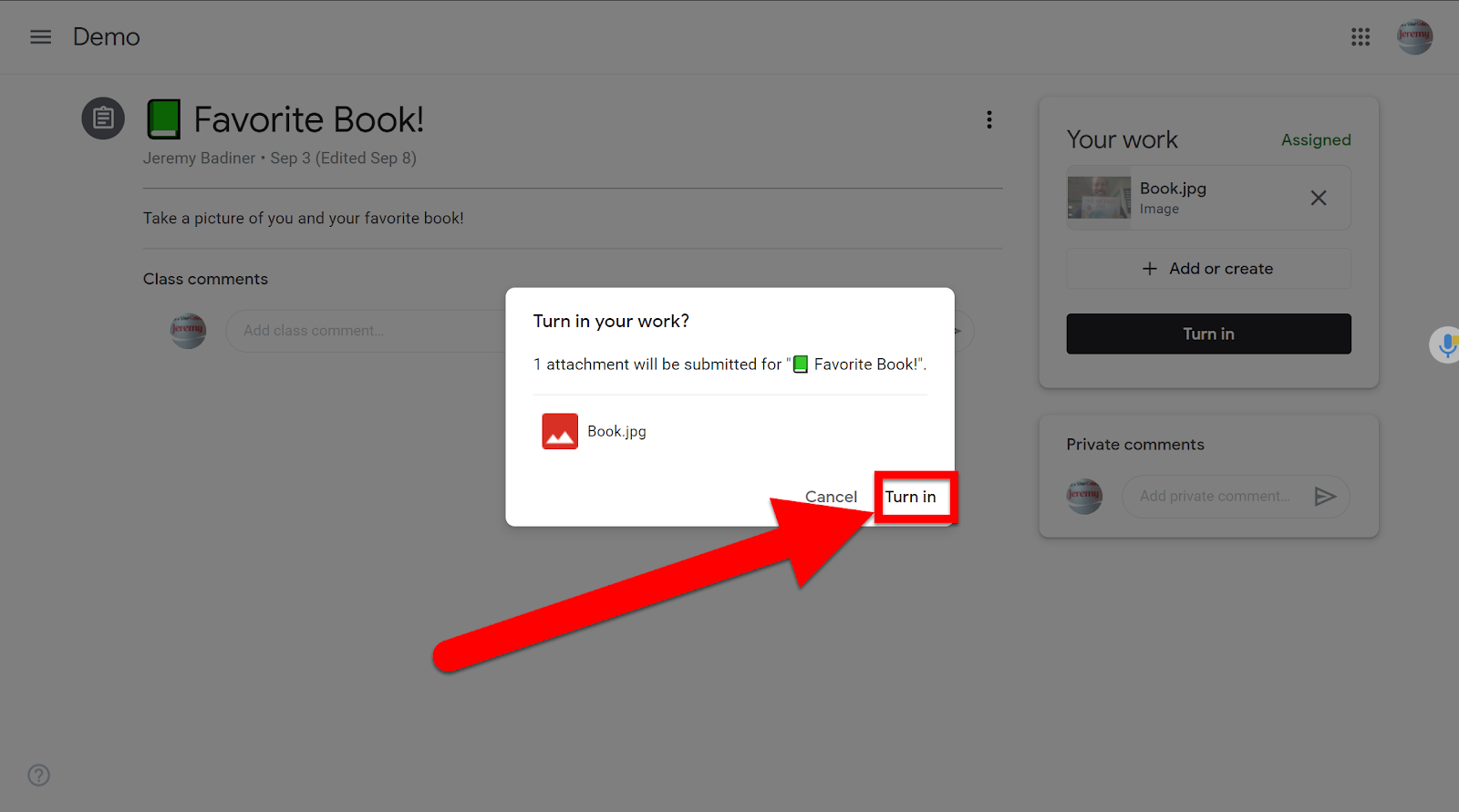
  1. Click on “Turn in” on the pop-up.


Here is a video walk-through to help as well: Upload File into Google Classroom


If you want these directions in a Document, Click HERE!


Saturday, April 4, 2020

Google Classroom Directions for Parents

With all the online learning we are having to do today, it is important that parents are able to get into the tools that teachers expect students to access. Ther are a few things to consider when sending home directions for parents to access Google Classroom. Below are some directions to help parents log their children in on their home devices.


In order for you to get your child into their Google Classroom you must have a few things:
  1. Your child’s school Email Address and Password (Ex: student@SchoolDomain.org)
  2. An internet connection and Browser (Google Chrome works best)


Signing in to Google Classroom:
  1. Using your internet browser (Google Chrome will work best), go to classroom.google.com. You must be logged in to your child’s School account in order to access any Google classroom. You can not use a personal Gmail account to access school Classrooms. Click “Sign In” in the top right-hand corner if you currently are not signed into any Google account. If you are in another Gmail account, you will need to sign out of it and log in with your child’s school account. It is best to set up a profile in Chrome for your child’s account (Directions Here).

  1. Once you are logged in and on the classroom.google.com site you will see any Classroom your child is already assigned. If you need to join a Classroom (your teacher has sent you a code) click the “+” in the top right-hand side of the screen.

  1. Select “Join Class” and enter the class code. 

  1. The classrooms that you have joined will now be on one screen. The next time you use classroom.google.com, this will be the “home screen”.


Helpful Tips:
  • You must use your child’s School account to access Google Classroom.
  • Look for the “Classwork” tab at the top of the Classroom for current assignments.
  • Setting up a separate Chrome Profile will make switching Google accounts significantly easier. Here is how to do that: Directions Here
  • Here is a YouTube walkthrough: Google Classroom for Parents


If you want these directions in a document click HERE!