Showing posts with label Digital Passport. Show all posts

Thursday, October 19, 2017

Common Sense Education: Digital Passport

Online safety is something we all need to consider. Teaching our students to be safe, what to share, how to cite, and how to interact online is incredibly important. There are many websites and tools to help teach students about online safety, but none are as easy as Common Sense Education's Digital Passport. Here are steps to get started!


Create Your Digital Passport Teacher Account:
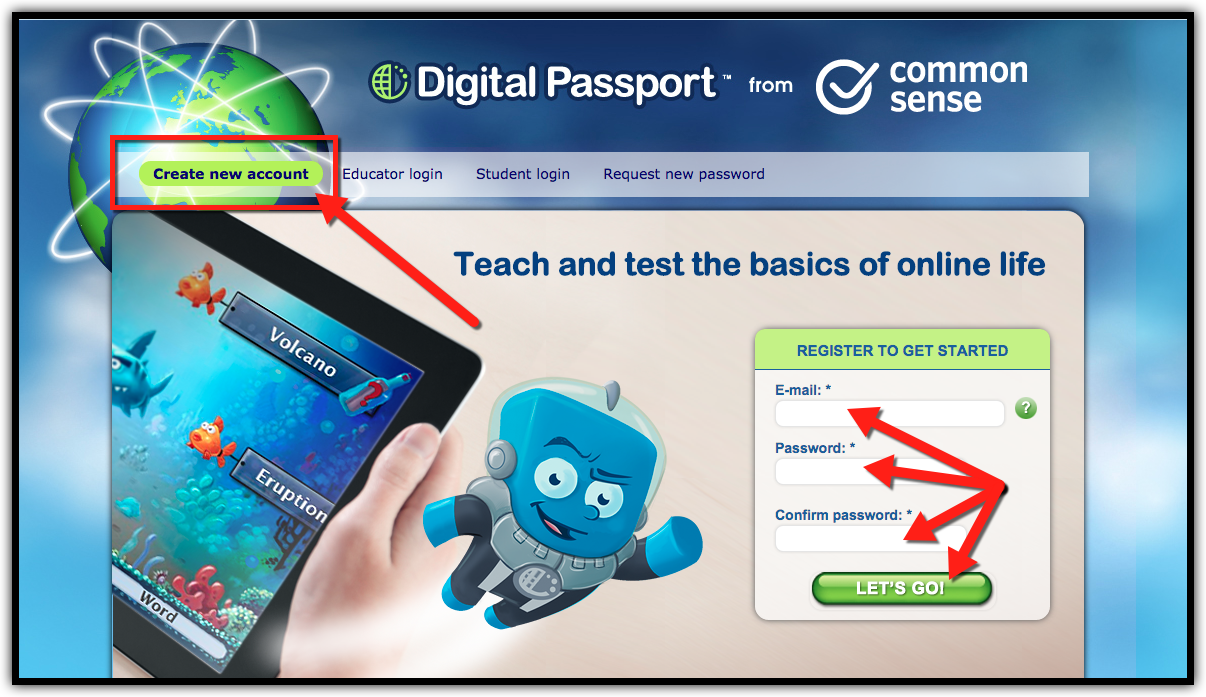
  1. Go to www.DigitalPassport.org in your browser.
  2. Click on “Register”. (skip to next part if you have an account)
  3. Fill in the required information to create your account.


Create Groups (Classes) in Your Teacher Account:
  1. Go to www.DigitalPassport.org in your browser.
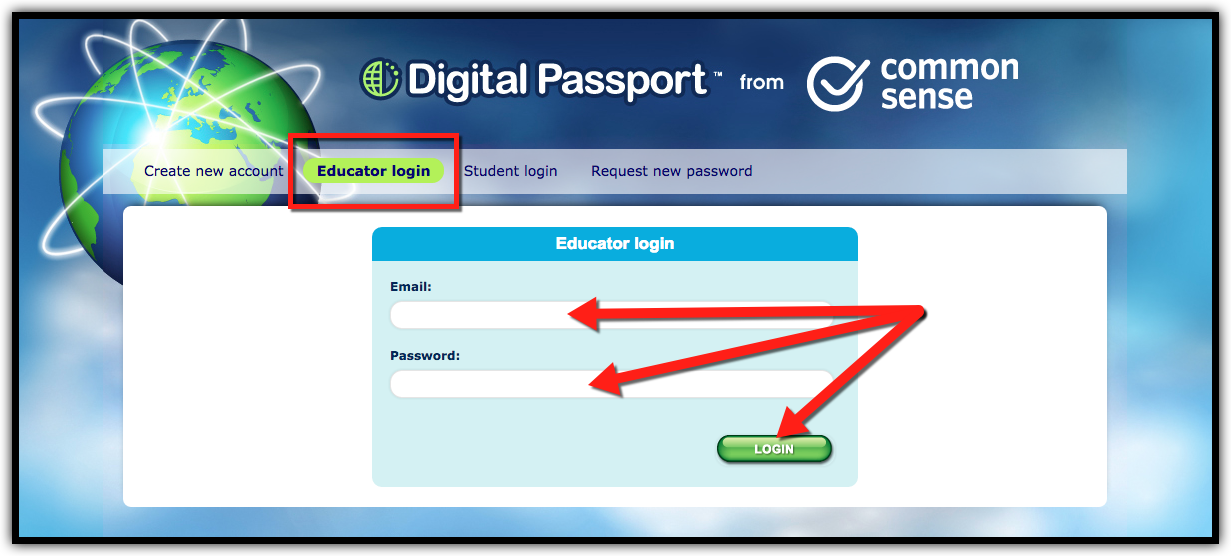
  2. Click on “Educator Login” and sign in with your account email and password.

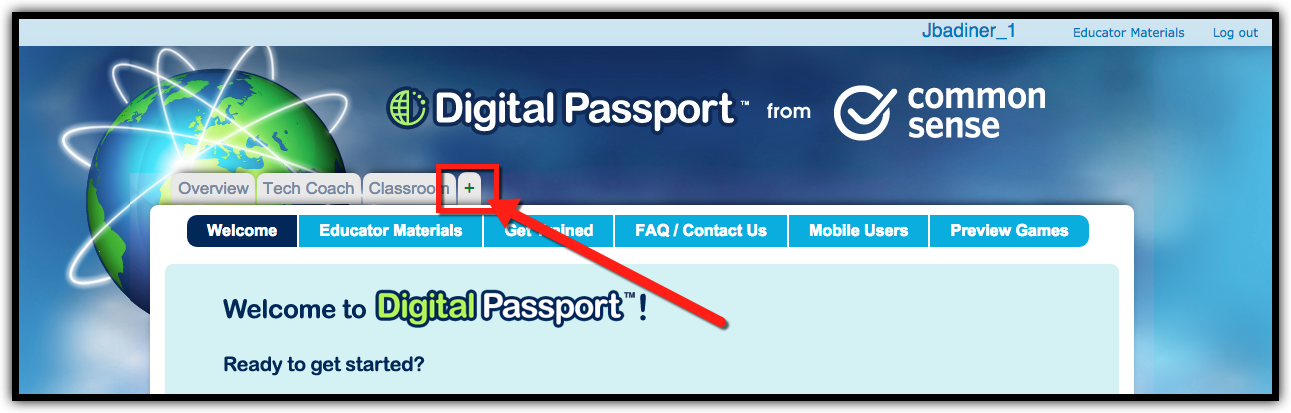
  1. Click the “+” tab to create a new class.


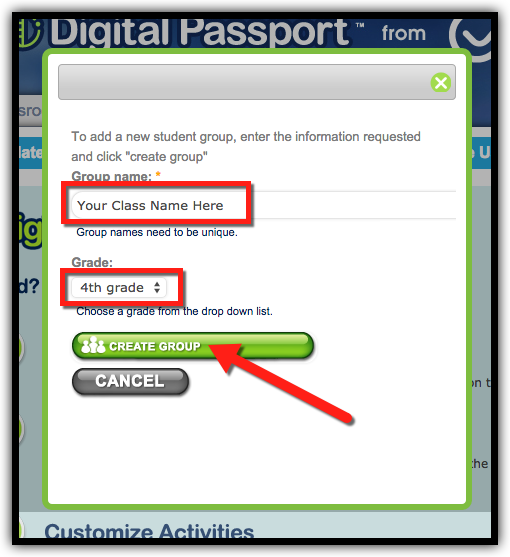
  1. Type in the group name and select the grade level, then click “Create Group”.


Add Students to Your Classes:
  1. Go to www.DigitalPassport.org in your browser and sign in.
  2. Click on the class tab that you created.
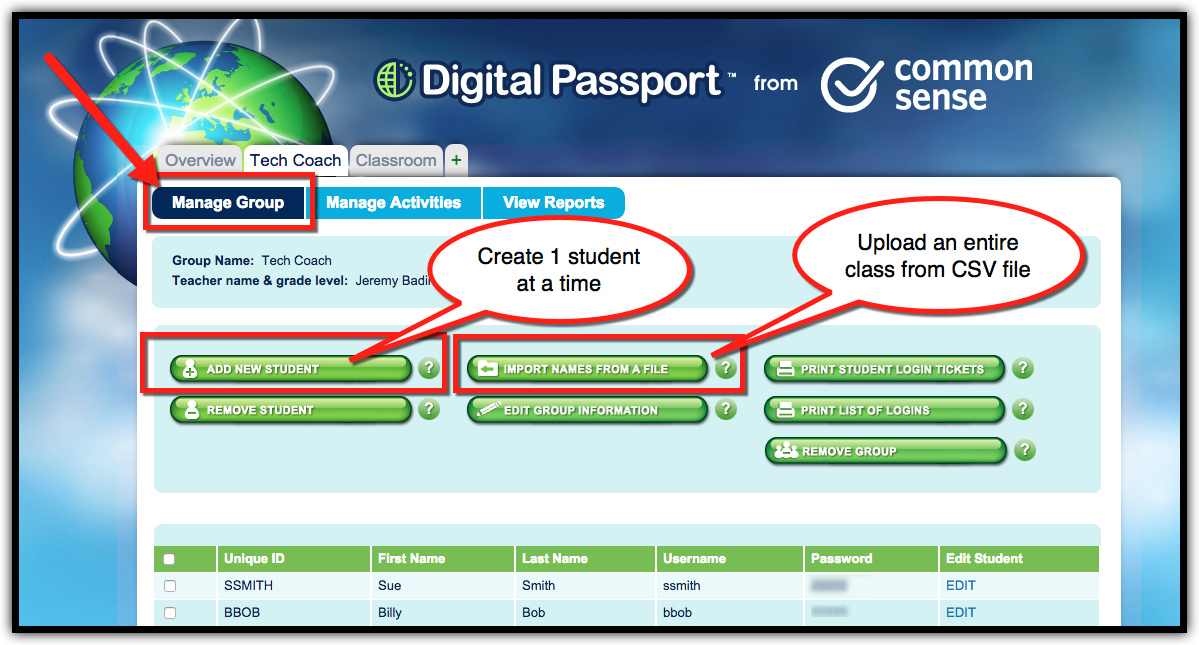
  3. Click on “Manage Group”.
  4. If you are entering 1 student at a time, click on “Add New Student”. If you are uploading your entire class, click on “Import Names From A File”.


  1. Click HERE to get a template to create student accounts. Edit in your students’ names and Google Account info. Click “File”, then “Download As” and choose “CSV”.


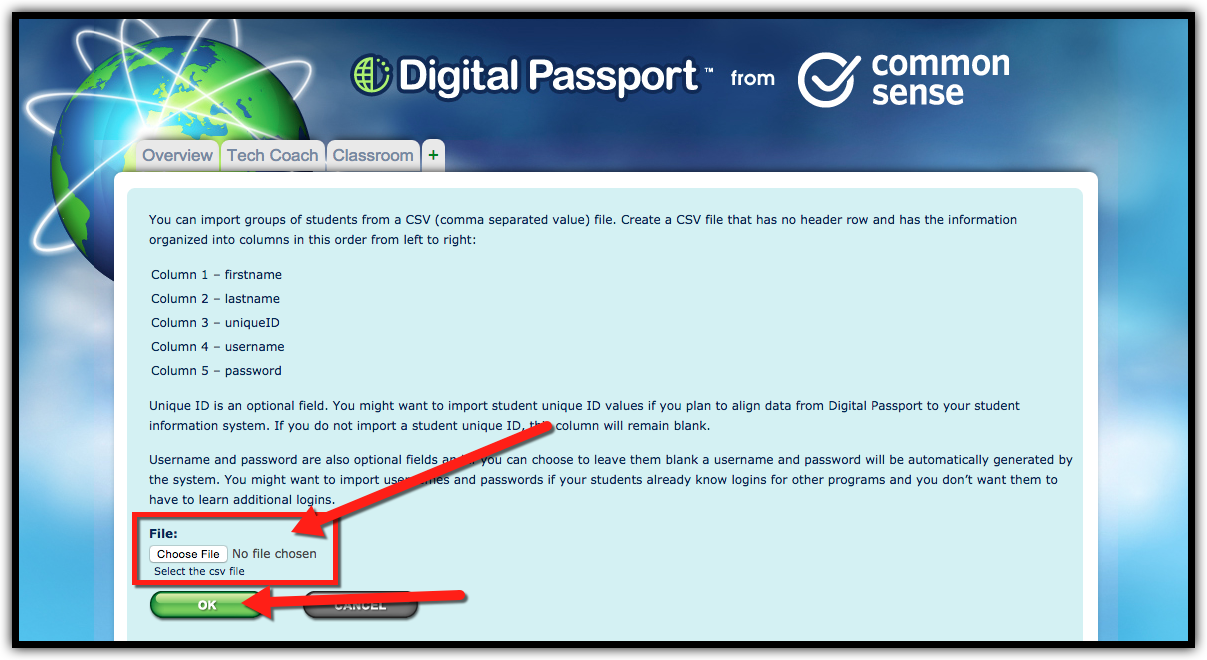
  1. Click “Choose File” and then “OK” to upload your CSV.


Preview Activities and Have Students Begin Activities:
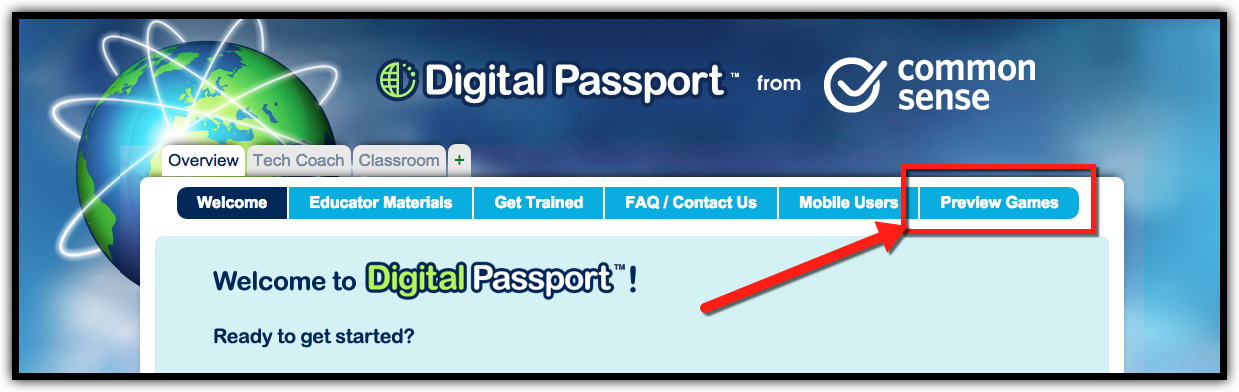
  1. Click on “Overview”.
  2. Click on “Preview Games”.


  1. This is a list of all the activities the students will do when they log in. I only let them do what we have talked about in class (they can’t progress ahead), but that is up to you.
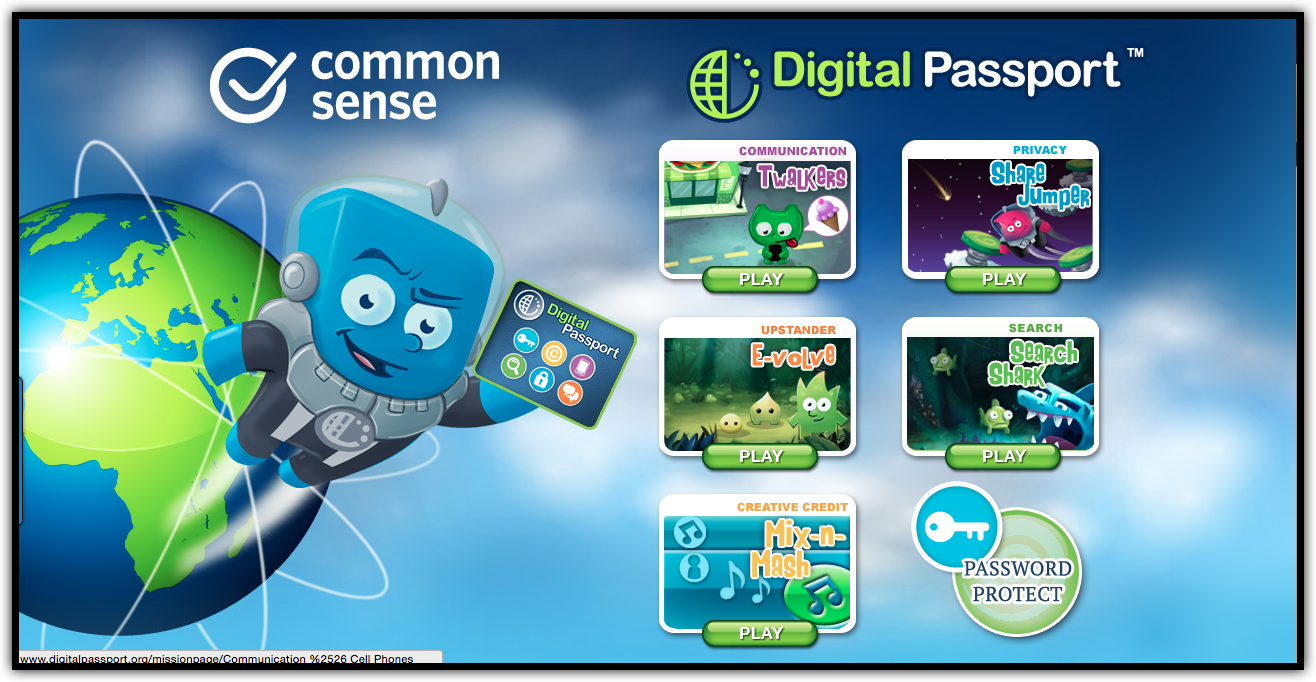


  1. You could do these lessons many ways, but here are my suggestions:


  • Easy: Let the students progress at their own pace knowing that they have to complete all activities on their own.
  • Medium: Do one activity each session where the students do the activity at their own pace. Early finishers can replay any completed activity, but not go ahead.
  • Best: Discuss the concept with the whole class. Introduce the game and have the students do the activity at their own pace. Early finishers can replay any completed activity, but not go ahead. Review what was learned after everyone has finished.


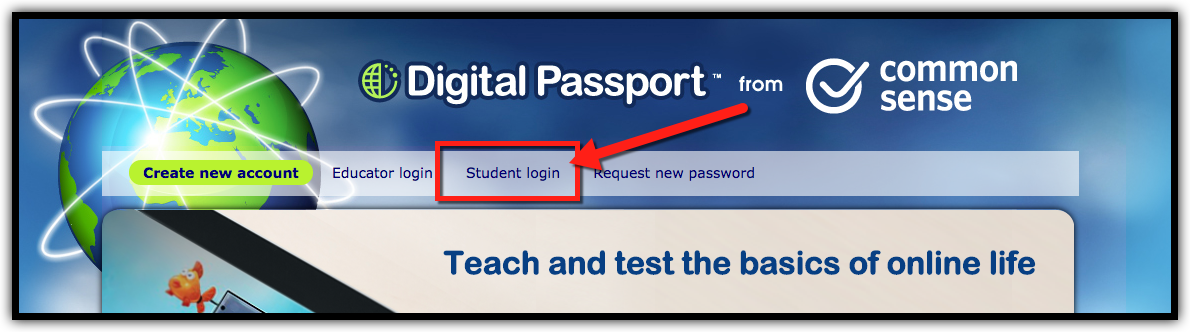
  1. Students need to login on the “Student Login” tab with the accounts you created.


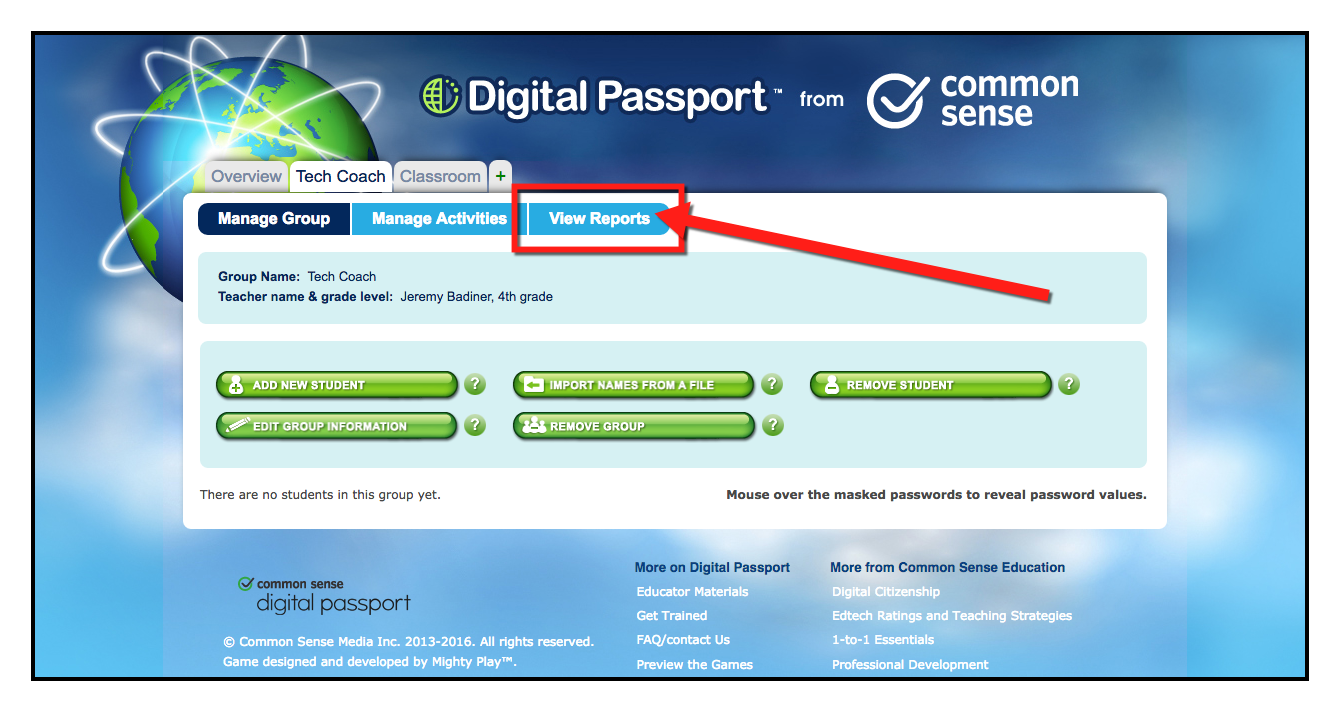
  1. Once your students are working on the lessons you can see their progress. Click on the “View Reports” tab to view reports and student progress, as well as print certificates.


Want these steps in a Document? Click Here!

Monday, March 30, 2015

Common Sense Media’s Digital Passport

Digital Citizenship is important to teach at all grade levels. With the abundance of apps, web sites, and other communication tools that all students are exposed to on a daily basis, educators need to prepare students to make safe online decisions. The best way is to have students learn how and why it is important to be safe online, and receive these lessons over and over again. The issue is finding a way that holds students' attention and presents the message to them in a way that they can retain it. There are many web sites and tools to help teach students about online safety, but in my opinion none are as easy as Common Sense Media’s Digital Passport. This is a great program for 3rd-5th graders to learn the basics of online safety. Here are steps to get started!


Create Your Digital Passport Teacher Account:
  1. Go to www.DigitalPassport.org in your browser.
  2. Click on “Register”.
  3. Fill in the required information to create your account.


Create Groups (Classes) in Your Teacher Account:
  1. Go to www.DigitalPassport.org in your browser.
  2. Click on “Educator Login” and sign in with your account email and password.


  1. Click the “+” tab to create a new class.


  1. Type in the group name and select the grade level, then click “Create Group”.


Add Students to Your Classes:
  1. Go to www.DigitalPassport.org in your browser.
  2. Click on the class tab that you created.
  3. Click on “Manage Group”.
  4. If you are entering 1 student at a time, click on “Add New Student”. If you are uploading your entire class, click on “Import Names From A File”. I created a CSV file that can be downloaded and edited by clicking here.


  1. After editing the CSV file and saving it, click “Choose File” and then “OK” to upload your CSV.


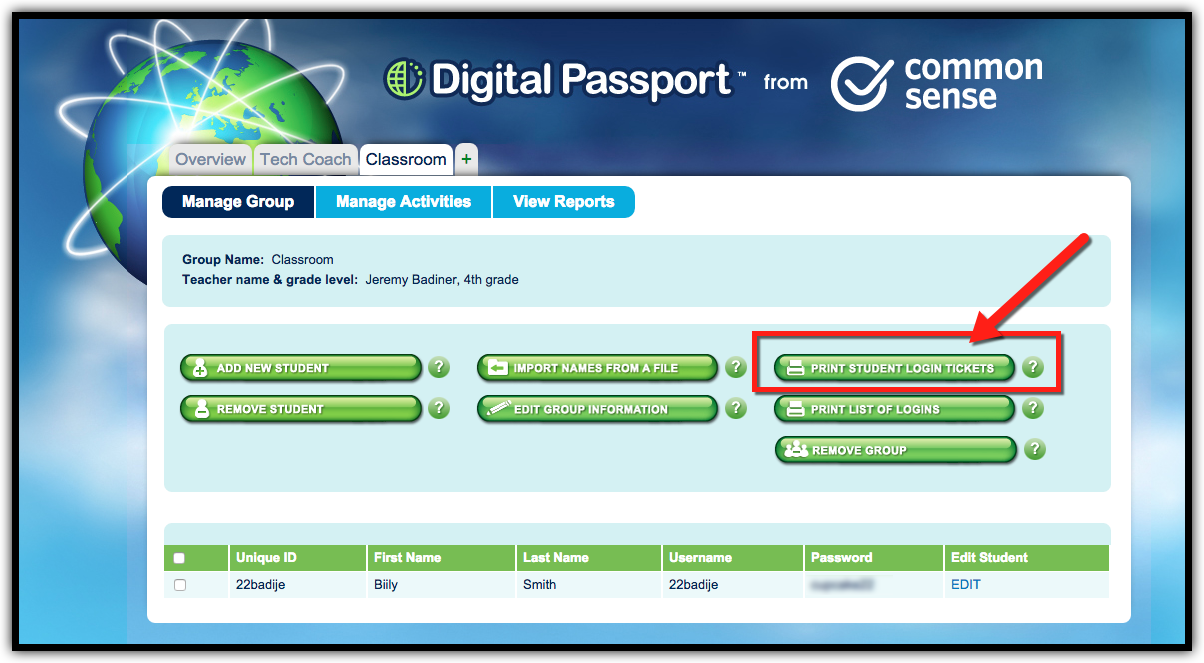
  1. You will see all your students listed on the screen. Click on “Print Student Login Tickets” to give students their login information.


  1. From the view reports tab you can view reports and student progress, as well as print certificates.


Preview Activities and Have Students Begin Activities:
  1. Click on “Overview”.
  2. Click on “Preview Games”.


  1. This is a list of all the activities the students will do when they log in. I only let them do what we have talked about in class (they can’t progress ahead), but that is up to you.


  1. You could do these lessons many ways, but here are my suggestions:


Easy: Let the students progress at their own pace knowing that they have to complete all activities on their own.


Medium: Do one activity each session where the students do the activity at their own pace. Early finishers can replay any completed activity, but not go ahead.


Best: Discuss the concept with the whole class. Introduce the game and have the students do the activity at their own pace. Early finishers can replay any completed activity, but not go ahead. Review what was learned after everyone has finished.


  1. Students need to login on the “Student Login” tab with the accounts you created.


If you want these directions in a document, click here!