I’ll admit it...I live in a totally Google world. I use nearly every Google App out there on my PC, Mac, and mobile devices. Why? Because they work well for me. Perhaps one of the most used apps is Google Calendar as it keeps me organized. To be honest, I don’t know what I would do without my daily event notifications, shared appointments/events, and all the extra tools in the new mobile calendar app. If you have not checked out the updated Google Calendar app, you might not be aware of all the cool additions! Check them out below!
Mobile Version of Google Calendar
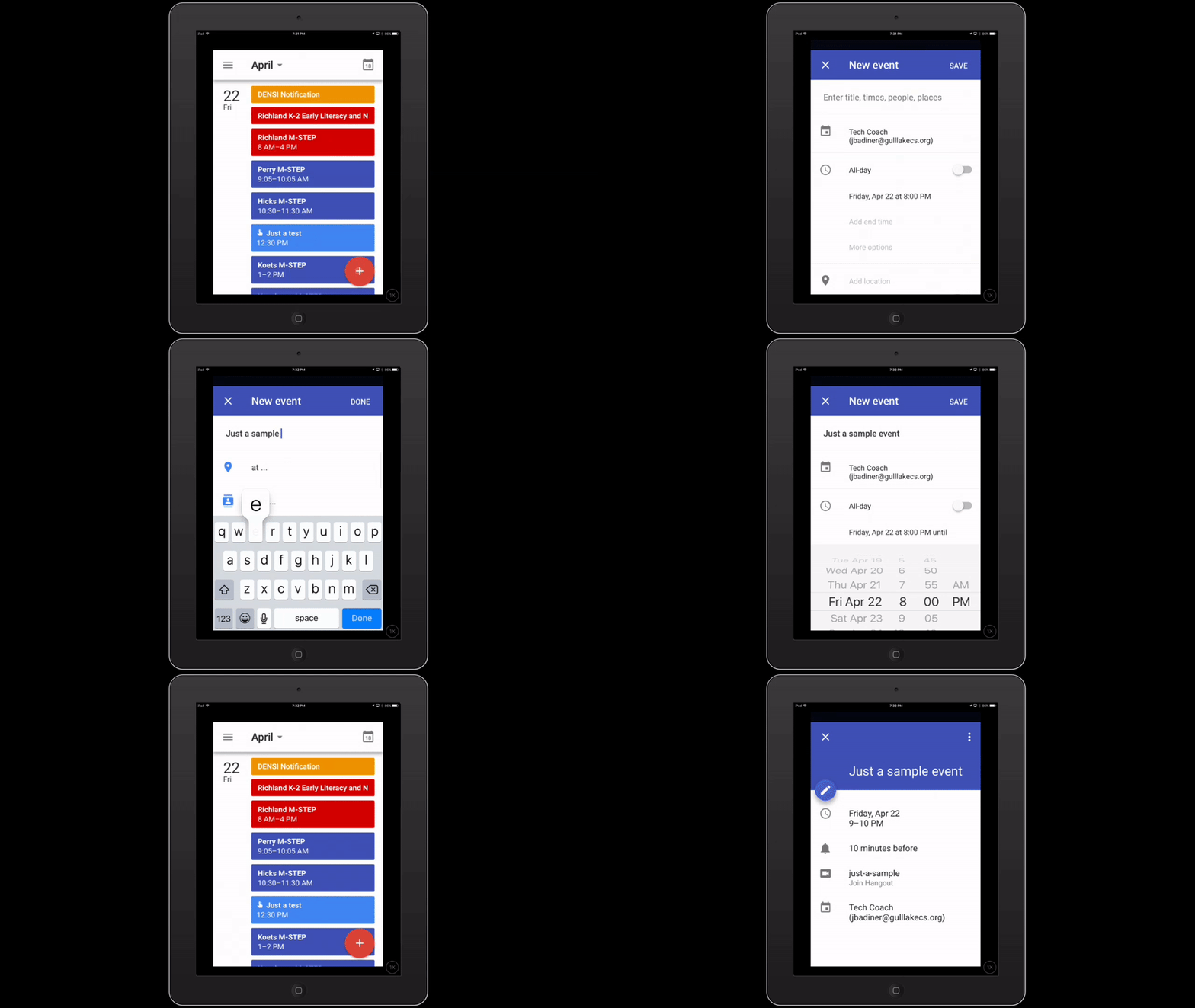
Creating Events:
Events are regular calendar items. These can be appointments, events you are planning to attend, birthdays, school meetings, or even shared events from others.
- Open the Google Calendar app.
- Tap the “Add” button.

- Tap the “Event” button.
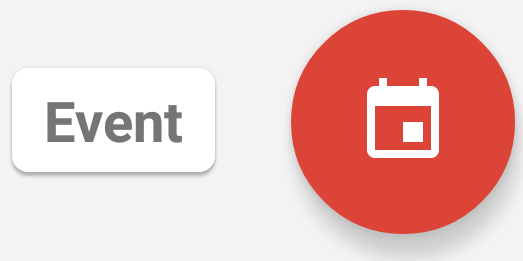
- Add in your event details.
Creating Reminders:
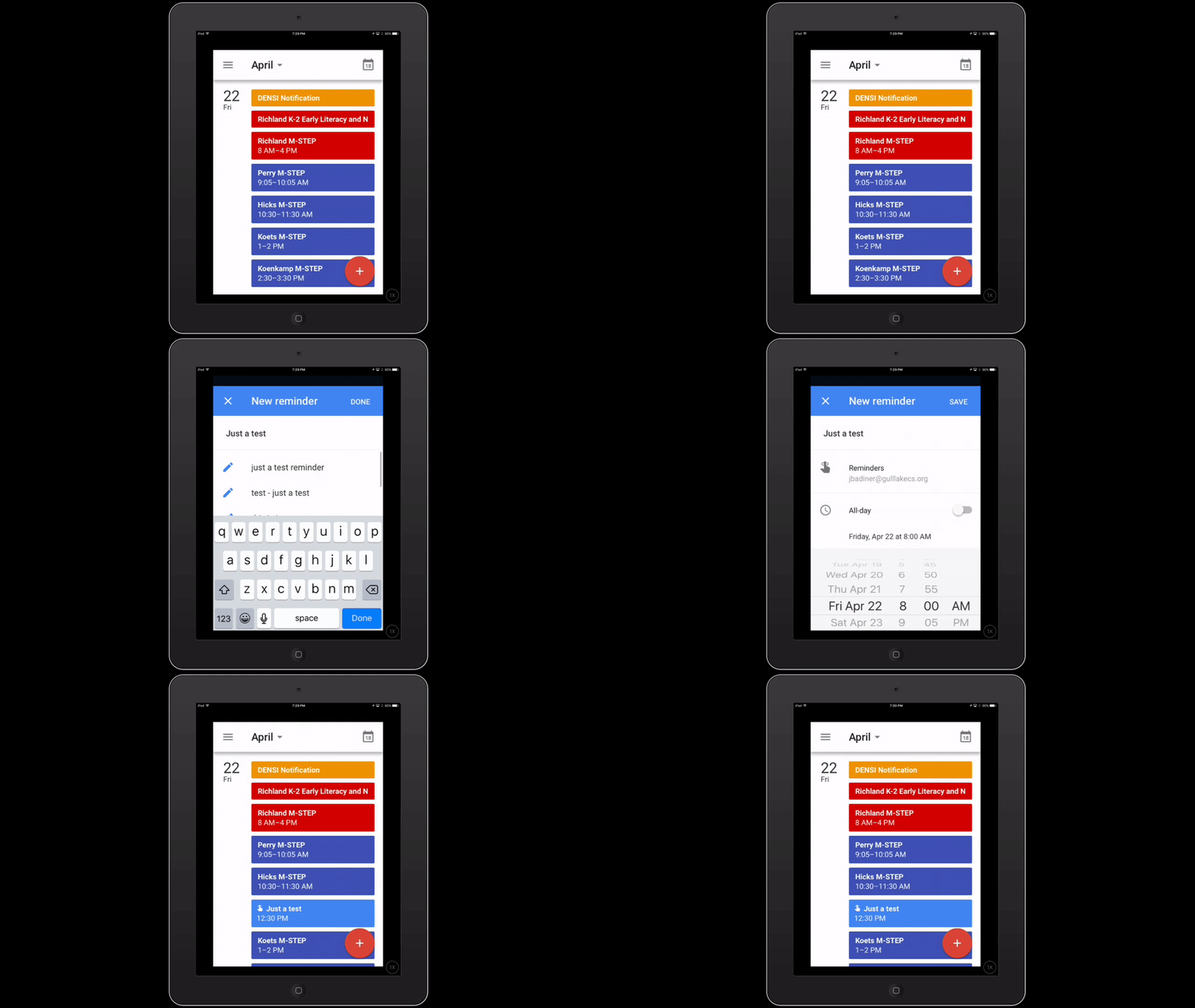
Reminders are things that you want a notification of to remember to do. Examples are pick up groceries, call someone, or anything that you just need a timely reminder to do.
- Open the Google Calendar app.
- Tap the “Add” button.
- Tap the “Reminder” button.
- Add in your reminder details.
Creating Goals:
Goals are things that you want to do or improve. Examples are exercise, learning a skill, something with family/friends, me time, or organizational tasks. By setting goals the app will create events to remind you to stick to your goal depending on your pre-filled calendar events.
- Open the Google Calendar app.
- Tap the “Add” button.
- Tap the “Goal” button.
- Choose your category, frequency, general time of the day, and add in your goal details.
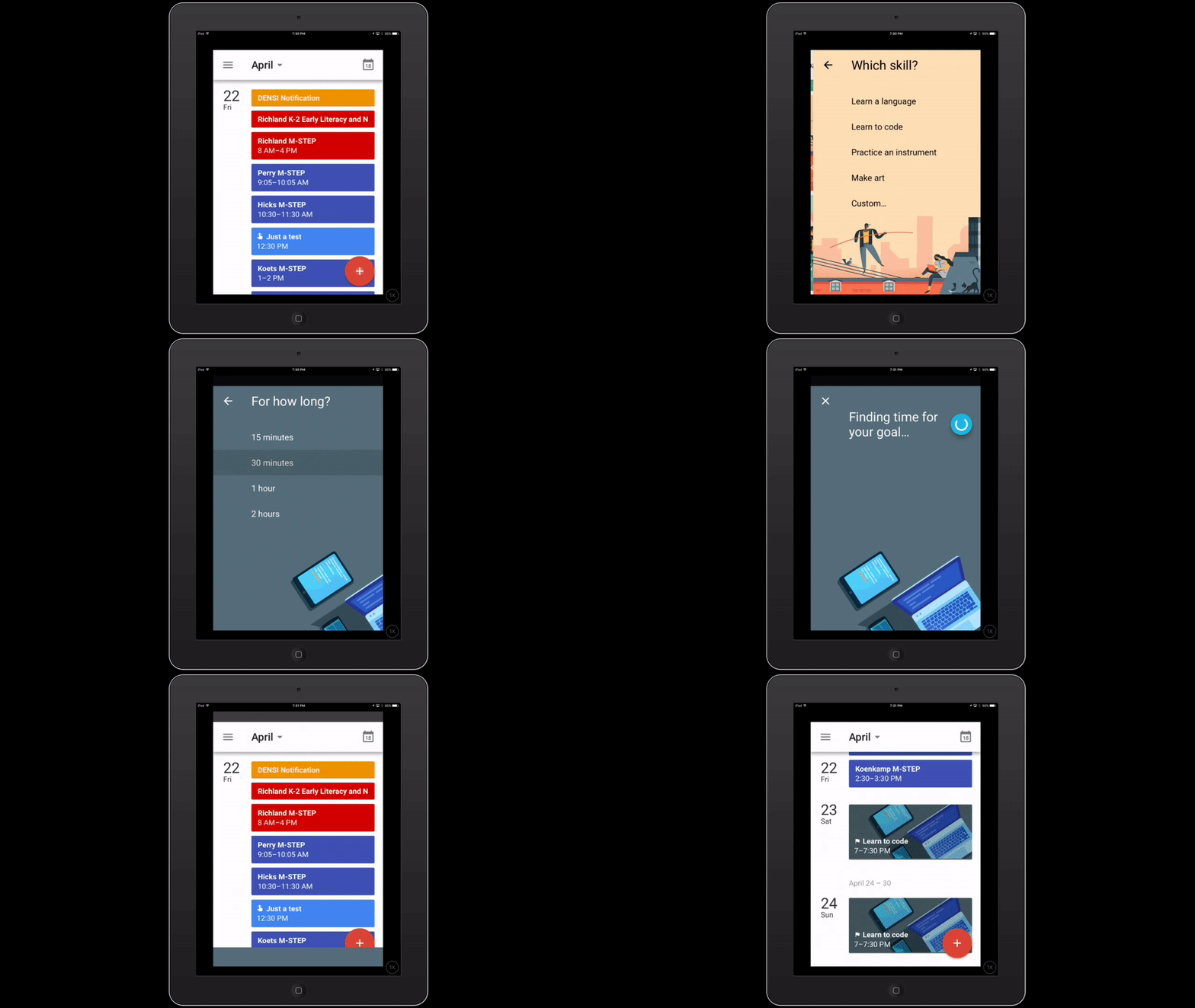
Go ahead, start making events, reminders, and goals and let Google Calendar help organize your life!
If you want these directions in a document, Click Here!