Showing posts with label Add-ons. Show all posts

Friday, March 18, 2016

Printing Multiple Google Docs

Let’s face it, Google Documents rule! They are so easy to access anywhere. They allow collaboration and it is FREE! All this is great, but there was one thing that was always difficult for teachers to deal with...printing. I know (and I would agree) that we really don’t need to print a Google Document. That is the point of this type of file; remaining paperless. There are those instances that we need to print all of our students’ files. In the past that involved opening one document, waiting for it to load, selecting print and going through the printing process, then repeating until all 27+ files were printed. This was very time-consuming. The good news is this process is a thing of the past. Adding a Drive Add-On eliminates all these steps. Follow the steps below to install the PDF Mergy Add-On to make printing multiple documents easy!


Printing Multiple Google Docs


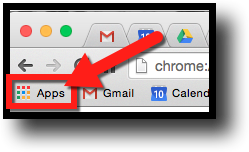
  1. Click on the multi-colored waffle for “Show Apps” in of Chrome and go “Web Store”.


  1. Search for “PDF Mergy” and install the App.


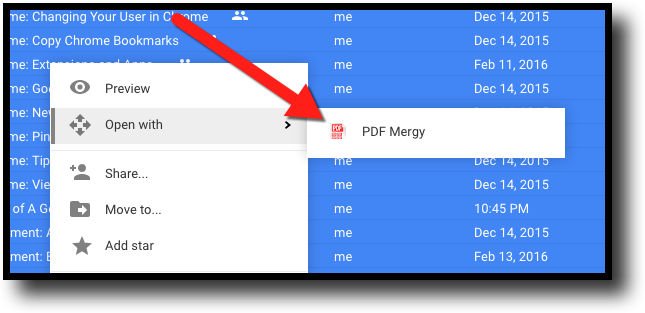
  1. Locate the folder containing the documents you want to print and select all the files you want and right click.
  2. Click on “Open With” and select “PDF Mergy”.


  1. If asked, allow access to Drive.
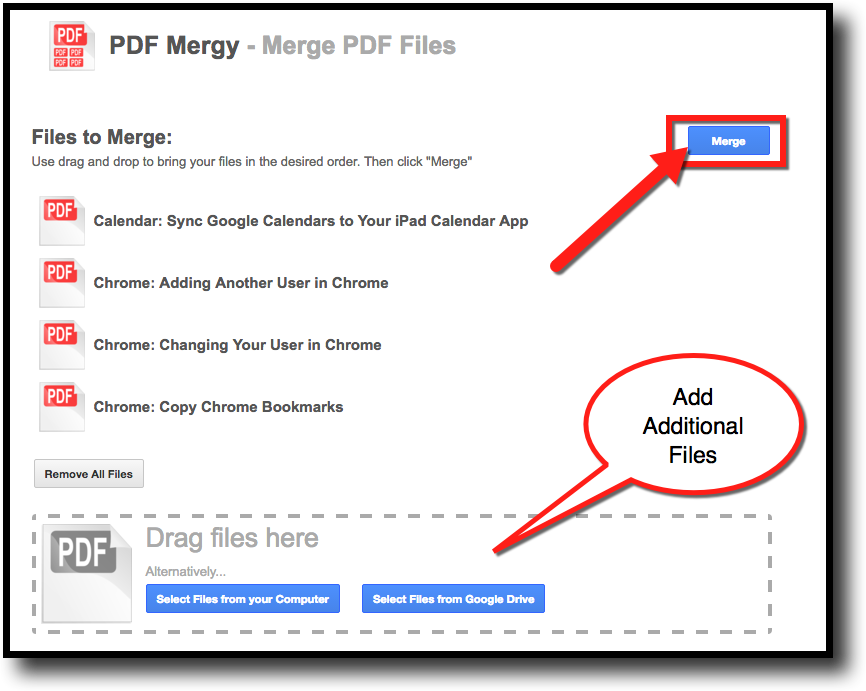
  2. A new tab will open and give the option to “Merge”. Click “Merge”. You also have the option to add additional files to the list.


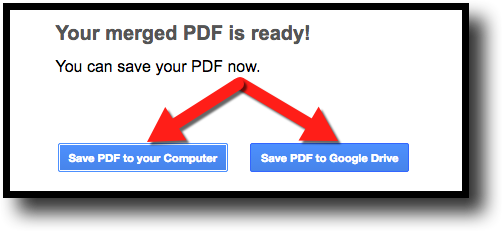
  1. When the files are merged you will have a choice where to save the new PDF. Make that selection and then open this new file and send this to the printer.


You have now printed multiple files in one print job!

If you want these directions in a Document click Here!


Friday, February 13, 2015

Using Add-Ons in Google Drive

Google Drive has come a long way! To be honest, I no longer use MS Office. Google does all I really need (as long as I do not need columns or text boxes). One of the best things to change was the addition of Add-ons. These replace many of the more difficult scripts that we had to use in the past (there are still some awesome scripts out there that have not been made into Add-ons yet). These Add-ons allow easy mail merge, templates, quiz grading, labels, and many more. All the Add-ons can be added to your Google Drive quickly and easily by following the steps below.


Using Add-Ons in Google Drive

  1. Log into your Google Drive.
  2. Open a Google Document. The Add-ons are specific to the tool (Doc, Sheets, Slide) you are using.
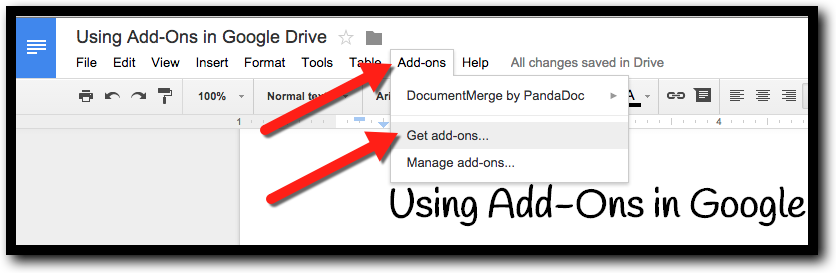
  3. Click “Add-ons”.


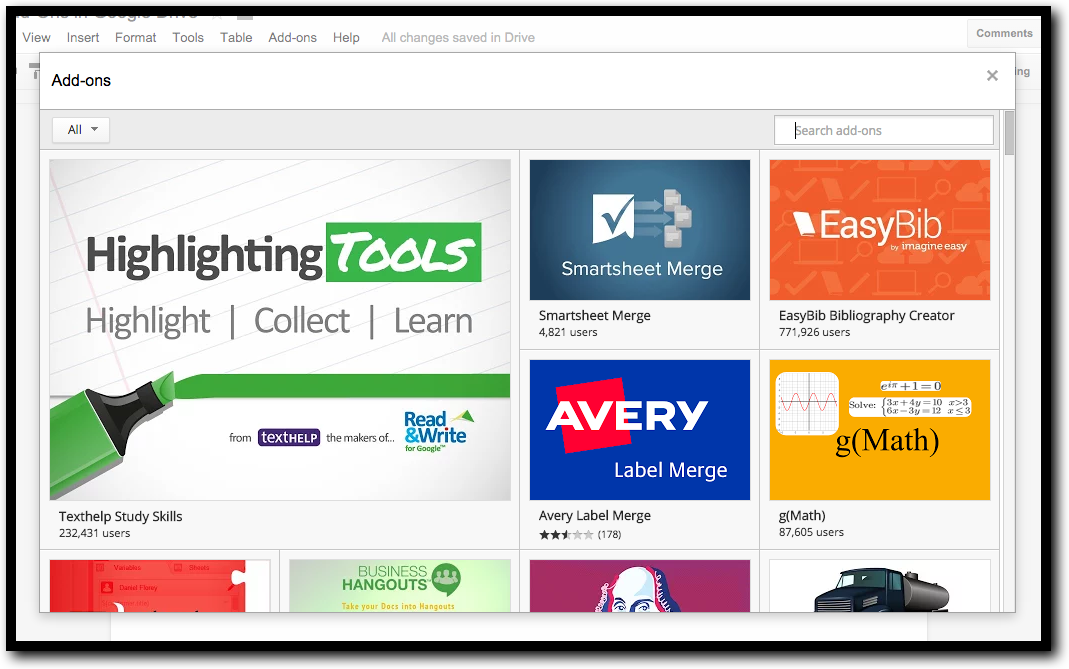
  1. Scroll through the listed Add-ons to find what you are looking to use.


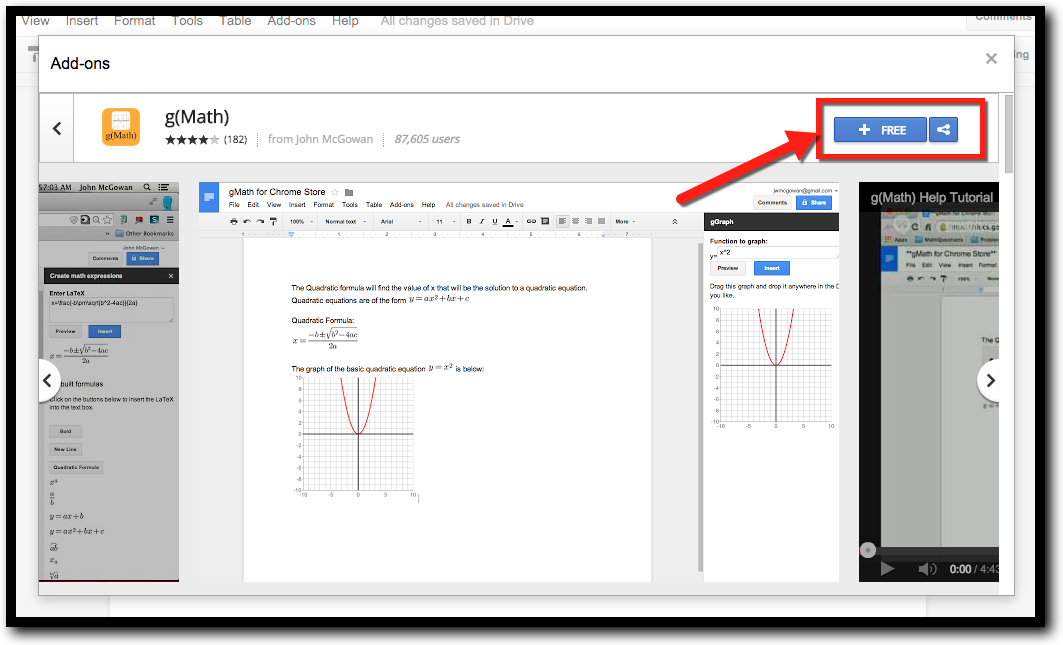
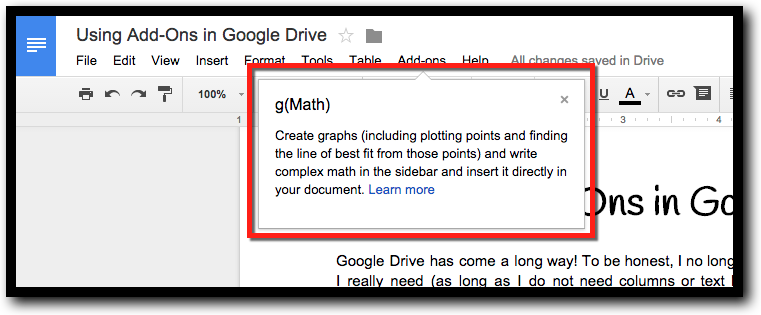
  1. Click on an Add-on to read the description and reviews.
  2. Click “Free” to have it added.


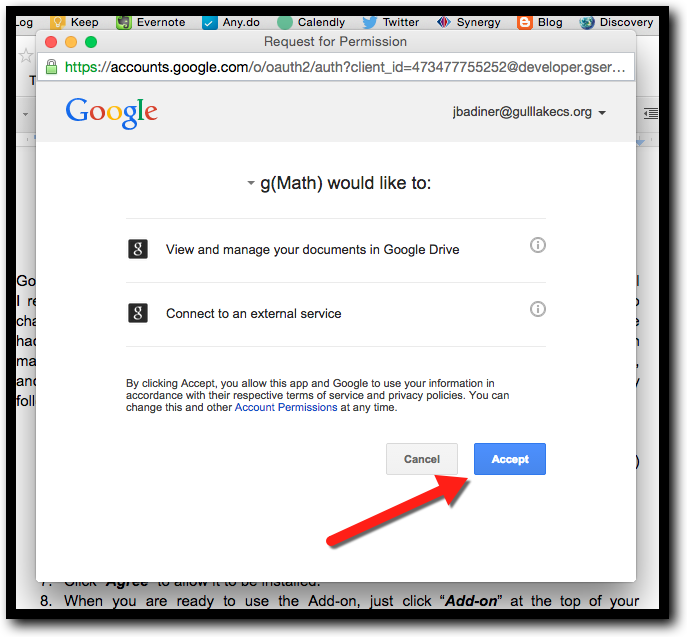
  1. Click “Accept” to allow it to be installed.


  1. You will get a notification that this Add-on has been added to your documents.


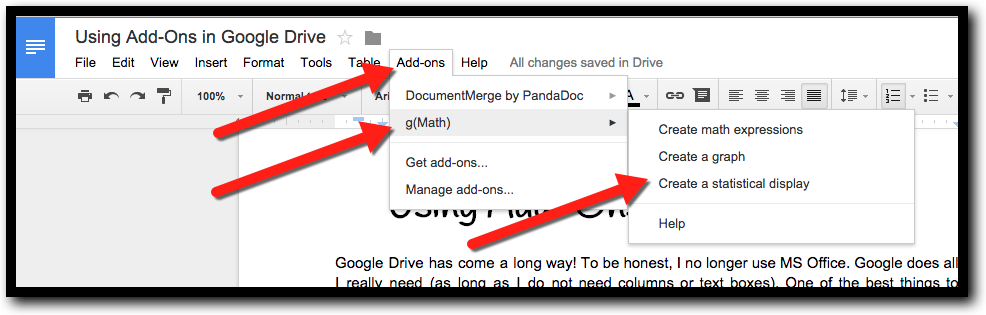
  1. When you are ready to use the Add-on, just click “Add-on” at the top of your document and select it from your list of installed Add-ons. Follow the directions the Add-on gives to use the tool.


Get some Add-ons and start making Google Drive work for you!


If you want these directions in a Document click Here!