Showing posts with label Translate. Show all posts

Friday, October 3, 2025

Translate with Canva

It is no surprise that Canva is one of my favorite tools. It can create anything you need and make you look like a seasoned professional without much work! One of the great features of Canva is its ability to translate files. Check out how to make your creations readable to anyone, no matter what language they speak!


Translate Text in a Document or Slide:

  1. Either upload an existing Document or Slide Deck or create a new one in Canva.

  2. Click on the “Apps” icon on the left side.


  1. Type “Translate” and choose the app shown.


  1. Choose the language you want to translate to. You can select the whole page or just selected text. 


  1. Clicking on “Settings” will let you choose some options including duplicating the document or add duplicate slides if in Slide Show and translate them. By duplicating you do not lose the original English version.


  1. You can now choose the Tone of you translation and then click “Translate” at the bottom. 


  1. You now have 2 pages in your document. You can switch between them at th bottom. One is the English (original) version and one is the Spanish version


Here is a video walkthrough on how to translate a Google Slides deck. Click Here!


 If you want these directions in a Document, click HERE!


Thursday, December 5, 2019

Translate a Google Document

There are many ESL students in our rooms today. Google has us covered in normal conversations through the Google Translate app and site. By using the App on our mobile devices and the site on our laptops we can make communication better for everyone. Google Documents also has a built-in translator! This means all those notes, newsletters, and updates you send home to parents can be in their own language! It is easy, quick, and will be greatly appreciated by parents.


Translate a Document:
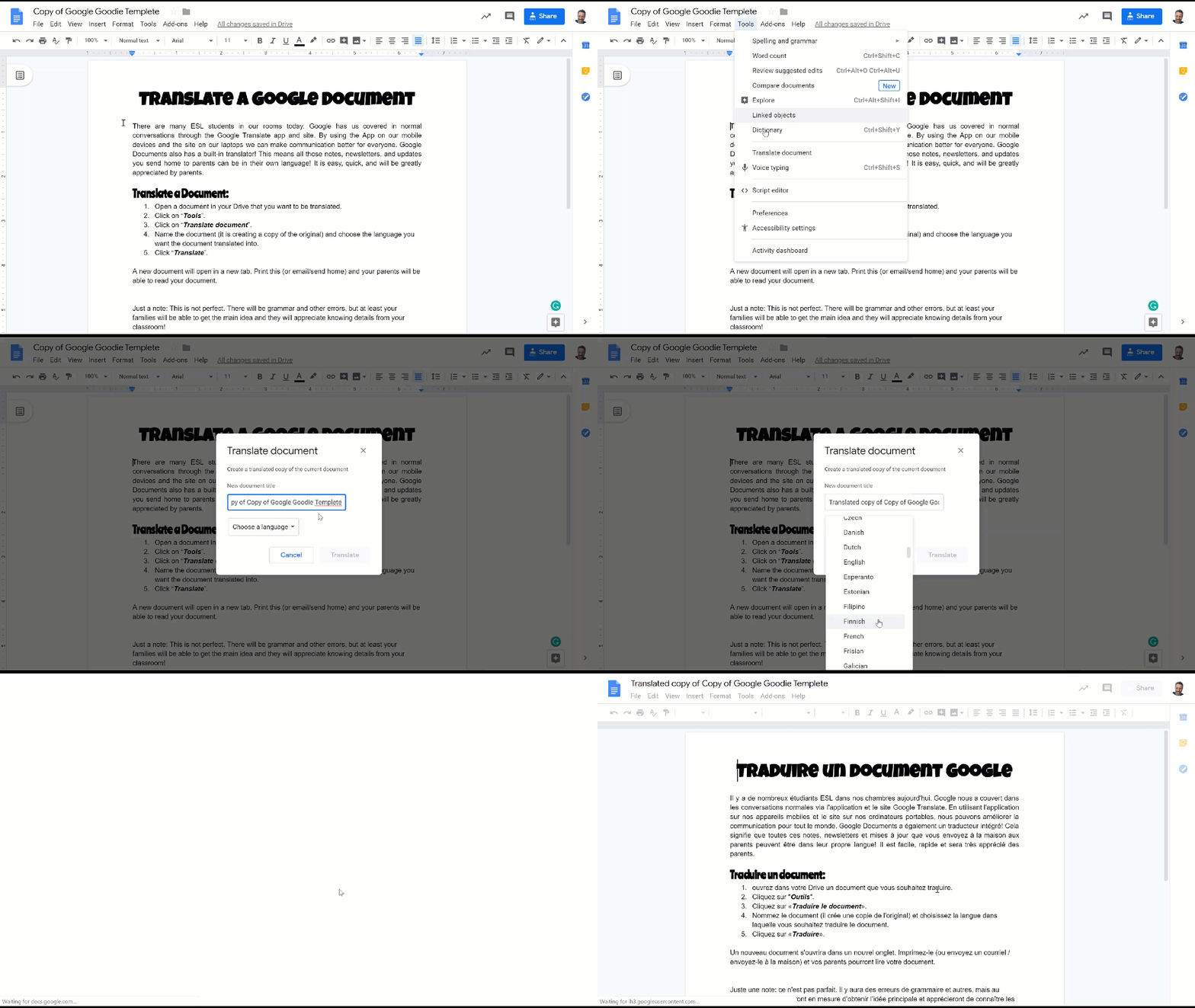
  1. Open a document in your Drive that you want to be translated.
  2. Click on “Tools” and click on “Translate document”.


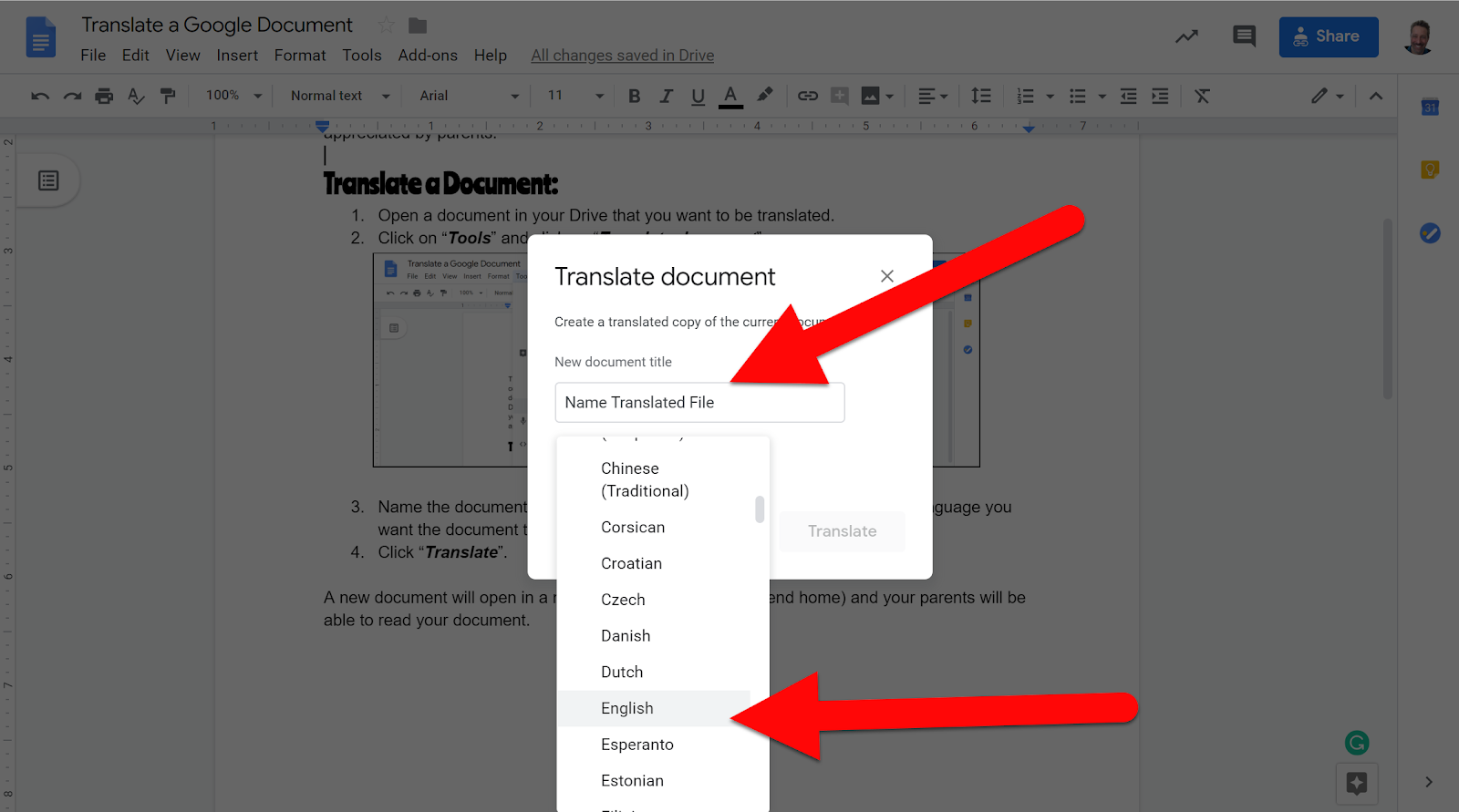
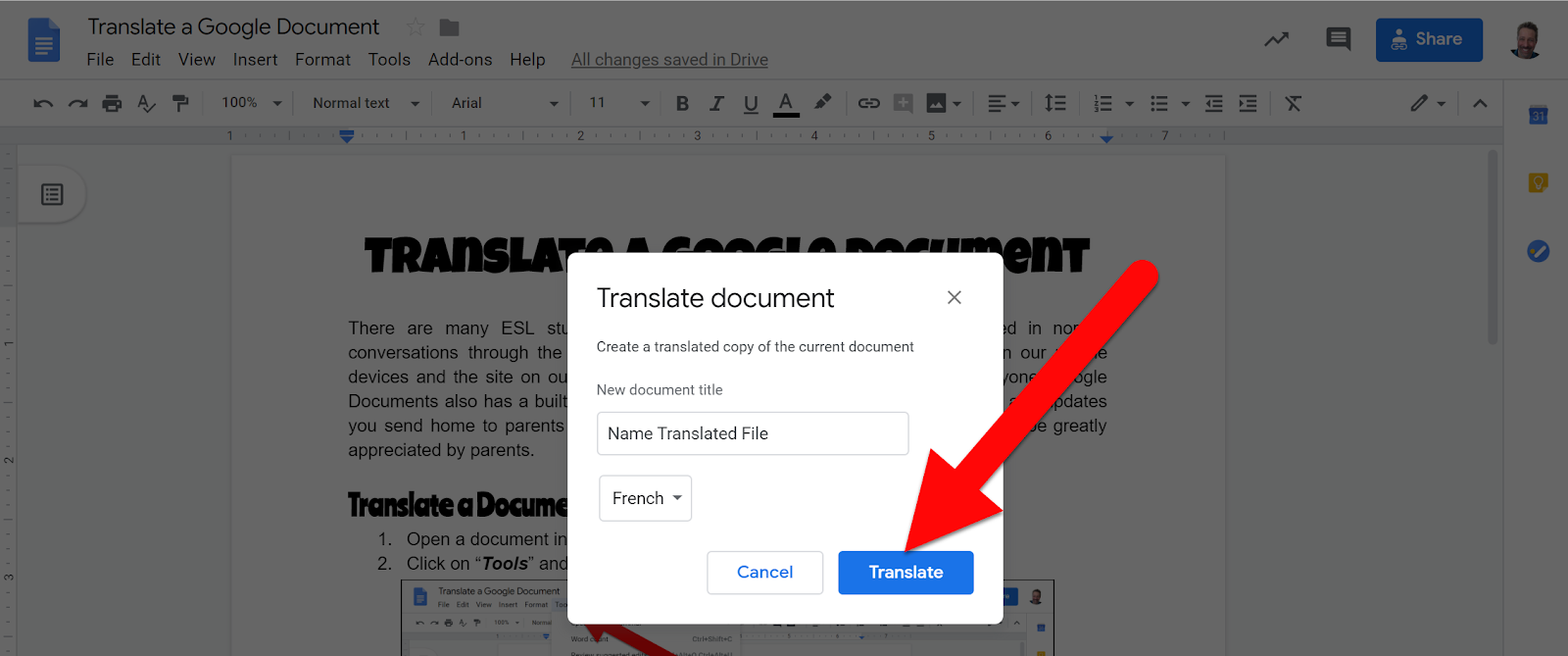
  1. Name the document (it is creating a copy of the original) and choose the language you want the document translated into.


  1. Click “Translate”.


A new document will open in a new tab. Print this (or email/send home) and your parents will be able to read your document.


Just a note: This is not perfect. There will be grammar and other errors, but at least your families will be able to get the main idea and they will appreciate knowing details from your classroom!


If you want these steps in a document click HERE!