Gmail is an awesome tool. There are lots of ways to make your Gmail stand out. Some are a little more overwhelming (changing background patterns or colors, text size, and others. The best way to pass on important information is to have a good email signature. There are lots of things that could go in there. I include my 2 building phone numbers, my Google Voice number, and all my important links (Twitter, Blog, Google+, Flickr, YouTube Channel, and Calendly links). The best part of a complete signature is that all your important contact information is available to anyone you email. Below is how to easily setup your Gmail signature.
How to Add a Signature to Your Gmail
Adding a signature makes your school mail complete. It can include any important information you wish to always have available to parents and others. I include my 2 building phone numbers, my Google Voice number, and all my important sites (Twitter, Blog, Google+, Flickr, YouTube, and Calendly links). Keep in mind, you don’t want your signature to be too overwhelming, and it is redundant to have your email address in it as that is already send through the email you created. Here are the steps to creating your signature.
Open up Gmail.
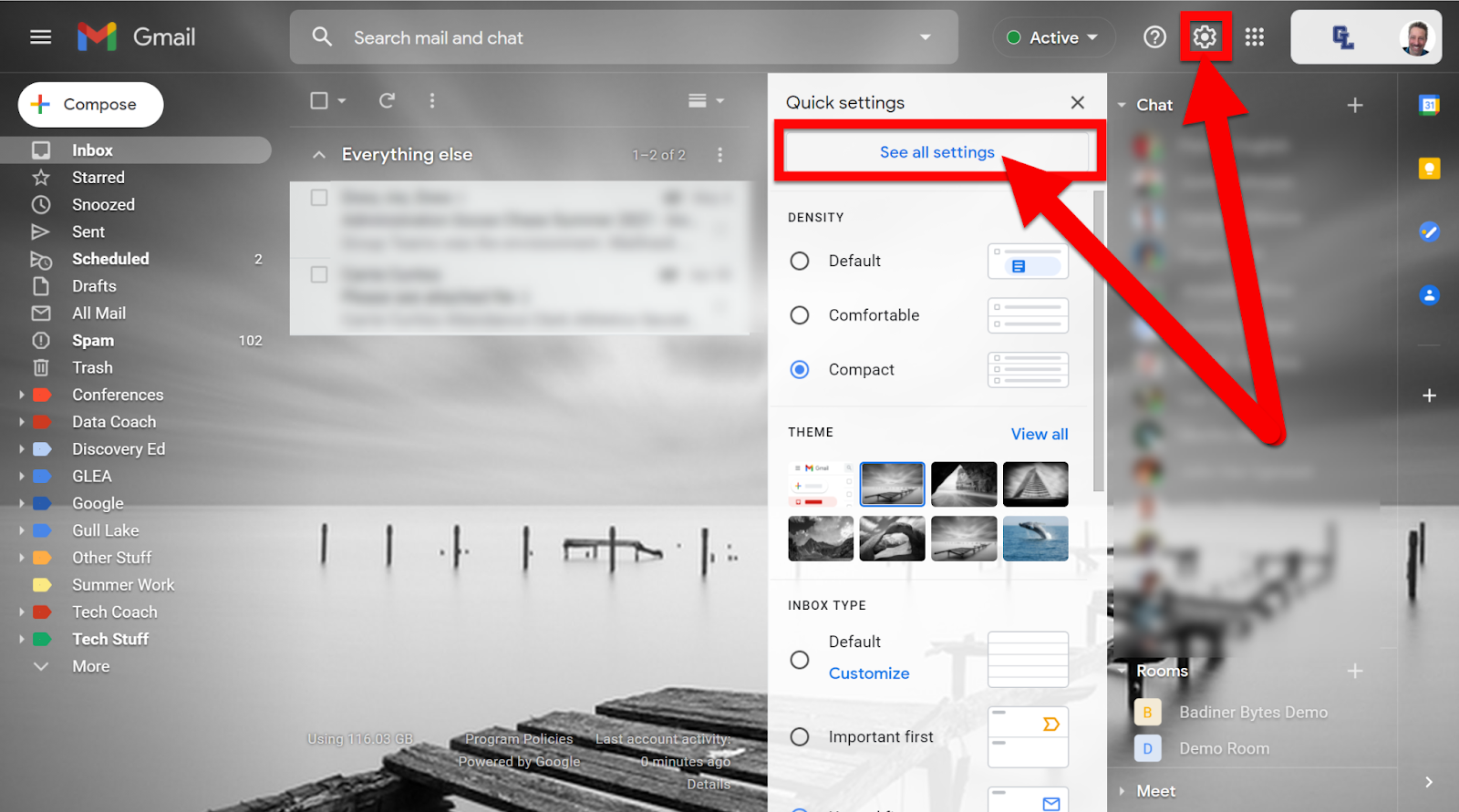
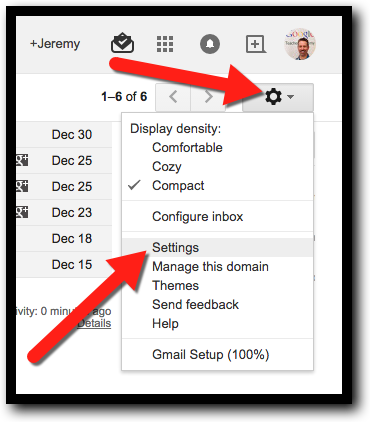
Click the gear in the top right corner and click on “Settings”.
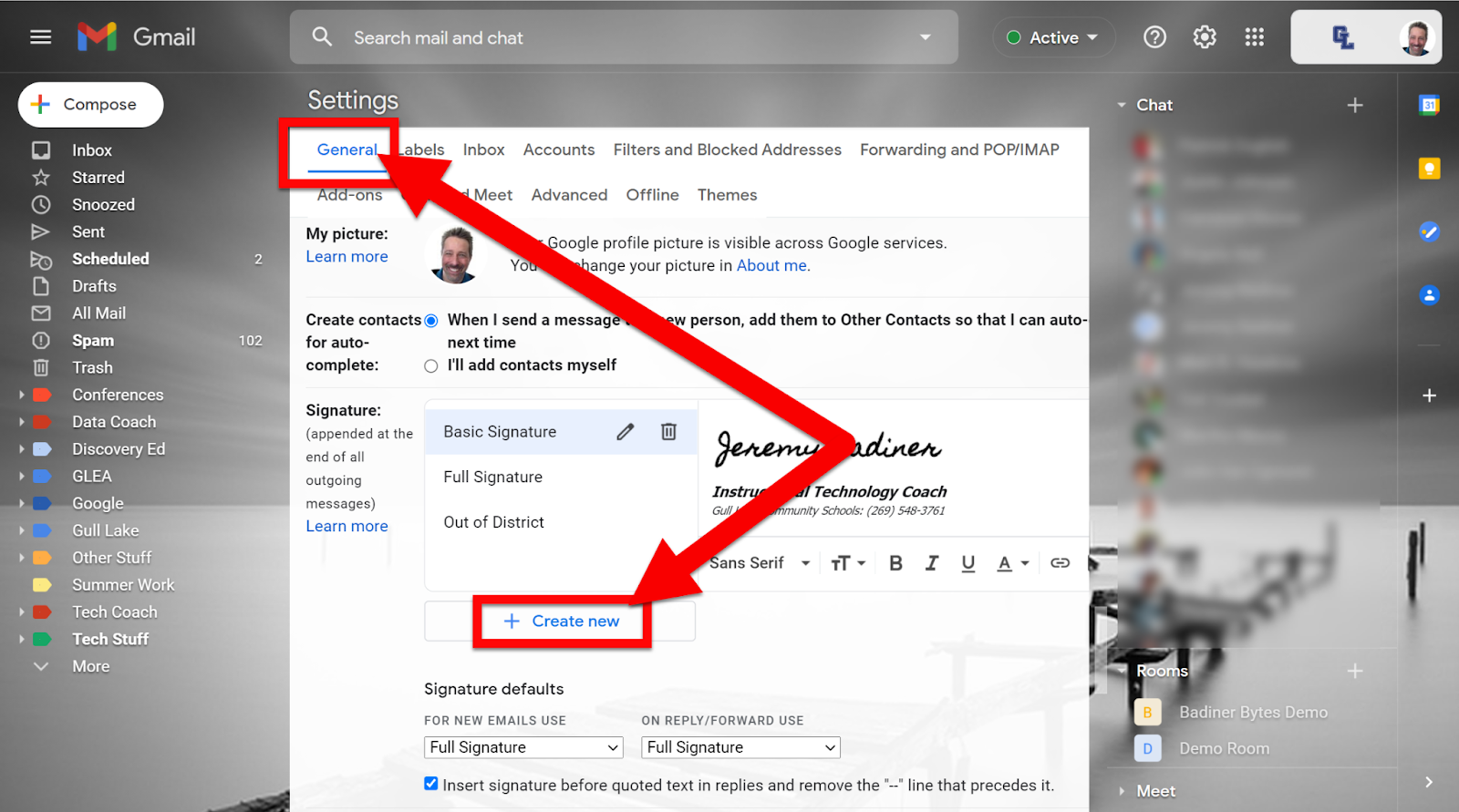
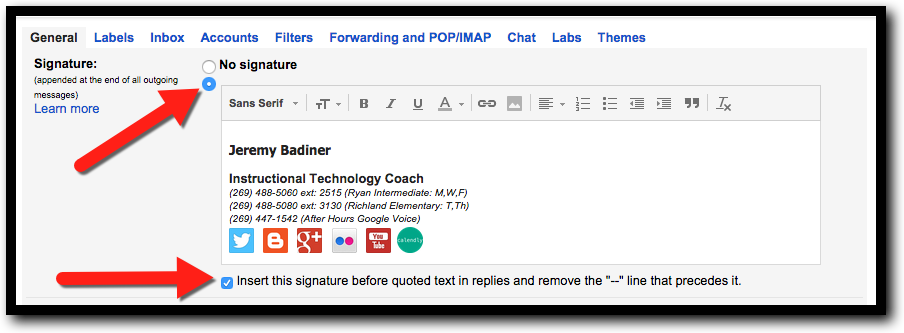
Scroll down to “Signature”.
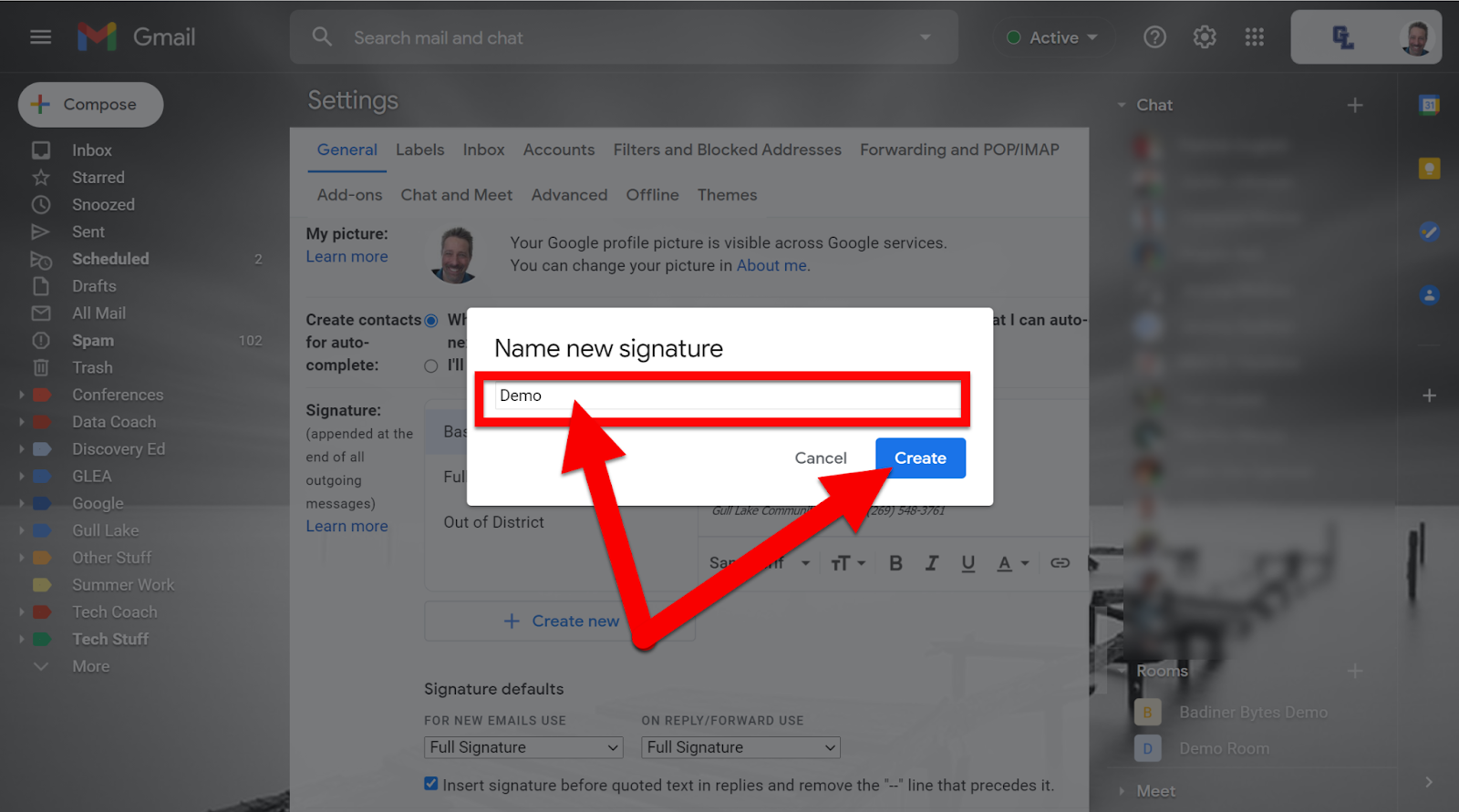
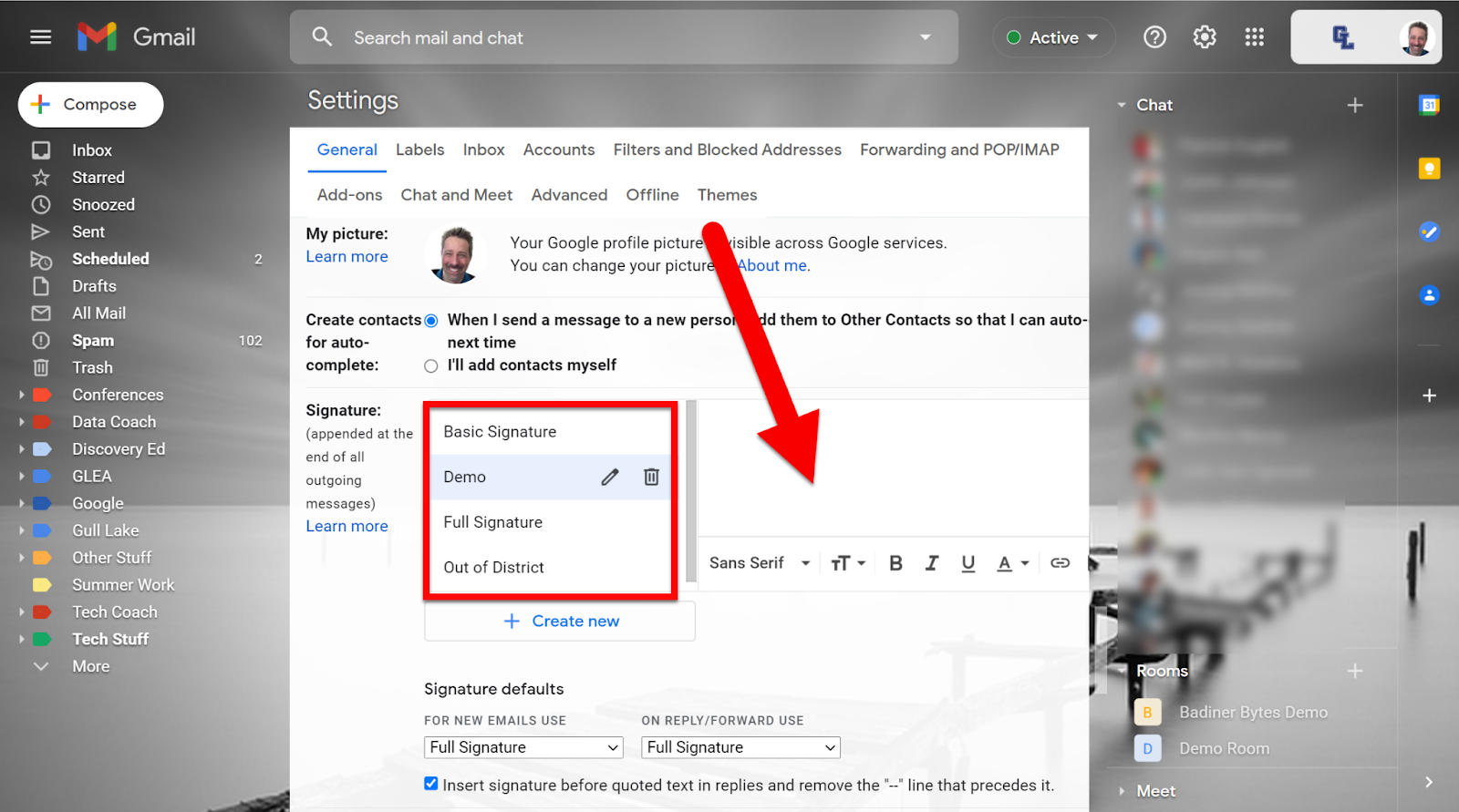
Click in the box and create your signature. I actually write this in a Google Document so I can edit it easily later. Also, images are easier to work with in a document as you can resize them easier. Just a tip. In mine I made the images links by highlighting the image and clicking the link icon and adding a web link. This takes up less room and adds some color to your signature.
Click the button under “No Signature” to include signature. I also check the “Insert this signature before quoted text in replies and remove the "--" line that precedes it.”
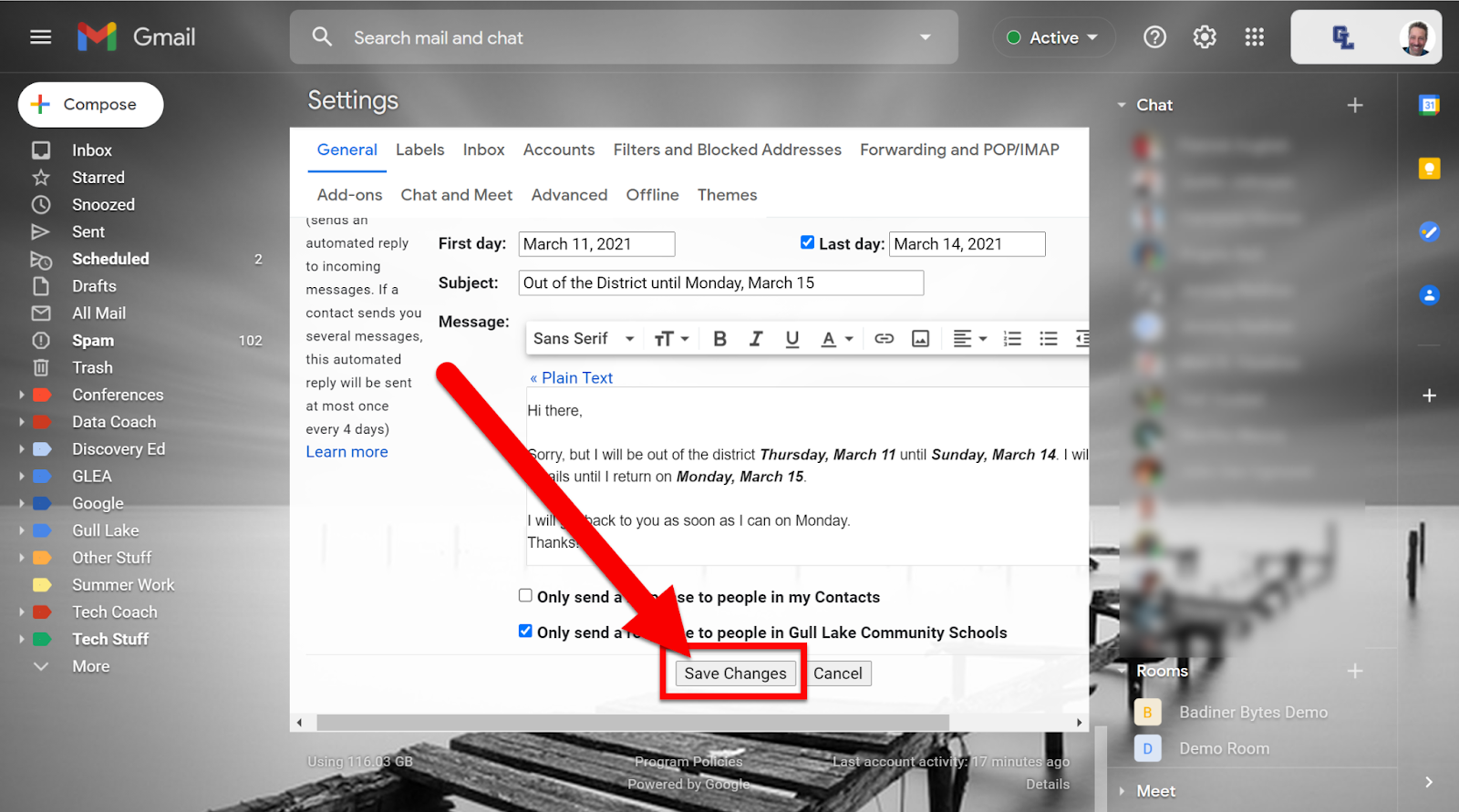
Scroll to the very bottom and click “Save Changes”.
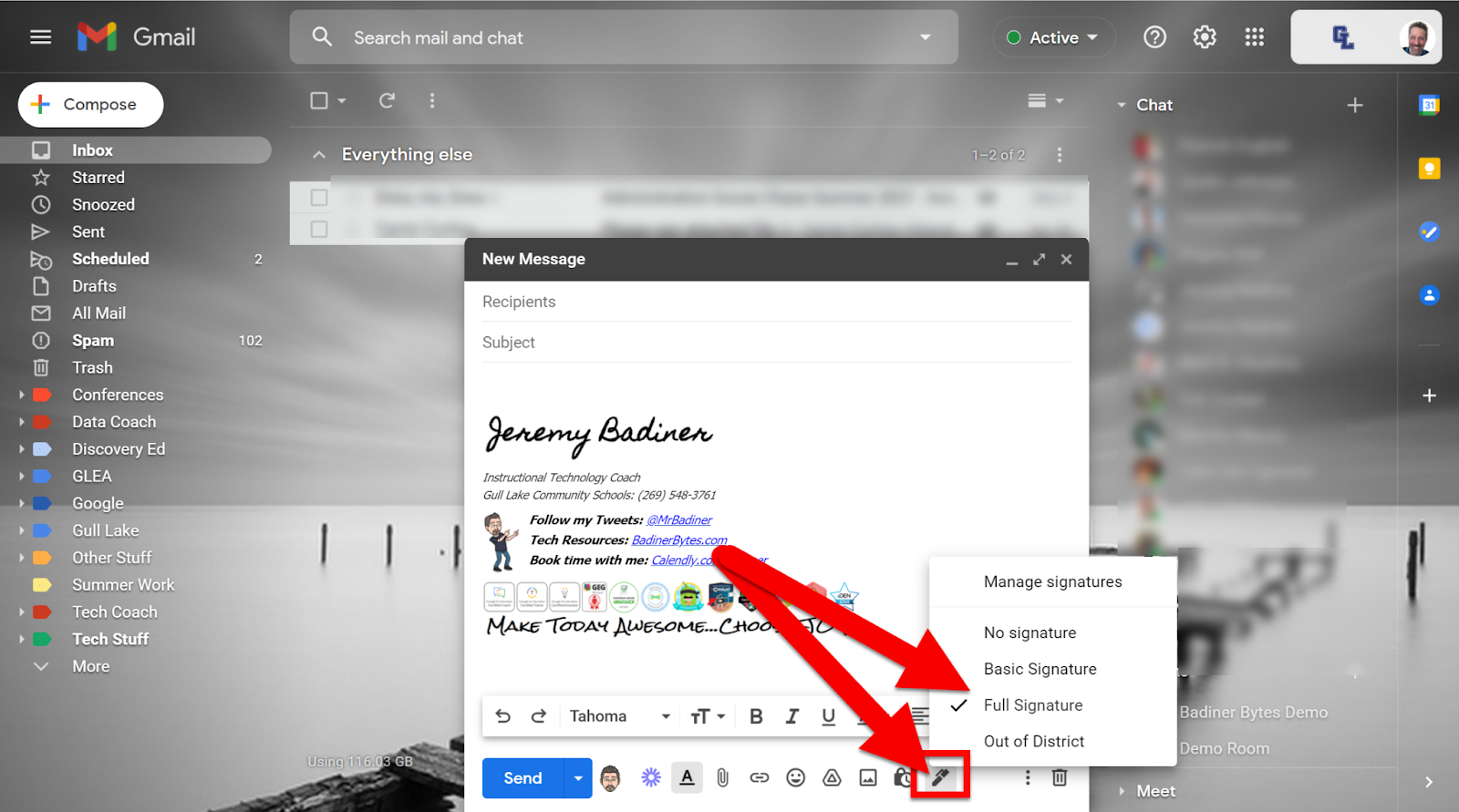
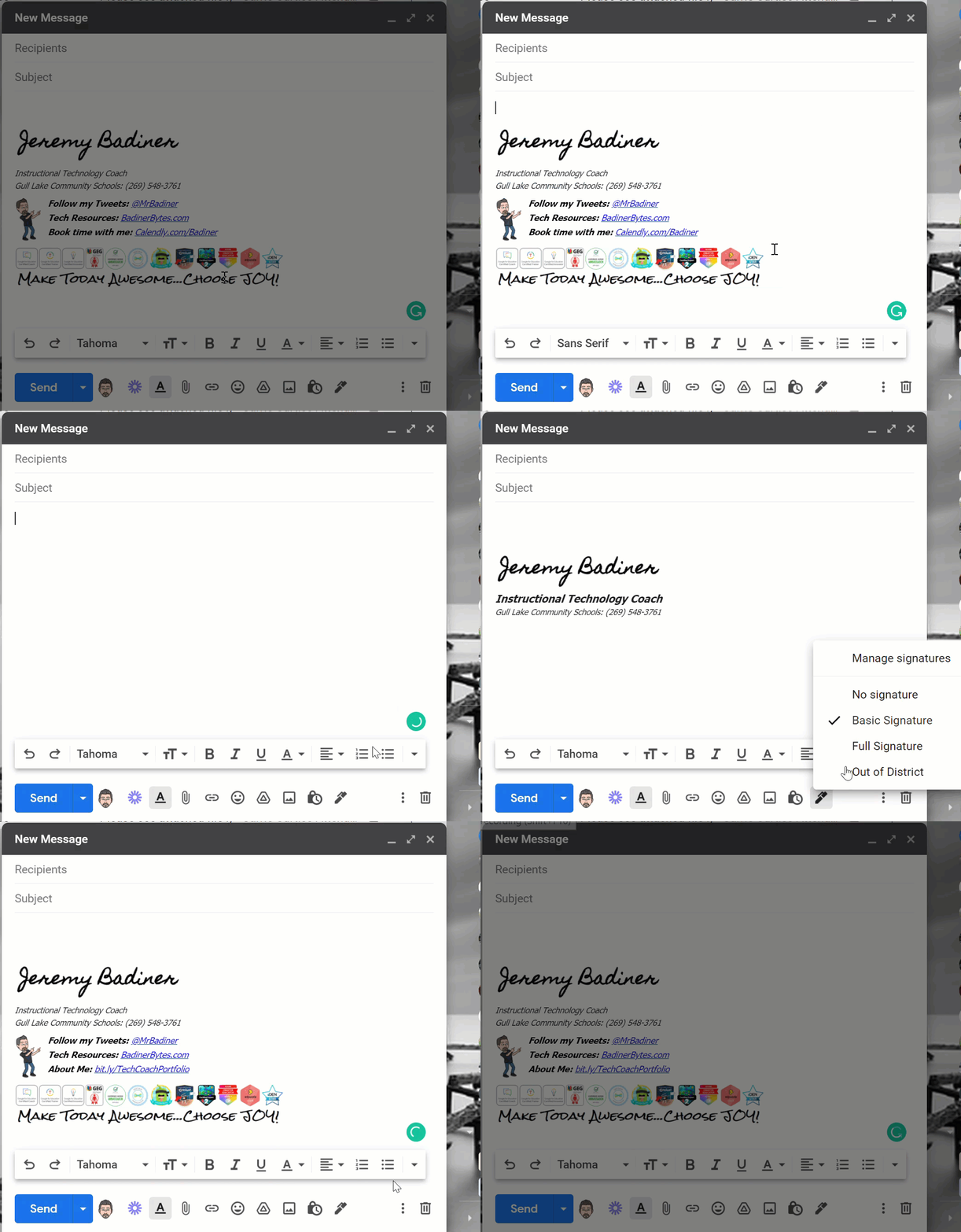
I always send an email to myself to make sure the signature look like I want it to before I call it all done.
If you want these directions in a Google Document Click Here!