Showing posts with label Gmail. Show all posts

Tuesday, November 28, 2023

Delete Old Unwanted Emails

Is your Gmail a mess? Is it filled with old emails you no longer need? Search for unwanted emails by date or label to easily delete them. Spend a few minutes, clean up those unwanted emails, and get closer to the coveted “Zero Inbox”!


Delete Old Emails Before a Specific Date:

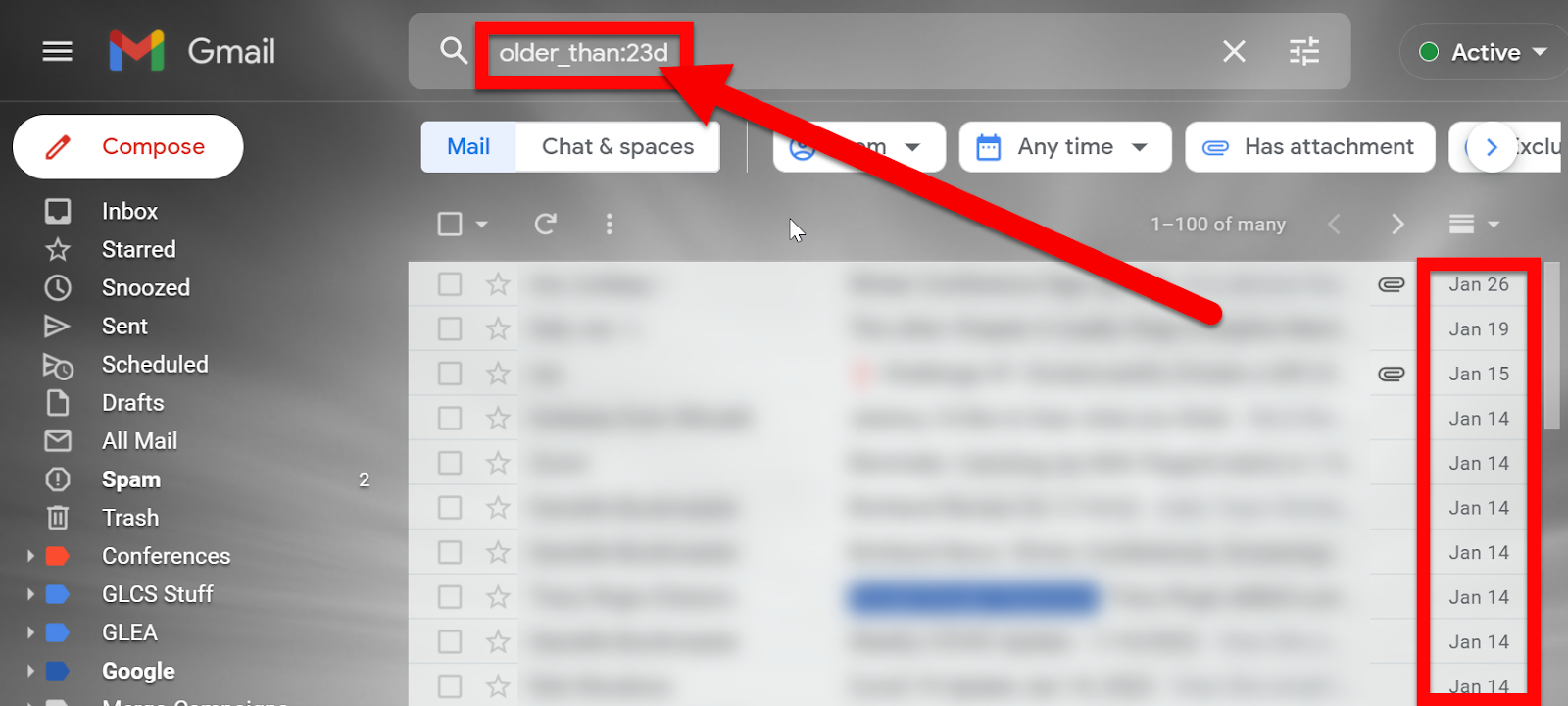
If you want to delete all emails before a specific date, you can use the “before” or “older_than” search in your Gmail search box. 

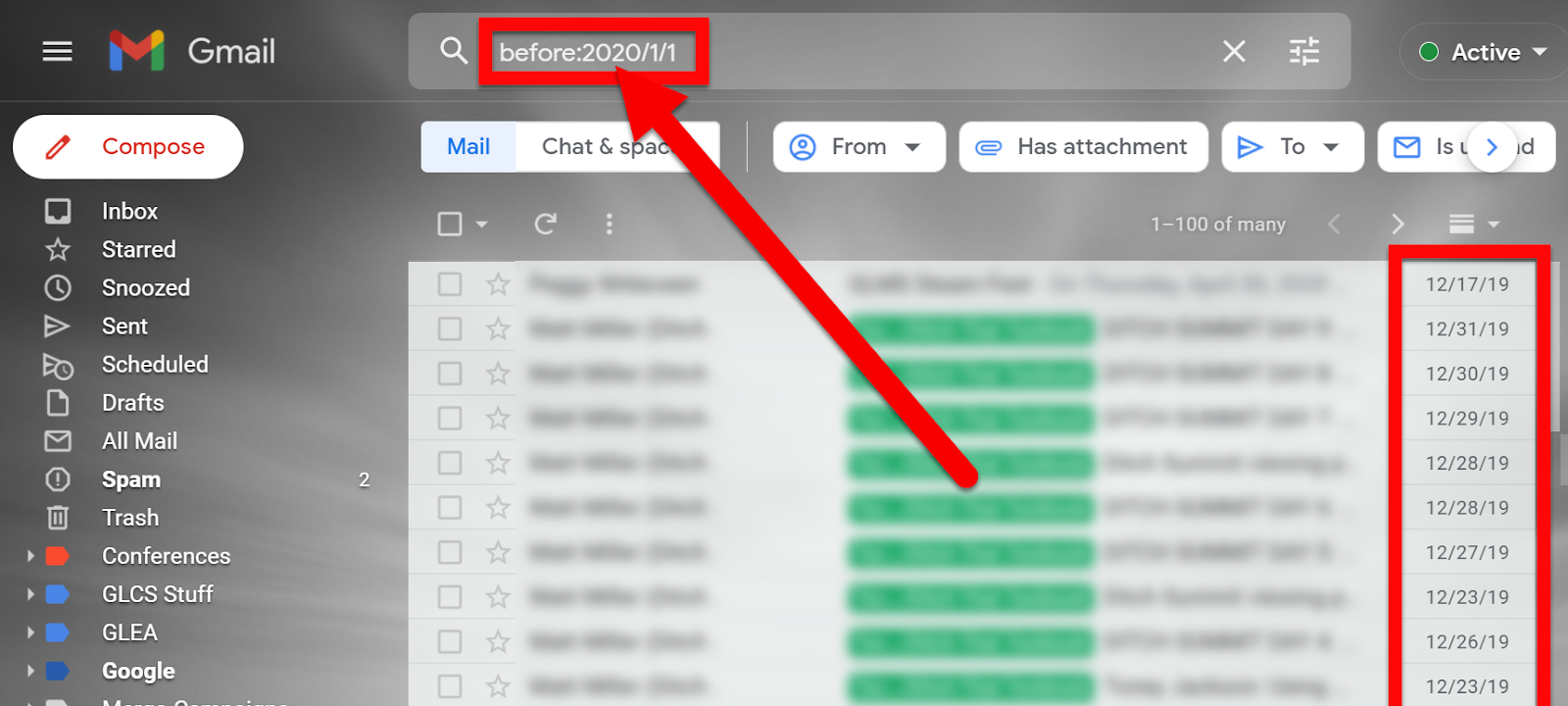
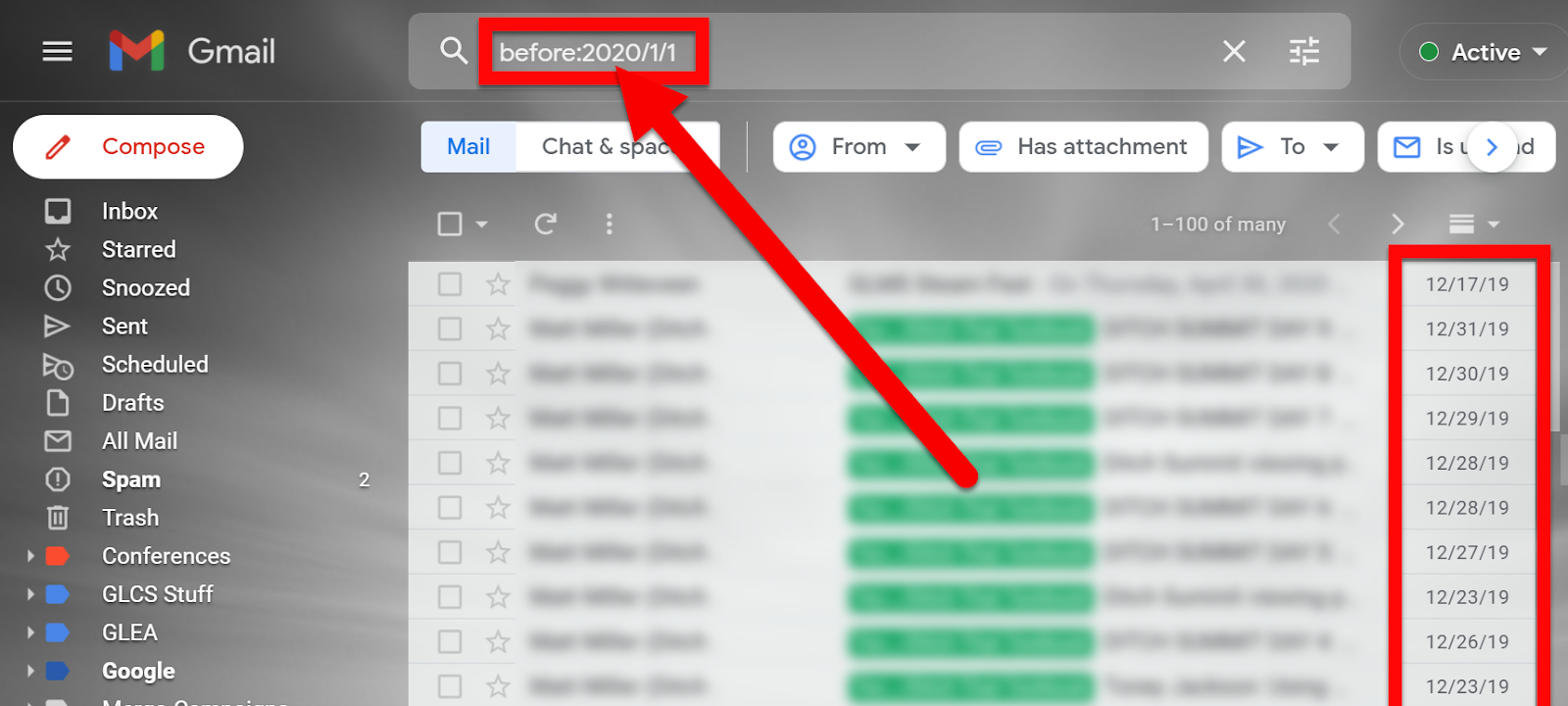
  1. Use this search format: before: YYYY/MM/DD. For example…if you want to delete all emails before January 1, 2020. You’ll need to run the following search query: before:2020/1/1

  1. You can also use the “older_than” search. If you want to delete all emails older than a year, use this search: older_than: 1y
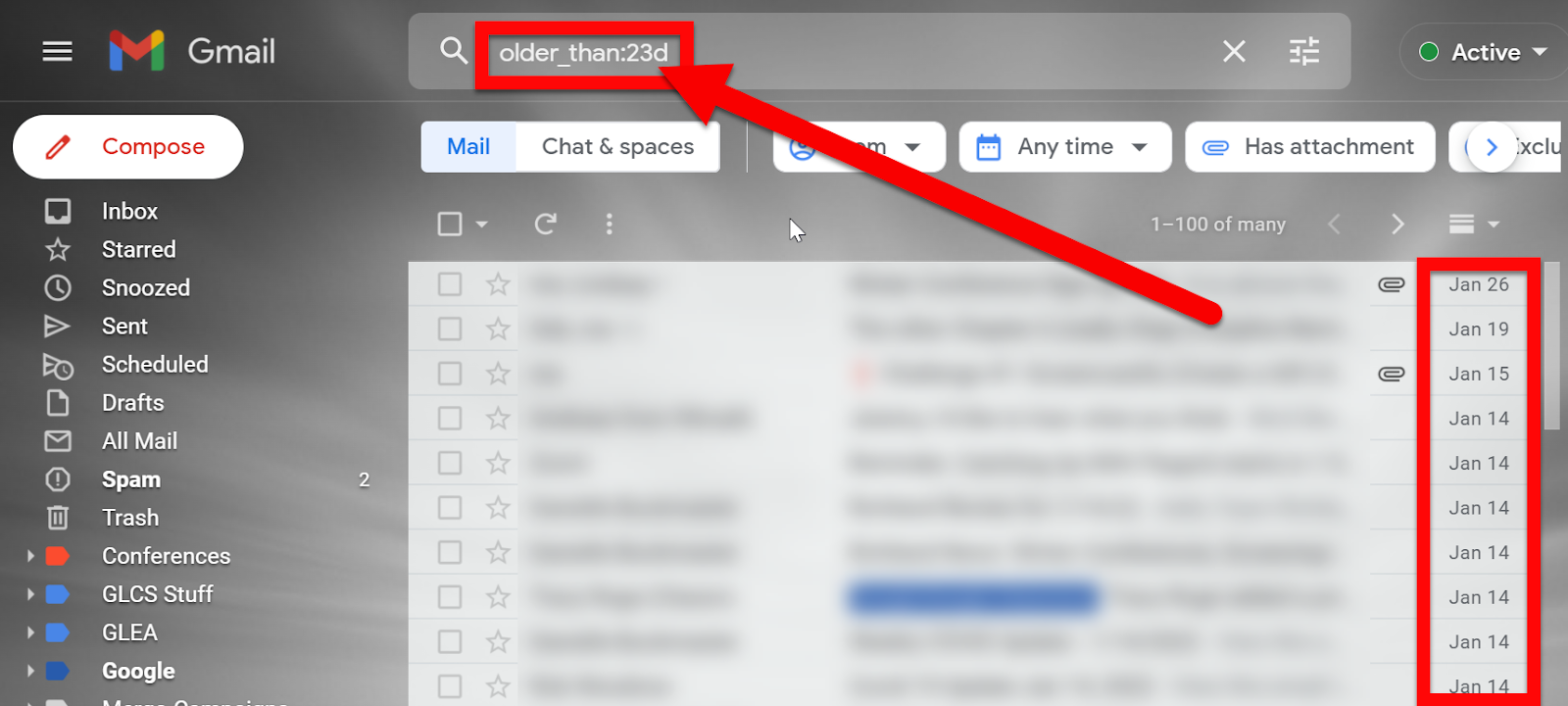

  • You can change the search by adding a number to the “y”.

    • (ex: 2 years=2y) or even a number of days (ex: 45 days=45d).


  1. The results for the “before” and “older_than” searches are different. 

    • before”: shows sent and received emails. 

    • older_than”: shows only received emails.


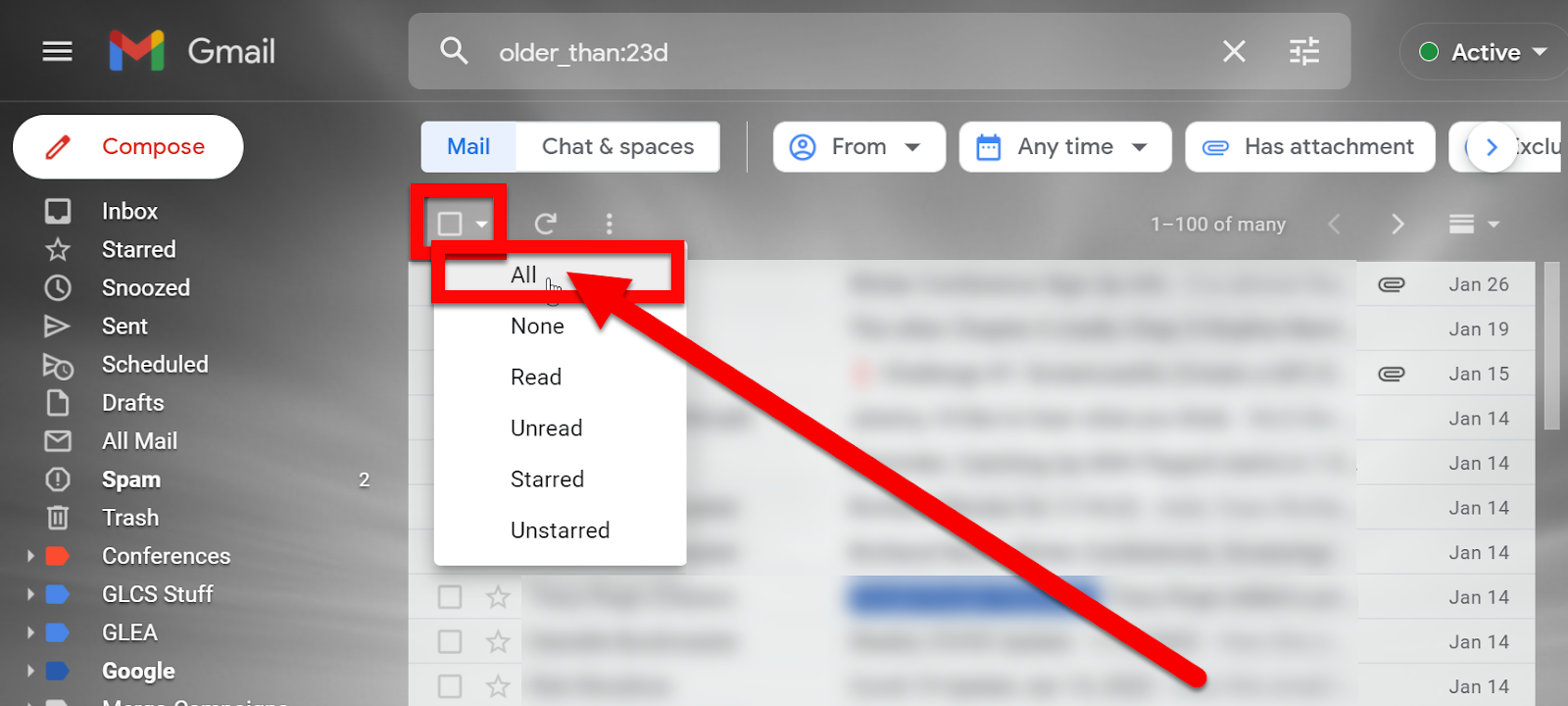
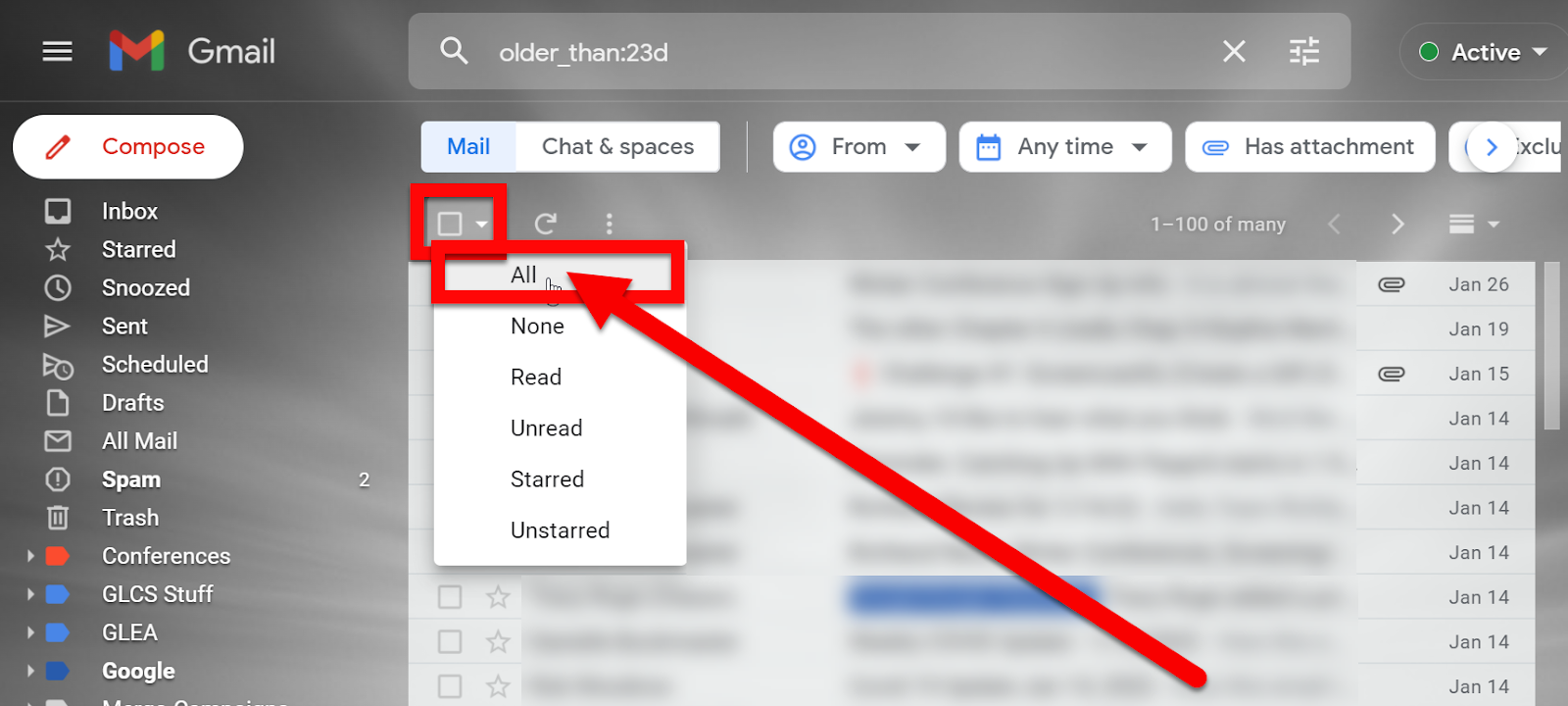
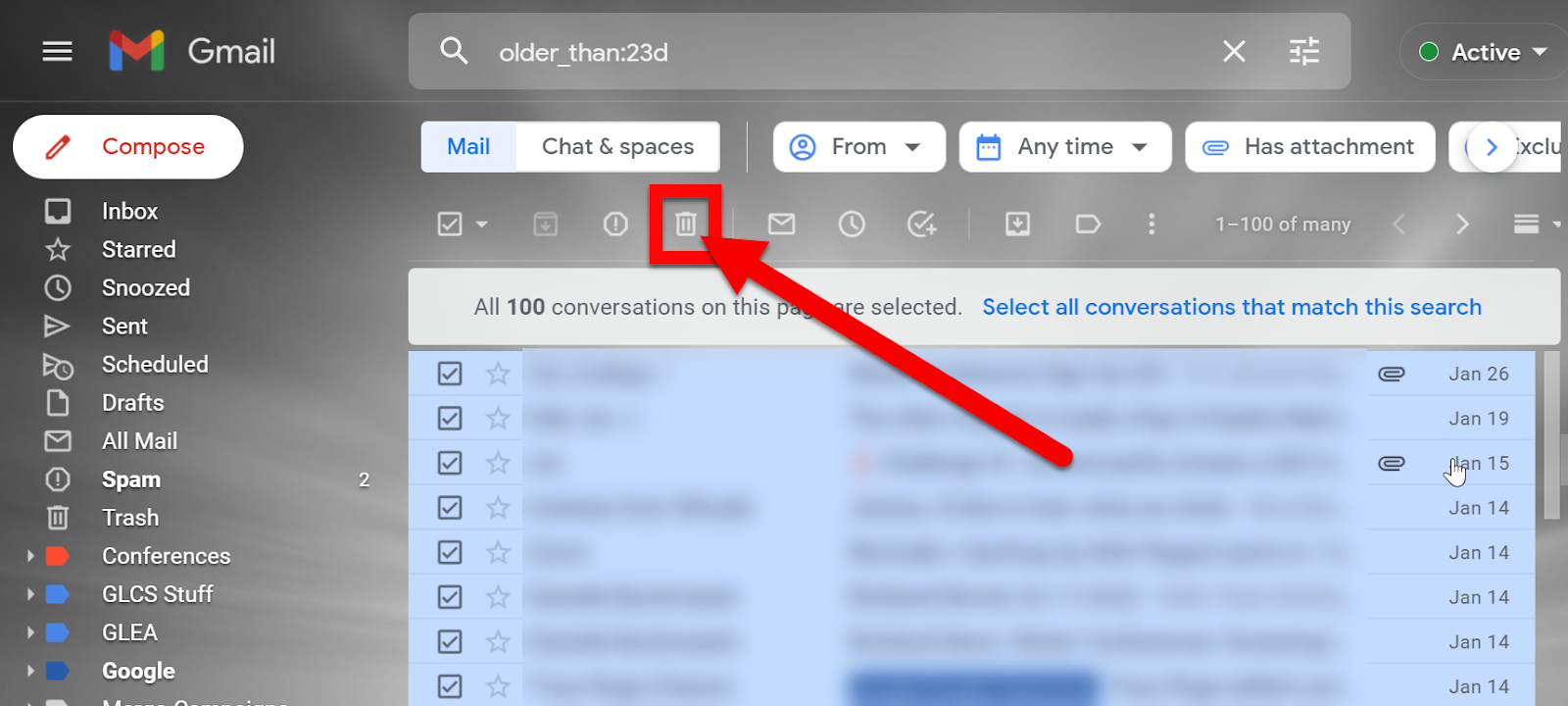
  1. To delete the emails found in your search, click the arrow next to the checkbox at the top-left. From the drop-down menu click on “All”. 

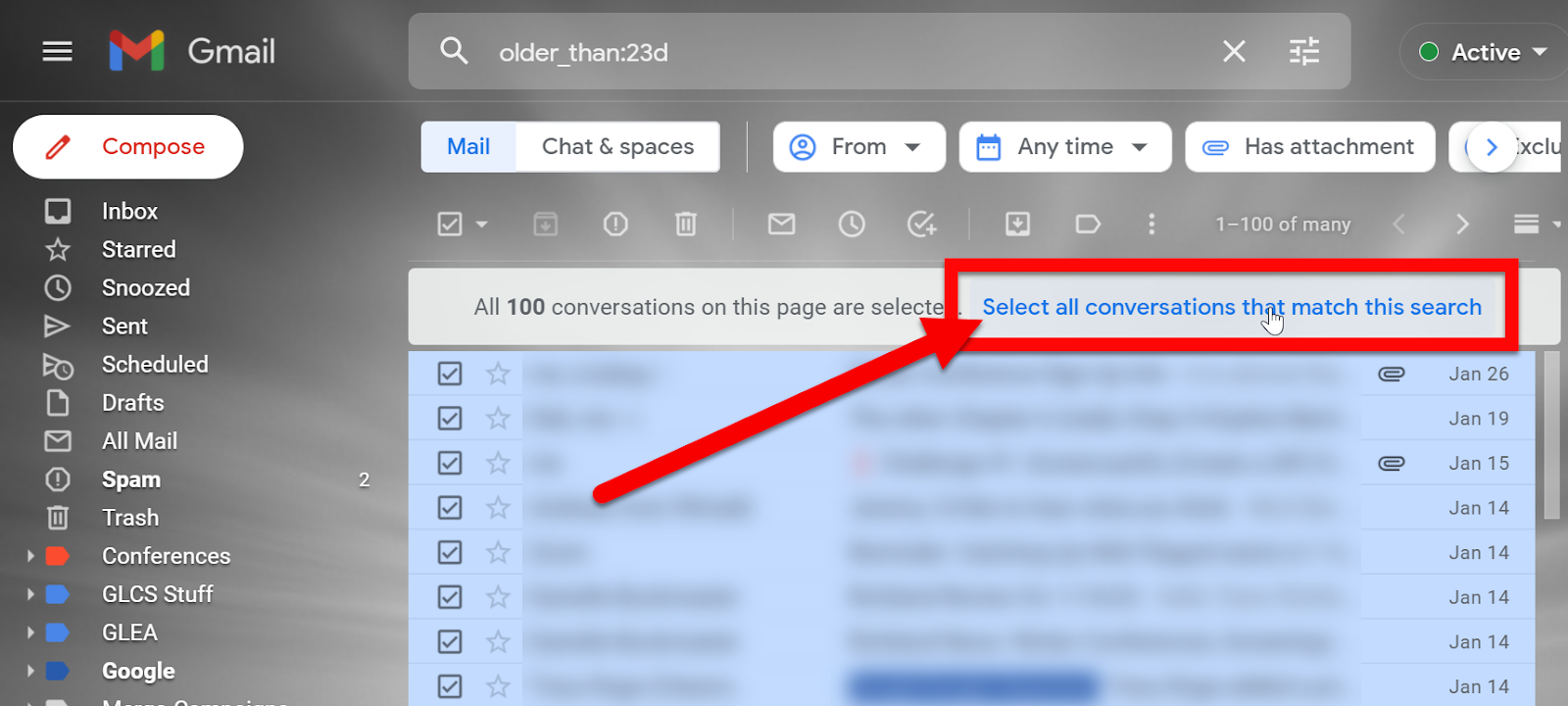
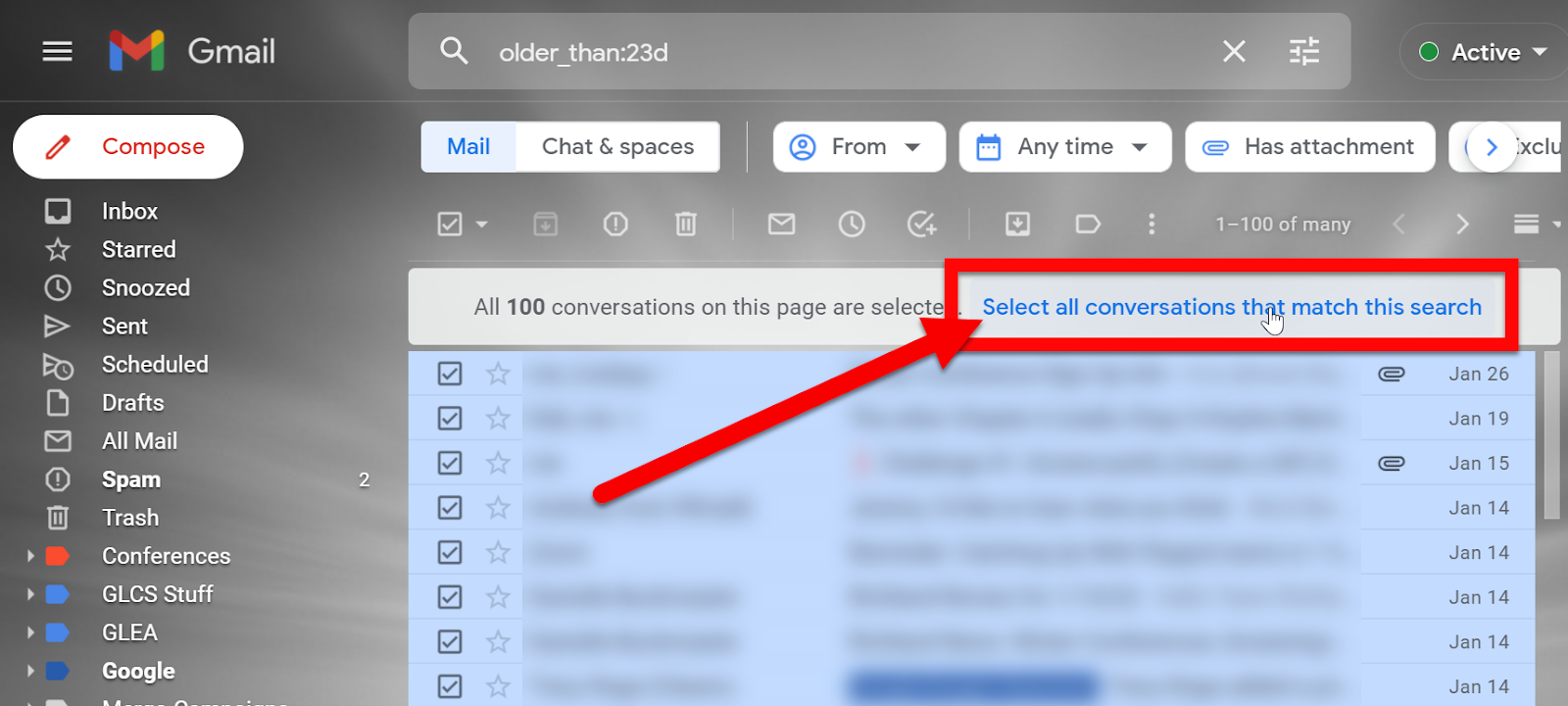
  1. You will also see a notification that says “Select all conversations that match this search” at the top. If you click on it all your emails from your inbox will be selected that fit your search.


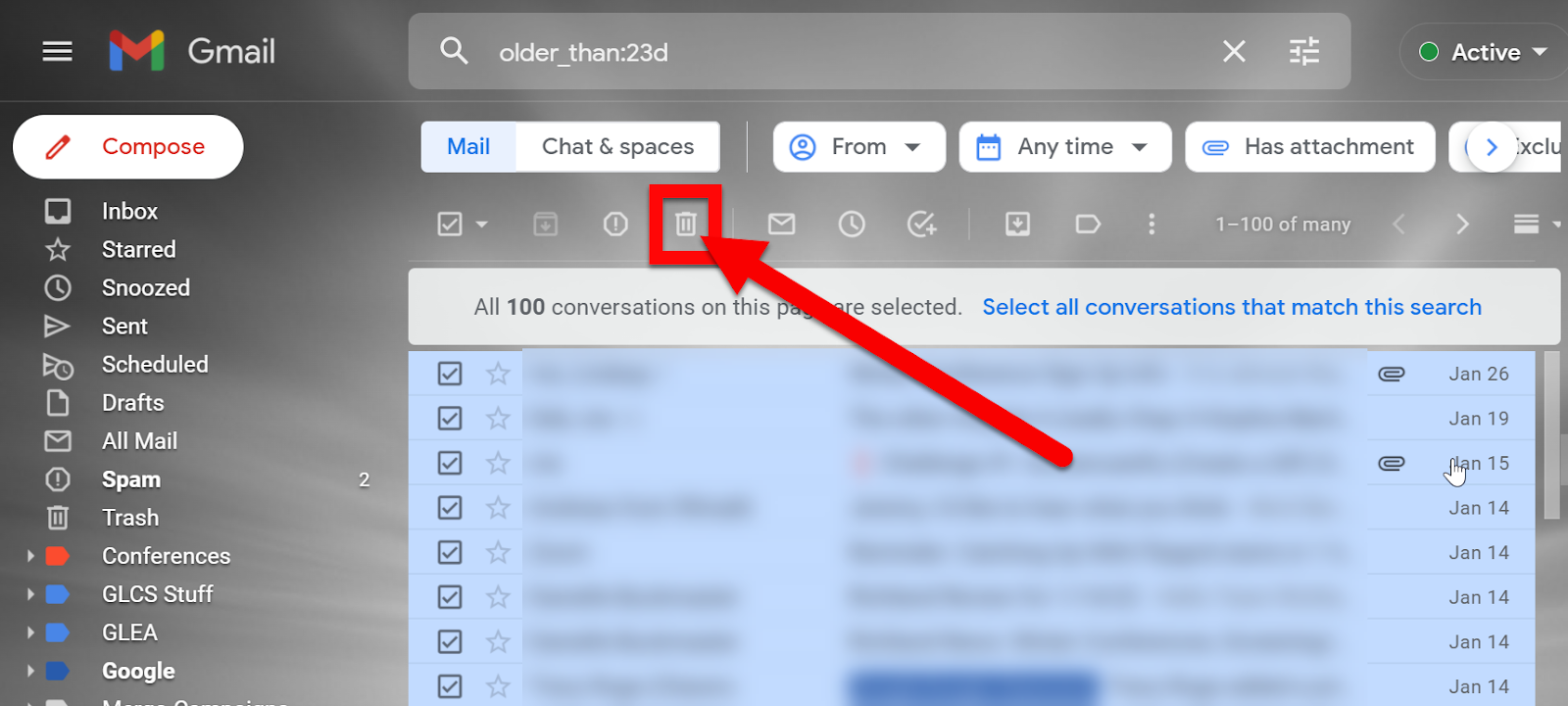
  1. Click the trash can icon at the top to send these selected emails to your trash. They will be permanently deleted after 28 days.


Delete Old Emails Within Labels

Most of us use labels to organize our emails. If you no longer need email in a label (maybe it was a previous year’s communication you really no longer need) you can delete all emails that have a label assigned to them.


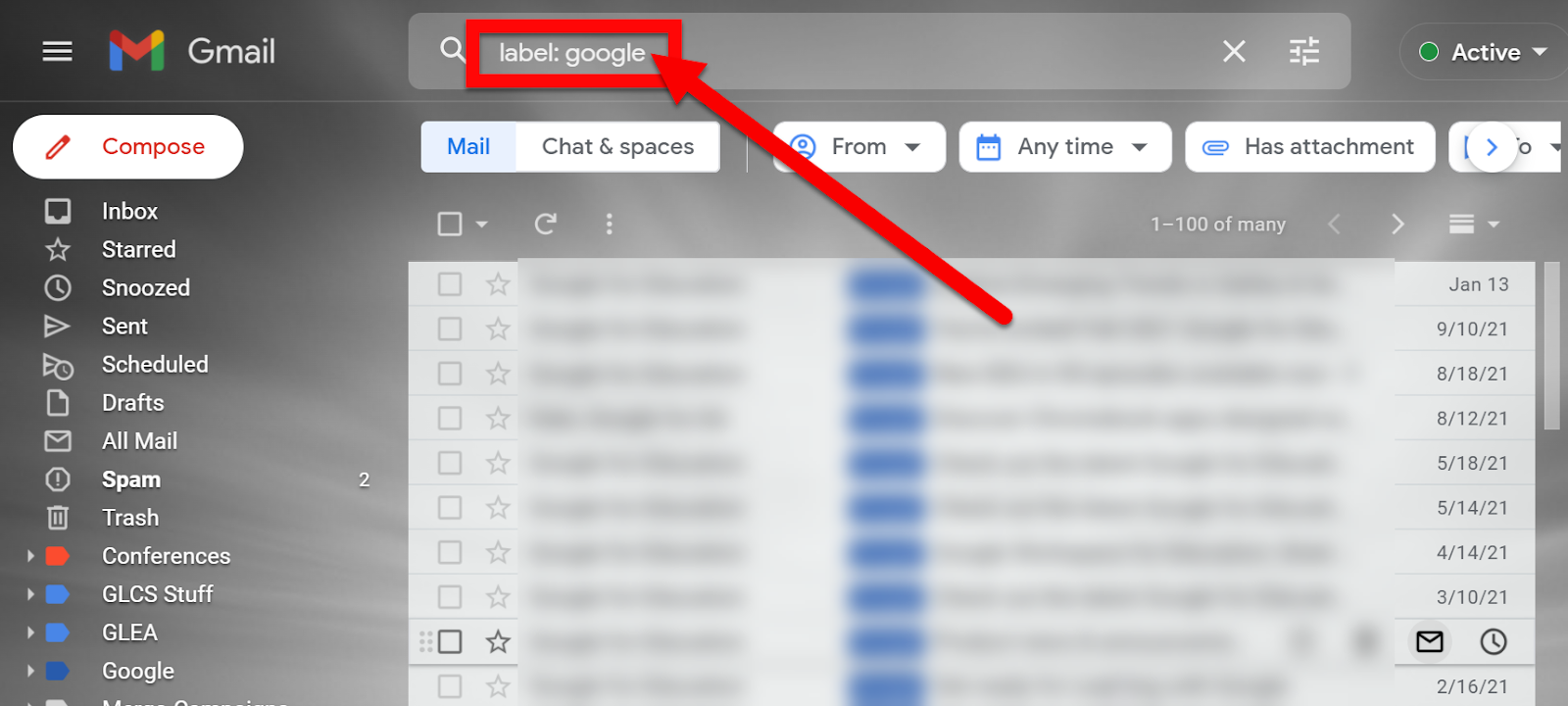
  1. To search for all emails with a label use this search: label: label name. Here is my “label: google” search.

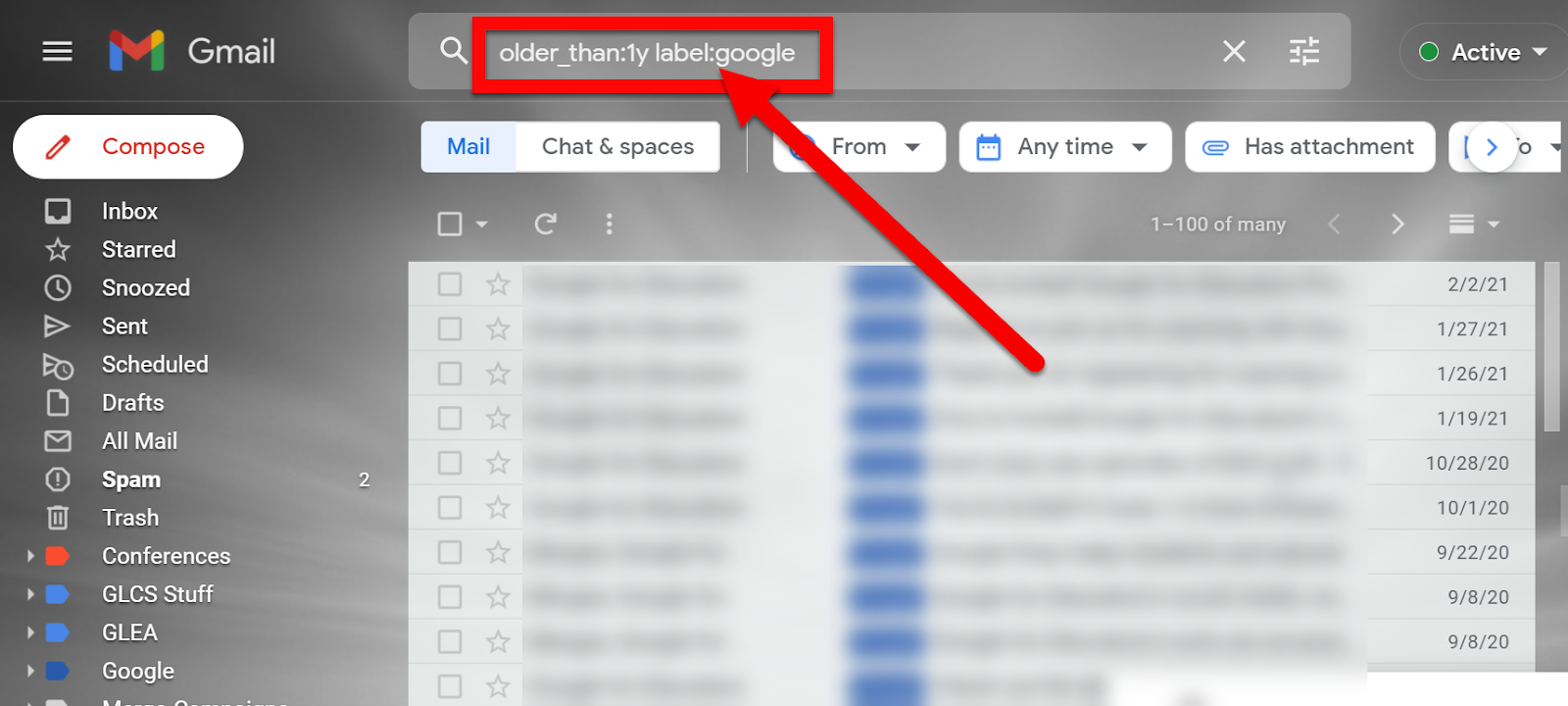
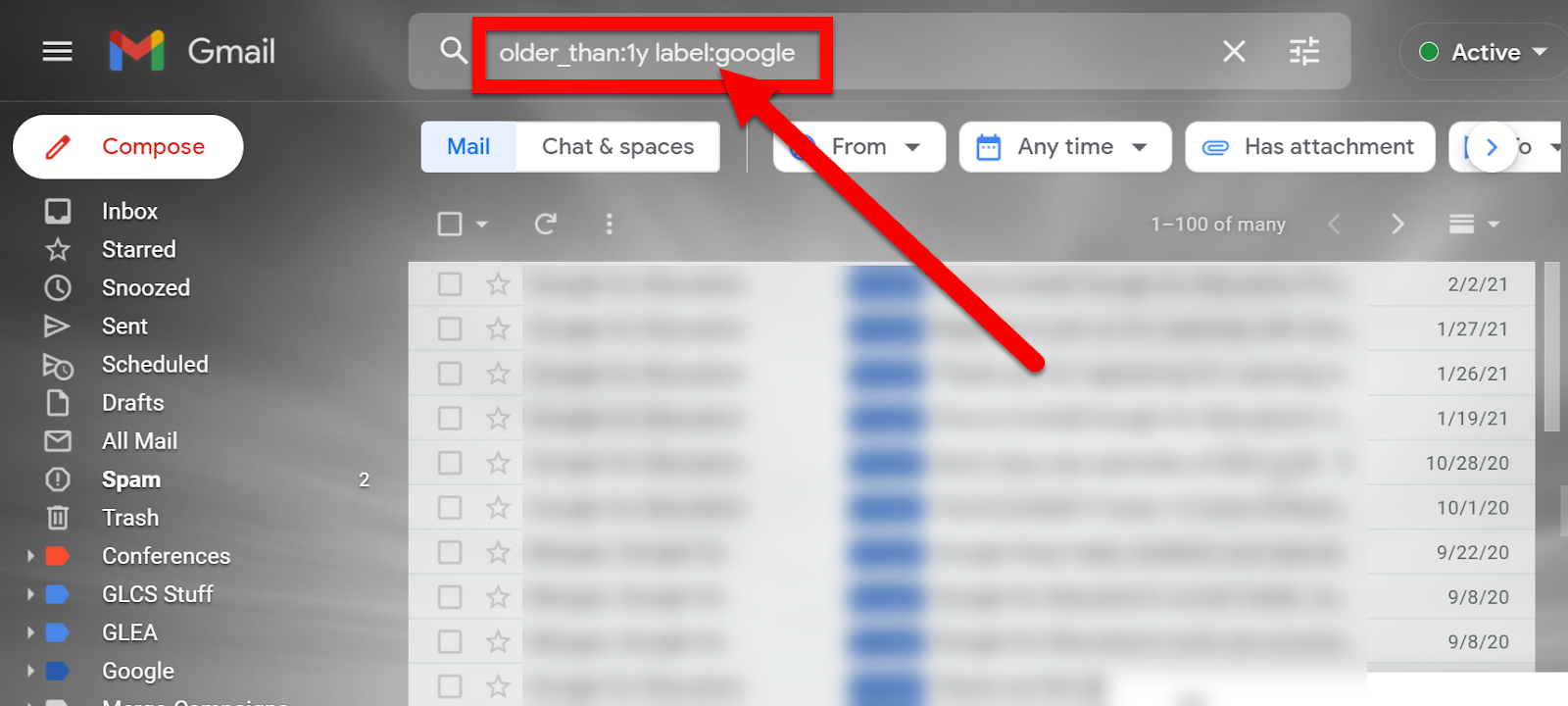
  1. You can add a time search to a label search as well. For example, if you want delete all emails older than 1 year and in a label use this search: older_than:1y label:label name. Here is my “older_than:1y label:google” search.

  1. Delete these search emails the same way as described above by clicking the dropdown arrow, selecting “All” and clicking on the trash can icon.


Delete ALL Old Emails:

If you want to delete all emails from your inbox or a label. 

  1. Open “All Mail, a label, or your Inbox (the location you want to delete from). 

  2. Click the box above your emails. You will see how many this can apply to in the center. 
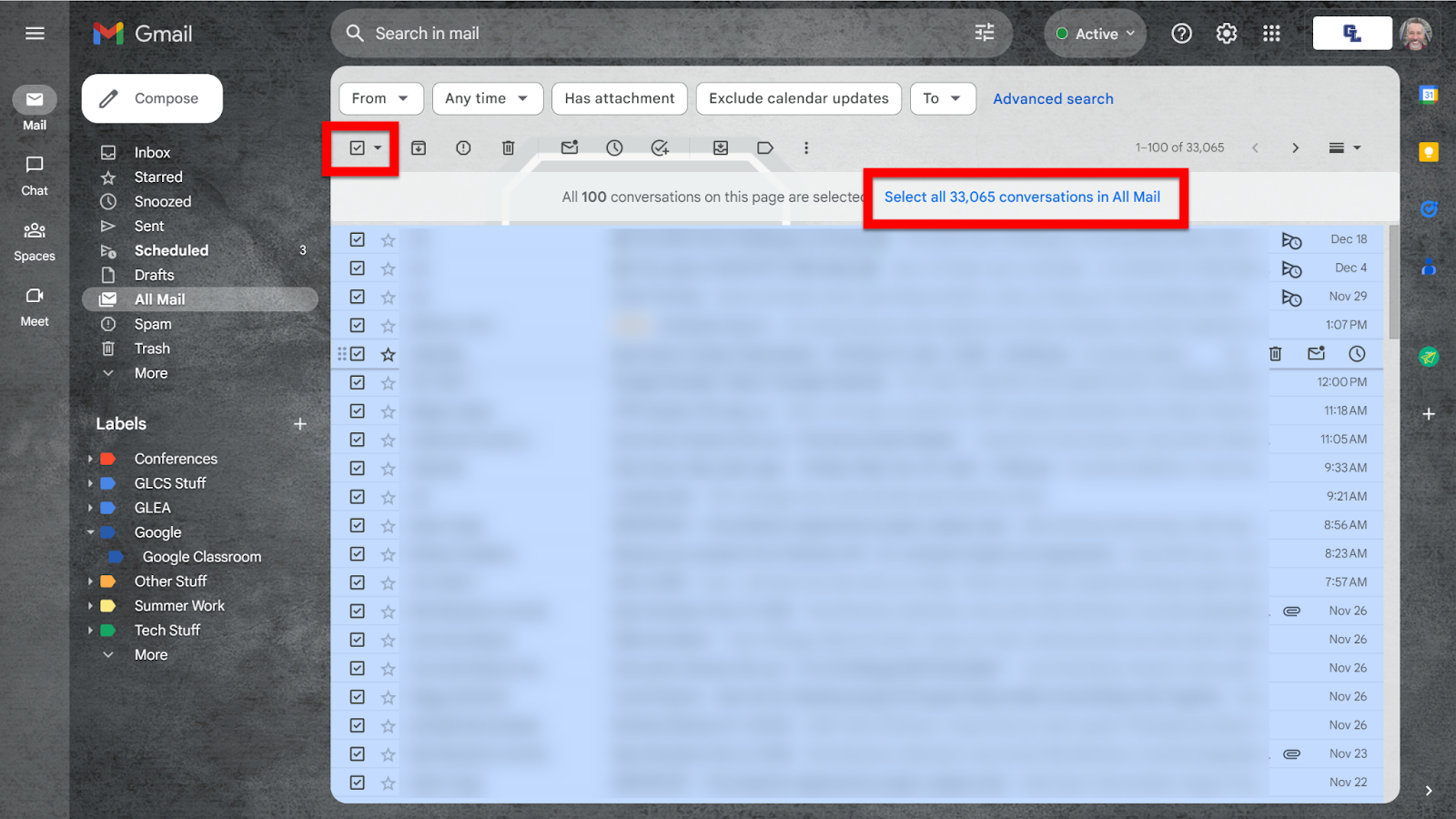

  1. Click the blue writing to apply this to ALL emails.

  2. Delete!


Head to your Gmail Inbox and start cleaning out those old unwanted emails!


If you want these directions in a DOcument click HERE!

Tuesday, April 19, 2022

Compose & Send Email from a Google Document

Gmail is the “go-to” tool for sending emails, but did you know that you can send an email directly from a Google Document? It is easy and a great way to keep a copy of all those emails in your Drive if you have the need. All you need is a blank Document and something to say. Check out the steps below to get started.


Send Email from a Google Doc:

  1. Open a new Document.

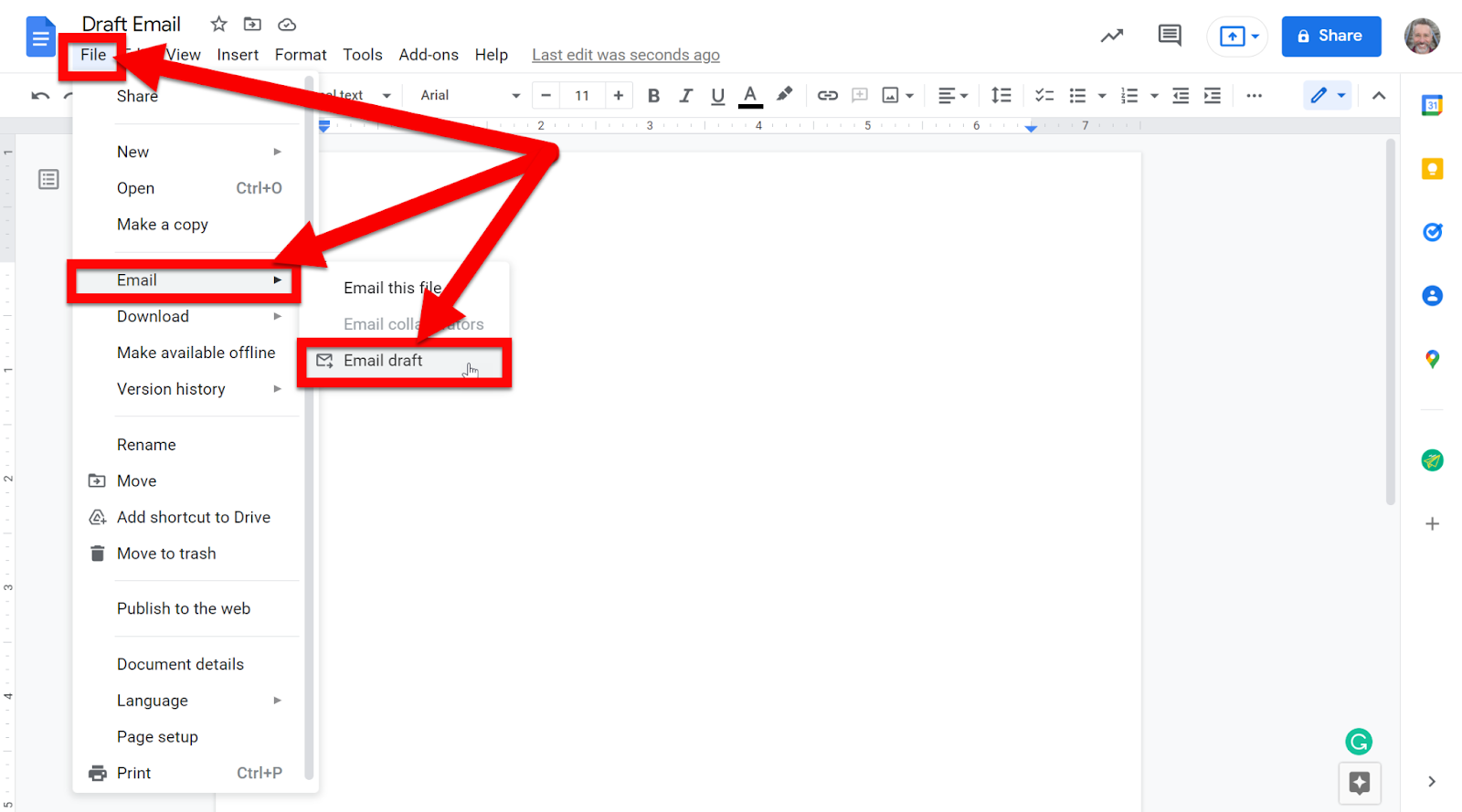
  2. Click “File”, then “Email”, and then “Email draft”.


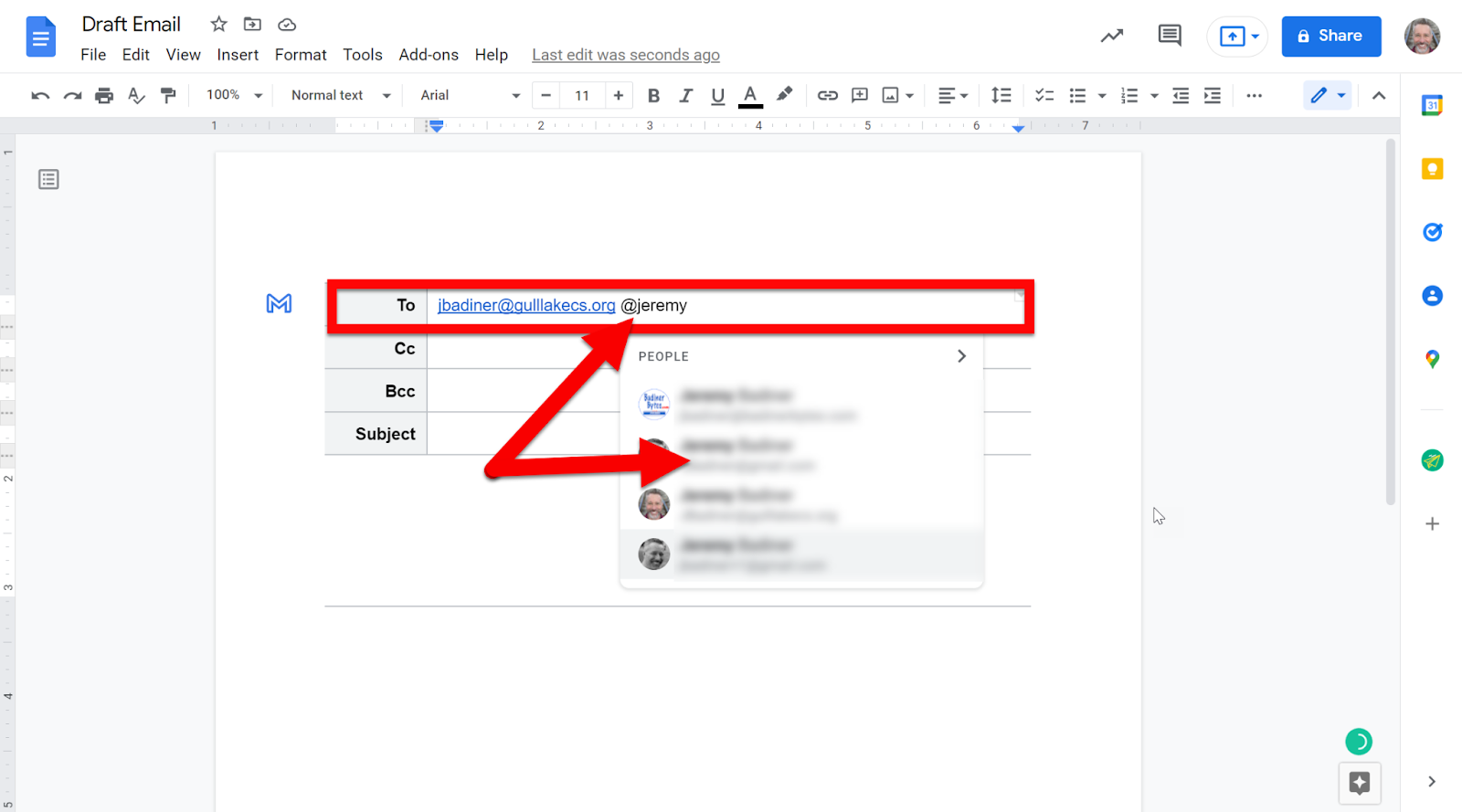
  1. In the “To” box enter the email you are sending the email to. You can also type “@” and Docs will search your Domain or personal Contacts. 


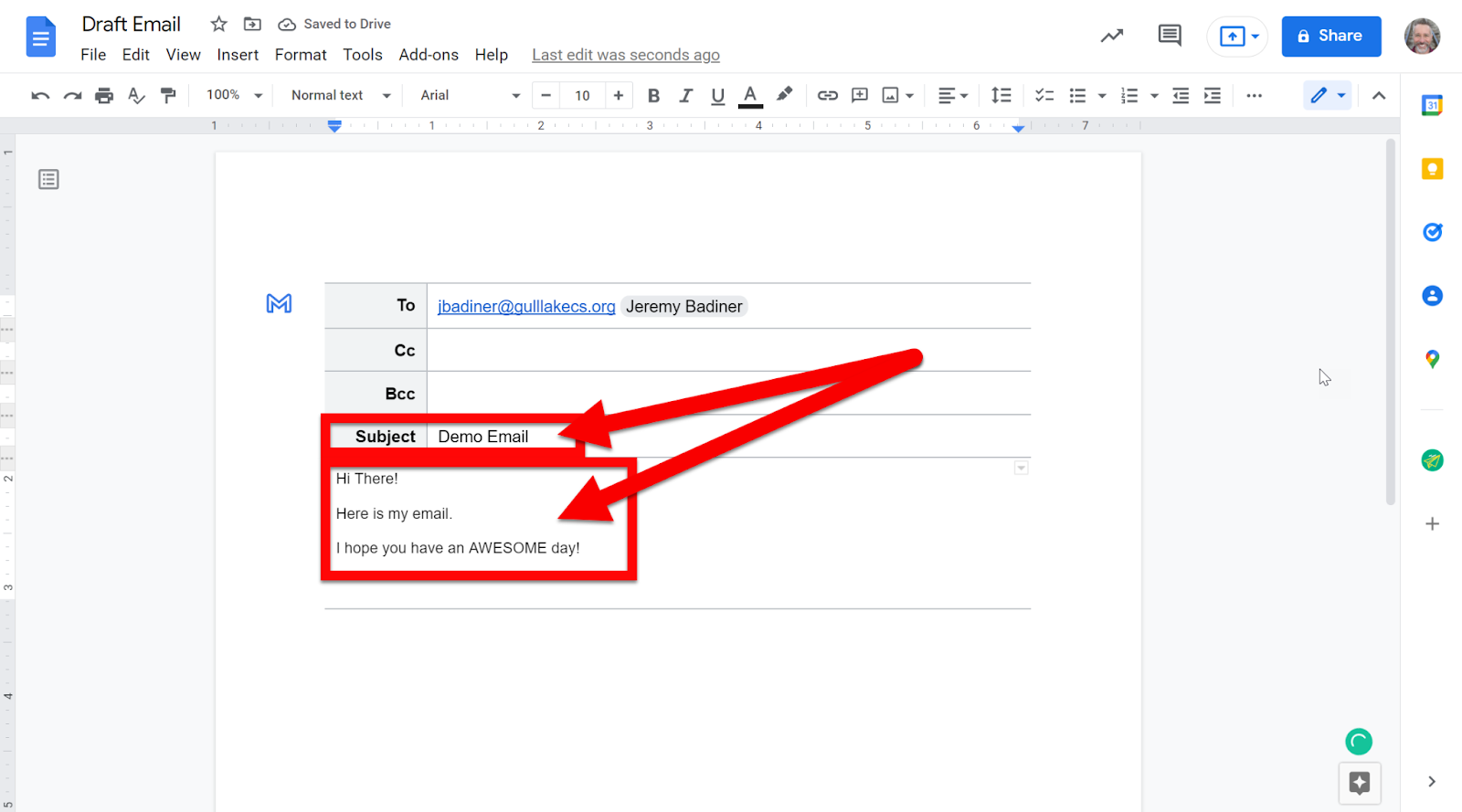
  1. Fill in the Subject line and compose your email. If you have an email set up in Gmail leave your signature off. If you do not have it set up in Gmail type it in below your message. 


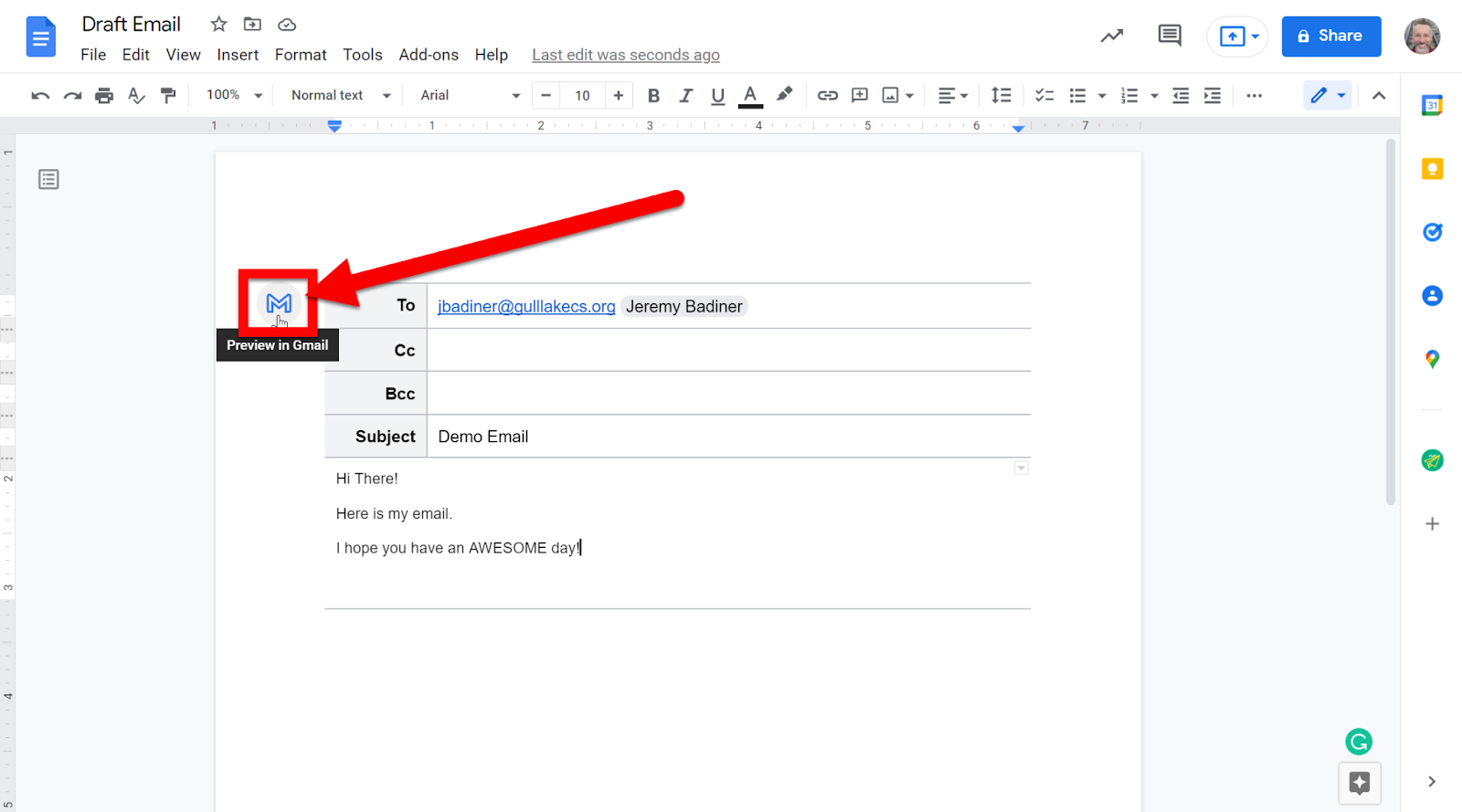
  1. Click the blue Gmail logo to the left.


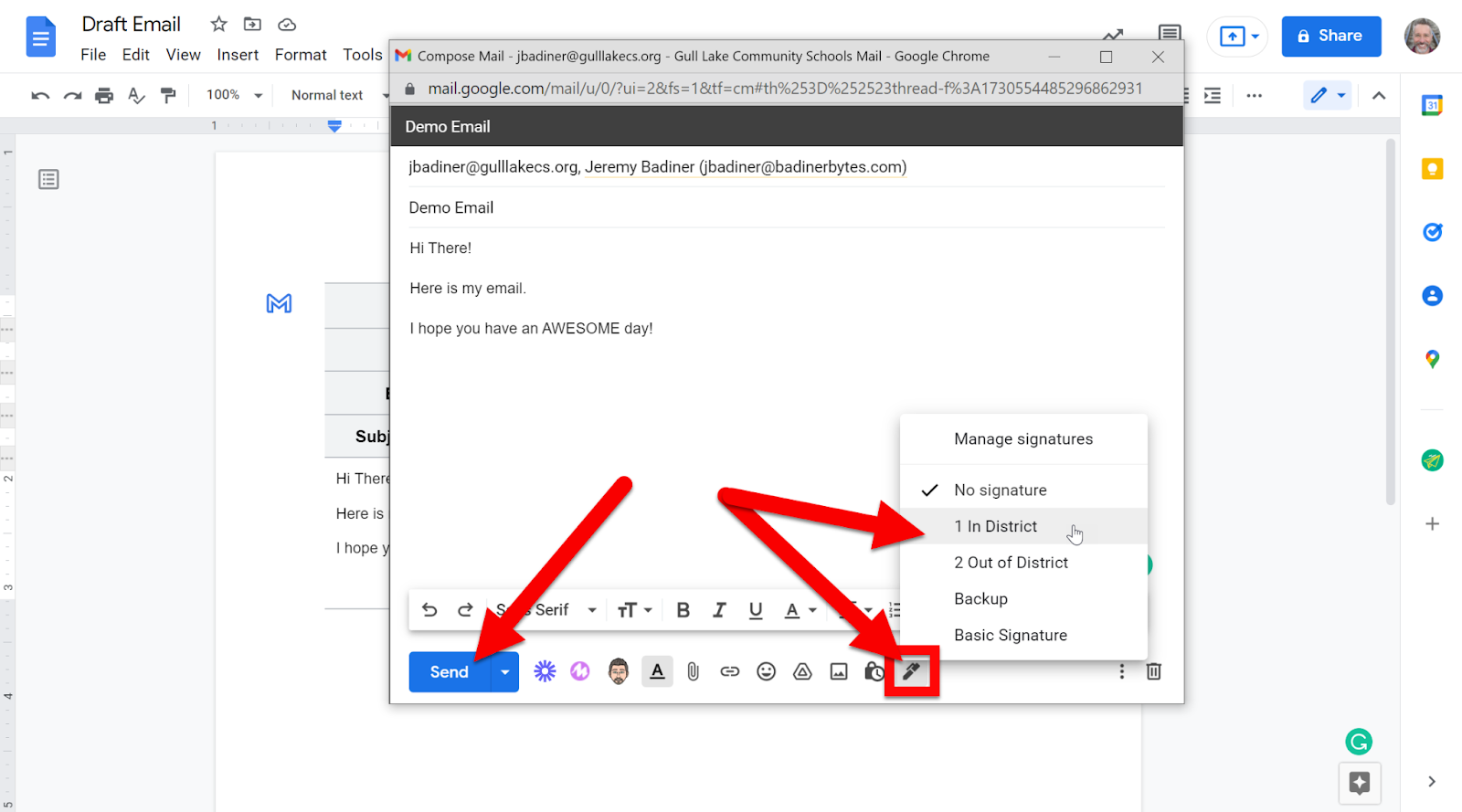
  1. A Gmail pop-up will open with your composed email. If you have a set signature click the pen icon at the bottom right to select which signature you want to use (Doc on how to set up Multiple Gmail Signatures). If you do not have a Gmail signature set up just type it in your message like normal. Click “Send”.


  1. That is it! Your message is sent.


To see all these steps in a video walk-through click HERE!


If you want these directions in a Document click HERE!

Monday, April 18, 2022

New Gmail Layout

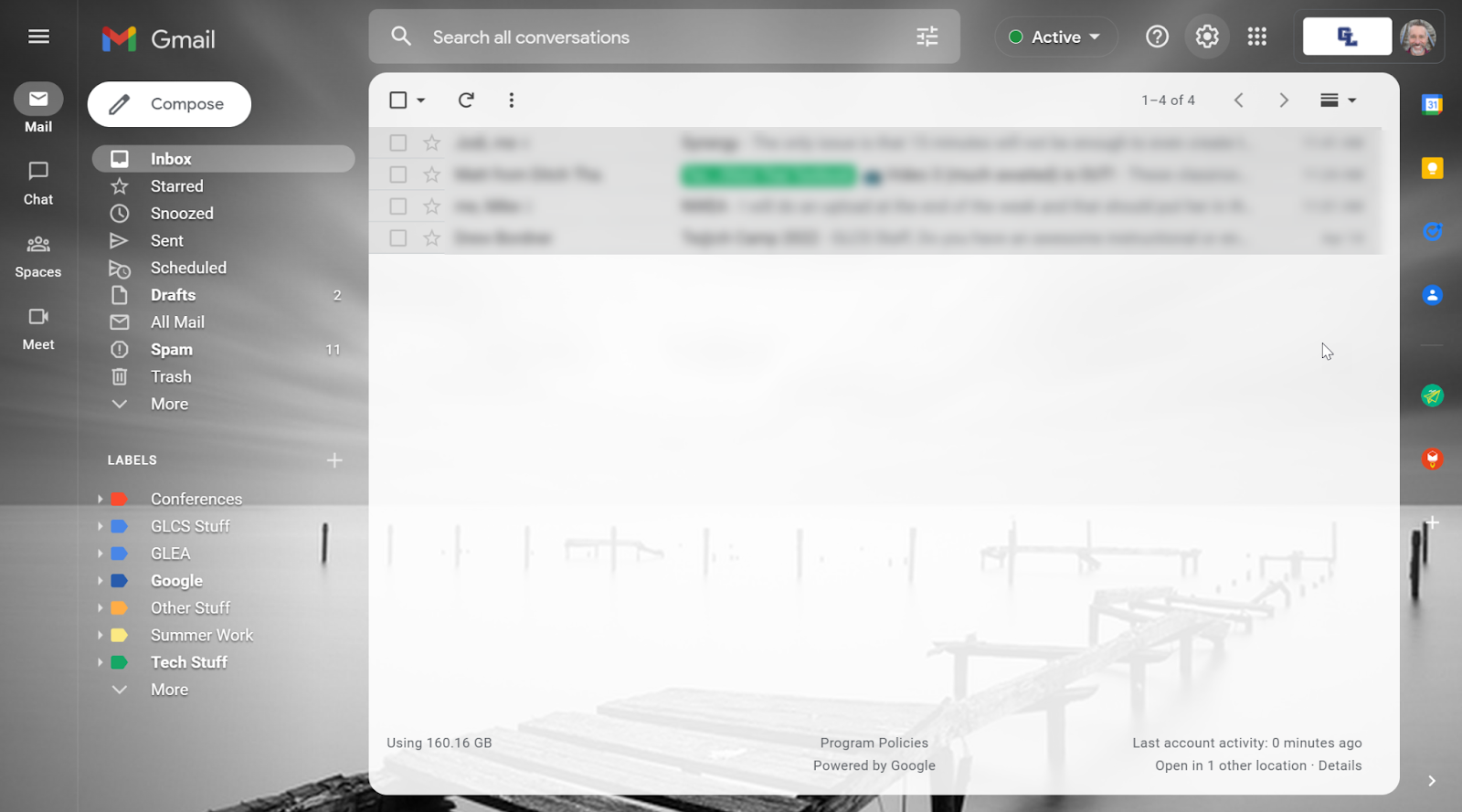
Google is at it again. They have updated the Gmail layout. If you are not seeing this update, it might be because (like me) you had your “Chat” position set to “Right side of the inbox”. Follow the steps below to see the new layout. You can (for now) always go back to the old layout. I am not sure when Google will force the new layout as default.


Enable New Layout:

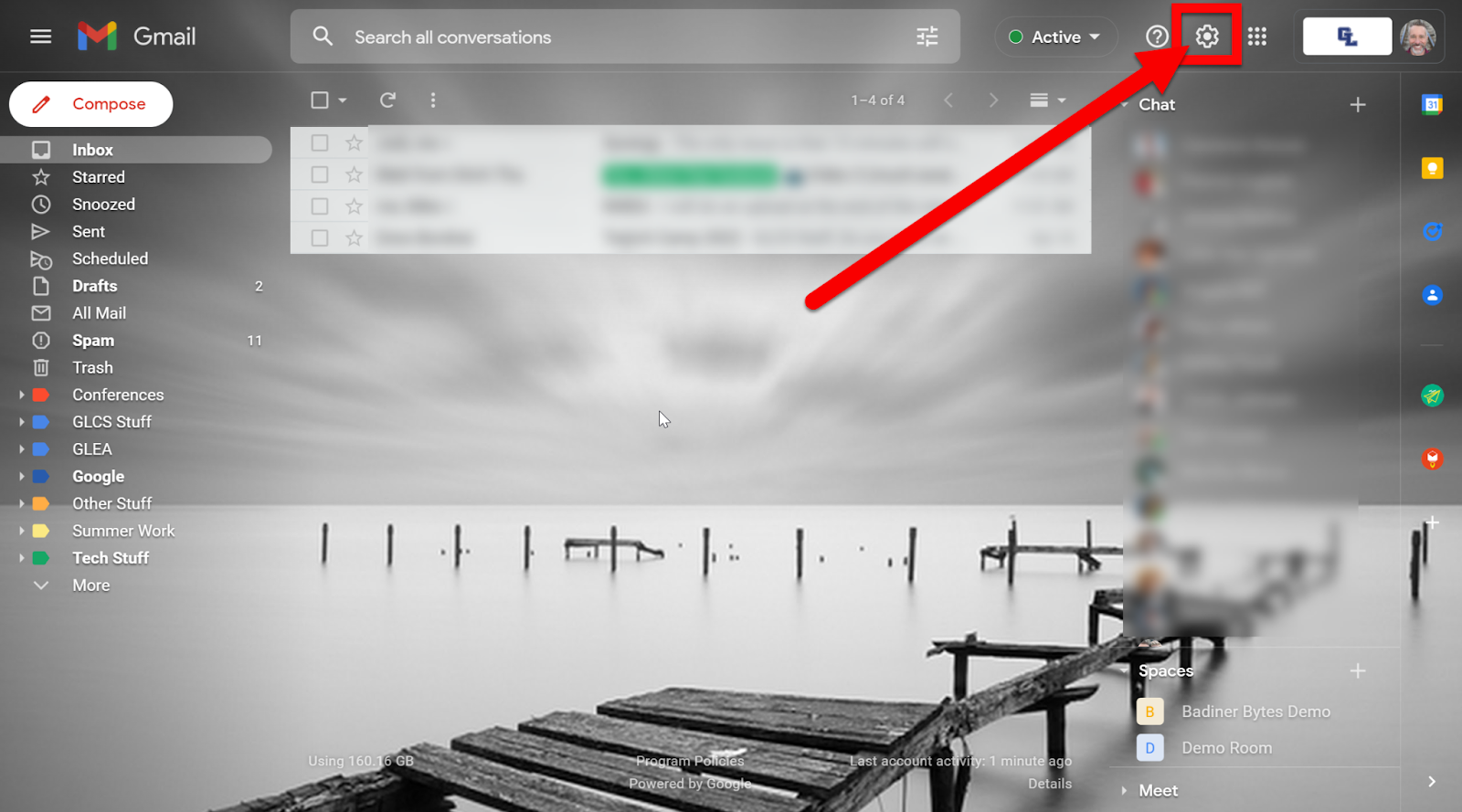
  1. If your Gmail does not look like the image above, you are on the old layout. Start by clicking the gear in the top left.


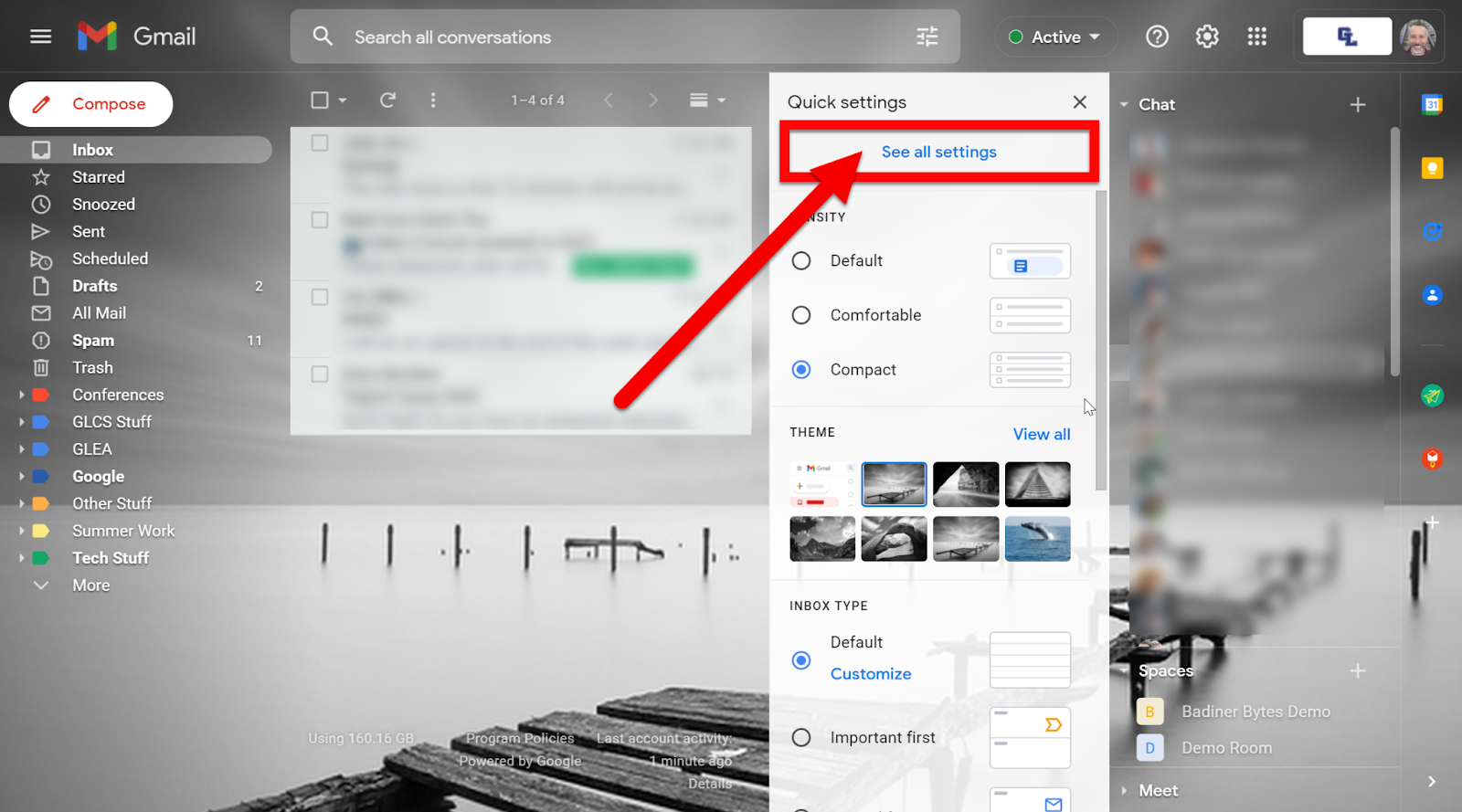
  1. Click on “See all settings”.


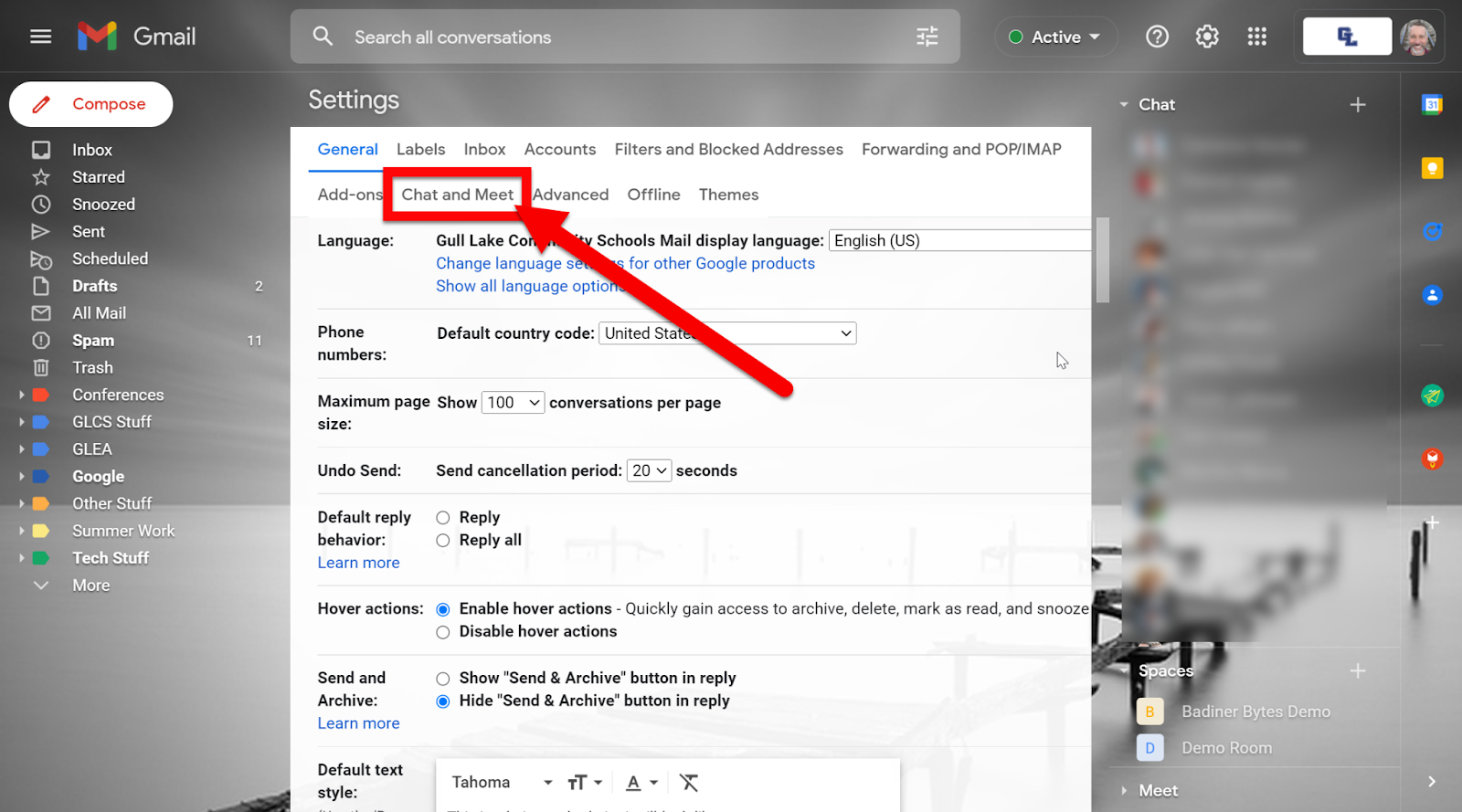
  1. Click on “Chat and Meet”.


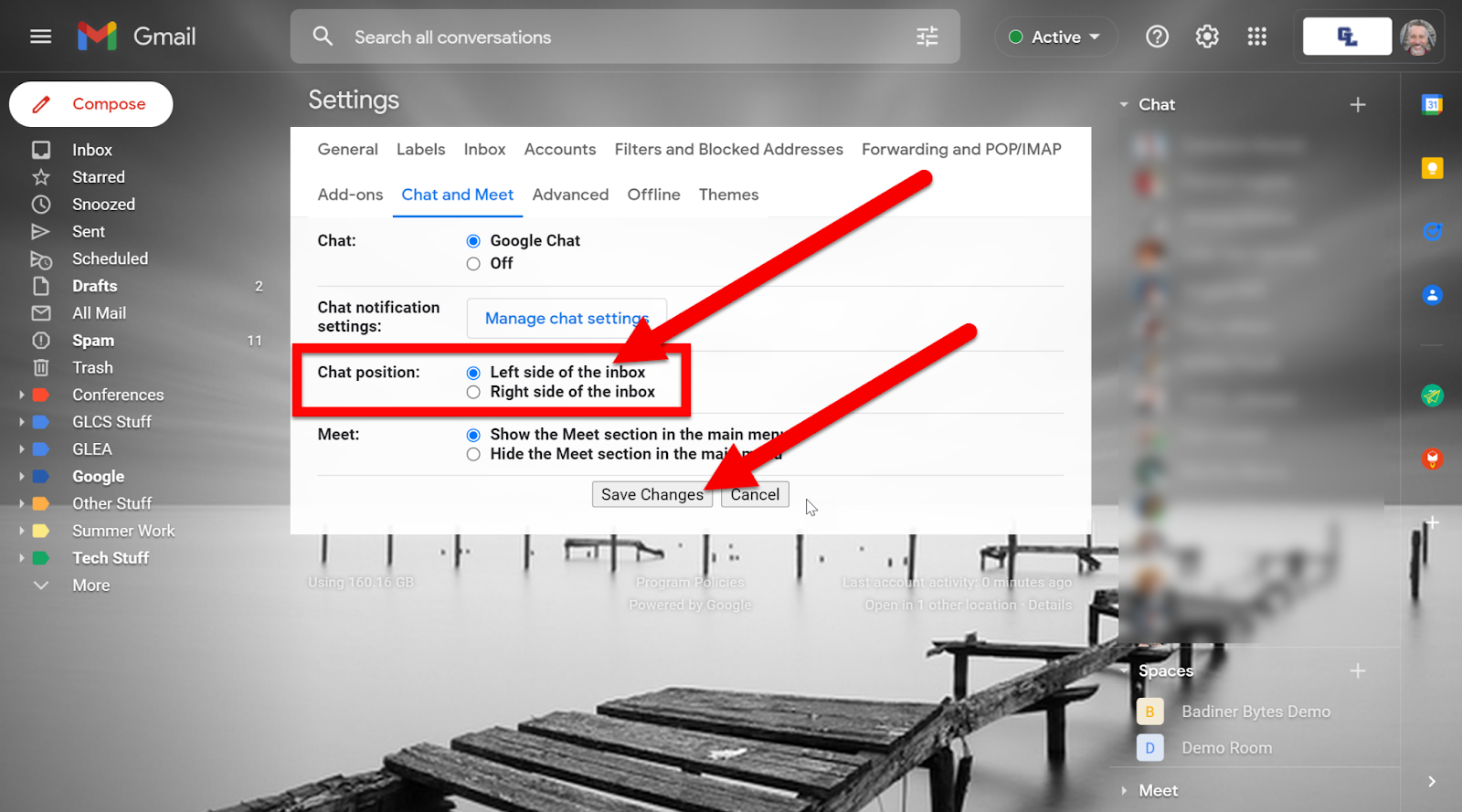
  1. In the “Chat position” option select “Left side of inbox” and click “Save changes” at the bottom.


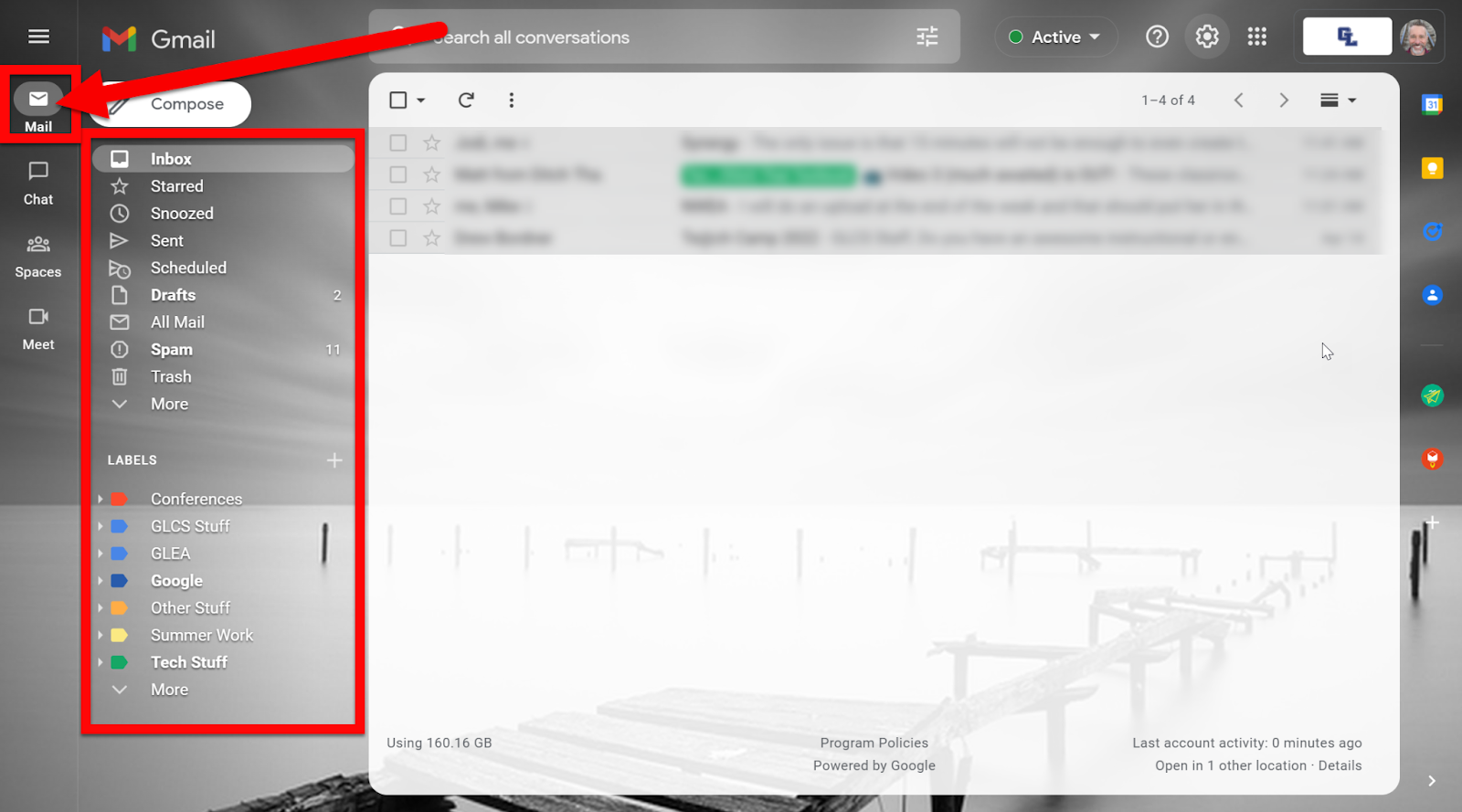
  1. When you reload the inbox it will show the new Layout. 


Navigating Menu:

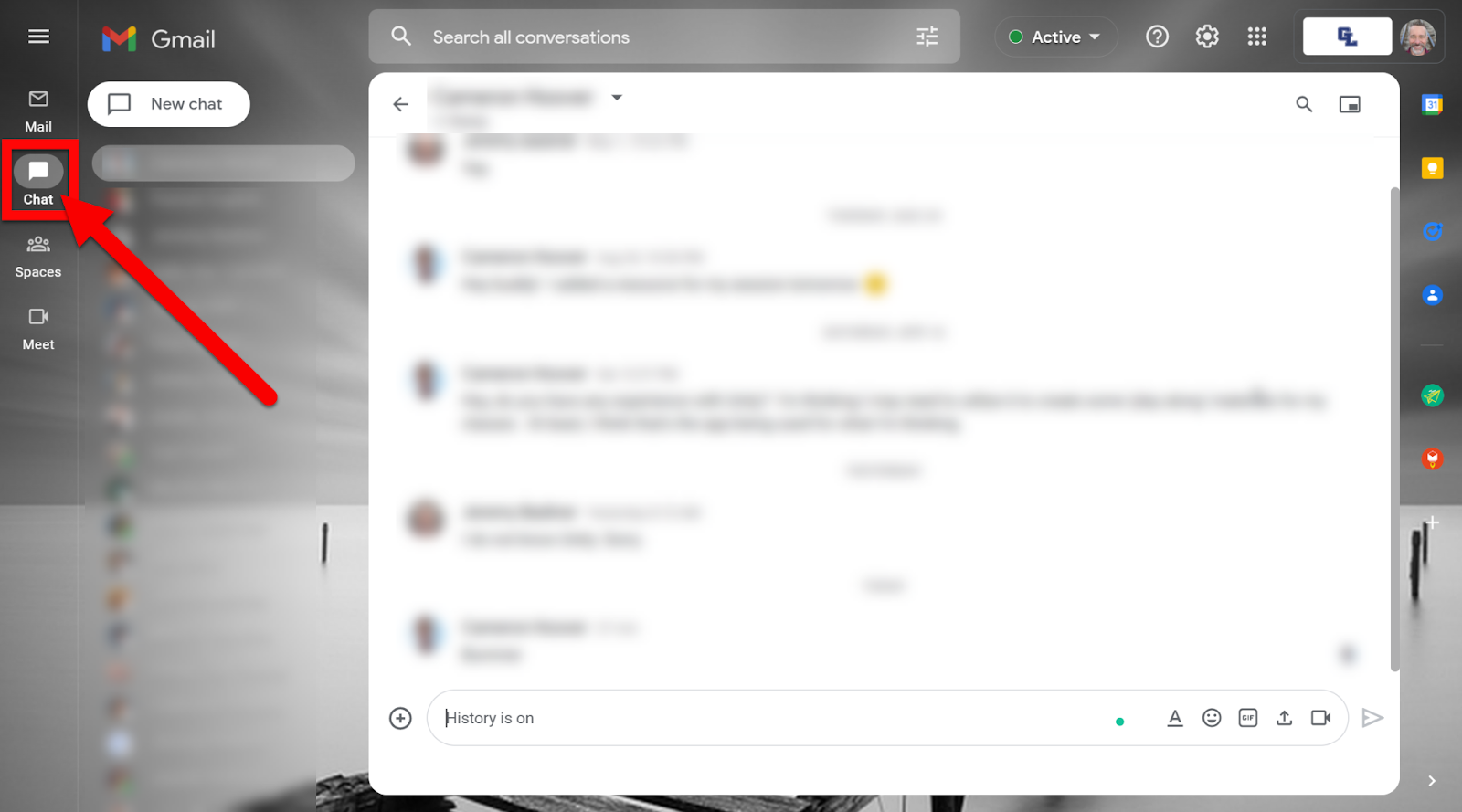
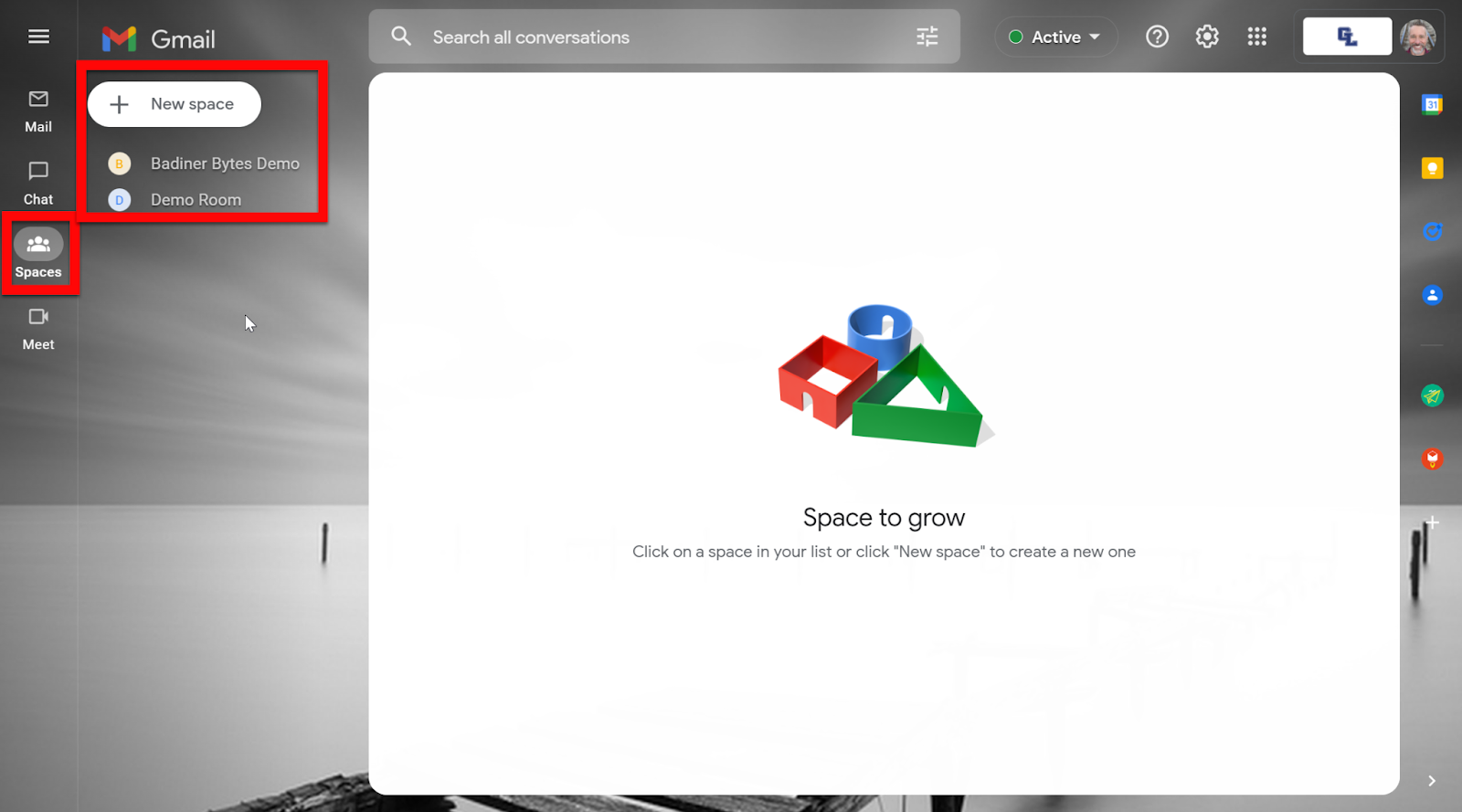
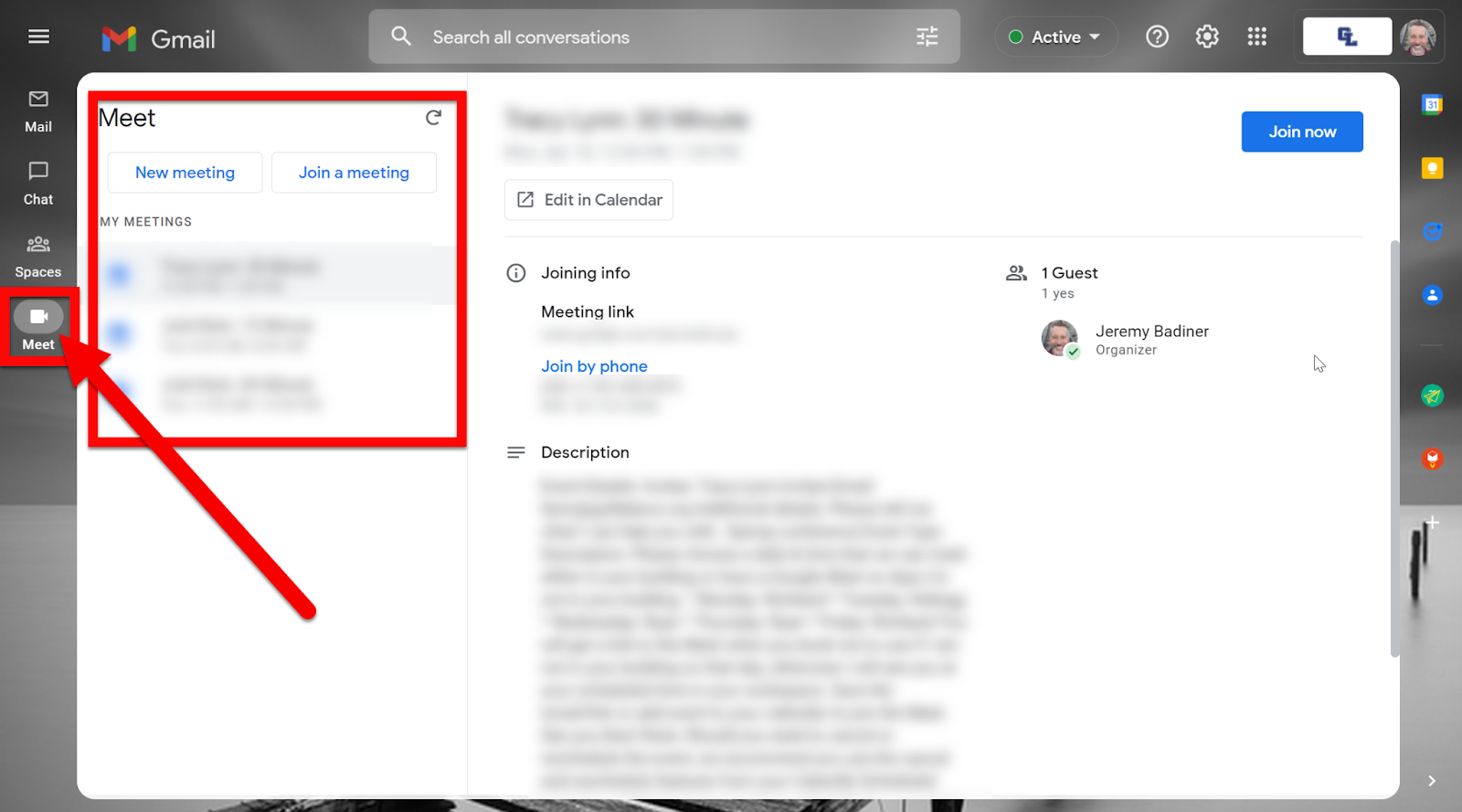
All the Google communication tools are now in your Gmail Inbox (like they are on the Mobile Versions on Android and iOS. You can view:

  • Mail: See your inbox and Labels.


  • Chat: View messaging


  • Spaces: See the groups that you are a part of withing Chat


  • Meet: See, Join, or Create your Meet video calls


Head over to your Gmail inbox and explore the new layout.


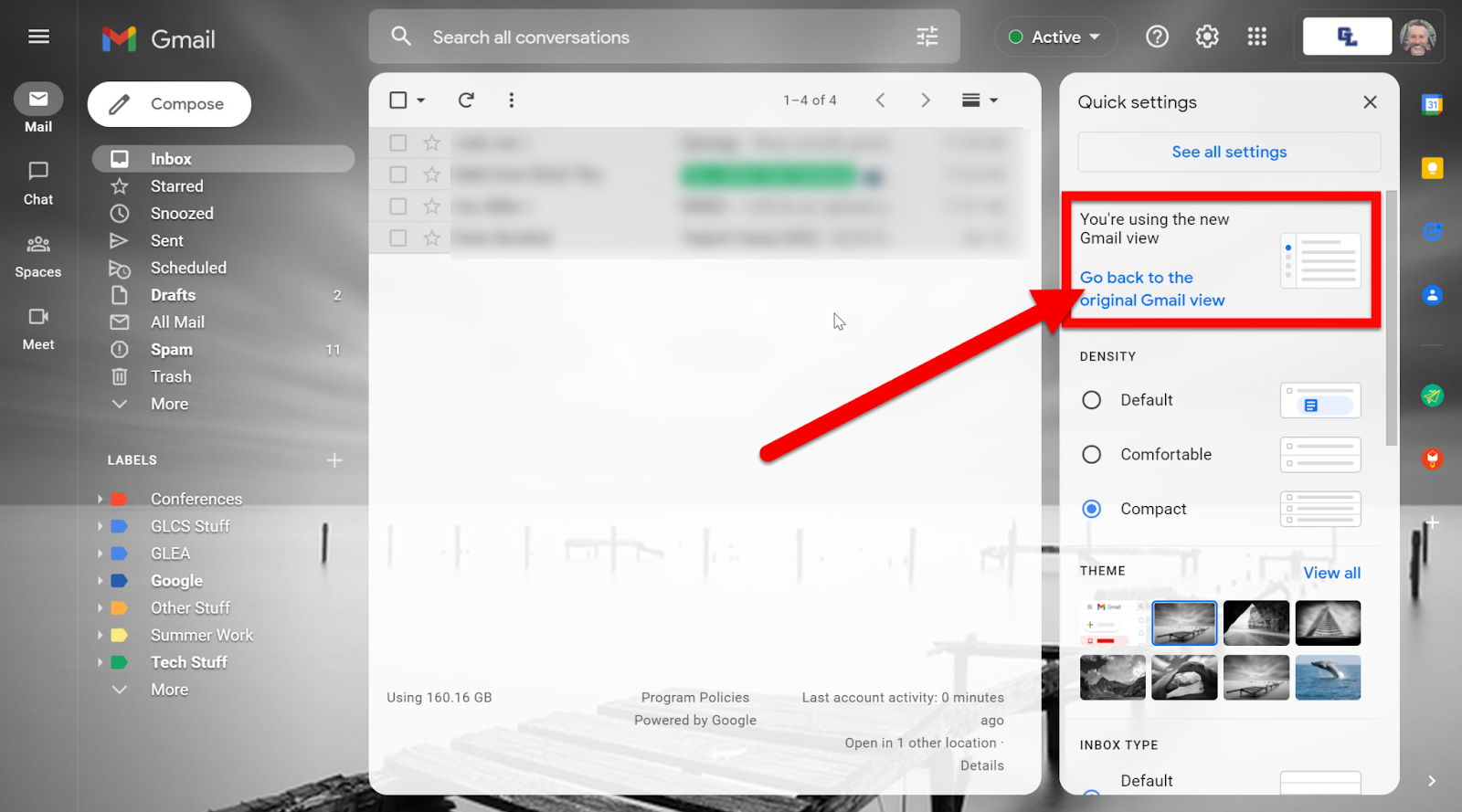
Note: You can always go back to the old layout by clicking on the gear in the top right and choosing “Go back to the original Gmail view”.


If you want these directions in a DOcument click HERE!

Monday, February 7, 2022

Delete Unwanted Old Emails

Is your Gmail a mess? Is it filled with old emails you no longer need? Search for unwanted emails by date or label to easily delete them. Spend a few minutes, clean up those unwanted emails, and get closer to the coveted “Zero Inbox”!


Delete Old Emails Before a Specific Date:

If you want to delete all emails before a specific date, you can use the “before” or “older_than” search in your Gmail search box. 

  1. Use this search format: before: YYYY/MM/DD. For example…if you want to delete all emails before January 1, 2020. You’ll need to run the following search query: before:2020/1/1


  1. You can also use the “older_than” search. If you want to delete all emails older than a year, use this search: older_than: 1y


  • You can change the search by adding a number to the “y”.

    • (ex: 2 years=2y) or even a number of days (ex: 45 days=45d).


  1. The results for the “before” and “older_than” searches are different. 

    • before”: shows sent and received emails. 

    • older_than”: shows only received emails.


  1. To delete the emails found in your search, click the arrow next to the checkbox at the top-left. From the drop-down menu click on “All”. 


  1. You will also see a notification that says “Select all conversations that match this search” at the top. If you click on it all your emails from your inbox will be selected that fit your search.


  1. Click the trash can icon at the top to send these selected emails to your trash. They will be permanently deleted after 28 days.


Delete Old Emails Within Labels

Most of us use labels to organize our emails. If you no longer need email in a label (maybe it was a previous year’s communication you really no longer need) you can delete all emails that have a label assigned to them.


  1. To search for all emails with a label use this search: label: label name. Here is my “label: google” search.


  1. You can add a time search to a label search as well. For example, if you want delete all emails older than 1 year and in a label use this search: older_than:1y label:label name. Here is my “older_than:1y label:google” search.


  1. Delete these search emails the same way as described above by clicking the dropdown arrow, selecting “All” and clicking on the trash can icon.


Head to your Gmail Inbox and start cleaning out those old unwanted emails!


If you want these directions in a Document click HERE!


Thursday, May 6, 2021

Multiple Gmail Signatures

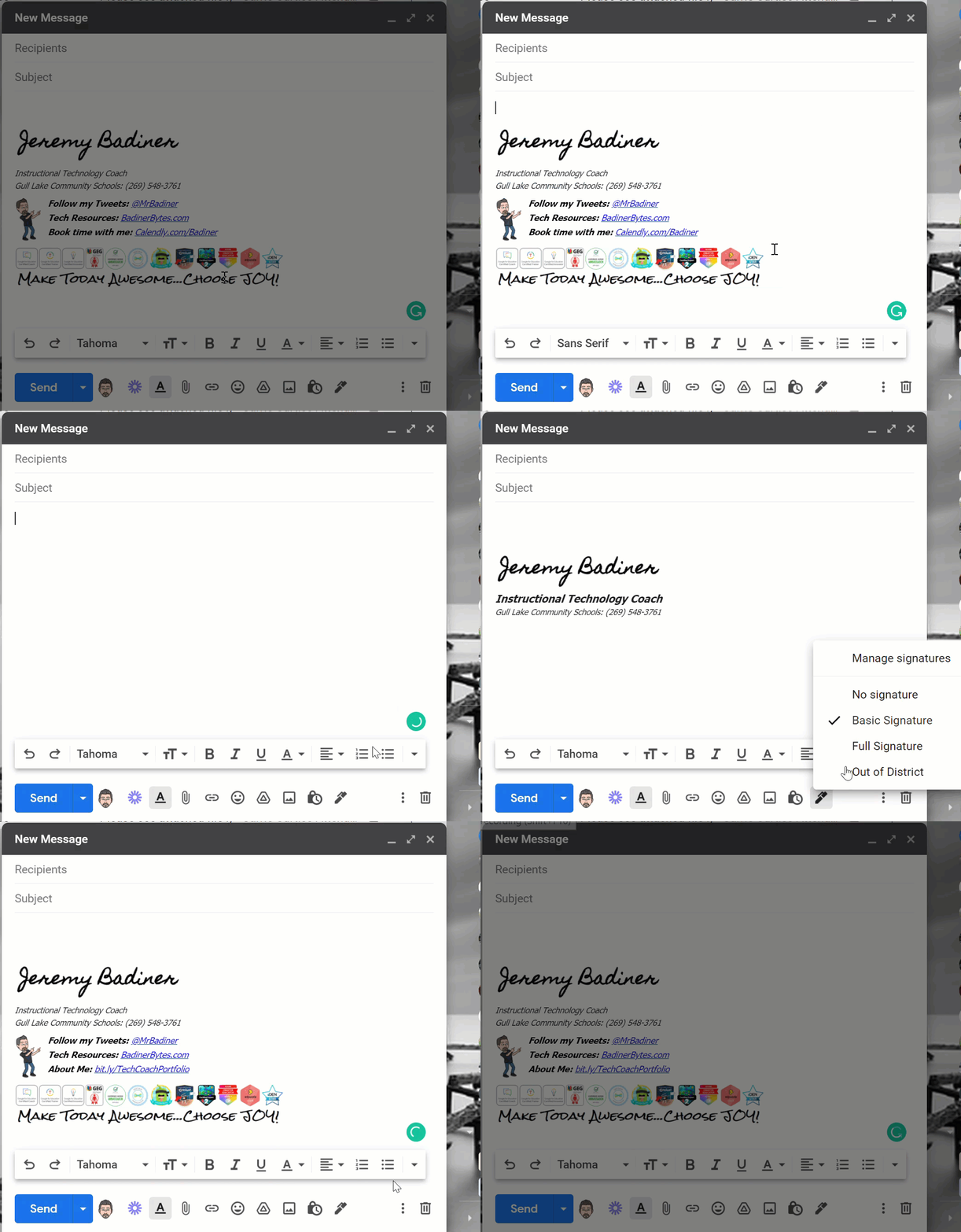
Email is still the most widely used tool for communication. I use it all day long for both in-district and out-of-district communication. When I communicate with others in my district, I want them to see a signature that reflects what I want them to see (links to my blog, Twitter account, and a “Book Me” link. When I communicate with educators outside my district, I don’t want them to have access to my “Book Me” link. In the past, I had to delete this portion of my signature. Gmail allows you to have multiple signatures saved. Before sending an email I can select the correct one for the recipient. Set up multiple signatures in your account (one for staff, one for students, and one for parents) to make your signature specific to your audience! If you are looking at how to make a Creative Signature click HERE.


Set Up Multiple Signatures:

  1. Open Gmail.

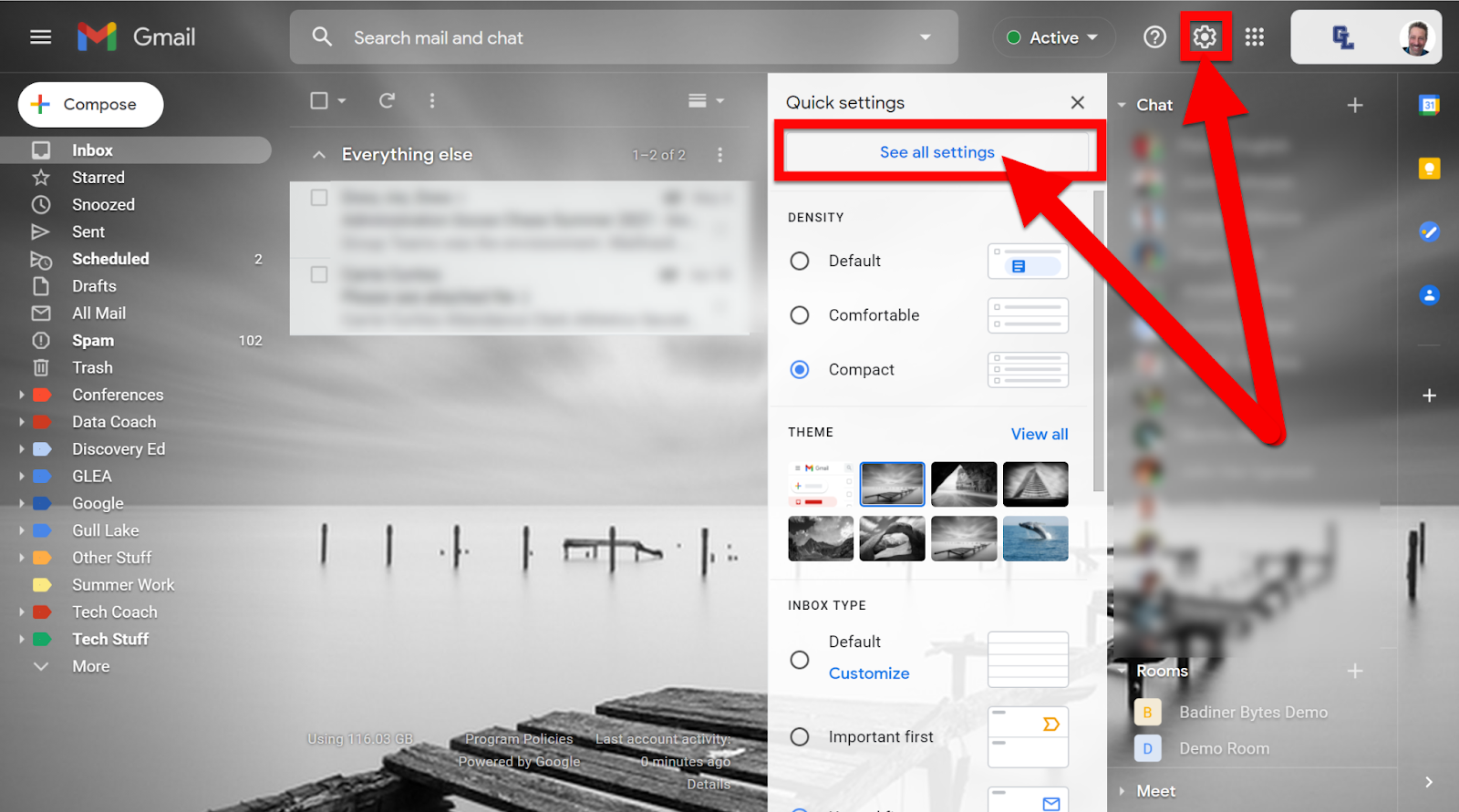
  2. Click on the gear in the top right and choose “See all settings”.


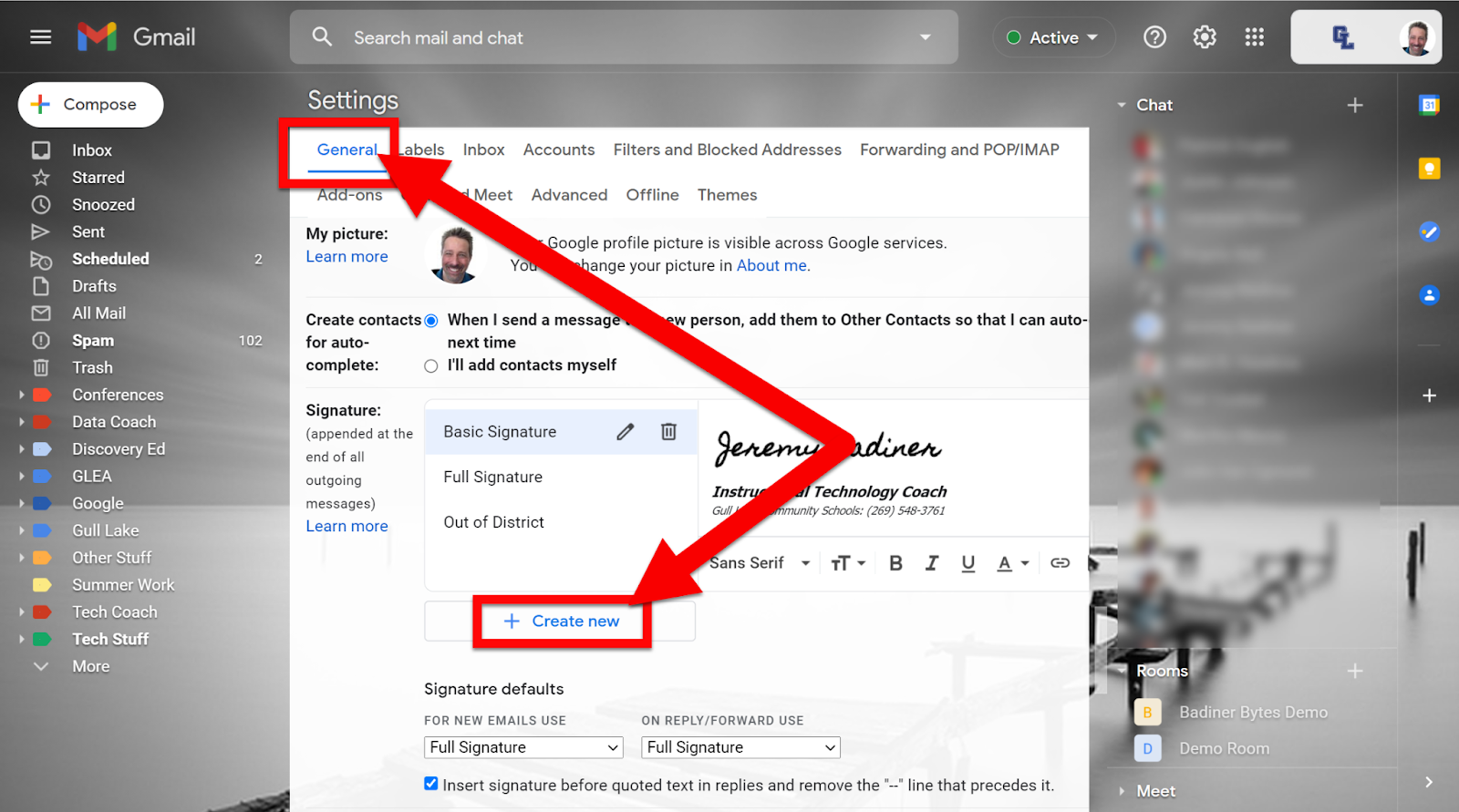
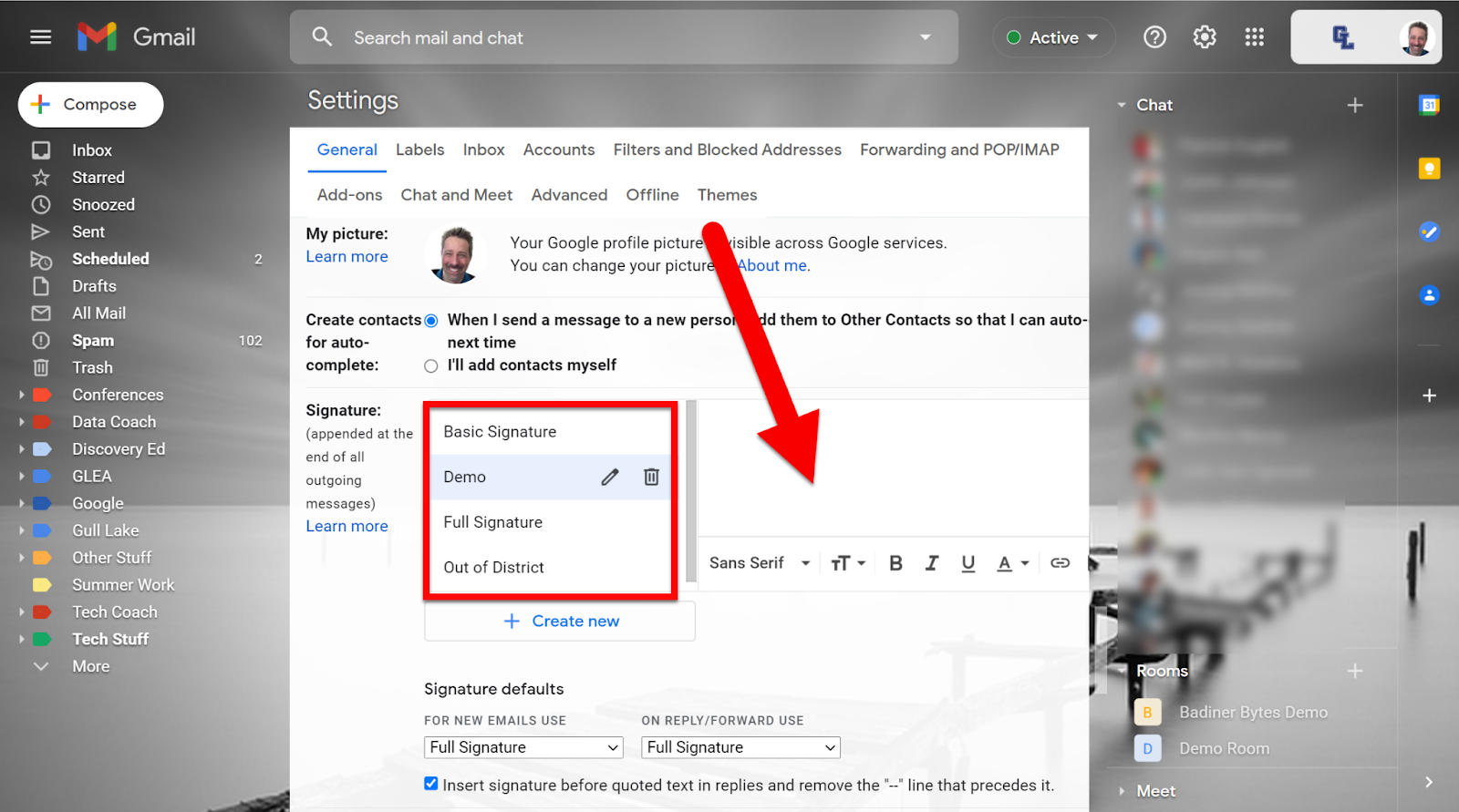
  1. Under the “General” tab scroll down to “Signature” and click “+ Create new”.


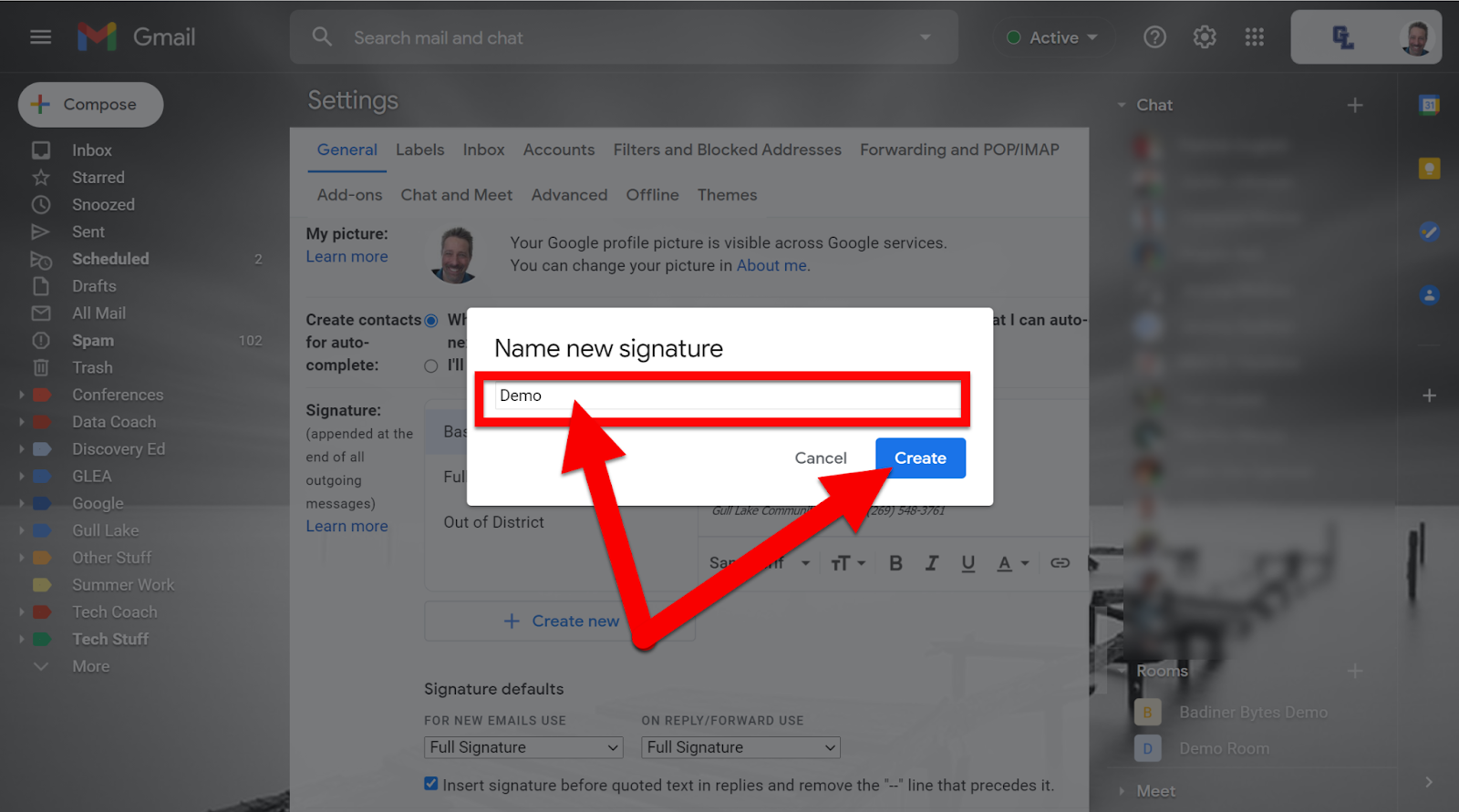
  1. Name this signature (something you remember and tied to its purpose). Click the “Create” button to save this on your list.


  1. You will see this newly created name on the left side. Click on it and you can now create this signature to the right. If you are looking at how to make a Creative Signature click HERE.


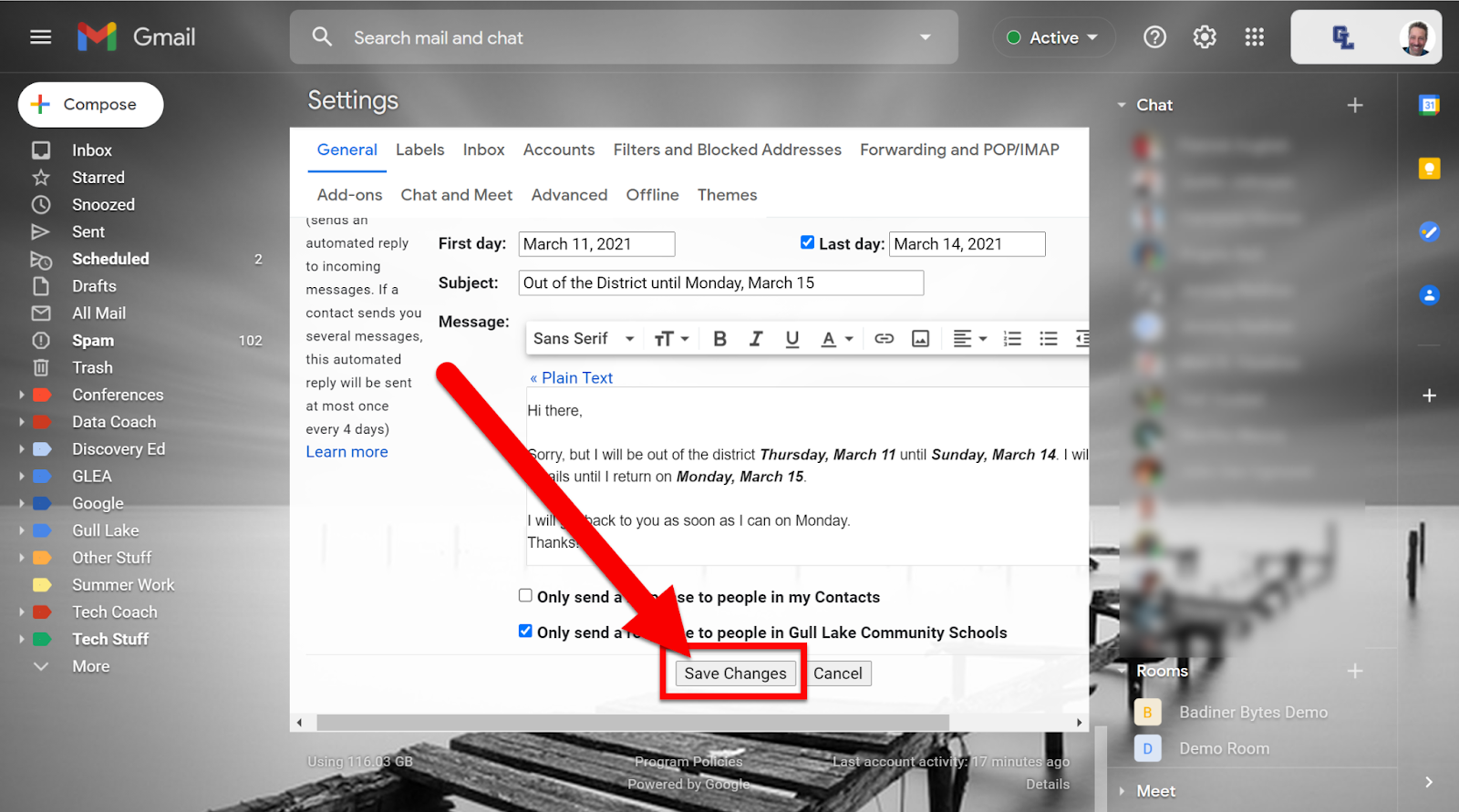
  1. Make sure to click “Save changes” at the bottom of the screen to save.


Insert Correct Signature:

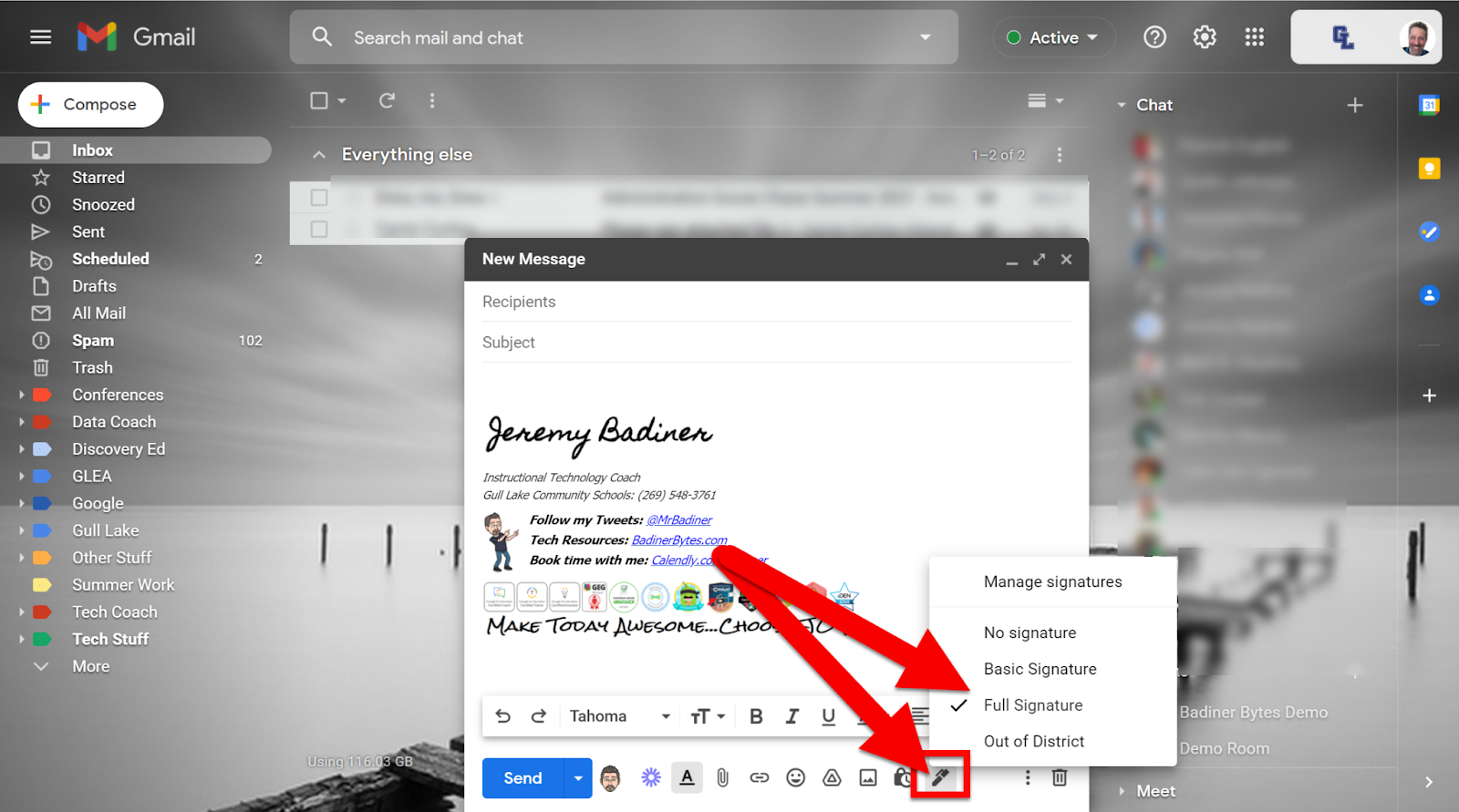
  1. After composing your email you can easily switch and use any created signature. Click the “Signature” icon and choose the one you want from the list. This is why naming them for easy identification is important.


Start creating Multiple Signatures today!


If you want these directions in a Document click HERE!