Showing posts with label Text Format. Show all posts

Thursday, January 10, 2019

Cool Fancy Text Generator

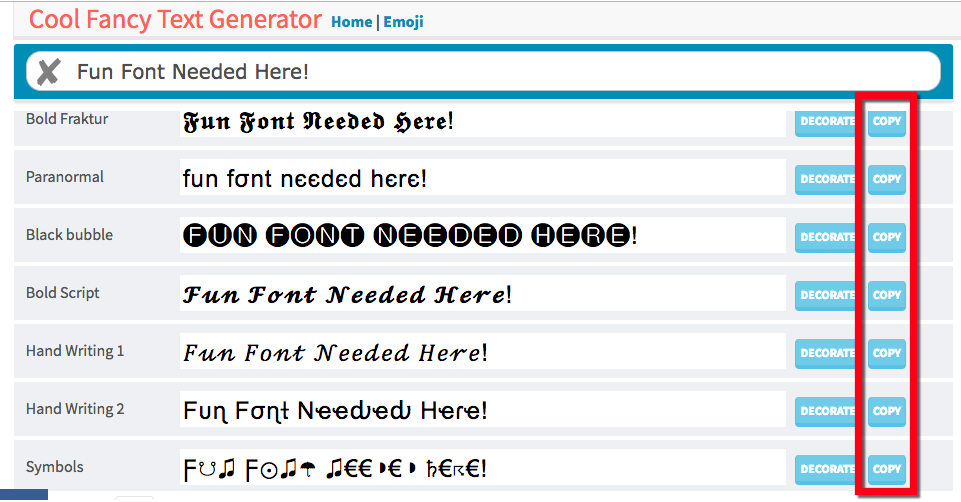
Ok, I’ll admit it...I’m a Fontiphile. I am addicted to fonts. I love them ALL! My issue is when I am using a tool that does not allow me to change fonts (TwitterGoogle Forms, Google Classroom assignments, Email subject lines are just a few). The good news, an awesome website allows me to curb my need to change fonts. It allows me to add fun font formats to anything! Give this site a try if you are a Fontiphile as well!


Steps:
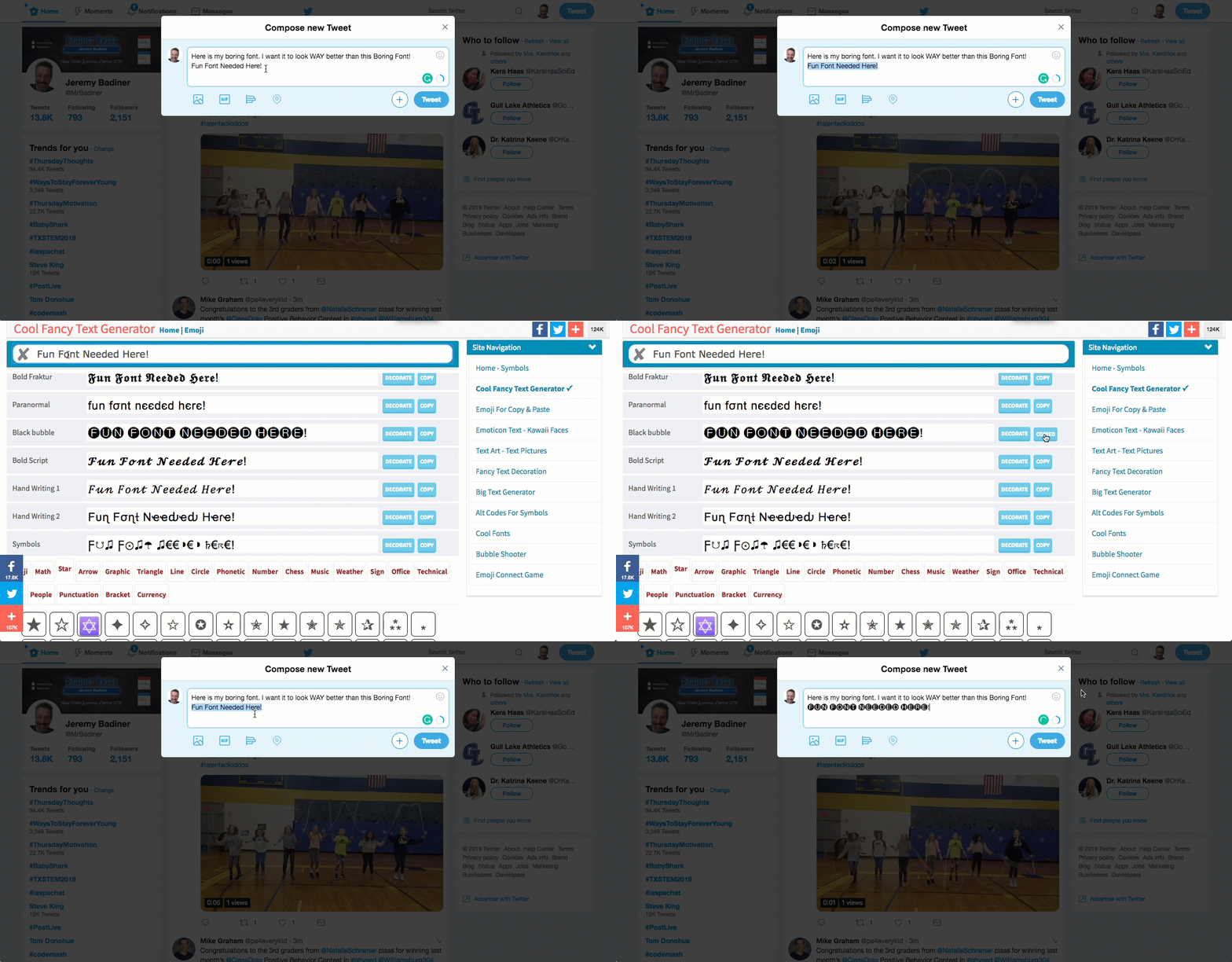
  1. Go to https://coolsymbol.com/cool-fancy-text-generator.html. (Just a heads up, your district may block this and you may have to ask for it to be whitelisted).
  2. Paste your text in the box at the top.


  3. Choose the font style you want to use.
  4. Click “Copy”.

  5. Paste into the tool you want the font changed.


  6. You are done!


There are additional tools attached to this site as well. Explore and make your posts creative!


If you want these steps in a document click HERE!


Sunday, June 4, 2017

Format Multiple Text Entries in a Document


We have all been there. You have slaved away at a document and are looking it over for the last time. You have some headings, terms, or something that stands out that you really want to change the text formating for but do not want to go through and select each entry and manually edit them. You don’t have to! Google Documents has this awesome (and usually unknown) tool that lets you do it in one easy action! Follow the steps below and save your time (and your sanity)!


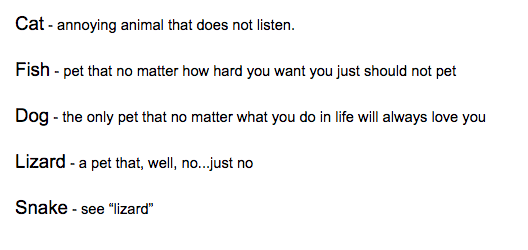
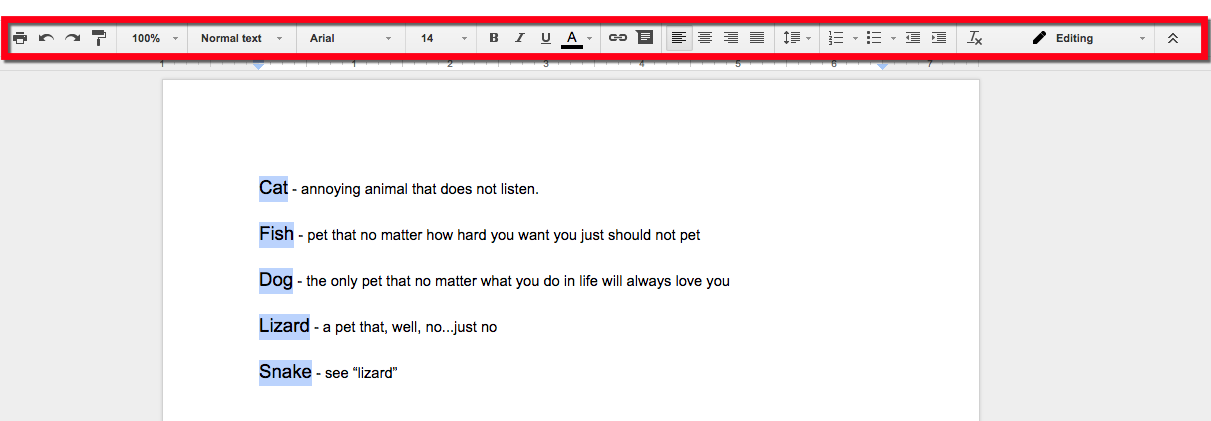
Keep in mind that you have text that is already different than the rest of the document


Example:
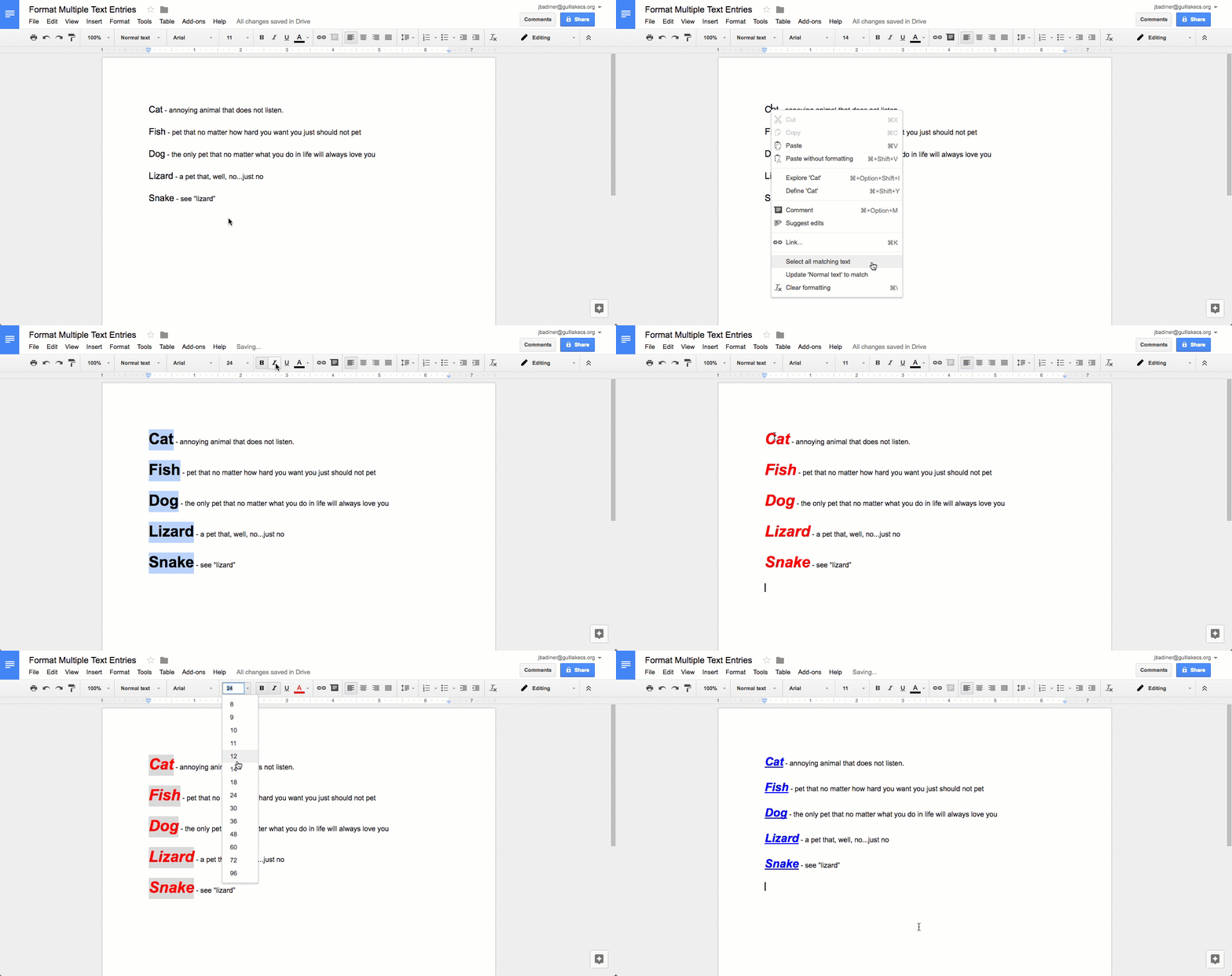
  1. In the document you have created, select a section that represents what you want to edit. Remember, you need to have this style formatting that is different from the rest of the text in your document...example: headings, vocab terms, listed items…
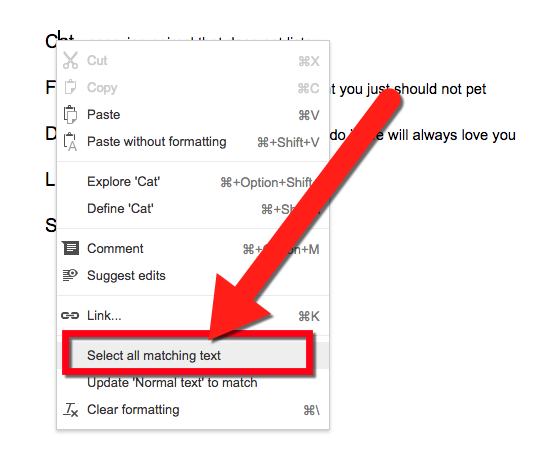
  2. Right click on the text.
  3. In the pop-up menu click “Select all matching text”.


  1. Change the formating color, size, font, etc as you want.


All the text that matches that formatting in now changed! No more going one-by-one to select and edit text! Now sit back and enjoy the moments saved (as well as your sanity)!


If you want these steps in a Document, Click Here!